The Android Debug Bridge (ADB) command line is a versatile developer utility that lets you communicate with, control, and debug Android devices over a USB or network connection by sending terminal commands to execute low-level system operations, install applications, and inspect device logs.
Introduction to the Android Debug Bridge (ADB)
The Android Debug Bridge is an integral part of the Android Software Development Kit (SDK). It operates as a client-server program, consisting of three primary components: a client that sends commands, a daemon (adbd) that runs background processes on the target device, and a server that manages communication between the client and the daemon. For developers, quality assurance engineers, and advanced power users, mastering the ADB command line is essential for bypassing graphical user interface limitations, automating repetitive testing routines, and performing deep-level troubleshooting on physical and virtual Android hardware.
Working with the command line interface requires a foundational understanding of the shell environment, command syntax, and device connectivity states. Whether you are sideloading an application package, extracting system logs for crash analysis, or modifying hidden system parameters, ADB provides direct, unmitigated access to the Android operating system. Because this level of access bypasses normal user protections, understanding how to configure the environment securely and execute syntax correctly prevents device corruption and data loss.
System Prerequisites and Installation
Before you can execute any ADB commands, you must establish a proper host environment and configure the target Android device to accept incoming debugging requests. Neglecting these prerequisites often results in common connection errors, such as unauthorized device states or missing executable paths.
Setting Up the Host Environment
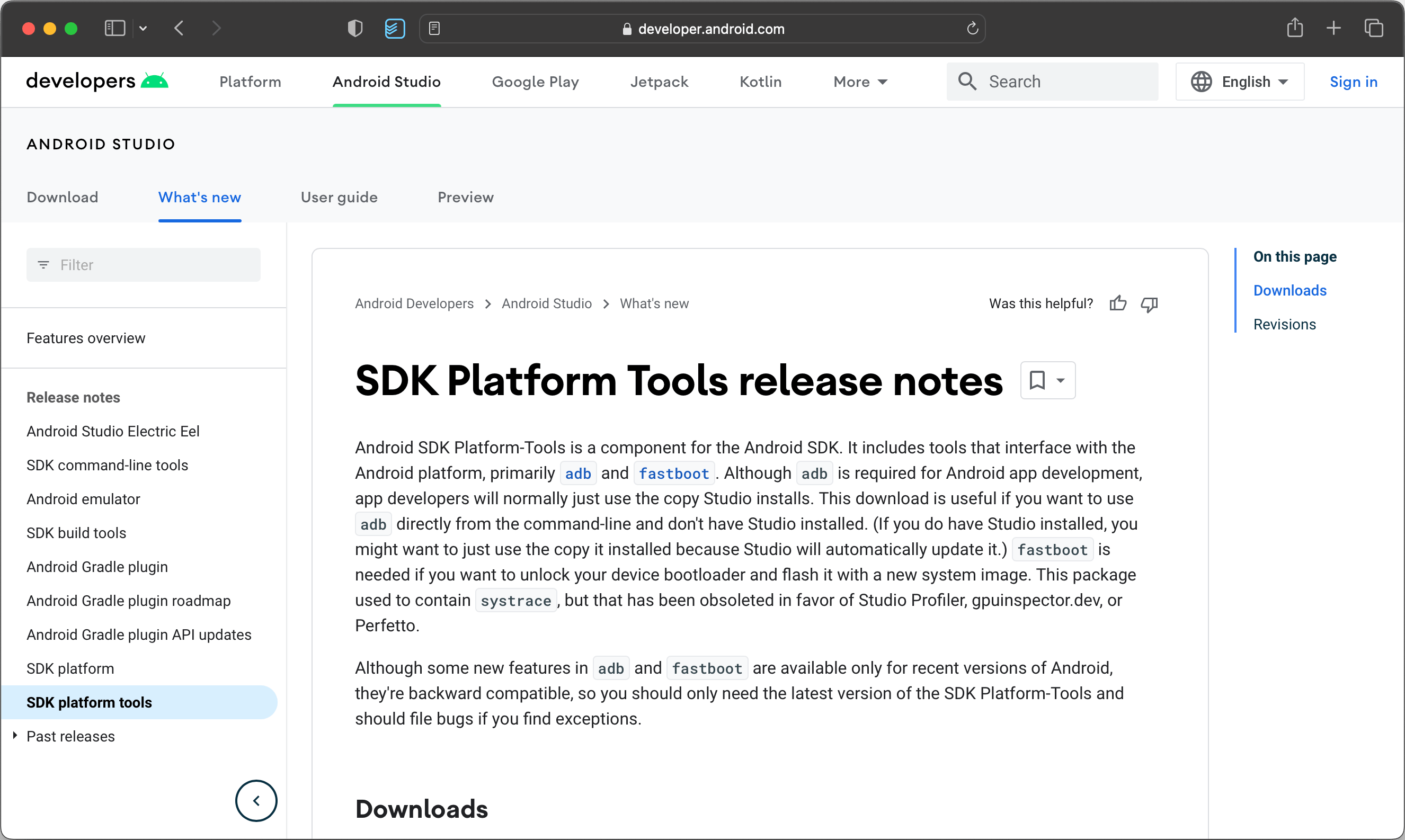
To use the ADB command line, you need to download and install the official SDK Platform-Tools package provided by Google. This standalone package contains the necessary binaries, including adb, fastboot, and systrace.
- Download Platform-Tools: Navigate to the Android Developers website and download the appropriate Platform-Tools archive for your operating system (Windows, macOS, or Linux).
- Extract the Archive: Unzip the downloaded file into a permanent directory on your local machine, such as
C:\platform-toolson Windows or/usr/local/binon Unix-based systems. - Configure Environment Variables: To execute commands from any directory in your terminal, add the path of the extracted folder to your system's PATH environment variable. On Windows, this is managed via System Properties; on Linux and macOS, you can append the export path to your
.bashrcor.zshrcprofile file.
Configuring the Android Device
Once the host toolset is installed, you must prepare the target Android device or emulator to communicate with your computer.
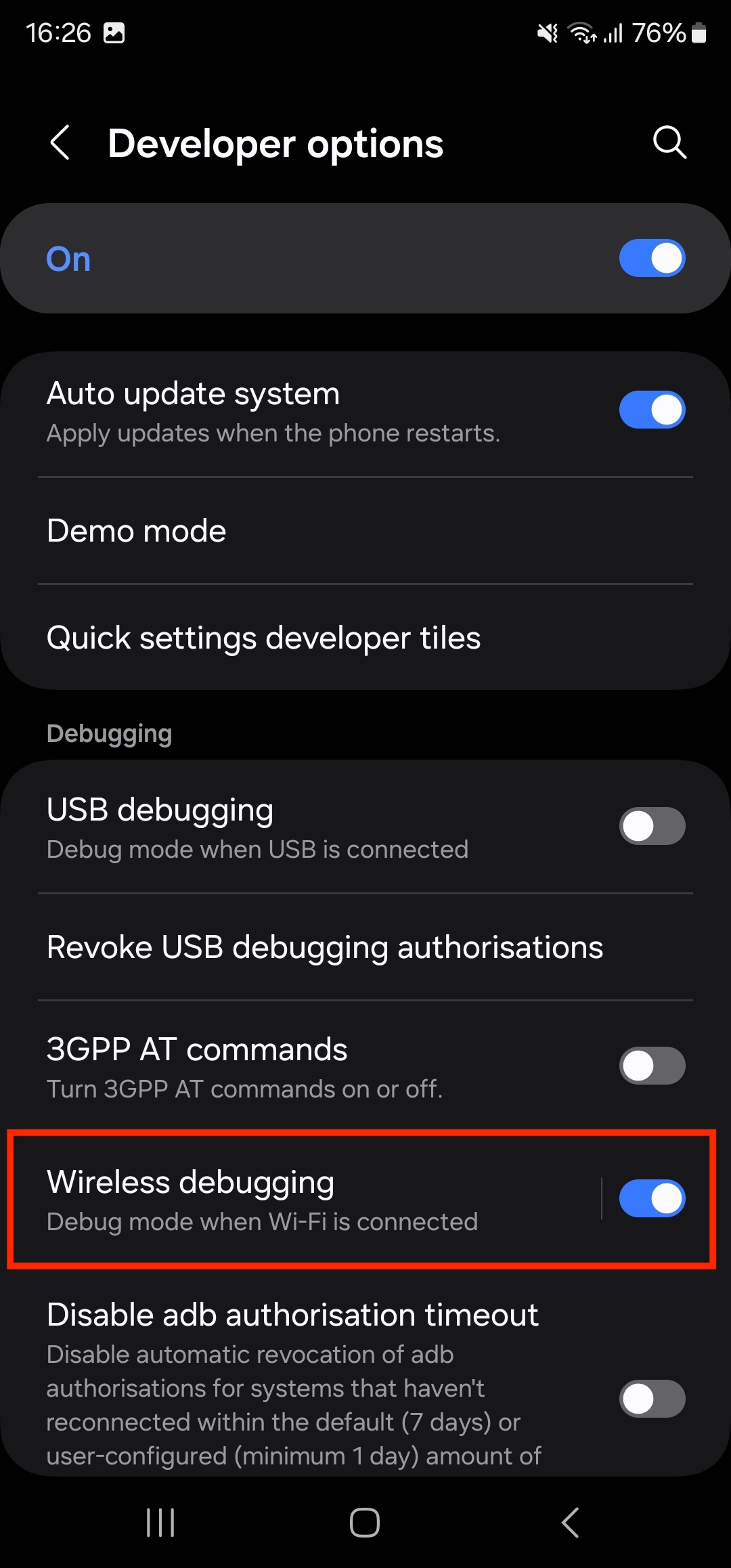
- Enable Developer Options: Open the device settings menu, navigate to About Phone, and tap the Build Number entry seven times until a toast notification confirms that developer mode has been unlocked.
- Enable USB Debugging: Return to the main Settings menu, open the newly visible Developer Options panel, and toggle the switch for USB Debugging to the active position.
- Authorize the Computer: Connect the device to your computer via a data-capable USB cable. A prompt will appear on the device screen asking whether you want to allow USB debugging from this specific computer. Check the box to always allow from this computer and tap Allow.
Verifying Connectivity and Managing Device States
After setting up the hardware and software, you must verify that the host machine successfully recognizes the target device. Open your terminal or command prompt and execute the core verification command.
adb devices
This command queries the ADB server and returns a list of all attached emulators and physical devices. The output displays the unique device serial number followed by its current operational state.
| Device State | Meaning | Corrective Action |
|---|---|---|
| device | The device is connected and ready for command execution. | None required; proceed with your tasks. |
| offline | The device is connected to the host but is not responding to the ADB daemon. | Restart the ADB server (adb kill-server followed by adb start-server) or reconnect the cable. |
| unauthorized | The host computer has not been granted debugging permissions by the user. | Unlock the device screen and accept the RSA fingerprint authorization prompt. |
| no permissions | The Linux user account lacks permission to access the USB device vendor ID. | Update udev rules or run the server with elevated privileges. |
When managing multiple physical devices or virtual emulators simultaneously, the basic adb command syntax will fail because the server cannot determine which target to communicate with. To resolve this, you must specify the target device explicitly using the -s flag paired with the device serial number or connection address.
adb -s emulator-5554 shell
Core ADB Command Categories
The ADB command-line utility categorizes its functionality into distinct operational subsets. Understanding these categories allows you to navigate everything from basic application lifecycle management to advanced kernel-level diagnostics.
Application Management and Sideloading
One of the most frequent uses of the ADB command line is installing, updating, and removing application packages without interacting with the device's graphical interface. This is especially useful for automated testing and deploying apps built directly from source code.
- Installing an Application: To install an APK file from your computer onto the connected device, use the install command. For split APKs or large packages, adding the
-tflag allows test packages, and-rpreserves app data during updates.adb install path/to/application.apk - Uninstalling an Application: To remove an app completely, specify its unique package name rather than its display name.
adb uninstall com.example.app - Clearing App Data: To reset an application to a fresh installation state without removing the package binary, clear its internal cache and user data.
adb shell pm clear com.example.app
File Transfer and Storage Operations
Moving files between your host computer and the Android file system is vital for pulling logs, uploading test media, or extracting database files for inspection.
- Pushing Files: To upload a file from your computer to the device storage, use the
pushcommand, providing both the source path on the host and the destination path on the device.adb push local_file.txt /sdcard/Download/ - Pulling Files: To download a file or directory from the device to your computer, use the
pullcommand.adb pull /sdcard/Download/remote_file.txt ./local_directory/
Interacting with the Linux Shell
Android is built on top of a modified Linux kernel. By invoking the interactive shell command, you gain direct command-line access to the underlying Linux environment running on the device.
adb shell
Once inside the shell, standard Unix utilities such as ls, cd, grep, and ps become available. You can also execute single shell commands directly from your host terminal without entering an interactive session by appending the command directly after the shell keyword.
adb shell dumpsys battery
Advanced Debugging and Diagnostics
Debugging complex software issues requires deep visibility into system runtime behavior, application crashes, and network activity. The ADB command line provides robust utilities for capturing these real-time metrics.
Analyzing System Logs with Logcat
The logcat utility is the primary tool for viewing real-time system and application log messages. It streams data from the Android logging buffer, allowing developers to trace errors, monitor memory allocation, and filter output by specific priorities or tags.
adb logcat
Because raw logcat output generates an overwhelming volume of text, you can apply filters to isolate relevant data. To view only fatal errors, you can set the log level priority explicitly:
adb logcat *:E
You can also filter logs by specific application tags or process IDs, or redirect the live stream directly to a local text file for later analysis:
adb logcat -v time > system_debug_log.txt
Network and Port Forwarding
During mobile application development, testing network interactions with a local backend server running on your development machine often requires port forwarding. ADB allows you to route network traffic from a specific port on the mobile device to a corresponding port on the host computer.
adb forward tcp:6100 tcp:8080
With this command active, any network request sent by an application on the device to localhost:6100 is securely redirected to port 8080 on your development workstation.
Common Mistakes and Troubleshooting
Even experienced developers occasionally encounter roadblocks when working with the ADB command line. Recognizing these common failure modes ensures rapid remediation.
- Server Daemon Conflicts: If multiple versions of the Android SDK Platform-Tools run concurrently or background processes interfere with the communication socket, the ADB server may hang. Resolve this by resetting the daemon entirely using
adb kill-serverfollowed byadb start-server. - Incorrect Package Names during Uninstallation: Attempting to uninstall an application using its human-readable name instead of its Java package identifier (
com.vendor.appname) results in failure. Always query installed packages usingadb shell pm list packagesto verify the exact identifier. - USB Debugging Revoked: Operating system updates or security policies on enterprise-managed devices frequently revoke USB debugging authorizations. If an authorized device suddenly shows up as unauthorized, clear the authorization keys in the device's developer settings and re-prompt the computer connection.
Frequently Asked Questions
What is the difference between ADB and Fastboot?
ADB operates while the Android operating system is fully booted up, allowing you to manage applications, transfer files, and read system logs. Fastboot, by contrast, is a diagnostic and flashing protocol that operates when the device is running in bootloader or fastboot mode, primarily used to flash system images, unlock bootloaders, and recover bricked devices.
How do I connect to an Android device over Wi-Fi using ADB?
First, connect the device to your computer via a USB cable and ensure both host and device reside on the same Wi-Fi network. Configure the device to listen for TCP/IP connections on a specific port by running adb tcpip 5555. Unplug the USB cable, find the device's local IP address in network settings, and connect via adb connect :5555.
Can I run ADB commands without root access on the device?
Yes. The vast majority of ADB and shell commands—including application installation, file pulling, logcat inspection, and dumpsys execution—do not require root access. Root access is only necessary when you need to modify restricted system partitions or access protected files within the /data/data/ directories of other applications.
How can I take a screenshot or record a screen using ADB?
You can capture a still screenshot directly to your computer by running adb shell screencap -p /sdcard/screenshot.png followed by adb pull /sdcard/screenshot.png. To record a video of the device screen, use the screenrecord utility by executing adb shell screenrecord /sdcard/demo.mp4, and terminate the recording by pressing Ctrl + C in your terminal.
What should I do if my device is not detected by adb devices?
First, verify that USB debugging is enabled in the developer options and that the cable supports data transfer, not just charging. Next, check your computer's device manager or system logs to ensure the appropriate USB drivers are installed. Restarting the ADB server or toggling the USB debugging switch off and on again resolves most detection failures.
Conclusion and Next Actions
Mastering the ADB command line provides precise, granular control over Android environments, streamlining everything from routine app installation to complex debugging and automated testing. To continue improving your command-line proficiency, practice writing simple shell scripts that chain multiple ADB commands together for repetitive tasks, such as clearing app data, reinstalling the latest build, and launching logcat automatically. Always ensure your platform-tools package remains up to date to maintain compatibility with modern Android API releases and hardware architectures.