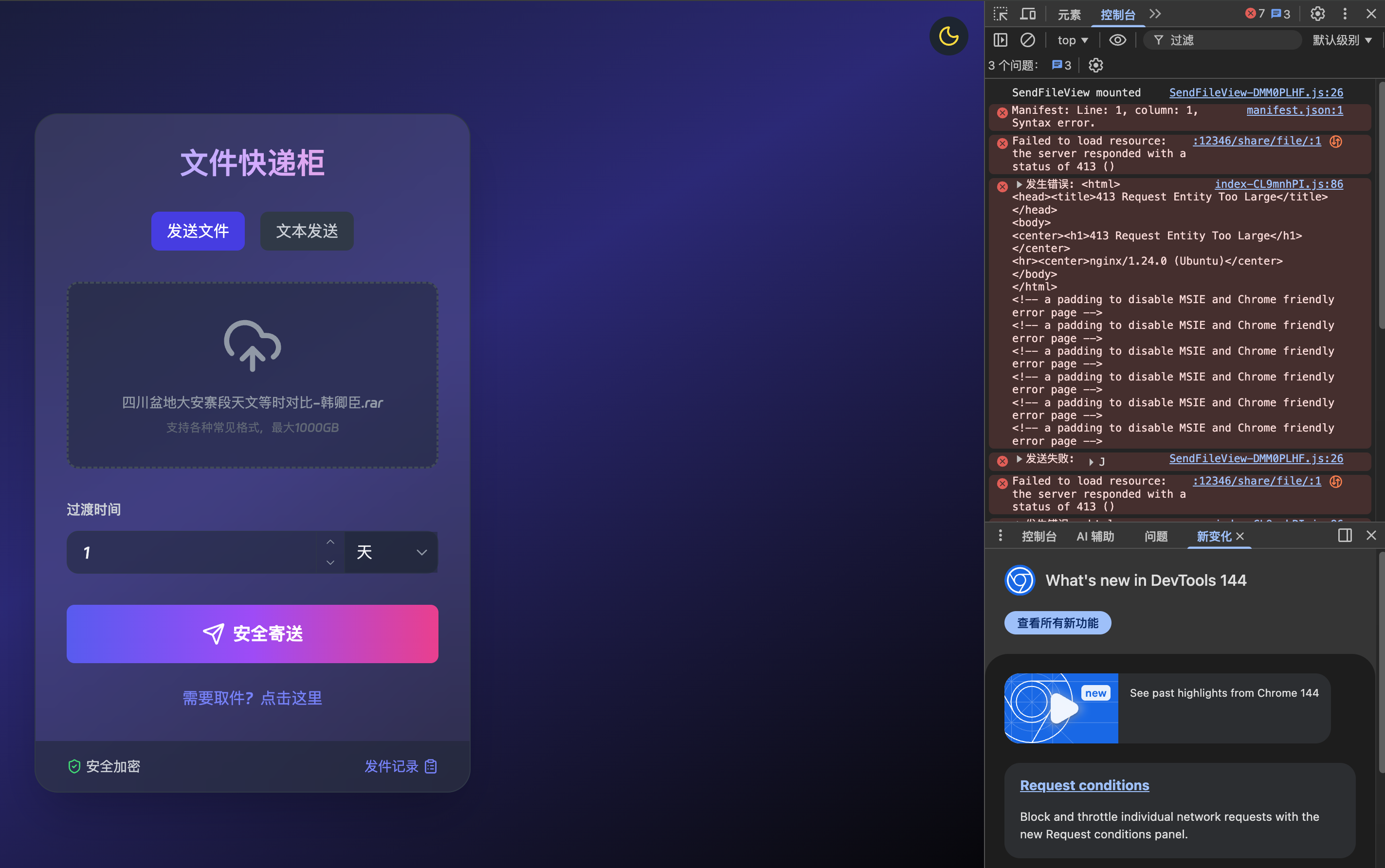
An HTTP 413 "Request Entity Too Large" error occurs when a web server refuses to process a request because the data being sent—such as a file upload or a form submission—exceeds the maximum size limit defined in the server's configuration. In essence, the client is trying to send more information than the server is currently permitted to accept.
The Mechanism of an HTTP 413 Error
To understand the 413 error, one must first understand the fundamental relationship between a client (your browser) and a server. When you navigate to a website or upload a file, your browser sends an HTTP request. This request contains headers (metadata) and, in many cases, a body (the actual content).
The HTTP 413 error is a status code issued by the server as a signal that the request body is simply too heavy. Think of it as a weight limit sign at a bridge; the bridge—the server—cannot safely accommodate the load you are attempting to pass over it. This is not necessarily an error in your code or a glitch in your browser; rather, it is a deliberate security and performance setting designed to keep the server from crashing under the weight of massive incoming data streams.
Why Servers Impose Size Limits
Web servers are configured with specific limits on request sizes for several critical reasons:
- Denial of Service (DoS) Prevention: If a server allowed users to upload files of infinite size, a malicious actor could intentionally send massive, multi-gigabyte requests to consume all available server memory and disk space, effectively crashing the service for everyone else.
- Resource Management: Processing a large request requires significant RAM and CPU cycles. By limiting the request size, administrators ensure that the server remains responsive to other users.
- Timeout Mitigation: Large uploads take time. If an upload is massive, the connection might remain open for so long that it hits the server's execution timeout, potentially causing the entire process to fail mid-way.
- Database Integrity: Many applications store data in databases or process them through backend scripts. Restricting input size prevents overflow issues where the system tries to allocate memory for data that is far larger than what the architecture is designed to handle.
Identifying the Source of the Constraint
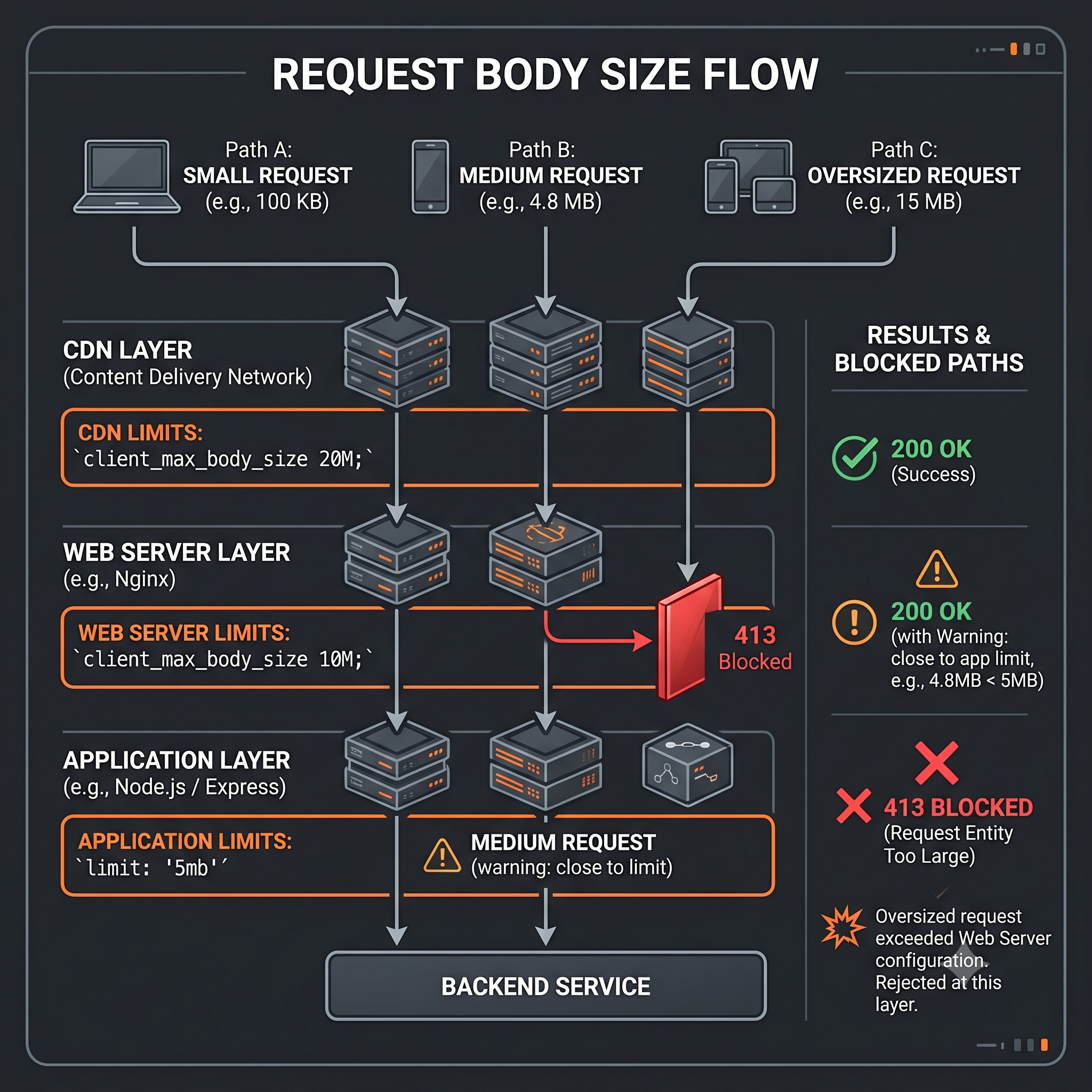
When you encounter a 413 error, it is vital to determine where the limit is being enforced. Constraints can be set at several levels within the technology stack:
- The Web Server (Nginx or Apache): The most common culprits. For instance, Nginx has a configuration directive called
client_max_body_size, which defaults to 1MB. If you try to upload a 2MB file, Nginx will return a 413 error before the request even reaches your application code. - The Application Server: If you are using platforms like Node.js (with Express), PHP, or Python (Django/Flask), these frameworks often have their own internal middleware that sets limits on the size of incoming JSON payloads or multipart form data.
- The Proxy Layer: Many modern web architectures use a Load Balancer or a Content Delivery Network (CDN) like Cloudflare or AWS CloudFront. These services act as a gatekeeper and have their own distinct size limits that sit in front of your actual origin server.
Troubleshooting and Resolution Steps
If you are the end user, your options are limited. However, if you are the website administrator or developer, you have several paths to resolve the error.
For the Website Administrator
To fix a 413 error, you must identify which layer is blocking the request and increase the limit.
1. Adjusting Nginx Configuration
If you are using Nginx, open your nginx.conf or the specific server block configuration file. Locate the client_max_body_size directive. You may need to add or update it:
http { client_max_body_size 20M; }
After modifying the file, you must reload the Nginx service for the changes to take effect.
2. Adjusting Apache Configuration
For Apache servers, the directive is LimitRequestBody. You can set this in your httpd.conf or .htaccess file:
LimitRequestBody 20971520
(Note: The value is in bytes, so 20971520 equals 20MB).
3. Adjusting PHP Settings
If you are running a PHP-based application (like WordPress), the server might be configured correctly, but PHP itself is restricting the upload. Check your php.ini file for:
upload_max_filesize = 20Mpost_max_size = 20M
For the End User
If you are a regular user encountering this on a site you do not own, you should attempt the following:
- Compress the file: If you are trying to upload a large document or image, use a compression tool to reduce the file size.
- Split the file: If the site allows it, upload your data in smaller batches rather than one massive file.
- Contact Support: If you have a legitimate need to upload a large file and the system is rejecting it, the site administrator may be able to white-list your account or provide an alternative method for file transfer, such as a cloud storage link.
Comparison of Request Limit Locations
| Layer | Primary Function | Typical Configuration Control |
|---|---|---|
| CDN/Proxy | Edge protection and caching | Web dashboard settings (e.g., Cloudflare) |
| Web Server | Handling initial HTTP requests | Nginx or Apache configuration files |
| Application Layer | Processing business logic | Middleware or php.ini / web.config |
| Database | Long-term data storage | Schema constraints and memory buffers |
Frequently Asked Questions
Does a 413 error mean the server is broken? No. A 413 error is a sign that the server is working exactly as it was configured to work. It is an intentional security measure to prevent resource exhaustion. It indicates that your specific request did not meet the predefined safety criteria for the server.
Can I bypass the 413 error by using a different browser? Generally, no. Because the 413 error is generated by the server-side configuration, switching from Chrome to Firefox or Edge will not help. The limitation is strictly enforced by the server's software, which applies the same rules to all incoming traffic regardless of the client software used.
Is there a maximum size I should set for my server? There is no single "correct" number. The maximum size depends entirely on your use case. If you are running a photo-sharing site, you might need to allow 50MB uploads. If you are running a simple text-based blog, even a 1MB limit might be overkill. Set the limit to the smallest size that comfortably accommodates your user's legitimate needs to maintain maximum server security.
Why does my application return a 413 error for a small file? If you are getting a 413 error for a file that is clearly under the size limit, check your web server's error logs. It is possible that the request is failing due to a configuration conflict, or that the server is misinterpreting the request headers. Ensure your proxy or load balancer settings align with your backend server's settings.
Is it safe to disable the request size limit? It is strongly recommended against disabling the limit entirely. Setting a limit of "0" (which often means "unlimited" in some systems) exposes your server to potential DoS attacks. Always set a reasonable upper bound based on the realistic needs of your application.
Practical Next Steps
If you are facing an HTTP 413 error, begin by checking the logs on your web server. If you see the error in Nginx or Apache, the fix is usually a quick configuration change. If you are an end user, focus on reducing your file size. If you remain stuck, reach out to the platform's support team—they often have internal tools for handling bulk data transfers that bypass standard web upload limitations.