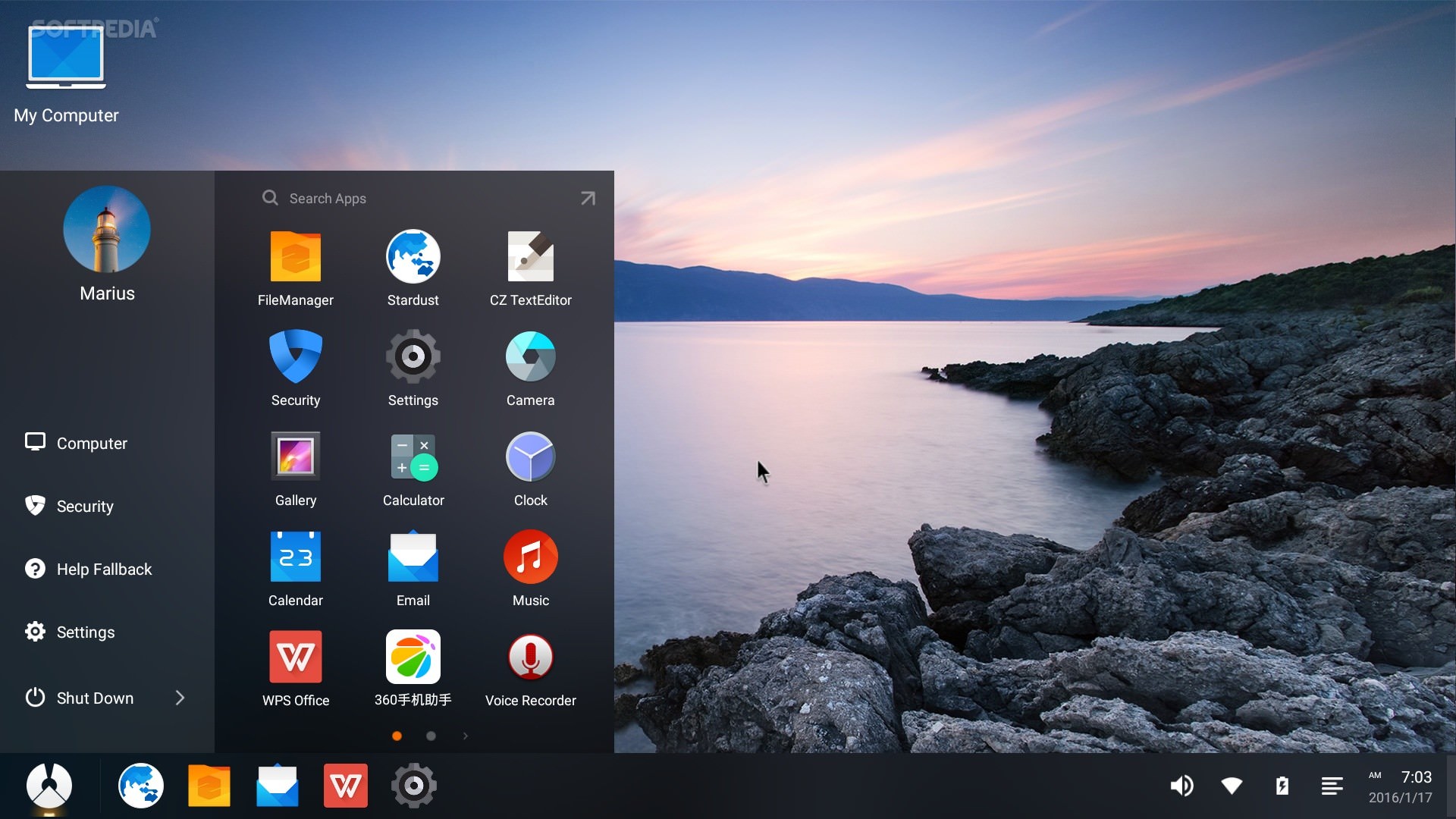
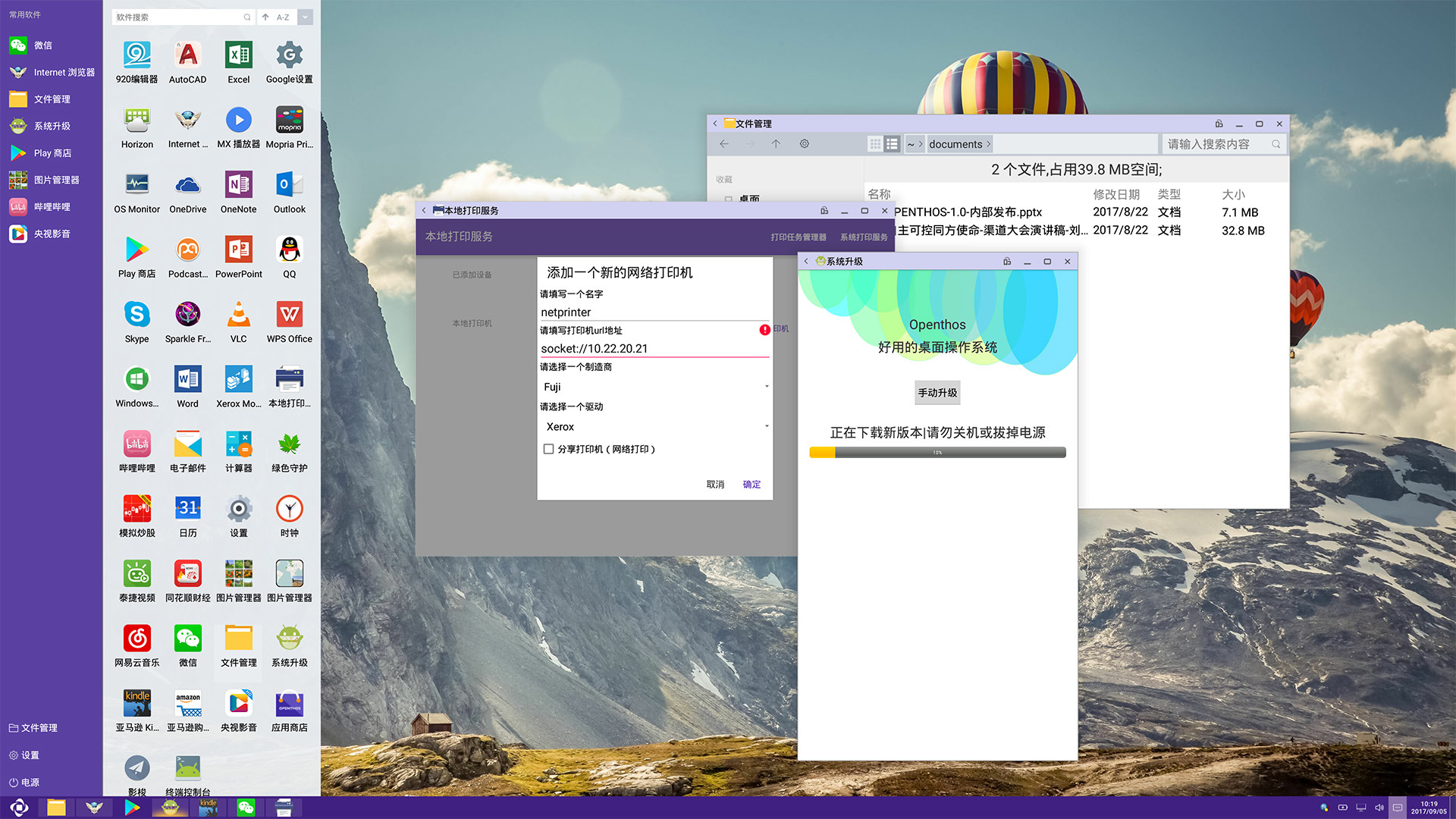
The core fact regarding x86 Android OS is that it is a specialized adaptation of the Android operating system designed to run on processors using the x86 instruction set architecture—traditionally found in desktop computers and laptops—rather than the ARM architecture that powers the vast majority of mobile smartphones and tablets.
Understanding the Architecture: ARM vs. x86
To comprehend the existence and purpose of an x86-based Android, one must first distinguish between the two dominant processor architectures. The Android ecosystem was built primarily for ARM (Advanced RISC Machine) architecture. ARM processors are characterized by their power efficiency, which makes them ideal for battery-operated devices like smartphones.
Conversely, the x86 architecture, developed by Intel and utilized by AMD, is optimized for high-performance computing tasks found in personal computers and servers. When you run an Android OS on x86, you are bridging two different languages. The operating system must translate or interpret instructions so that the software written for ARM devices can function on the hardware architecture powering your desktop or laptop.
Historical Context and Technical Motivation
The project known as Android-x86 gained prominence because developers and enthusiasts wanted to run the flexible, open-source Android environment on conventional PC hardware. Unlike commercial mobile devices where the hardware and software are tightly integrated, x86 Android OS provides a way to repurpose legacy laptops, desktops, or netbooks that may no longer be supported by modern versions of Windows.
By 2026, the technology has matured significantly. While it is rarely the primary operating system for a daily-driver desktop, it serves as an essential tool for developers testing applications across different hardware environments and for users who wish to run mobile-exclusive apps in a windowed environment on their PC hardware.
Compatibility and Translation Layers
The most significant technical hurdle for x86 Android is binary compatibility. Because most Android applications are packaged with native code compiled for ARM (using the Native Development Kit, or NDK), they cannot natively "talk" to an x86 processor.
To bridge this, x86 Android distributions utilize translation layers, most notably Libhoudini. This software library acts as a real-time translator, converting ARM instructions into x86 instructions on the fly. While this technology has improved efficiency over the years, users should expect a performance tax. The overhead of translating instructions can lead to stability issues in high-demand applications, particularly in 3D gaming or apps that rely heavily on complex hardware acceleration.
Performance Considerations on PC Hardware
When installing Android on x86 hardware, performance is rarely identical to the native ARM experience. Several factors influence how well an Android build performs on your specific machine:
- GPU Acceleration: Most Android apps assume a mobile GPU (typically Adreno or Mali). An x86 PC uses an integrated Intel GPU or a discrete card from NVIDIA or AMD. If the Android-x86 kernel does not have specific drivers for your graphics hardware, the system may resort to software rendering, leading to sluggish UI performance and flickering.
- Storage Throughput: Android is optimized for NAND flash memory found in smartphones. Running it on a mechanical hard drive (HDD) will result in long boot times and "stuttering" during app launches. Using an SSD is essentially a requirement for a usable experience in 2026.
- Peripheral Support: Desktop components like touchscreens, trackpads, and USB-based sensors often require specific kernel modules to function within the Android environment. While many generic HID (Human Interface Device) drivers are included, specialized hardware may remain unrecognized.
Comparison Table: ARM Android vs. x86 Android
| Feature | ARM Android (Native) | x86 Android (Ported) |
|---|---|---|
| Primary Target | Smartphones & Tablets | PCs, Laptops, Servers |
| Instruction Set | ARM (RISC) | x86/x64 (CISC) |
| App Compatibility | Native (High) | Translation Required (Moderate) |
| Battery Impact | Highly Optimized | Variable (System Dependent) |
| Primary Use Case | Mobile Computing | Development, Legacy Hardware |
Installation and Boot Strategies
For users attempting to run Android on x86 hardware, there are two primary methods: native installation or virtualization.
Native Installation: This involves formatting a partition on your physical drive and booting the Android kernel directly from the hardware. This provides the best performance because the OS has direct access to the CPU and RAM. However, it is high-risk, as it requires partitioning your storage and carries the risk of data loss if not managed correctly.
Virtualization: This involves running Android as a guest operating system inside a program like VirtualBox or QEMU. This is the safest method for experimentation. It allows you to run Android apps in a window while keeping your host OS (Windows, Linux, or macOS) running in the background. In 2026, many users prefer this method because modern virtualization software provides "guest additions" that better simulate mobile sensors like GPS and rotation.
Troubleshooting Common Issues
When working with x86 Android, users frequently encounter specific roadblocks. Understanding these helps in managing expectations and troubleshooting effectively:
- Wi-Fi Connectivity: Many budget laptops use Broadcom or proprietary wireless cards for which the Android-x86 kernel lacks open-source drivers. If the system fails to detect Wi-Fi, the most common solution is to use a supported USB Wi-Fi dongle.
- Audio Output: Occasionally, the system will boot but produce no sound. This is usually due to an HDMI audio conflict where the OS defaults to the monitor's speakers rather than the laptop's internal speakers. Check the system settings or toggle the audio output device in the developer options.
- App Crashes: If an app consistently force-closes, it is almost certainly a library incompatibility. Since the app is attempting to execute ARM-specific code that the translation layer cannot interpret correctly, there is usually no fix other than finding an alternative version of the app or using a different build of the OS.
Legal and Open-Source Considerations
Android-x86 is an open-source project. This means it relies on community contributions rather than a corporate roadmap. Users should be aware that, unlike commercial software, there is no official "support team." You are responsible for your own data backups and for verifying the security integrity of the build you choose to install. Because these builds are community-maintained, they may contain vulnerabilities that are patched much later than they would be on a Google-certified device. Always download images from the official project repository to minimize the risk of malware or compromised binary files.
Future Outlook and Emerging Trends
As of 2026, the lines between mobile and desktop operating systems continue to blur. While the specific project of "Android-x86" remains a niche for enthusiasts and developers, the underlying concept—making Android apps run on desktop CPUs—has been adopted by mainstream tech giants. Solutions like Windows Subsystem for Android (WSA) and various proprietary emulator platforms have largely superseded the need for casual users to manually install Android-x86. These tools provide a polished, stable, and secure way to achieve the same goal: accessing the vast Android app ecosystem on a PC.
Frequently Asked Questions
Can I use Android-x86 as my main daily operating system? Generally, no. While it functions well for specific tasks, the lack of native support for all Android apps, potential driver issues with PC hardware, and lower security patching frequency make it unsuitable as a primary replacement for Windows or macOS for the average user.
Does x86 Android support all Google Play apps? It supports many, but not all. Apps that require specific ARM-only hardware features (like advanced camera APIs, specific cellular radio features, or heavy DRM) will likely fail to run or experience significant stability issues even with translation layers.
Is it safe to install Android-x86 on my laptop? It is safe if you are comfortable with disk partitioning and potential data loss. Always back up your important documents and files on an external drive before attempting to modify your hard drive partitions, as the installation process can accidentally overwrite your existing OS if settings are misconfigured.
Why does my game run slowly on Android-x86? The slowdown is typically caused by the "instruction translation" overhead. Every time the game sends a command, the system must translate it from ARM to x86. Additionally, if the game's shader code is incompatible with your PC's GPU drivers, the system may drop to software rendering, which is significantly slower than hardware-accelerated graphics.
Can I update my Android-x86 installation like a normal phone? No. Android-x86 does not support Over-the-Air (OTA) updates like standard Android devices. To update to a newer version of the OS, you must manually download the latest image, back up your user data, and perform a fresh installation or an upgrade procedure as defined by the specific project maintainers.
Recommendation
For the average user looking to run Android apps on an x86 PC in 2026, the most practical approach is to utilize established virtualization tools or desktop-integrated Android environments rather than installing a standalone x86 Android OS. If your goal is software development or learning about kernel-level hardware interaction, use a dedicated, isolated partition on a non-primary laptop to ensure your production environment remains secure and functional.