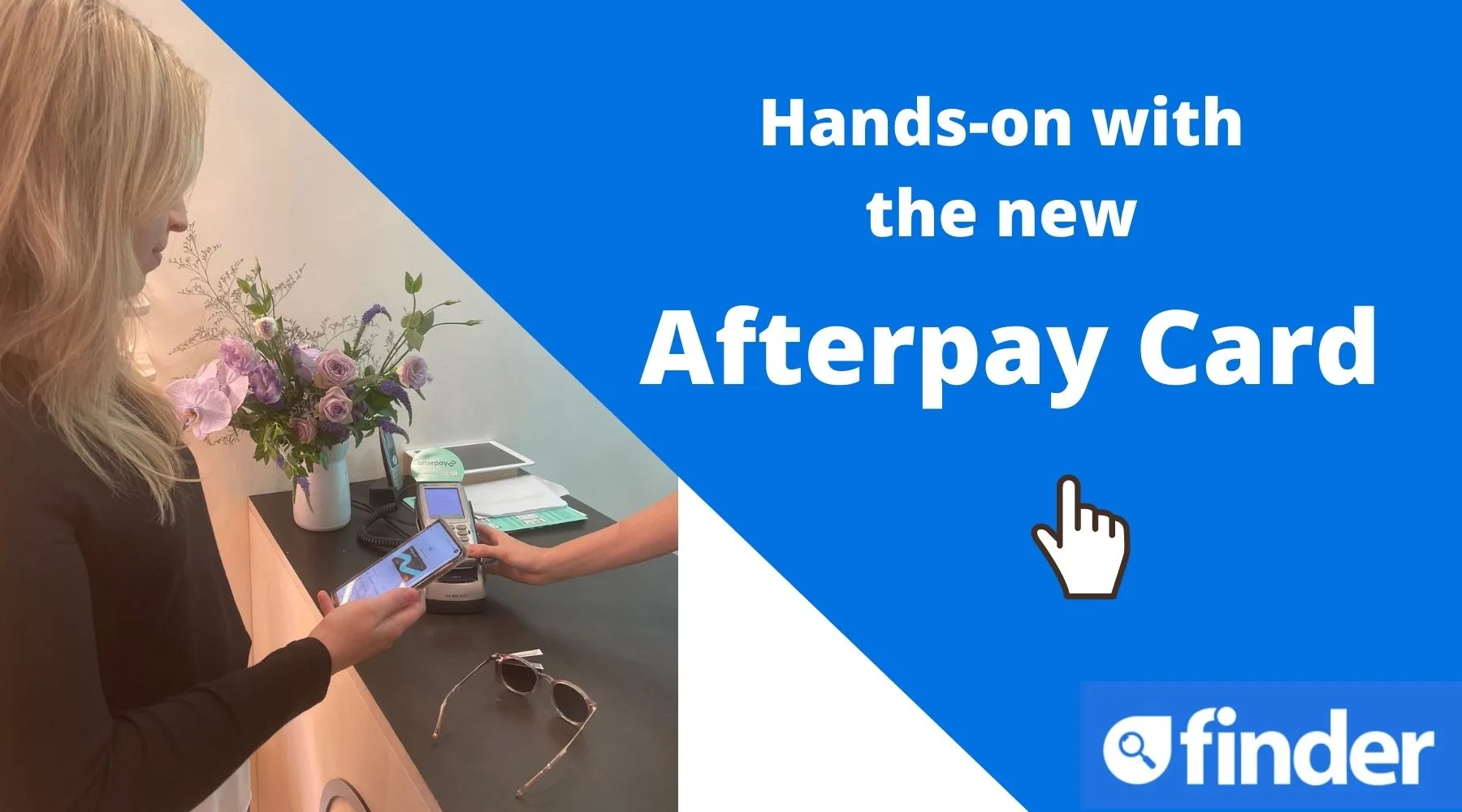
To access your Afterpay card details, open the Afterpay app and select the In-Store tab to store the digital card in your Apple Wallet or Google Pay, or generate a virtual single-use card number for online shopping within the app's browser. To update the personal credit or debit card used to pay your installments, navigate to Account > Payment Methods.
Understanding how Afterpay handles card details can be confusing because the platform uses two distinct types of card information: the digital or virtual card details generated by Afterpay to fund your purchases, and the personal debit or credit card details you register with Afterpay to pay your installment plan.
Whether you are looking for your 16-digit virtual card number to complete an online purchase, attempting to add your Afterpay Card to a mobile wallet, or trying to update an expired debit card linked to your account, this guide covers the exact steps, system rules, and security limitations involved.
Financial Advice Disclaimer
This guide is for informational and educational purposes only. Afterpay is a Buy Now, Pay Later (BNPL) financial service. Terms, eligibility, and features vary by jurisdiction (including the United States, Australia, New Zealand, Canada, and the United Kingdom, where it operates as Clearpay). Always consult official Afterpay documentation or a certified financial professional regarding your personal credit and financial obligations.
Understanding Afterpay Card Types: Tokenized vs. Virtual Details
To locate the specific details you need, you must first clarify which "Afterpay card" you are trying to view. Afterpay does not issue a physical plastic card with permanent printed numbers. Instead, it relies on two primary payment mechanisms for merchant checkouts, alongside your saved personal payment cards.
| 1. Digital Wallet Card (In-Store/NFC) | 2. Virtual Single-Use Card |
|---|---|
| • Used via Apple Pay or Google Pay• Uses tokenized Device Account Numbers• Static card numbers are not visible to user | • Used for online shopping• Displays temporary 16-digit number, expiry, and CVC |
1. The Digital Wallet Afterpay Card (In-Store)
The standard Afterpay Card used in physical stores is a contactless digital card stored within Apple Wallet or Google Pay. For security reasons, this card does not display a traditional, visible 16-digit card number, expiration date, or CVV/CVC inside the app.
Instead, payment processing networks utilize a security technology called tokenization. When you tap your mobile device at a retail terminal, your device transmits a dynamic, encrypted token (a Device Account Number) rather than a static credit card number. Consequently, you cannot copy and paste a static 16-digit card number from your in-store Afterpay Card to use on external merchant websites.
2. The Virtual Single-Use Card (Online Purchases)
For online shopping at select retail partners that do not feature an integrated "Afterpay at Checkout" button, Afterpay provides a Single-Use Payment Card feature within its mobile app.
When invoked during an app-guided checkout session, Afterpay generates a temporary 16-digit Mastercard or Visa card number, complete with an expiration date and a 3-digit security code (CVC/CVV). These details are populated automatically or displayed on-screen for manual entry into the retailer’s payment fields. Once the purchase transaction completes, that specific virtual card number expires and cannot be reused.
3. Saved Personal Payment Cards (Repayment Methods)
These are your personal bank-issued debit cards, credit cards, or linked bank accounts stored under your Afterpay profile. Afterpay charges these cards automatically every two weeks to collect your scheduled four-part installment payments.
How to Find Virtual Afterpay Card Details for Online Shopping
If you are shopping online through the Afterpay mobile app and need to access virtual card details to complete a transaction, follow these exact operational steps:
Step 1: Open the App and Search for the Store
Launch the official Afterpay app on iOS or Android. Use the integrated shop directory to search for the online store where you wish to shop.
Step 2: Add Items to Your Merchant Shopping Cart
Navigate the store within the Afterpay app browser just as you normally would. Add the desired items to your shopping cart and proceed to the merchant's checkout page.
Step 3: Select the "Buy with Afterpay" Button
When you reach the final payment section of the merchant's website, look for the green Buy with Afterpay or Pay with Single-Use Card bar at the bottom of the app screen.
Note: If the merchant already has an integrated native Afterpay checkout option on their site, choose "Afterpay" as your payment method directly on their site instead of generating a single-use card.
Step 4: Review Estimated Total and Generate Card Details
After tapping the bottom bar, Afterpay will prompt you to confirm the total purchase amount, including estimated shipping and taxes. Once confirmed:
- The app will calculate your initial 25% down payment.
- Upon authorization, the app generates a temporary 16-digit card number, expiration date, and CVC.
- The app will often auto-fill these details into the merchant's payment form. If auto-fill fails, tap Copy next to each field to paste the details manually into the Credit/Debit Card fields on the checkout screen.
Step 5: Complete the Order
Submit the order on the merchant's site. The single-use virtual card authorized the full payment amount to the merchant, while Afterpay sets up your 4-installment payment plan based on that total.
How to Set Up and Use the In-Store Afterpay Card
If your goal is to locate card details for point-of-sale tap-to-pay purchases in brick-and-mortar stores, you must provision the card into your smartphone's wallet system.
- Open Afterpay App
- Tap "In-Store" Tab
- Select "Setup Card"
- Added to Apple/Google Wallet
- Tap Pay at Store Terminal
Setting Up on Apple Pay (iOS)
- Open the Afterpay app and tap the In-Store tab on the bottom menu.
- Select Set up the Card (or Add to Apple Wallet).
- Authenticate using Face ID, Touch ID, or your device passcode.
- Complete the prompt to add the Afterpay Card directly to Apple Wallet.
- Once added, you can view the card inside the Apple Wallet app, though only the last four digits of the Device Account Number will be visible for identification purposes.
Setting Up on Google Pay (Android)
- Open the Afterpay app and tap the In-Store tab.
- Tap Add to Google Pay (or Google Wallet).
- Verify your identity via SMS code or biometrics if prompted.
- Agree to the cardholder terms.
- The card will appear in your Google Wallet app ready for NFC tap-and-pay transactions.
How to Manage Saved Payment Card Details on Afterpay
Many users searching for "Afterpay card details" are trying to manage the debit or credit card that Afterpay charges for their installment repayments. Keeping your payment card details current is vital to avoid late fees and account suspension.
Changing or Updating Your Primary Repayment Card
To update your personal card details stored in Afterpay for future payments:
- Log into the Afterpay app or the web portal at Afterpay.com.
- Tap the Account icon in the bottom navigation bar (or top-right menu on web).
- Select Payment Methods (or Billing).
- Tap Add Payment Method to enter a new Visa, Mastercard, or American Express card.
- Enter the new 16-digit card number, expiration date, and CVV code.
- To make this your primary card for all upcoming installments, check the box labeled Make this my primary card or tap the menu next to the new card and select Set as Default.
Removing an Old Card from Afterpay
Afterpay places operational restrictions on deleting payment card details to prevent account default:
- No Active Orders: If you have zero outstanding balances, you can tap the three dots next to any saved card and select Remove.
- Active Orders Present: If a card is attached to active orders with remaining balances, you cannot remove it until you add another valid replacement card and assign those active orders to the new card.
Comparing Afterpay Payment Features and Card Details
The following table summarizes how different card details function within the Afterpay ecosystem:
| Card Type / Feature | Visible Details | Main Purpose | Where to Access | Usage Restrictions |
|---|---|---|---|---|
| Virtual Single-Use Card | Full 16-digit number, Expiry, 3-digit CVC | Online checkouts at non-integrated retail partners | Generated in-app during order checkout | Valid for 1 transaction; expires shortly after creation. |
| In-Store Digital Card | Last 4 digits of Device Account Number only | Contactless tap-to-pay purchases in physical stores | Apple Wallet / Google Wallet via In-Store tab | Works only at NFC terminals of approved Afterpay merchants. |
| Saved Repayment Debit/Credit Card | Masked (e.g., •••• •••• •••• 1234), Expiry date |
Automated funding source for your 4 installments | Account > Payment Methods | Cannot be deleted if tied to active orders without a backup. |
| Prepaid Cards | Masked account details | Paying off existing installments only | Account > Payment Methods | Cannot be used to originate new Afterpay orders in most regions. |
Security, Privacy, and Technical Rules
Afterpay imposes strict security protocols regarding card details to comply with global financial privacy standards, including the Payment Card Industry Data Security Standard (PCI-DSS).
- User Input
- Tokenization Engine
- Encrypted Vault Storage
- Personal card numbers are never stored in plain text on your mobile device.
- Single-Use virtual numbers lock to the specific approved checkout amount.
Why You Cannot View Full Saved Card Numbers
When you type a credit or debit card into Afterpay to pay your bills, the system encrypts and tokenizes the sensitive financial data. Once saved, neither you nor Afterpay customer support agents can view the unmasked 16-digit number. Only the card network (Visa/Mastercard), the last four digits, and the expiration date remain visible to help you identify the card.
Single-Use Card Authorization Holds
When you generate a virtual single-use card for online shopping, Afterpay places an initial authorization hold equal to the first installment (25% of the total cart value) on your primary personal payment card. If you do not complete the purchase on the merchant's site, the temporary virtual card details become invalid, and the initial authorization hold on your personal card is voided (typically reversing within 1 to 7 business days depending on your bank).
Troubleshooting Common Afterpay Card Problems
Problem 1: "Card Couldn't Be Added" in Mobile Wallet
If you receive an error while adding the Afterpay Card to Apple Wallet or Google Pay:
- Verify Region: Ensure in-store Afterpay services are fully launched and supported in your region.
- Check Device Security: Apple Pay and Google Wallet require an active device passcode, Face ID, or fingerprint lock enabled on your phone.
- Update the App: Outdated versions of the Afterpay app often fail to complete tokenization handshakes with wallet software. Update to the latest app version via the App Store or Google Play Store.
Problem 2: Single-Use Online Card Declined at Checkout
If a merchant rejects the temporary virtual 16-digit card details generated by Afterpay:
- Insufficient Single-Use Limit: Ensure your pre-approved purchase limit covers the total cart price including taxes and shipping fees. If the final merchant charge exceeds the authorized single-use card value by even one cent, the transaction will fail.
- Restricted Merchant Category: Afterpay restricts payments for specific goods and services, including gift cards, weapons, gambling, alcohol, adult content, and certain financial assets.
- Address Mismatch: Ensure the billing address you type into the merchant's site matches the primary address registered on your official Afterpay account profile.
Problem 3: Unable to Change Repayment Card Due to Pending Payments
If the app prevents you from removing an expired or compromised card:
- Navigate to Account > Payment Methods.
- Add your new debit or credit card first.
- Select your active orders under the Orders tab.
- Manually change the assigned payment method for each active order to the newly added card.
- Return to Payment Methods and delete the old card.
Frequently Asked Questions
Can I find my Afterpay Card number to buy things on Amazon or eBay?
You cannot use the static in-store Afterpay Card number for standard online checkouts on external apps like Amazon or eBay. However, you can use the Single-Use Payment Card feature inside the Afterpay app's built-in browser to generate a temporary 16-digit card number for online stores that accept Visa or Mastercard payments through the Afterpay shopping portal.
Does Afterpay charge a fee to issue virtual card details?
No. Generating a single-use virtual card or adding the Afterpay Card to your Apple Wallet or Google Wallet is completely free. You only pay the actual purchase cost split into four equal payments, provided payments are made on time according to your repayment schedule.
Can I use a prepaid debit card as my saved payment card detail on Afterpay?
Afterpay generally does not allow prepaid cards (such as store gift cards or Visa gift cards) to start a new transaction or set up a new order. However, you can sometimes use an accepted prepaid card to pay off existing scheduled installments by selecting Pay Now manually under your account settings.
What happens if a merchant refunds an order paid with a single-use virtual card?
When a merchant processes a return for an order paid via a temporary single-use card, the refunded money travels back to the original virtual card account. Afterpay’s system recognizes the merchant return token, automatically applies the credit to your Afterpay order balance, cancels future scheduled installments, and refunds any overpaid installments directly to your primary personal payment card.
Why do my Afterpay card details show a different zip code or address?
When using the single-use card feature inside the app, the billing address associated with the generated virtual card is automatically linked to the home address on your main Afterpay account profile. Make sure your account profile address is completely up to date before generating a virtual card to prevent address verification system (AVS) rejections at checkout.
Next Steps and Recommended Actions
To ensure seamless shopping and avoid unexpected payment disruptions, take the following actions:
- Keep Payment Methods Up to Date: Check your linked debit and credit cards under Account > Payment Methods to replace any card nearing its expiration date before your next automatic payment runs.
- Provision Your Wallet App: If you plan to shop in-person, set up your digital card through the In-Store tab in the Afterpay app before heading to the register to avoid connectivity delays at checkout.
- Check Spending Limits: Review your available spending limit on the app dashboard before generating single-use virtual cards for online shopping to ensure your purchase falls within approved parameters.
- Review Legal Terms: Review official terms directly at the Afterpay Terms of Service Portal for region-specific card issuance rules and fee schedules.