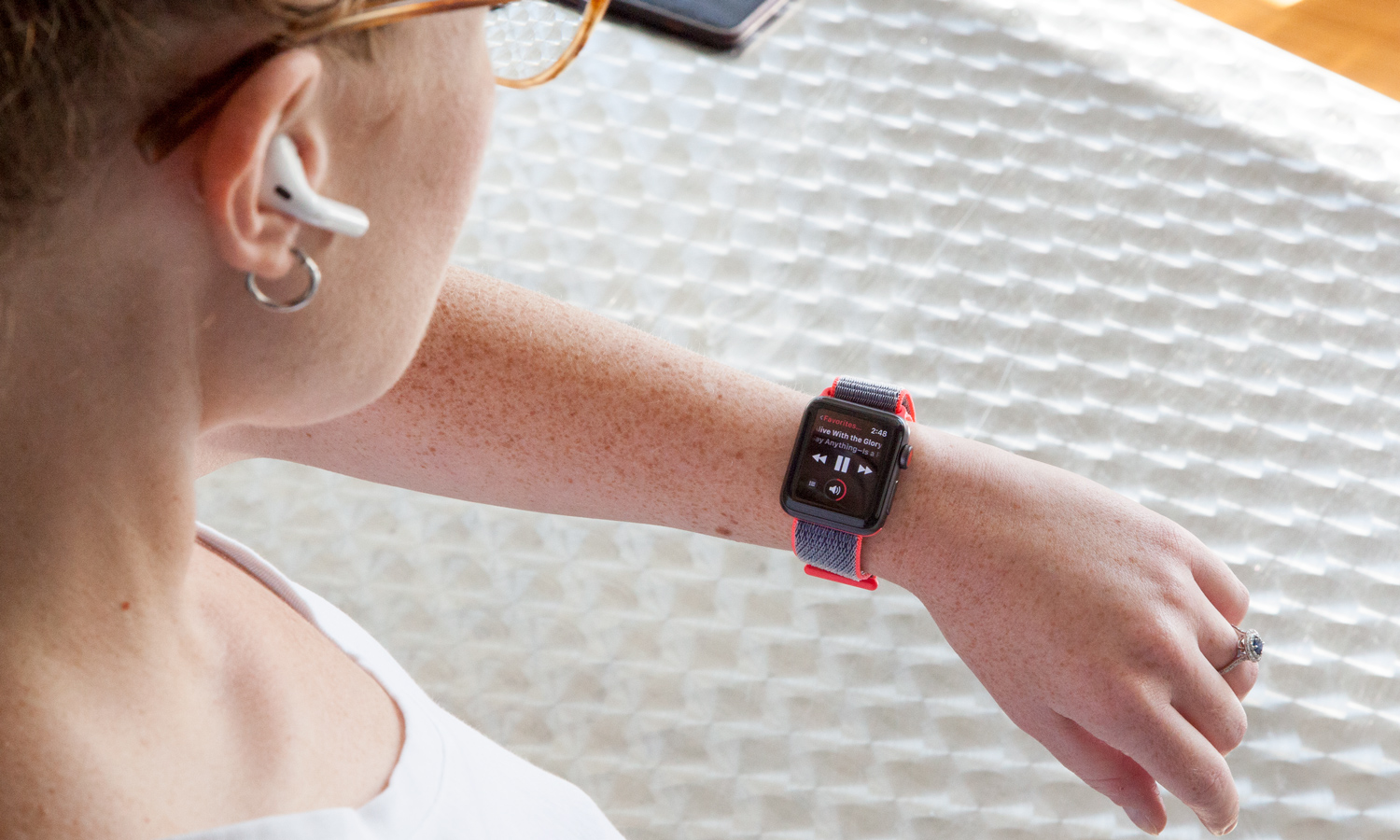
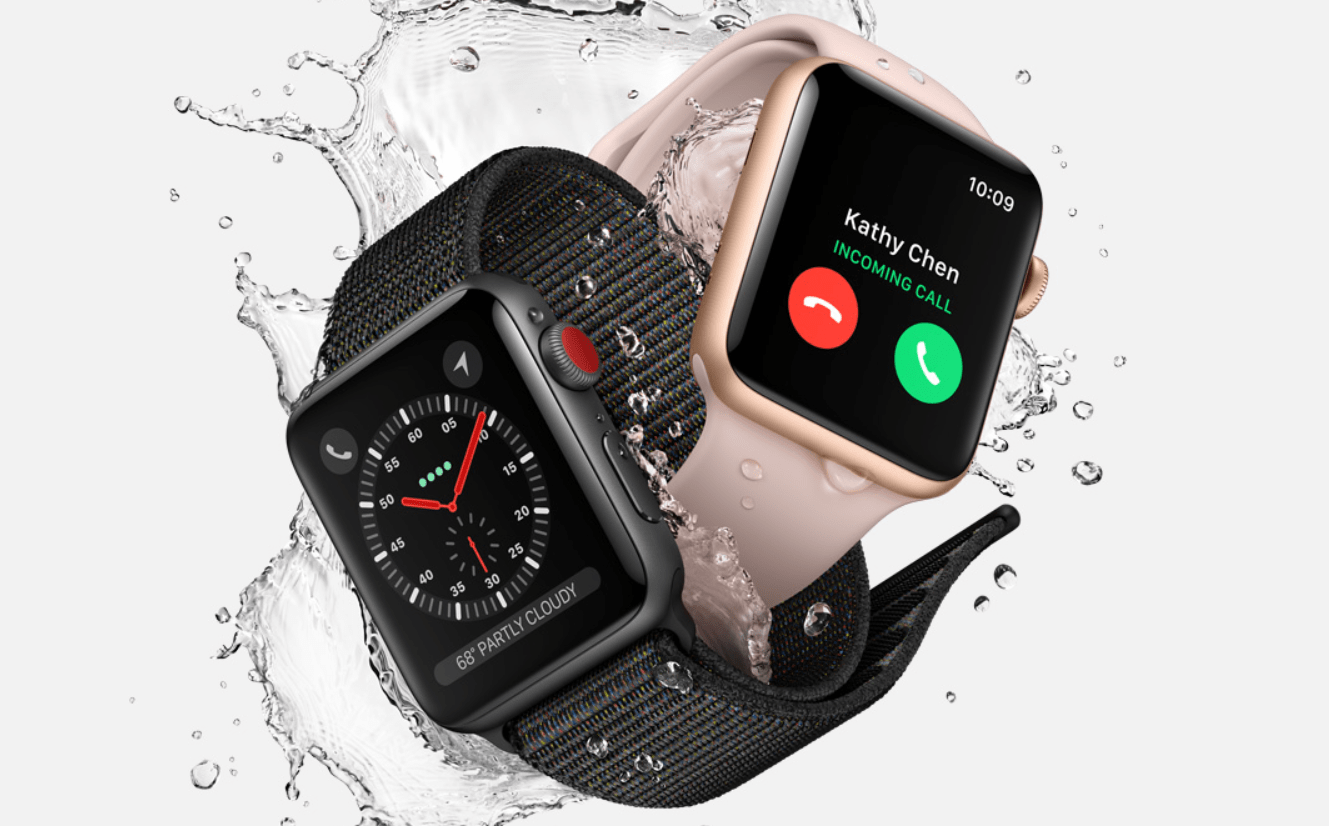
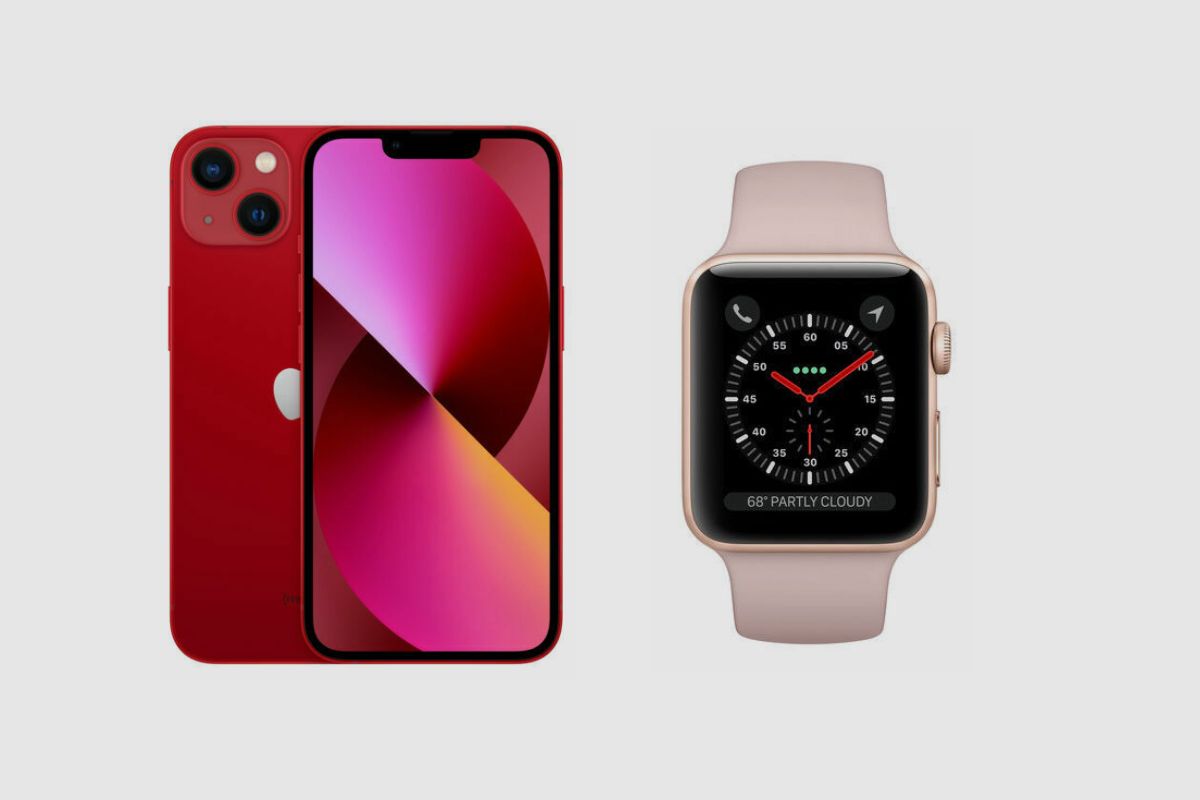
To optimize an Apple Watch Series 3 in 2026, focus on surgical storage management through frequent unpairing and repairing, extending battery life using Theater Mode to prevent unnecessary screen wakes, and bypassing the laggy interface by utilizing Siri for core tasks and navigation. These methods allow this legacy device to remain a functional fitness and notification tool.
The Reality of the Apple Watch Series 3 in 2026
The Apple Watch Series 3 remains one of the most resilient pieces of wearable technology in Apple’s history. Originally released in 2017, it enjoyed an unprecedented sales life before being officially discontinued. In 2026, owners of this device are likely using it as a secondary "beater" watch for gym sessions, a dedicated sleep tracker, or a basic entry-point into the ecosystem. However, using a device with the S3 SiP (System in Package) in the current year comes with significant technical hurdles.
The Series 3 is capped at watchOS 8.8.1. It does not support the modern interface overhauls seen in watchOS 10 or the advanced AI integrations of watchOS 12. Because it lacks the processing power and storage capacity of modern iterations, the user experience can often feel sluggish. To keep the device useful, you must treat it differently than a modern Apple Watch Ultra or Series 10. You are essentially managing a legacy "thin client" that relies heavily on its connection to your iPhone.
Tip 1: Mastering the "Unpair and Repair" Ritual for Storage
The most persistent issue for Apple Watch Series 3 users—particularly those with the 8GB GPS-only model—is the "Storage Full" error. Even if you have no music, no photos, and very few apps installed, the device often struggles to manage its own "Other" data and system logs. In 2026, where even basic app updates expect more overhead, this becomes a critical failure point.
Why Storage Becomes Fragmented
As you use the watch, it accumulates cache files, log data, and temporary update files. On a modern watch with 64GB of storage, this is negligible. On the 8GB Series 3, these files can occupy up to 50% of your available space. Because watchOS 8 lacks advanced automatic cache clearing, the storage remains "clogged," preventing the watch from performing basic background tasks or syncing fitness data correctly.
The Solution: The Surgical Reset
The most effective "trick" is not simply deleting apps, but performing a clean unpair and repair sequence once every few months. This process forces the watch to create a backup on your iPhone, wipes the physical storage on the watch, and then re-installs the OS with only the essential data.
- Open the Watch App on your iPhone.
- Go to My Watch -> All Watches.
- Tap the "i" icon next to your Series 3.
- Select Unpair Apple Watch.
- Once the process is complete, bring the watch near your phone to re-pair it.
- Crucial Step: When prompted, choose "Restore from Backup." This brings back your health data and settings while leaving behind the "ghost" data that was hogging your 8GB of storage.
By performing this ritual, you often reclaim 1.5GB to 2GB of space, which is the difference between a functional device and a frozen one.
Tip 2: Enhancing Battery Longevity via Theater Mode and Grayscale
In 2026, most Series 3 batteries have undergone hundreds, if not thousands, of charge cycles. Unless the battery has been professionally replaced, its chemical health is likely below 80%. To make the watch last a full 14-hour day, you must minimize the power draw of the OLED display and the S3 processor.
Leveraging Theater Mode
Theater Mode is often overlooked as a power-saving tool. When enabled, it prevents the screen from turning on when you raise your wrist. For the Series 3, which lacks the "Always-On Display" hardware, the "Raise to Wake" feature is a major battery drain because the accelerometer is constantly monitoring movement to trigger the screen.
To enable this, swipe up from the bottom of the watch face to open the Control Center and tap the two masks icon. In 2026, this is the most practical way to ensure the watch doesn't die by 4:00 PM. You simply tap the screen or turn the Digital Crown when you actually need to see the time.
The Grayscale Performance Boost
A "secret" trick for the Series 3 involves the Accessibility settings. By turning the display to Grayscale, you reduce the processing load required to render the UI. While it doesn't save significant battery via the OLED pixels (since black pixels are already off), it significantly reduces the strain on the aging S3 GPU, making the interface feel snappier.
- Navigate to Settings on the watch.
- Tap Accessibility.
- Select Grayscale and toggle it on.
This creates a minimalist, utilitarian aesthetic that aligns well with the device's status as a legacy fitness tool.
Tip 3: Bypassing the Laggy UI with Siri and Shortcuts
The "Honeycomb" app grid on the Series 3 is notoriously difficult to navigate in 2026. The icons are small, and the S3 chip often stutters when zooming in. To maintain a modern feel, you should stop "searching" for apps and start "commanding" them.
Using Siri for Core Functions
Even though the Series 3 uses an older version of Siri, it remains faster than manual navigation for three specific tasks: setting timers, starting workouts, and sending quick text replies. Instead of tapping through the Workout app, hold the Digital Crown and say, "Start an outdoor walk." This bypasses the UI rendering and goes straight to the system process.
Optimizing Complications
The "Tricks" to a fast Series 3 involve what you don't put on your watch face. In 2026, third-party complications often lag because they have to fetch data from the iPhone over an older Bluetooth 4.2 connection.
- Stick to Apple-native complications: Weather, Activity rings, and Heart Rate.
- Avoid "Data-Heavy" faces: The "Infograph" or "Modular" faces with 5+ complications can cause the watch to lag when you swipe between faces. Use the "Simple" or "Numeral Duo" faces for maximum responsiveness.
Technical Specification Comparison: Then vs. Now
To understand why these tips are necessary, it is helpful to see how the Series 3 compares to the standard hardware of 2026.
| Feature | Apple Watch Series 3 (2017/Legacy) | Apple Watch Series 10/Ultra 2 (Context) |
|---|---|---|
| Storage Capacity | 8 GB (GPS) / 16 GB (LTE) | 64 GB to 128 GB |
| Maximum OS | watchOS 8.8.1 | watchOS 12+ |
| Processor | S3 SiP (32-bit Dual-Core) | S10/S11 SiP (64-bit Multi-Core) |
| Bluetooth | version 4.2 | version 5.3+ |
| Display Brightness | 1,000 nits | 2,000 - 3,000 nits |
| Health Sensors | Heart Rate (Optical) | ECG, Blood Oxygen, Temperature |
Troubleshooting Common 2026 Issues on Series 3
Even with the best tips, the Series 3 may encounter specific "end-of-life" bugs. Here is how to handle them:
The "App Won't Open" Loop
If an app like "Weather" or "Maps" refuses to open, it is usually because the watch is trying to update the data but is timed out by the S3 processor.
- Fix: Toggle Airplane Mode on the watch for 10 seconds. This forces the watch to re-establish a "handshake" with the iPhone, often clearing the data bottleneck.
Syncing Issues with Apple Health
If your rings aren't closing on your iPhone even though they are full on your watch, the Bluetooth 4.2 connection is likely struggling with interference from modern Wi-Fi 7 or 6E signals in your home.
- Fix: Keep your watch on the charger next to your iPhone overnight. The watch performs most of its heavy data synchronization and "garbage collection" while charging and connected to power.
Maintaining the Physical Hardware
Since you cannot update the software further, maintaining the hardware is your only way to preserve the device. In 2026, the gaskets providing water resistance on a Series 3 are likely degraded.
- Cautions: Avoid submerging a 9-year-old Series 3 in chlorinated pools or salt water. The adhesive that holds the screen to the housing can also weaken over time; if you notice the screen lifting, stop using it immediately as this is a sign of a "swollen battery," which is a safety hazard.
For more information on managing older Apple devices, you can visit the Apple Support page for Apple Watch.
Frequently Asked Questions
Does the Apple Watch Series 3 still work with the iPhone 16 or 17?
Yes, as of 2026, Apple has maintained backward compatibility for basic notifications and health syncing. While you cannot use newer watchOS features, the Series 3 will still pair with modern iPhones running iOS 19 or 20. However, the pairing process may take longer than usual due to the legacy Bluetooth protocols.
Can I replace the battery in my Series 3 in 2026?
Apple still offers battery service for "vintage" products, provided they have the parts in stock. Third-party repair shops can also replace the battery, which is highly recommended if your "Maximum Capacity" is below 75%. A new battery can often solve the "random shutdown" issues common in older Series 3 units.
Is the Series 3 still waterproof after all these years?
Technically, the Series 3 was rated for 50 meters of water resistance. However, water resistance is not permanent. By 2026, the rubber seals have likely dried out or cracked. It is best to treat the watch as "water-resistant" (fine for rain or hand washing) rather than "waterproof" (not safe for swimming or diving).
Why can't I update my Series 3 past watchOS 8.8.1?
The hardware architecture of the Series 3 is 32-bit, whereas watchOS 9 and later require 64-bit processors (S4 chip and newer). Additionally, the 8GB of storage is physically incapable of holding the larger system files required by modern versions of watchOS.
Can I use the Series 3 for sleep tracking?
Yes, and this is actually one of the best uses for the device in 2026. Because it is lighter and smaller than the Ultra or newer 45mm models, it is comfortable to wear at night. Use the "Sleep" focus mode to ensure the screen stays dark and notifications are silenced.
Final Recommendations for Series 3 Users
The Apple Watch Series 3 is a testament to Apple's build quality, but in 2026, it requires "active management" to stay useful. If you find that the storage management and battery optimization tips above are no longer sufficient for your needs, it may be time to consider the device's retirement.
For those who wish to continue using it, the best path forward is minimization. Treat the watch as a dedicated tool—perhaps only for the gym or only for sleep—rather than a do-it-all smartwatch. By limiting its scope, you reduce the strain on the S3 processor and ensure the device remains a reliable companion for its remaining years. If the screen begins to lag significantly despite a grayscale setting and a fresh unpairing, the internal flash storage may be reaching its end-of-life cycle, and a replacement would be the next logical step.