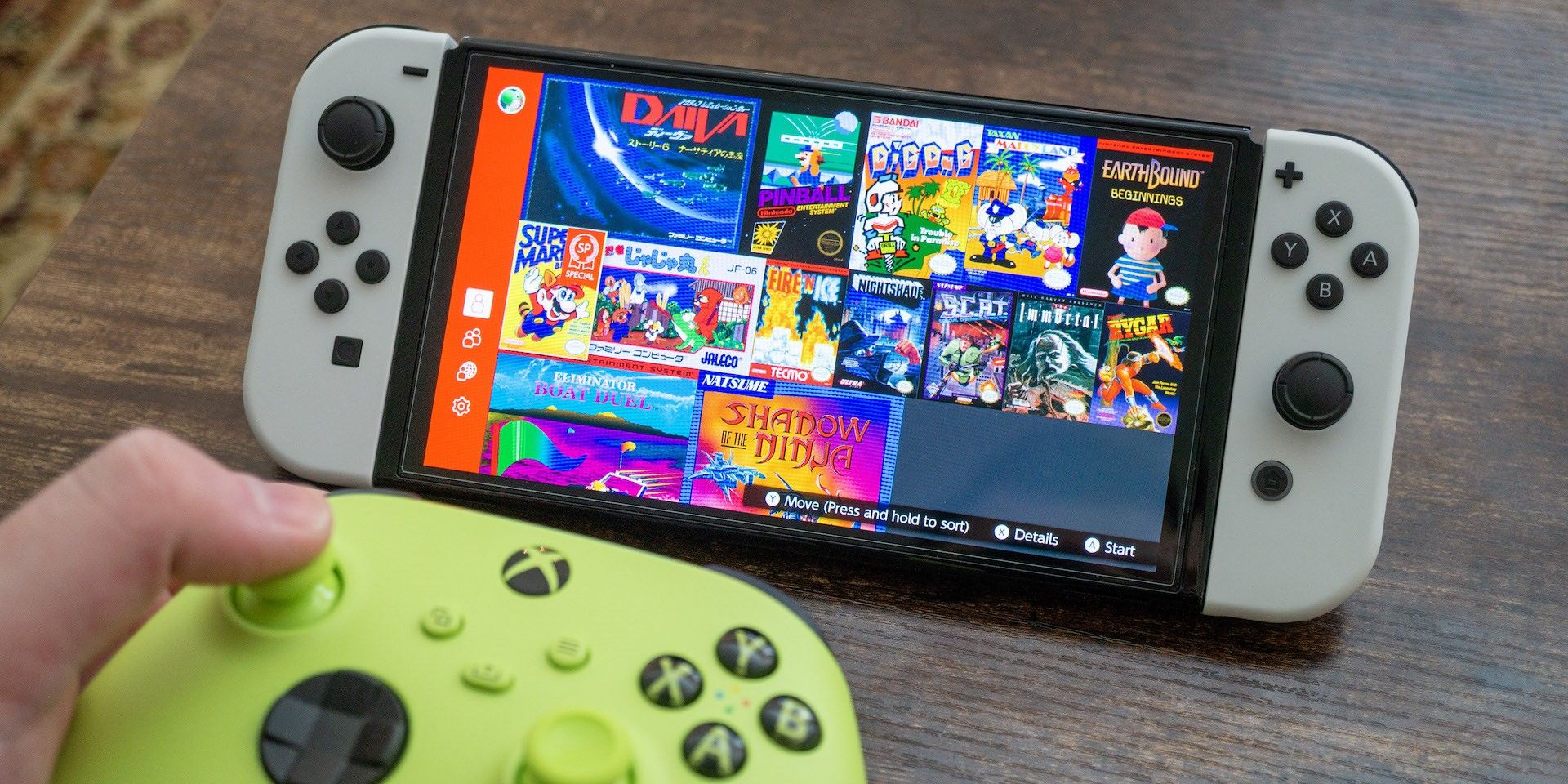
Using an Xbox controller on the Nintendo Switch 2 is accomplished by utilizing a third-party Bluetooth wireless adapter or a wired USB-C connection, as the console does not natively support Microsoft’s proprietary controller handshake protocols. Because the Switch 2 retains a focus on proprietary input devices, third-party hardware bridges are the only reliable way to map Xbox inputs to the console’s ecosystem.
Understanding Hardware Compatibility Constraints
The Nintendo Switch 2, while building upon the architecture of its predecessor, maintains strict security protocols regarding peripheral authentication. When you attempt to connect an Xbox Series X|S or Xbox One controller directly to the Switch 2 via Bluetooth, the devices will fail to handshake. This is not due to a lack of Bluetooth capability in the console, but rather a deliberate restriction in the console's firmware designed to ensure that only authorized controllers (Nintendo Switch Pro Controllers or Joy-Cons) interact with the OS.
To bypass this, you must use a hardware adapter. These devices act as a "man-in-the-middle," convincing the Switch 2 that it is communicating with a licensed Nintendo device while simultaneously maintaining an active connection with your Xbox controller. Understanding this distinction is vital; you are not "connecting" the controller directly, but rather integrating it through an intermediary translation layer.
Selecting a Compatible Bluetooth Adapter
In 2026, several reputable manufacturers produce USB-based dongles that facilitate this connection. When selecting an adapter, ensure it specifically lists support for the current firmware versions of both the Switch 2 and the Xbox controller ecosystem. Many older adapters that worked on the original Switch may require a firmware update via a PC before they can communicate with the Switch 2’s unique hardware ID.
When evaluating an adapter, consider the following features:
- Latency: Look for "Low Latency" or "Lag-Free" certifications. High-quality adapters process input in under 5ms, which is imperceptible to most players.
- Firmware Updateability: Ensure the device has a USB-C or micro-USB port that allows you to connect it to a computer to update its internal software.
- Multi-Platform Support: High-end adapters often support PlayStation, PC, and Switch simultaneously, providing better long-term value.
- Vibration and Motion Support: Some basic adapters strip away Rumble (HD Rumble) or Gyroscope (Motion Control) features. If you intend to play games that rely on motion aiming, ensure your chosen adapter explicitly mentions "6-Axis Motion" or "Gyro support."
Step-by-Step Connection Process
The procedure for establishing a connection remains consistent regardless of the specific brand of adapter you purchase. Follow these steps to ensure a stable pairing:
- Configure the Console: Navigate to the Switch 2 System Settings menu. Locate the "Controllers and Sensors" tab and ensure that "Pro Controller Wired Communication" is toggled to ON. This is a prerequisite for the console to recognize data coming through the USB-C port.
- Initialize the Adapter: Insert the Bluetooth adapter into the USB-C port on the bottom of the Switch 2 or the USB-A port on the console’s dock. Wait for the indicator light on the adapter to flash, signaling that it is in "Pairing Mode."
- Sync the Xbox Controller: Put your Xbox controller into its own pairing mode by holding the small sync button located on the top edge of the controller until the Xbox logo begins to blink rapidly.
- Finalize the Handshake: Once the light on the adapter stops flashing and turns solid, the connection is established. Test the interface by navigating the home menu. If inputs are registered, you are ready to play.
Comparison of Connection Methods
Choosing between a wired or wireless approach depends on your specific gaming environment. While wireless is more convenient, wired connections can sometimes be more stable in environments with high Bluetooth interference.
| Feature | Wireless Bluetooth Adapter | Wired USB-C Cable |
|---|---|---|
| Setup Complexity | Moderate (Requires Sync) | Simple (Plug and Play) |
| Latency | Extremely Low (<5ms) | Near Zero |
| Portability | High | Low (Requires cable) |
| Motion Controls | Supported (Model dependent) | Generally Unsupported |
| Power Requirement | Controller Battery | Console Power |
Troubleshooting Common Connectivity Issues
If your controller fails to connect or experiences significant input lag, start by power-cycling your hardware. Unplug the adapter, restart the Switch 2, and attempt the pairing process again. Many issues arise from outdated firmware on the adapter itself; if the controller connects but buttons are mapped incorrectly, check the manufacturer's website for an update utility.
Another common source of interference is the presence of other active Bluetooth devices. If you are playing in a room with multiple active consoles or smart home devices, try moving the adapter away from other electronic sources. Additionally, ensure the Xbox controller has fresh batteries or a full charge; low power levels can lead to dropped connections even if the wireless signal appears strong.
Mapping and Input Sensitivity
Because the Xbox controller layout (A, B, X, Y) differs slightly in physical position from the Nintendo layout (A, B, X, Y positions are swapped), you may find the controls feel "inverted" in your muscle memory. Fortunately, the Switch 2 OS includes a built-in "Change Button Mapping" feature located within the "Controllers and Sensors" menu.
This allows you to globally reassign your inputs. If you prefer the A button to act as "Confirm" in the Nintendo style, but your Xbox controller treats B as the primary confirm button, you can swap them in the system settings without needing to change any settings on the Xbox controller itself. This software-level remapping is saved to your profile, ensuring your settings persist across different games.
Frequently Asked Questions
Can I use the Xbox Elite Controller on Switch 2?
Yes, most advanced adapters support the Xbox Elite Series 2, though specific features like the rear paddles may require the adapter's proprietary software to be mapped to existing face buttons. The paddles cannot be mapped as independent inputs beyond the standard controller layout.
Will using an adapter get my account banned?
No. Hardware adapters that spoof controller signals are widely used and do not violate Nintendo’s terms of service. They are treated by the console as standard USB input devices.
Does vibration work with these adapters?
It depends on the adapter. Premium adapters support rumble, but it will not be "HD Rumble" as the Xbox controller hardware lacks the specific actuators found in Nintendo’s proprietary Joy-Cons or Pro Controllers.
Can I connect multiple controllers at once?
Yes, you can use multiple adapters if your dock has enough USB ports, or you can use a high-quality USB hub. However, performance may degrade if the hub is not powered, so a powered USB hub is recommended for multi-controller setups.
Do I need to re-pair every time I turn the console on?
Most modern adapters remember the last paired device. Once the initial handshake is successful, the adapter should automatically recognize your Xbox controller when you turn the controller on, provided the adapter remains plugged into the console.
Why is my motion control aim not working?
If you are playing a title that requires motion controls (like Splatoon or Zelda), ensure your adapter specifically supports "6-Axis Gyro." Standard Bluetooth adapters often skip this component to save on cost and complexity.
Next Actions and Recommendations
If you are looking to move forward, the most stable path is to acquire an adapter with active firmware support. Before purchasing, verify that the manufacturer has explicitly updated their compatibility list to include the Switch 2. Once you have the hardware, perform a full update of the adapter via a PC before attempting the initial sync to ensure compatibility with the most recent console firmware. By utilizing these adapters, you can leverage the superior ergonomics of the Xbox controller while enjoying the extensive library available on the Nintendo Switch 2.