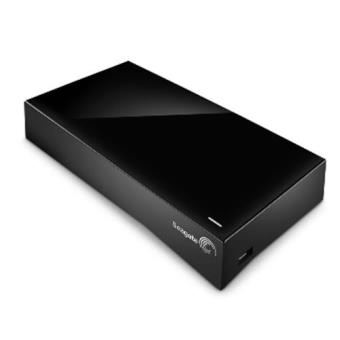
The Seagate 3TB Cloud storage solution—often associated with Seagate Central, Personal Cloud, or Backup Plus configurations—relies on a combination of hardware-level access controls and software-defined encryption to protect stored digital assets. Users must navigate local network permissions, remote access settings, and account authentication to ensure that 3TB of data remains secure against unauthorized entry or accidental exposure.
Core Security Architecture of Seagate 3TB Cloud Solutions
When discussing the security of a 3TB Seagate "Cloud" device, it is critical to distinguish between the physical storage drive and the cloud-enabled interface. These devices function as Network Attached Storage (NAS) or Personal Cloud units. Unlike public cloud services, the security responsibility is shared between the manufacturer’s firmware protocols and the user’s network configuration.
The primary security layer is the Remote Access Service. Seagate devices utilize a proprietary gateway that allows users to access their files from outside their local network. From a security standpoint, this gateway acts as a tunnel. Authentication is handled through a registered account, which bridges the connection between the user's mobile app or web browser and the home hardware. The security of this connection relies heavily on the strength of the user's account password and the implementation of Transport Layer Security (TLS) for data in transit.
Data at rest—the files sitting on the 3TB platter—is typically managed through the file system permissions of the operating system (usually a Linux-based kernel tailored by Seagate). If the device is part of a multi-user environment, security is enforced through access control lists (ACLs), which dictate which user accounts can read, write, or delete specific folders.
The Role of User Authentication and Network Isolation
Security for a 3TB cloud-capable drive is only as strong as the weakest link in your home or office network. Because these drives are designed to be "always on" and connected to a router, they are susceptible to port scanning and brute-force attacks if not configured correctly.
- Firmware Integrity: Seagate releases firmware updates periodically. These updates are essential because they often contain patches for known vulnerabilities in the web interface (the dashboard used to manage the 3TB storage). Failure to update the firmware leaves the device exposed to exploits that target older versions of the administrative portal.
- Account Hardening: Accessing your 3TB storage remotely requires an account. Utilizing a unique, high-entropy password is the single most effective step a user can take. Because the gateway service acts as a single point of failure, enabling multi-factor authentication (MFA) where supported by the specific Seagate software version is highly recommended.
- Local Area Network (LAN) Security: Many users make the mistake of assuming that "cloud" implies an off-site, secure server. In reality, the device is sitting on your desk. If your home Wi-Fi is unencrypted or uses weak WEP/WPA protocols, an intruder on your network can bypass the device’s internal security entirely by intercepting traffic or accessing the administration panel via the internal IP address.
Encryption Capabilities: What 3TB Users Should Know
A common point of confusion is whether the Seagate 3TB Cloud device automatically encrypts all files. In many instances, the standard consumer-grade Seagate Personal Cloud or Central drives do not perform full-disk encryption (FDE) by default.
If your goal is to protect data in the event of physical theft of the drive, you must understand the limitations of your specific hardware. Some models allow for folder-level encryption, where you create a protected volume that requires a password to mount. If the device does not explicitly offer this feature in the settings menu, the data is stored in a readable format on the disk. For users with high-security requirements, it is advisable to encrypt sensitive files locally on the computer before transferring them to the Seagate 3TB unit. This ensures that even if the physical drive is compromised or the network interface is breached, the individual files remain unreadable without the encryption key.
Comparative Security Features Table
The following table outlines the layers of security commonly found in Seagate consumer cloud/NAS units. Note that availability depends on the exact model and firmware version installed.
| Security Layer | Implementation Method | Purpose |
|---|---|---|
| Transport Security | TLS/SSL Encryption | Protects data during transfer between client and drive. |
| Access Control | User/Password Authentication | Limits access to specific folders and system settings. |
| Firmware Security | Cryptographically Signed Updates | Prevents installation of malicious or unauthorized code. |
| Physical Security | Kensington Lock Slot | Prevents physical theft of the hardware unit. |
| File Encryption | Software/Volume-based | Protects data on disk from unauthorized physical reading. |
Risks and Troubleshooting Common Security Misconfigurations
Many security incidents involving Seagate cloud devices arise from convenience-driven shortcuts. Understanding these pitfalls allows for proactive mitigation.
- UpnP Vulnerabilities: Many users enable Universal Plug and Play (UPnP) on their routers to simplify remote access to their 3TB cloud. UPnP can allow malicious software on your network to open ports on your router, effectively punching a hole in your firewall. If you do not require remote access, disable UPnP and manually configure port forwarding only if absolutely necessary, using non-standard ports to obfuscate the device.
- Default Credentials: While modern Seagate devices require account creation, older units may have had default "admin/admin" credentials. If you are using a legacy unit, changing the administrative password immediately is mandatory.
- Public Sharing Risks: Some Seagate software versions allow for "public" shares that require no authentication. Be aware that any folder marked as "Public" is accessible to anyone connected to your network, regardless of their individual user account status. Always move sensitive data out of public directories.
Best Practices for Maintaining Long-Term Security
To maintain a secure 3TB cloud environment throughout 2026 and beyond, adhere to a strict maintenance schedule.
- Regular Audits: Once every quarter, log into the web dashboard to review the "Connected Devices" list. Remove any devices (phones, laptops, tablets) that you no longer recognize or use.
- Audit Permissions: Check the folder share settings to ensure that you have not inadvertently given guest users read/write permissions to private folders.
- Backup Your Backup: Security is not just about keeping intruders out; it is about data availability. If your 3TB unit is your only copy of your data, you are at risk of data loss due to hardware failure. A secure system is one where data is encrypted on the device and backed up to an secondary, disconnected location.
- Physical Environment: Ensure the device is in a secure, climate-controlled environment. Physical security is the final hurdle; if an intruder can physically walk away with the 3TB drive, all digital security measures (unless the data is encrypted at the file level) can potentially be circumvented by attaching the drive to a forensic workstation.
Frequently Asked Questions
Does the Seagate 3TB Cloud drive encrypt data by default? No. Most consumer-grade Seagate storage solutions of this capacity store files in an unencrypted state on the internal hard drive. You must manually enable volume or folder-level encryption within the settings if your specific model supports it.
Is it safe to access my Seagate Cloud from public Wi-Fi? Accessing your device via the manufacturer's secure gateway (HTTPS) provides a layer of protection, but using a VPN is recommended when on public networks to ensure your traffic is encrypted end-to-end, preventing potential interception of your session tokens.
What should I do if I suspect unauthorized access? Immediately change your administrative password, disconnect the device from the internet (remove the Ethernet cable), and perform a full review of your access logs within the device dashboard. If the account appears compromised, perform a factory reset of the unit, which will wipe all configurations and security credentials.
Are firmware updates necessary for security? Yes. Firmware updates for your Seagate 3TB unit contain security patches that protect against emerging exploits. You should check the device settings page periodically to ensure your unit is running the most recent version provided by the manufacturer.
Can I restrict access to the 3TB drive by IP address? Most Seagate administrative dashboards allow for basic IP range restrictions. Configuring your network to only allow specific, static local IP addresses to access the storage interface adds a significant barrier against unauthorized internal access.
Final Recommendation
For users operating a Seagate 3TB Cloud device, security is a proactive process rather than a static state. The most effective security posture involves maintaining updated firmware, utilizing robust passwords for every account with access, and—most importantly—encrypting sensitive files before they are uploaded to the device. By treating the drive as a node on a network that requires strict oversight, you can leverage the convenience of cloud access while maintaining the integrity of your private data.