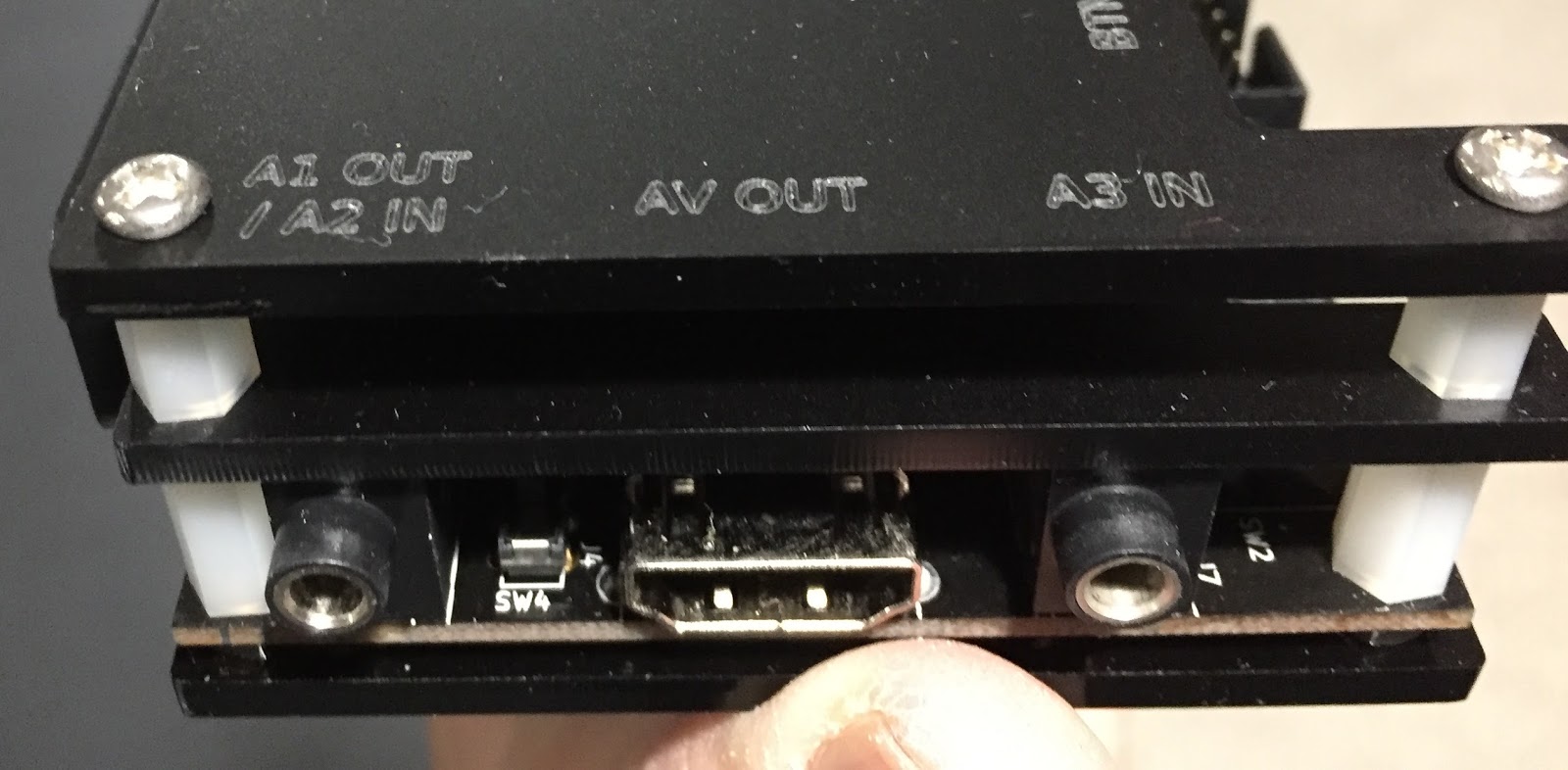
Connecting a Sony PlayStation 2 to modern digital flat-screen televisions presents unique technical challenges due to historical video output standards, making the Open Source Scan Converter an essential hardware tool for enthusiasts seeking low-latency, high-fidelity retro gaming performance.
The Sony PlayStation 2 (PS2) remains one of the best-selling video game consoles of all time, boasting an expansive library of titles developed across more than a decade. However, bridging the technological gap between the console's native analog video output and modern high-definition or ultra-high-definition digital displays requires specialized hardware. Modern televisions largely abandoned analog inputs like composite, S-Video, and standard-definition component video in favor of HDMI. When a PS2 is connected directly to a modern TV using cheap RCA-to-HDMI adapters, the results are typically marred by severe scaling artifacts, heavy input lag, and washed-out colors caused by poor internal analog-to-digital conversion.
The Open Source Scan Converter (OSSC), designed by Markus "marqs" Johansson, revolutionized retro gaming by providing a specialized, low-latency line multiplier. Unlike software emulators or cheap scalers that buffer frames and introduce delay, the OSSC processes analog video signals in real time. For PlayStation 2 owners, understanding how the OSSC operates, what prerequisites are necessary to achieve optimal video quality, and how to configure its settings can transform a blurry, sluggish retro experience into a sharp, responsive display that honors the original artwork of classic titles.
Understanding the PlayStation 2 Video Architecture
To fully appreciate why the OSSC is effective for the PlayStation 2, one must first examine the console's native video output capabilities. The PS2 supports several distinct video modes through its proprietary multi-out port, ranging from standard-definition interlaced signals to standard-definition progressive signals and limited high-definition outputs.
Native Video Formats: Composite, S-Video, RGB, and Component
Out of the box, most users initially experienced the PS2 via composite video (the yellow RCA jack), which combines luma and chroma into a single channel, resulting in color bleeding and blurry text. S-Video separates luma and chroma for a cleaner image, but the European and Japanese markets widely favored RGB SCART cables for their superior color separation.
For the highest quality standard and progressive definition, the PS2 supports YPbPr Component video (Red, Green, Blue RCA cables for video). Component video supports both 480i/576i (interlaced) and 480p/576p (progressive scan) modes, as well as a tiny selection of titles that natively render in 720p or 1080i, such as Gran Turismo 4 and Tourist Trophy.
The Interlacing Problem on Modern Displays
The vast majority of PlayStation 2 software library renders in 480i (NTSC) or 576i (PAL) interlaced resolutions. An interlaced signal splits each video frame into two separate fields—odd and even lines—which are drawn alternately on a cathode-ray tube (CRT) television.
Modern fixed-pixel displays, such as OLED and LED televisions, cannot natively process interlaced low-definition signals cleanly without internal deinterlacing algorithms. When a modern TV attempts to deinterlace a 480i signal, it often applies frame-doubling or weaving techniques that introduce noticeable input lag, heavy motion bobbing, or severe combing artifacts. Overcoming this limitation is the primary reason retro gaming enthusiasts turn to external line multipliers like the OSSC.
What is the Open Source Scan Converter (OSSC)?
The Open Source Scan Converter is an open-source hardware device designed specifically to convert analog video signals into digital HDMI signals by utilizing line multiplication rather than traditional frame buffering.
| Feature / Specification | OSSC (Classic / 1.6) | Cheap Analog-to-HDMI Converters |
|---|---|---|
| Processing Method | Real-time line multiplication | Frame buffering and scaling |
| Input Lag | Zero added frames (~0 ms) | 1 to 3 frames of delay (often 33ms+) |
| Supported Inputs | SCART, Component (YPbPr), VGA | Composite, RCA Component, HDMI |
| Output Type | HDMI (Digital audio/video) | HDMI (Often restricted to 720p/1080p) |
| Deinterlacing | Line-doubling / Pass-through | Basic software motion-adaptive |
Line Multiplication vs. Frame Scaling
Traditional upscalers capture an incoming analog video frame, store it in memory, process it through a scaling engine to fit a modern resolution like 1080p or 4K, and then output it via HDMI. This process takes time, resulting in input lag that disrupts fast-paced gameplay.
In contrast, the OSSC operates entirely on a line-by-line basis. As the analog scanlines enter the device, the OSSC multiplies the line frequency (e.g., taking a 240p or 480i signal and doubling, tripling, or quadrupling it) and outputs it instantly. Because there is no frame buffer, the OSSC introduces virtually zero processing lag, ensuring that inputs from the controller translate instantly to actions on the screen.
Hardware Inputs Relevant to the PS2
The OSSC features three primary analog input terminals:
- AV1 (SCART): Accepts RGB and RGBS signals.
- AV2 (Component): Accepts YPbPr component video and RGBs/RGBS.
- AV3 (VGA): Accepts VGA and RGBHV signals.
For PlayStation 2 connectivity, users typically rely either on a high-quality RGB SCART cable or a YPbPr component video cable connected to AV2.
Prerequisites and Hardware Setup for PS2 and OSSC
Achieving optimal performance with a PlayStation 2 and an OSSC requires more than just plugging cables together. Signal purity at the source is critical because the OSSC faithfully multiplies whatever signal it receives—including analog noise, interference, and poor grounding.
1. Cabling Requirements
To feed a clean signal into the OSSC, avoid cheap, unshielded third-party cables that often suffer from jailbars (faint vertical lines on the screen) or audio crosstalk.
- Component Cables: Use high-quality shielded component cables (such as official Sony PS3/PS2 component cables or well-reviewed coaxial alternatives).
- SCART Cables: If using the SCART input, ensure you purchase fully shielded cables wired for CSYNC (composite sync) rather than composite video-as-sync to maintain maximum signal stability.
2. PS2 System Settings (RGB vs. YPbPr)
Before connecting the console to the OSSC, you must configure the PS2's internal video output mode to match your cabling. Boot the console without a disc inserted to access the system configuration menu:
- Navigate to System Configuration.
- Select Component Video Out.
- Choose either RGB (if using a SCART cable) or YPbPr (if using component cables).
Failing to set this correctly will result in a scrambled or black screen when the signal hits the OSSC.
Configuring the OSSC for PlayStation 2 Software
Because the PS2 utilizes a mix of 240p (for backwards-compatible PlayStation 1 games and select 2D PS2 titles), 480i/576i (for standard PS2 games), and progressive 480p modes, configuring the OSSC correctly requires understanding line multiplication factors.
Handling 240p and 480i Content
When playing standard 240p content (such as PS1 classics running on the PS2), the OSSC can easily line-double (2X), line-triple (3X), line-quadruple (4X), or line-quintuple (5X) the image. A 5x upscale of a 240p signal results in a 1200p image, which fits cleanly on many modern 1080p and 4K displays.
However, 480i content presents a greater challenge due to interlacing fields. If you run 480i through standard line-doubling (resulting in 480p), the image flickers significantly because the modern TV displays alternating fields harshly. To mitigate this, advanced users utilize the OSSC's Bob deinterlacing or line-5X options with custom sampling phases to stabilize the picture, though many prefer to force progressive scan modes via homebrew software.
Leveraging Homebrew for Progressive Scan (GSM)
Many PS2 games run exclusively in 480i, which can look soft or flickery on an OSSC. To bypass this limitation, many enthusiasts use software tools like GSM (Graphics Synthesizer Mode Selector), loaded via FreeMCBoot (FMCB) memory cards or OPL (Open PS2 Loader).
- GSM allows users to force games that normally run in 480i to output in 480p or even higher resolutions.
- When a game is forced to 480p, the OSSC can apply clean line multiplication (such as 2x or 3x scaling into 960p or 1440p), completely avoiding the visual drawbacks of interlaced video processing.
Advanced OSSC Settings and Optimization
Fine-tuning the OSSC ensures that the image geometry, aspect ratio, and color sampling match the original intent of the developers.
Sampling Phase and PLL
Because analog signals are susceptible to subtle timing variations, tweaking the Sampling Phase in the OSSC menu is crucial for eliminating pixel shimmer and vertical banding. Adjusting this value until text appears crisp and free of ghosting makes a noticeable difference in high-contrast scenes.
Scanline Emulation
Because modern fixed-pixel displays lack the natural scanline gaps found on CRT monitors, bright 240p or 480p images can look overly harsh or blocky. The OSSC includes built-in customizable Scanlines generators. By overlaying simulated dark scanlines onto the image, users can recreate the authentic look and feel of a classic CRT television without sacrificing sharpness or color vibrancy.
Common Challenges and Troubleshooting
Even with high-end hardware, users occasionally encounter hurdles when integrating a PS2 with an OSSC.
- Loss of Sync on Resolution Changes: The PS2 frequently switches video modes between menus (often 480i) and gameplay (often 480p or 240p). When this happens, the OSSC may temporarily lose sync, resulting in a blank screen for a few seconds while the display re-handshakes the HDMI signal. Adjusting the "AV3/AV2 sync V-threshold" settings in the OSSC menu can help mitigate excessive dropouts.
- Display Incompatibility: Not all modern HDMI televisions accept non-standard video resolutions generated by line multipliers (such as 1200p or 1440p). If your TV displays a "No Signal" error, try lowering the OSSC multiplier setting from 5x to 4x (or 2x for interlaced modes) to output a standard 720p or 1080p container that your television easily recognizes.
- Audio Interference: Ground loops or poorly shielded analog cables can introduce a faint buzzing noise into the audio stream. Ensuring that your power supplies are isolated and using high-grade shielded cables resolves the vast majority of audio noise issues.
Frequently Asked Questions
Does the OSSC introduce input lag when playing PS2 games?
No. The OSSC performs real-time line multiplication using pure hardware logic without a frame buffer. It adds virtually zero processing delay (less than a single line scan, effectively 0 ms), making it ideal for rhythm games, fighting games, and action titles where precise timing is critical.
Can the OSSC upscale all PS2 games to 1080p or 4K?
The OSSC multiplies the incoming analog line rate by integer factors (e.g., 2x, 3x, 4x, 5x). Whether it reaches 1080p or 4K depends on the source resolution and the multiplier chosen. For example, a 240p signal multiplied by 5 results in 1200p, which many 4K TVs scale down or display cleanly, but the OSSC itself does not feature an arbitrary floating-point scaler like a high-end video processor.
Is a component cable or a SCART cable better for the PS2 on an OSSC?
Both options deliver exceptional quality. RGB SCART is often favored for European PAL consoles and games that run in standard 240p/586i, while YPbPr component video is widely praised for NTSC consoles and handles native 480p and progressive modes natively with zero color space conversion loss.
Why do some PS2 games flicker when connected to the OSSC?
Flickering typically occurs when playing games that output a native 480i interlaced signal. Because modern fixed-pixel displays handle interlacing poorly, the OSSC displays both fields sequentially. To eliminate this flicker, use homebrew tools like GSM to force progressive scan (480p) or adjust the OSSC's internal deinterlacing filter settings.
Do I need external power for the OSSC, or is it powered via HDMI?
The OSSC requires an external 5V power supply via a standard micro-USB or USB-C cable (depending on the hardware revision). It cannot draw sufficient power from the analog video inputs or standard HDMI lines to operate its internal processing FPGA chip.
Conclusion and Next Actions
Integrating a Sony PlayStation 2 with an Open Source Scan Converter represents one of the single most effective methods for experiencing classic library titles on modern high-definition displays. By bypassing low-quality digital converters and leveraging zero-lag line multiplication, enthusiasts can restore the visual fidelity, vibrant colors, and razor-sharp text intended by original developers. To begin, verify your console's video output settings, invest in high-shielded component or SCART cables, and fine-tune your OSSC profile settings to match your specific collection of software titles.