Ensuring .NET Framework compatibility on Windows 7 requires verifying your specific service pack level and identifying the maximum supported version, which is .NET Framework 4.8. While Microsoft officially ended extended support for Windows 7 in 2020, users maintaining legacy systems must ensure they are running Service Pack 1 and have the SHA-2 code signing support update installed to successfully install or run .NET applications.
Understanding the Lifecycle and Technical Constraints
To manage .NET Framework on Windows 7 effectively, one must first recognize the operating system's technical boundaries. Windows 7 was released with an initial version of the .NET Framework, but as the software ecosystem evolved, Microsoft expanded the framework's capabilities. The final major release of the .NET Framework that supports Windows 7 is version 4.8.
Unlike modern Windows operating systems that include the newer .NET 5, 6, 7, 8, or 9 (now referred to as just .NET), Windows 7 is restricted to the legacy .NET Framework ecosystem. It is vital to distinguish between these two: the "Full" .NET Framework (4.8 and earlier) and the cross-platform .NET (formerly .NET Core). If a software developer builds an application using .NET 6 or later, that application will not run on Windows 7, regardless of which version of the legacy .NET Framework you have installed.
Prerequisites for Compatibility
Before attempting to install or update the .NET Framework, your system must meet specific baseline requirements. Failure to address these prerequisites is the most common reason for "installation failed" errors on older machines.
- Service Pack 1 (SP1): Windows 7 RTM (the initial release without service packs) is effectively incompatible with most modern .NET Framework versions. You must have Windows 7 Service Pack 1 installed. You can verify this by right-clicking "Computer" on your desktop or Start menu and selecting "Properties."
- SHA-2 Code Signing Support: In 2019, Microsoft transitioned its code signing infrastructure to the SHA-2 algorithm. Windows 7 required a specific update (KB4474419) to recognize these signatures. If you are attempting to install a .NET Framework offline installer that is signed with SHA-2, it will fail without this update.
- Internet Explorer 11: While not directly a dependency for the framework runtime, many installation processes and certificate validation steps for older Windows systems rely on IE11’s rendering engine and security protocols.
- Administrative Privileges: Installing .NET Framework components requires full administrative access. Ensure you are logged into a user account with elevated permissions.
Steps to Verify Your Current .NET Version
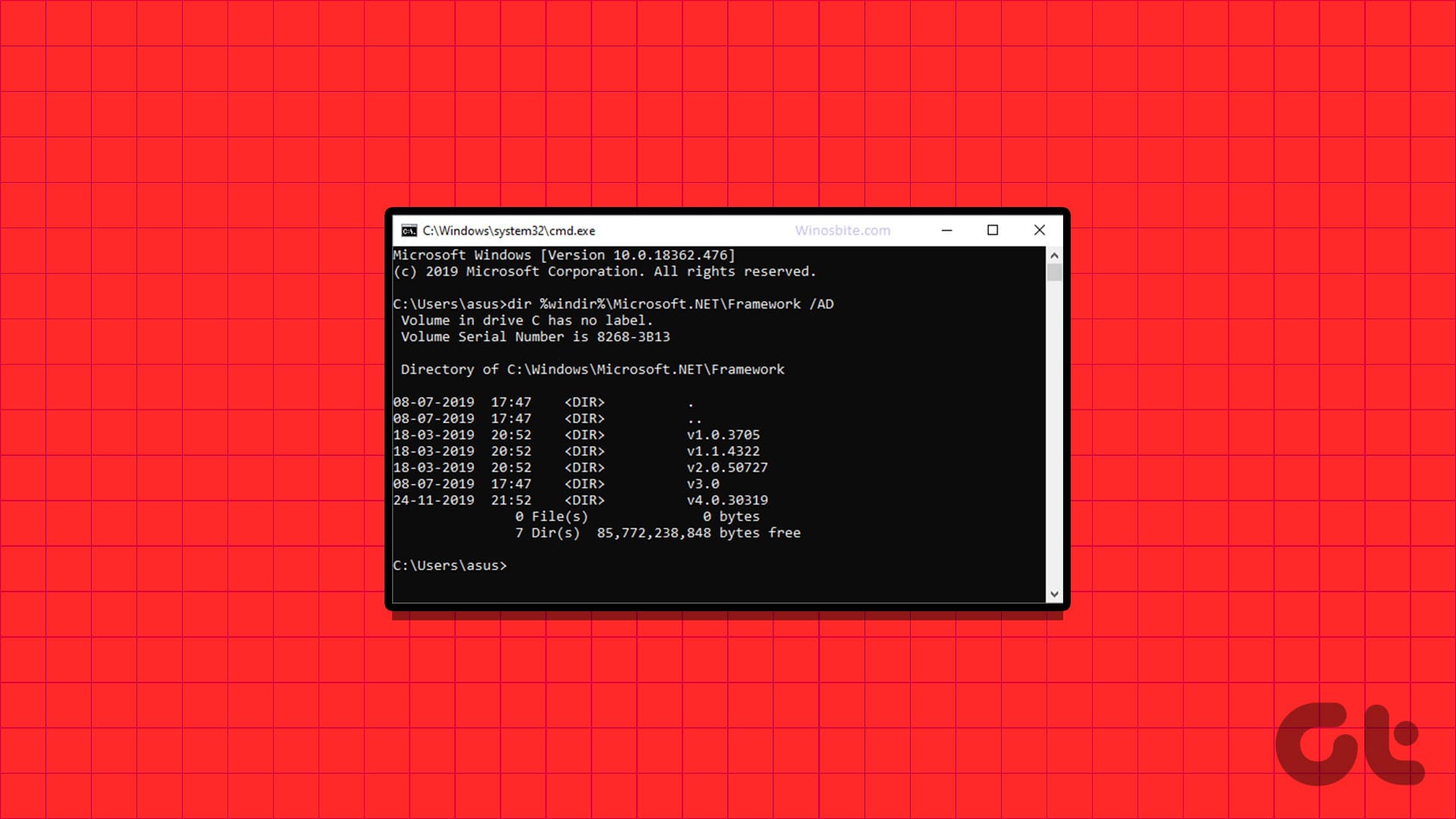
Before performing updates, check which versions are currently active on your system. Microsoft does not provide a simple "About" box for the framework, so you must rely on the Windows Registry or the Command Prompt.
Method: Using the Registry Editor
- Press
Win + R, typeregedit, and hit Enter. - Navigate to the following path:
HKEY_LOCAL_MACHINE\SOFTWARE\Microsoft\NET Framework Setup\NDP\v4\Full - Look for the
ReleaseDWORD value. - Compare this number against official Microsoft documentation. For example, a decimal value of 528040 indicates that .NET Framework 4.8 is installed.
Method: Using PowerShell
For those who prefer a command-line interface, run the following command in an elevated PowerShell prompt to quickly list installed versions:
Get-ChildItem 'HKLM:\SOFTWARE\Microsoft\NET Framework Setup\NDP\v4\Full' | Get-ItemProperty -Name Release | Foreach-Object { $_.Release }
Installing or Repairing .NET Framework 4.8
If your software requires a newer version of the framework, .NET Framework 4.8 is the final destination for Windows 7.
Installation Process:
- Visit the official Microsoft .NET archives.
- Download the .NET Framework 4.8 web installer or the offline standalone installer. The offline installer is recommended for Windows 7 machines that may have limited or unstable network connectivity.
- Execute the installer as an administrator.
- If the installer reports that the software is already installed, but you suspect corruption, choose the "Repair" option if available, or use the Microsoft .NET Framework Repair Tool.
Common Troubleshooting Steps
- Error 0x800B0109: This usually indicates a missing root certificate or a failure to verify the SHA-2 signature. Ensure KB4474419 is installed.
- Insufficient Disk Space: The .NET Framework requires significant temporary space during the extraction phase of the installation. Ensure your
C:drive has at least 5GB of free space. - Pending Reboots: If a previous update failed or a system file is locked, Windows 7 may refuse to install new components. Restart your machine and attempt the installation again.
Comparison of .NET Framework Versions for Windows 7
| .NET Version | Support Status | Compatibility | Best Use Case |
|---|---|---|---|
| 3.5 SP1 | Legacy | Native to Win7 | Older legacy desktop apps |
| 4.5.2 | End of Life | Native/Update | Mid-era software |
| 4.6.2 | End of Life | Supported | Compatibility requirements |
| 4.8 | Final Release | Supported | Modern apps requiring Win7 |
| .NET 5/6/7/8+ | Not Supported | Incompatible | Not applicable |
Note: "End of Life" implies that Microsoft no longer provides security updates for these specific versions of the framework, which may expose the system to vulnerabilities if the framework is exposed to external network traffic.
Security Implications and Risks
As of 2026, running Windows 7 is a significant security risk due to the lack of operating system-level security updates. Installing the latest compatible .NET Framework (4.8) provides some mitigation for application-level vulnerabilities, but it does not fix underlying OS flaws.
If you are running a business-critical application that requires .NET Framework on Windows 7, consider the following strategies to reduce your risk profile:
- Network Isolation: Keep the machine off the public internet. Use a firewall to restrict the machine's communication to only necessary internal endpoints.
- Least Privilege: Run your .NET applications under a standard user account rather than an administrator account to prevent potential exploits from gaining full system control.
- Virtualization: If possible, encapsulate the Windows 7 environment within a virtual machine hosted on a more secure, modern operating system. This allows you to revert to snapshots if a configuration change or update causes system instability.
Frequently Asked Questions
Can I run .NET 8 on Windows 7? No. .NET 8 requires newer operating systems, such as Windows 10 or Windows 11. The architecture of the modern .NET runtime relies on API calls and security features that are not present in the Windows 7 kernel.
Why does my installer keep failing even with SP1 installed? The most common cause is the missing SHA-2 code signing update (KB4474419). Without this, the Windows 7 cryptographic service provider cannot verify the authenticity of the newer installer packages from Microsoft, causing the process to abort immediately.
Is .NET Framework 4.8 the same as .NET 4.8? The branding is often confused. "The .NET Framework 4.8" refers to the legacy Windows-only framework. "The .NET 4.8" is usually a shorthand that refers to the same product. However, if a developer mentions ".NET 6," ".NET 7," or ".NET 8," they are referring to the modern, cross-platform successor, which is entirely different and incompatible with the legacy framework installed on Windows 7.
How can I tell if my software specifically needs .NET Framework?
Most applications will prompt you with an error message upon launch stating that a specific version of the .NET Framework is missing. You can also inspect the application's configuration file (usually an .exe.config file in the same folder) to see the supportedRuntime tags, which list the required .NET versions.
What is the best way to clean up a failed .NET installation? If you have encountered multiple failed attempts, use the "Microsoft .NET Framework Repair Tool." It automatically detects common installation issues and attempts to fix them by resetting the registry keys and re-registering the necessary system files.
Recommended Next Actions
For those maintaining Windows 7 systems, the priority should be the installation of the final service pack and the required SHA-2 update. Once these are applied, perform an in-place installation of the .NET Framework 4.8 to ensure the broadest possible compatibility for your legacy applications. If you are developing software, ensure your build environment targets the .NET Framework 4.8 profile specifically to maintain compatibility with these older target environments. Always maintain a full system backup before modifying core system frameworks.