To use AirPlay on Android TV, first check if your television has native AirPlay 2 support within its settings or input menu. If it does not, you can bridge the gap by installing a third-party application like AirScreen from the Google Play Store or by connecting an external hardware device, such as a Roku or Apple TV 4K, to enable seamless streaming from your iPhone, iPad, or Mac.
The convergence of the Apple and Google ecosystems has become increasingly common in 2026, yet many users still face hurdles when trying to bridge the gap between their iOS devices and Android TV hardware. While these platforms were once strictly siloed, the demand for cross-platform compatibility has led to a variety of native and third-party solutions. Whether you are trying to share photos, stream high-definition video, or mirror your desktop for a presentation, understanding the technical requirements and available methods for using AirPlay on Android TV is essential for a smooth experience.
Understanding the Compatibility Between AirPlay and Android TV
AirPlay is Apple’s proprietary wireless communication protocol suite, designed to allow the streaming of audio, video, device screens, and photos between devices. Android TV (and its modern interface, Google TV) is an operating system developed by Google for television sets, digital media players, and soundbars. Historically, these two technologies did not communicate natively because they rely on different protocols: Apple uses AirPlay, while Google uses Google Cast (formerly Chromecast).
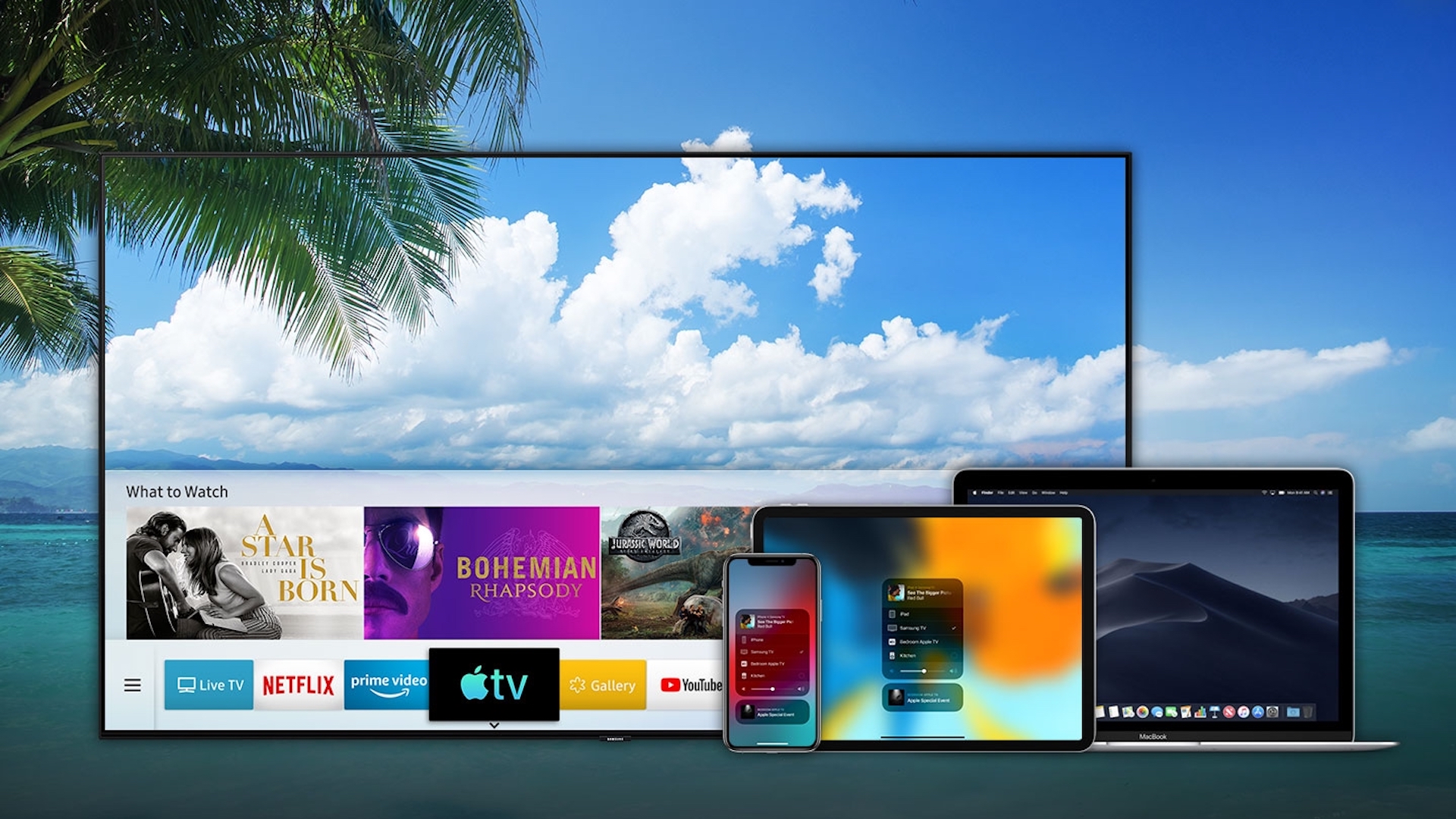
However, the landscape began to shift as major television manufacturers recognized that consumers often own hardware from multiple brands. As of 2026, many high-end and mid-range Android TVs from brands like Sony, TCL, Hisense, and Vizio include native AirPlay 2 support. This means the TV is licensed by Apple to function as an AirPlay receiver out of the box, requiring no additional software or hardware.
For older models or budget-friendly Android TV units that lack this licensing, the connection must be established through software emulation. Third-party developers have created applications that mimic the AirPlay protocol, allowing an Android TV to "pretend" it is an Apple device on the network. While effective, these solutions often come with different performance trade-offs compared to native integration.
How to Determine if Your Android TV Supports Native AirPlay 2
Before downloading apps or purchasing extra hardware, you should verify if your television already has AirPlay built-in. Native support is always preferable because it offers lower latency, better security, and integration with Apple Home (HomeKit).
Checking the System Settings
- Navigate to Settings: Use your Android TV remote to select the gear icon in the top-right corner of the home screen.
- Locate Device Preferences: Depending on your version of Android TV or Google TV, look for "Device Preferences" or "System."
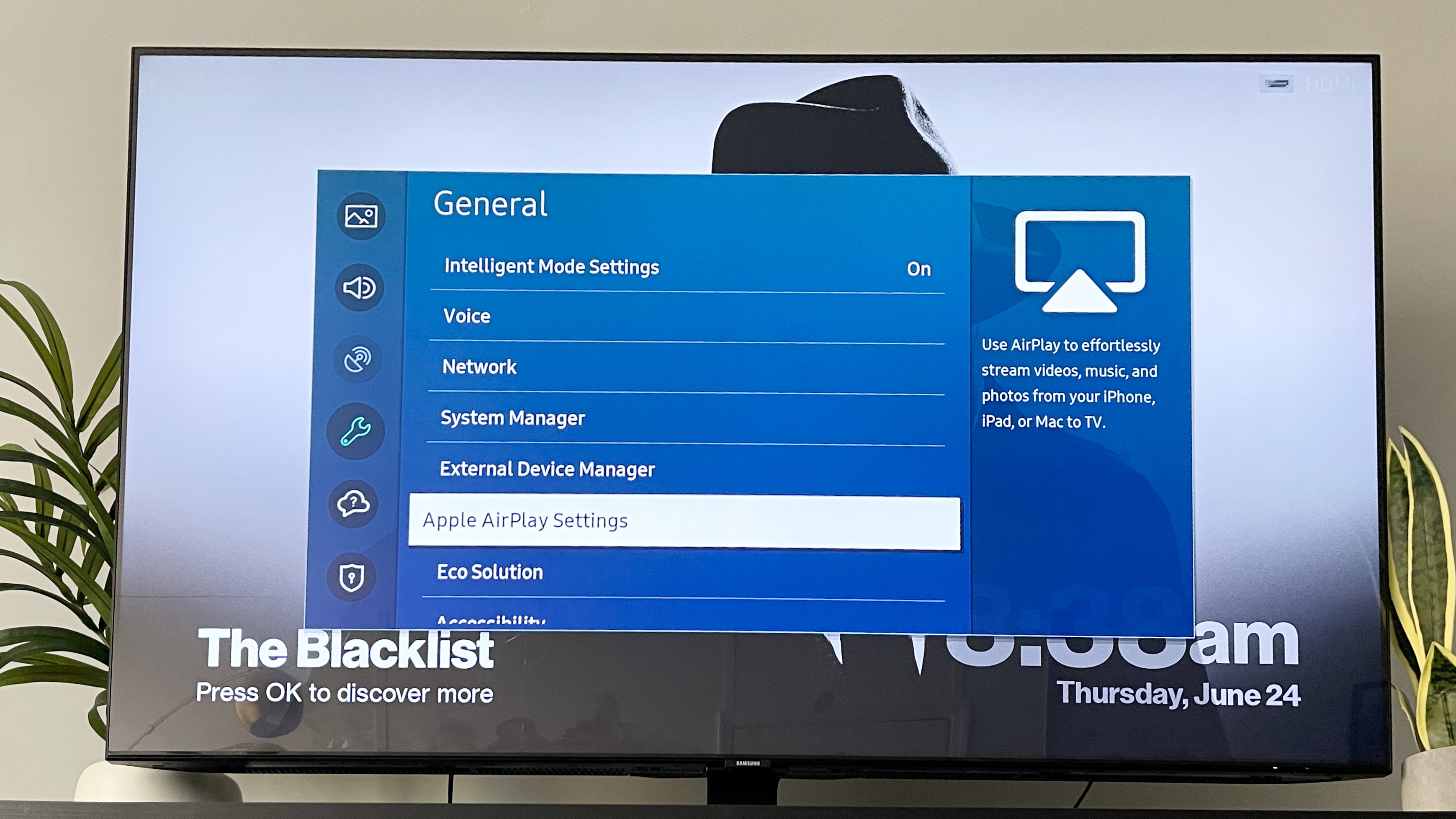
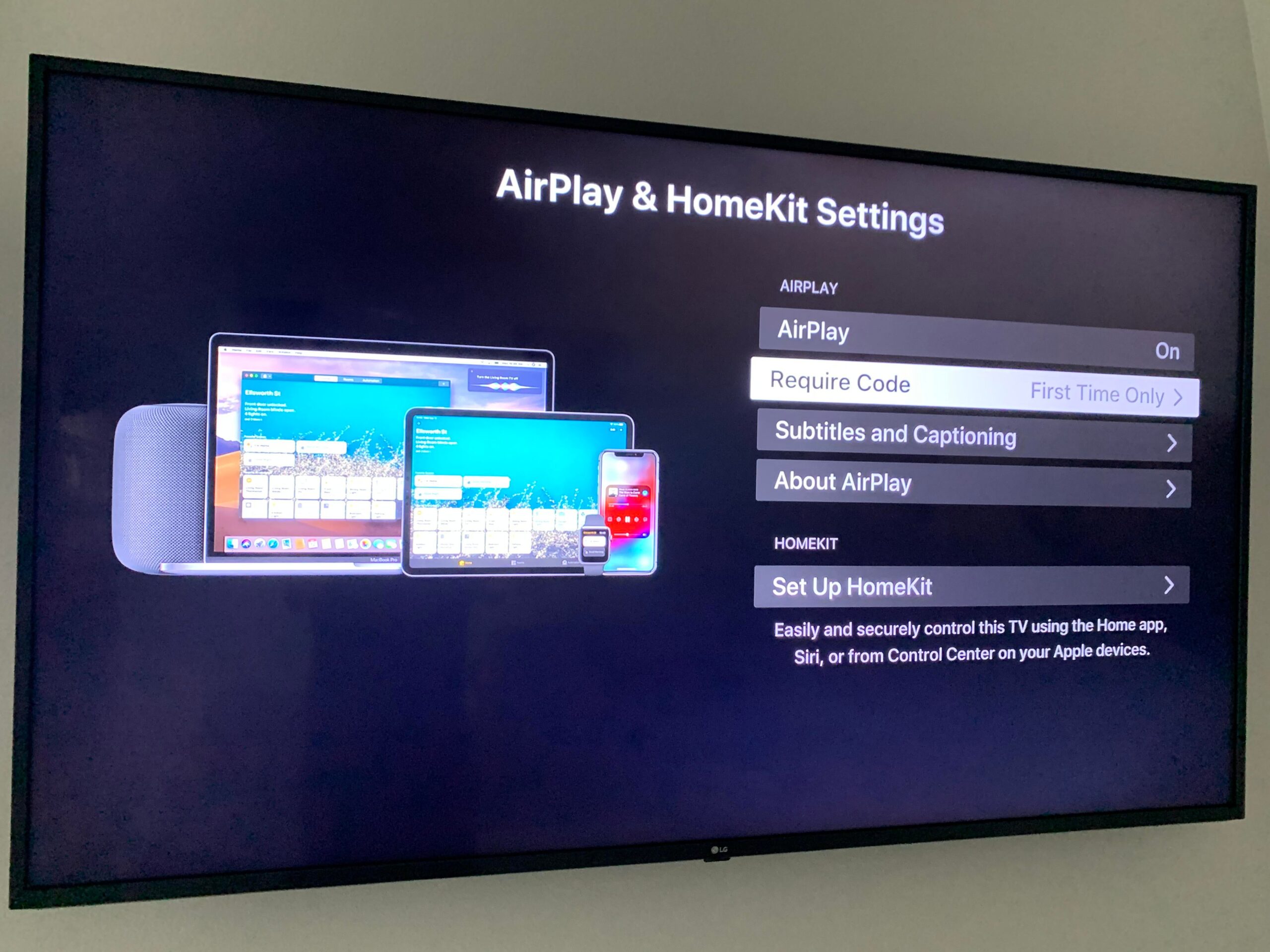
- Search for AirPlay & HomeKit: If your TV supports it, you will see a specific menu item labeled "AirPlay & HomeKit settings."
- Check the Inputs: Sometimes, the AirPlay setup is located as a dedicated "app" in your input list alongside HDMI 1 and HDMI 2.
Brand-Specific Expectations
In the 2026 market, native AirPlay 2 is standard on most Sony Bravia models produced from 2019 onwards. Many TCL 6-Series and Hisense U-Series models also include this feature. If you have a budget "white-label" Android TV or an older set-top box like the original Nvidia Shield (unless updated), you will likely need to use the third-party methods described later in this guide.
Setting Up Native AirPlay 2 on Android TV
If your TV does support AirPlay 2, the setup process is straightforward and typically only needs to be performed once.
- Connect to the Same Network: Ensure your iPhone, iPad, or Mac is on the exact same Wi-Fi network as your Android TV. AirPlay discovery relies on mDNS (Multicast DNS), which generally does not work across different VLANs or guest networks.
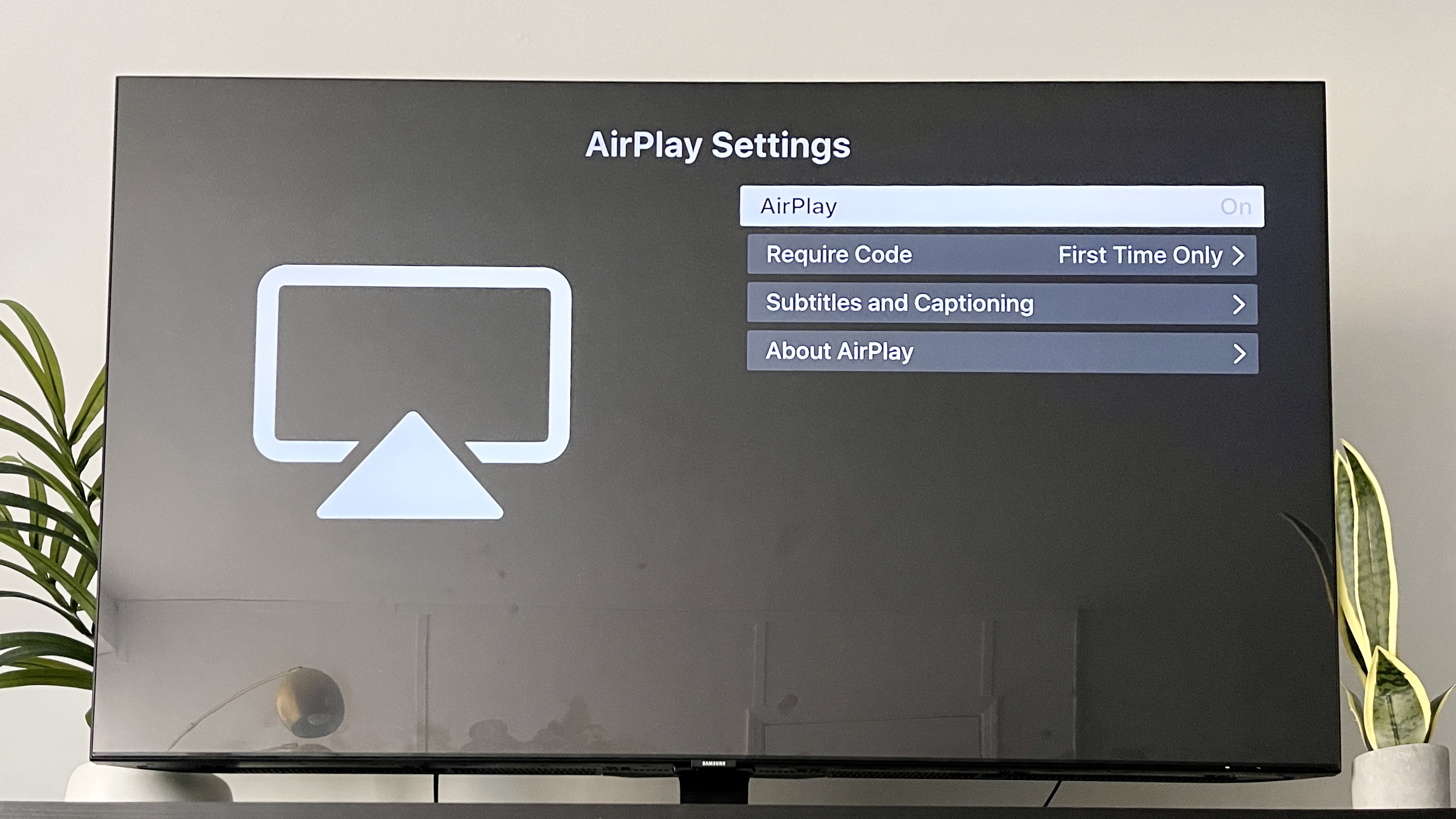
- Enable AirPlay: Open the AirPlay & HomeKit settings on your TV and ensure AirPlay is toggled to "On."
- Set Security Preferences: You can choose to require a passcode every time you connect, only the first time a device connects, or use a static password. For most home environments, "First Time Only" is the best balance between security and convenience.
- Initiate Connection: On your Apple device, open the Control Center. Tap "Screen Mirroring" or the AirPlay icon within a media app (like YouTube or Spotify).
- Enter the Code: A four-digit code will appear on your Android TV screen. Type this into your Apple device to pair them securely.
Using Third-Party Apps for AirPlay Support
For the millions of Android TV devices that do not have native Apple licensing, third-party applications are the most common solution. These apps act as a receiver for the AirPlay signal.
AirScreen: The Leading Solution
AirScreen is arguably the most popular and robust third-party AirPlay receiver for Android TV. It supports AirPlay, Cast, Miracast, and DLNA, making it a versatile tool for mixed-device households.
- Installation: Open the Google Play Store on your Android TV, search for "AirScreen," and install it.
- Launching the App: Once opened, the app will display a "Start" button. This initializes the background service that listens for AirPlay signals.
- Discovery: On your iPhone or Mac, your TV will now appear in the AirPlay list, usually named "AS-[Model Name]" or a custom name you provide in the app settings.
- Performance Considerations: AirScreen is free to use with ads, though a premium version is available for a smoother experience. Because it is an emulation, there may be a slight lag (latency) of 100-300 milliseconds, which is fine for video but might be noticeable for fast-paced gaming.
Alternative Apps
- Replica: While primarily an iOS app, Replica can help mirror your screen to any device with a web browser or a basic Cast/AirPlay receiver.
- CastReceiver: This is a lightweight alternative that focuses on Google Cast but has recently expanded its compatibility features.
- Mirroring360: A professional-grade solution often used in classrooms or offices, offering high stability for a one-time purchase fee.
Comparison of AirPlay Methods for Android TV
The following table compares the three primary ways to achieve AirPlay functionality on an Android TV platform as of 2026.
| Feature | Native AirPlay 2 | Third-Party Apps (e.g., AirScreen) | External Hardware (e.g., Roku/Apple TV) |
|---|---|---|---|
| Cost | Free (Included with TV) | Free or Small Subscription | $30 - $150 (Hardware cost) |
| Setup Ease | Very High | Medium | High |
| Latency | Extremely Low | Moderate | Low |
| 4K Support | Yes (Model dependent) | Often limited to 1080p in free versions | Yes |
| Reliability | Consistent | Variable based on app updates | Very Consistent |
| Privacy | High (Encrypted by Apple) | Moderate (Depends on developer) | High |
Hardware Workarounds for Seamless AirPlay
If software solutions are too laggy or unreliable for your needs, adding a small piece of hardware to your Android TV’s HDMI port is a "set-it-and-forget-it" fix.
The Apple TV 4K
The most seamless way to get AirPlay on any TV is to bypass the Android TV interface entirely by using an Apple TV 4K. This provides the most polished AirPlay experience, including support for 4K Dolby Vision and high-frame-rate HDR.
Roku Streaming Sticks
Surprisingly, Roku has become a major ally for Apple users. Most modern Roku sticks and Premiere models support AirPlay 2. If your Android TV lacks native support, plugging in a $40 Roku stick is often cheaper and more reliable than paying for premium third-party app subscriptions over several years.
Amazon Fire TV
Since 2020, many Fire TV Omni Series and 4-Series televisions, as well as the Fire TV Stick 4K Max, have received AirPlay 2 support. If you already have a Fire Stick in your setup, check the "Display & Sounds" settings to see if the AirPlay toggle is available.
Troubleshooting Common AirPlay Issues
Even with the right setup, you may encounter issues where the Android TV does not appear in the AirPlay list or the connection frequently drops.
Network Configuration (The #1 Culprit)
AirPlay requires a robust local network. If your devices are on different Wi-Fi bands (e.g., your iPhone is on 5GHz and the TV is on 2.4GHz), discovery might fail depending on your router’s "AP Isolation" settings.
- Fix: Ensure both devices are on the same SSID. Disable "Guest Network" modes, which often block inter-device communication.
mDNS and Router Settings
AirPlay uses a protocol called Bonjour (which utilizes mDNS) to find other devices. Some modern routers have "mDNS Snooping" or "Multicast" settings that can interfere with this.
- Fix: Access your router settings and ensure that "Multicast" is enabled. If you use a mesh network (like Eero or Google Nest Wi-Fi), ensure the TV is not being "steered" to a node that is too far away to maintain a stable handshake.
Software and Firmware Updates
In 2026, software versions change rapidly. A firmware update on your Sony TV might break compatibility with an older iOS version, or vice-versa.
- Fix: Check for "System Updates" on your Android TV and ensure your iPhone is running the latest stable version of iOS. If using an app like AirScreen, check the Google Play Store for app-specific updates.
Performance Optimization Tips
To get the best possible picture quality and the lowest lag when mirroring your screen to an Android TV:
- Use Ethernet: If possible, connect your Android TV to your router via an Ethernet cable. This stabilizes the receiving end of the stream and reduces the Wi-Fi congestion that causes stuttering.
- Clear Background Apps: On your Android TV, go to Settings > Apps > See all apps and force-stop any heavy applications (like games or Plex) before starting an AirPlay session.
- Adjust Resolution: If you are using a third-party app and experiencing lag, go into the app settings and lower the receiving resolution from 4K to 1080p or 720p. Often, the visual difference is negligible for casual viewing, but the performance gain is significant.
The Role of Google Cast as an Alternative
It is worth noting that if your goal is simply to get video from an app (like Netflix, YouTube, or Disney+) onto your TV, you may not need AirPlay at all. Most major media apps on iOS support Google Cast natively.
- How it works: When you tap the "Cast" icon (a rectangle with a Wi-Fi symbol in the corner) in the YouTube app on your iPhone, the phone sends a signal to the Android TV to open its native YouTube app and play that specific video.
- Advantage: This uses almost no battery on your iPhone because the TV is pulling the data directly from the internet, rather than your phone "pushing" the video to the TV.
- When to use AirPlay instead: Use AirPlay for apps that don't support Cast (like Apple TV+ or Apple Music), for mirroring your entire screen, or for showing private photos from your Camera Roll.
Frequently Asked Questions
Do I need to pay for an app to use AirPlay on my Android TV?
If your TV does not have native AirPlay 2 support, you will likely need a third-party app. While many apps like AirScreen offer a free version supported by advertisements, more stable, ad-free experiences usually require a one-time purchase or a small subscription fee.
Is it safe to use third-party AirPlay apps from the Play Store?
Reputable apps like AirScreen and Mirroring360 are generally safe. However, because these apps require permissions to access your network and display content, you should always check the developer's privacy policy and stick to well-reviewed applications with millions of downloads to avoid malware.
Why is the audio out of sync when using AirPlay on Android TV?
Audio desync is a common issue with software emulation. If you are using a third-party app, look for "Audio Delay" or "Lip Sync" settings within the app to manually adjust the timing. If you are using native AirPlay, restarting both the TV and the router usually resolves the synchronization issue.
Can I AirPlay content from my Mac to Android TV?
Yes. On a Mac running macOS, you can click the Control Center icon in the menu bar, select "Screen Mirroring," and choose your Android TV (if it is running a receiver app or has native support). You can choose to either mirror your desktop or use the TV as a separate wireless display.
Can I use AirPlay 2's multi-room audio with Android TV?
Only if your Android TV has native AirPlay 2 support. Third-party apps typically only support "AirPlay 1" video/audio streaming, which does not integrate into the Apple Home multi-room audio ecosystem.
Practical Recommendation
If you are a heavy Apple user who recently purchased an Android TV, your first step should be to check the System Settings for native AirPlay & HomeKit support. This provides the most secure and high-quality experience. If your TV lacks this feature and you plan on using AirPlay frequently, the most reliable long-term solution is to invest in an Apple TV 4K or a Roku Streaming Stick 4K. While third-party apps like AirScreen are excellent for occasional use or for those on a budget, they cannot match the stability and latency-free performance of dedicated hardware or native integration.