Mastering a personal knowledge management system requires a blend of structural discipline and flexible utility. While the Obsidian ecosystem continues to evolve, the "2024 Obsidian Checklist"—a framework originally popularized to help users standardize their vault setup, plugin integration, and file management habits—remains the gold standard for maintaining a sustainable, scalable, and friction-free second brain. Whether you are transitioning from other tools or refining a long-standing vault, this checklist ensures your system supports your cognitive goals rather than becoming a source of maintenance overhead.
Establishing Your Vault Foundations
Before installing plugins or experimenting with complex graph visualizations, your vault must be anchored in a stable file structure. The most common mistake users make is over-complicating their folder hierarchy early on.
- Adopt a Minimalist Directory Structure: Start with a flat structure (e.g.,
00_Inbox,10_Projects,20_Notes,30_Archive). Over-nesting leads to "folder paralysis," where you spend more time deciding where to file a note than writing it. - Standardize Naming Conventions: Use a consistent format for your files, such as
YYYY-MM-DD Title. This ensures that your file explorer remains chronological and searchable. - Configure Core Plugins: Enable only the core plugins you use daily. Frequently used core plugins include Templates, Command Palette, and Backlinks. Disable Canvas if you do not use it, as it can occasionally clutter your memory footprint.
- Implement a Daily Note Routine: The Daily Note is the heartbeat of a productive Obsidian vault. It acts as a catch-all for thoughts, task tracking, and link-gathering, preventing your inbox from becoming an unmanageable graveyard of disparate ideas.
The Plugin Strategy: Quality Over Quantity
The Obsidian community produces hundreds of third-party plugins annually, but a functional vault relies on a curated selection. Every plugin you add introduces a potential dependency that may break during future software updates.
- The "One-In-One-Out" Rule: Before installing a new plugin, verify whether you can achieve the same result using native features or a simple template. If you decide to install a plugin, commit to removing one that you haven’t used in the past 30 days.
- Essential Plugin Categories:
- Automation: Templater or QuickAdd to reduce repetitive typing.
- Visualization: Dataview for querying your metadata.
- Management: Periodic Notes to extend the functionality of the native Daily Note feature.
- Update Discipline: Check your community plugins tab at least once a month. Ensure all plugins are updated to be compatible with your current version of Obsidian. If a plugin is no longer maintained by its developer, prioritize replacing it with a more sustainable alternative.
Managing Metadata and Dataview Queries
As your vault grows, manual searching becomes inefficient. Metadata (Properties in modern Obsidian versions) allows you to turn your notes into a structured database.
| Metadata Property | Purpose | Example Value |
|---|---|---|
status |
Track note maturity | seed, growing, evergreen |
type |
Categorize content | meeting, research, thought |
tags |
Broad classification | #philosophy, #project/web |
created |
Temporal tracking | 2026-05-12 |
By using the Dataview plugin, you can generate dynamic lists of your notes. For instance, creating a query that identifies all "Seed" notes that haven't been edited in over 30 days provides a clear list of what needs revision. This transforms your vault from a passive collection into an active engine for knowledge refinement.
Troubleshooting and System Health
Even a well-maintained vault can experience performance degradation. If Obsidian starts to feel sluggish, use this troubleshooting sequence:
- Verify Obsidian Version: Ensure you are running the latest version of the application. Obsidian updates frequently contain performance optimizations and bug fixes for the underlying Electron framework.
- Audit Large Media Files: If you store high-resolution images or large PDFs directly in your vault, your search performance and index speed will suffer. Move non-text assets to a local drive or compress them to ensure the metadata index remains lean.
- Check for Plugin Conflicts: If the app hangs or crashes, use the "Restricted Mode" toggle to disable all community plugins. If the issue resolves, re-enable your plugins one by one until you identify the culprit.
- Backup Strategy: Obsidian files are local Markdown files, making them easy to back up. Ensure you have an automated off-site backup (e.g., using GitHub, iCloud, or a standard cloud drive) to prevent data loss in the event of hardware failure.
Integrating the 2026 Workflow
While the "2024 checklist" provides the structural foundation, your workflow in 2026 must be adapted to the current capabilities of the platform. By now, you should have moved away from "collecting" notes and toward "connecting" them.
- Review the Link Structure: Ensure your notes are not orphaned. Use the Graph View—specifically the local graph—to visualize connections between current projects and legacy notes. If a note has no incoming or outgoing links, ask if it is truly useful in your current context.
- Optimize Templating: Reflect on your templates. Are they capturing fields you don't actually use? Simplify them. A template should save time, not force you to fill out bureaucratic forms for every fleeting thought.
- The Weekly Review: Use your Sunday or Monday to review the previous week’s Daily Notes. Move actionable items into your task manager, archive completed projects, and turn scattered ideas into cohesive "evergreen" notes.
Frequently Asked Questions
Is it necessary to use Dataview to be productive in Obsidian? No. Obsidian is fundamentally a Markdown-based note-taking app. Dataview is a powerful tool for those who enjoy data organization, but it is entirely optional. If you prefer a simpler approach, manual links and nested folders are sufficient for most users.
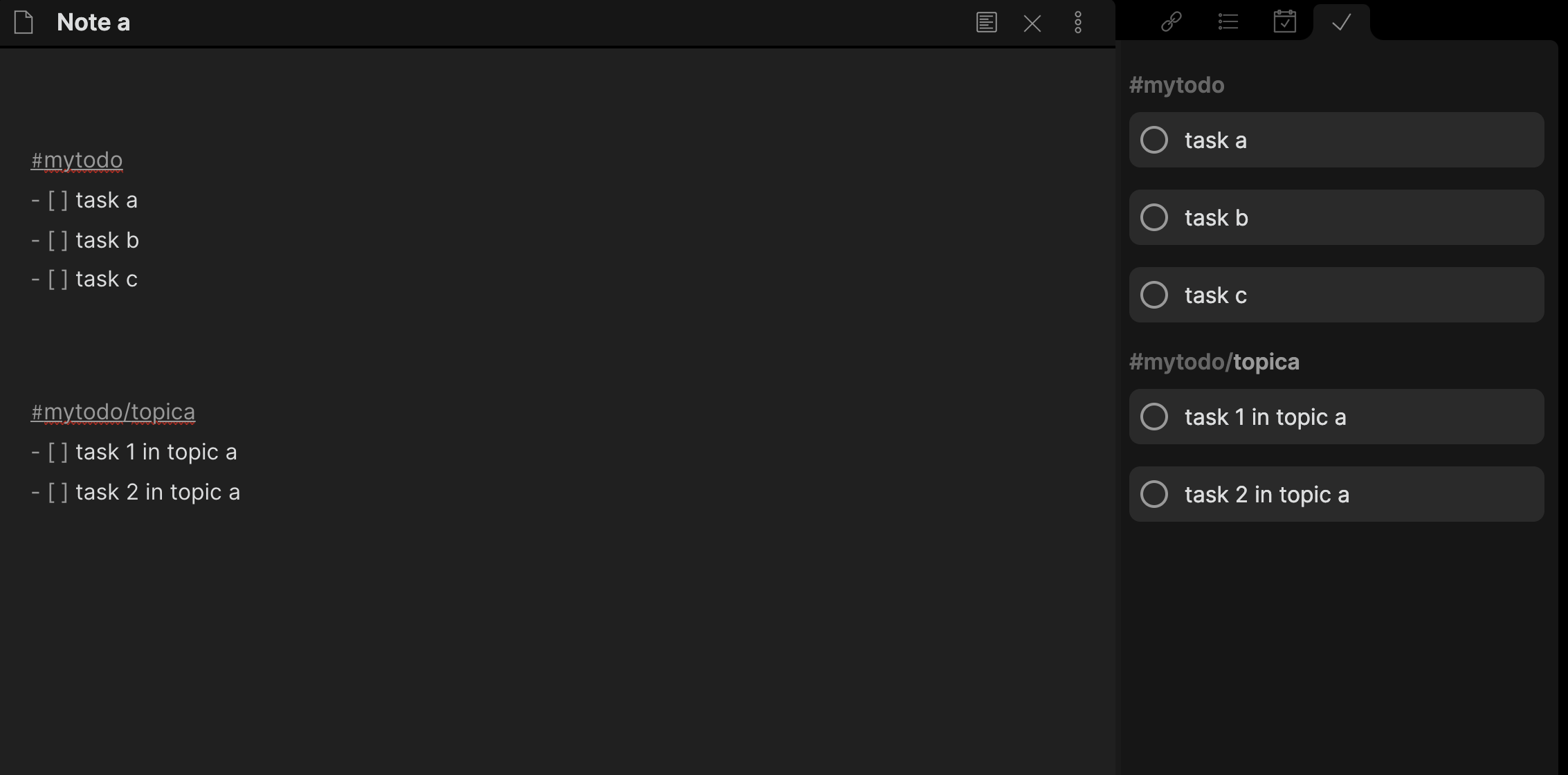
How do I handle task management inside Obsidian? Obsidian is excellent for project-related tasks. For granular daily task management, consider using the native "Tasks" syntax or the Tasks community plugin. Avoid using Obsidian for time-sensitive, deadline-driven tasks that require reminders, as it lacks a native push-notification system.
Should I keep my vault in a cloud-synced folder? Yes, if you need access across multiple devices. However, ensure that the syncing service does not create conflicts by writing to files while Obsidian is open. Standard services like iCloud, OneDrive, or Syncthing generally handle this well.
Can I export my data if I decide to switch to another app? Yes. Because Obsidian stores data in plain-text Markdown files, you own your data. You can open your vault in any text editor, Typora, or other Markdown-based apps without needing to "export" or "convert" your files.
How do I prevent my vault from becoming a "data landfill"? The key is active curation. The 2024 checklist emphasizes the "Review" phase. If you are not willing to review a note, delete it. A smaller, higher-quality vault is always more effective than a massive, unorganized one.
Next Actions for Your Vault
To begin optimizing your Obsidian environment today, start with the "Cleanup Audit." Dedicate one hour to reviewing the root folder of your vault. Delete empty notes, consolidate duplicate files, and verify that your most important project notes have at least three incoming links to other relevant topics. By treating your vault as a living organism rather than a static filing cabinet, you ensure that your knowledge management system remains a genuine asset for your professional and creative work in 2026 and beyond.