Finding yourself locked out of your Windows 10 computer can be a deeply stressful experience, especially when you have pressing deadlines, important communications, or critical projects waiting on your desktop. This lockout typically happens due to consecutive incorrect password attempts, security policy updates, corrupted user profiles, or synchronization failures with a Microsoft account. Fortunately, you do not need to reinstall your operating system or panic. You can regain access quickly using built-in administrative tools, alternative sign-in methods, or simple password reset procedures.
Understanding Why Windows 10 Locks Out Accounts
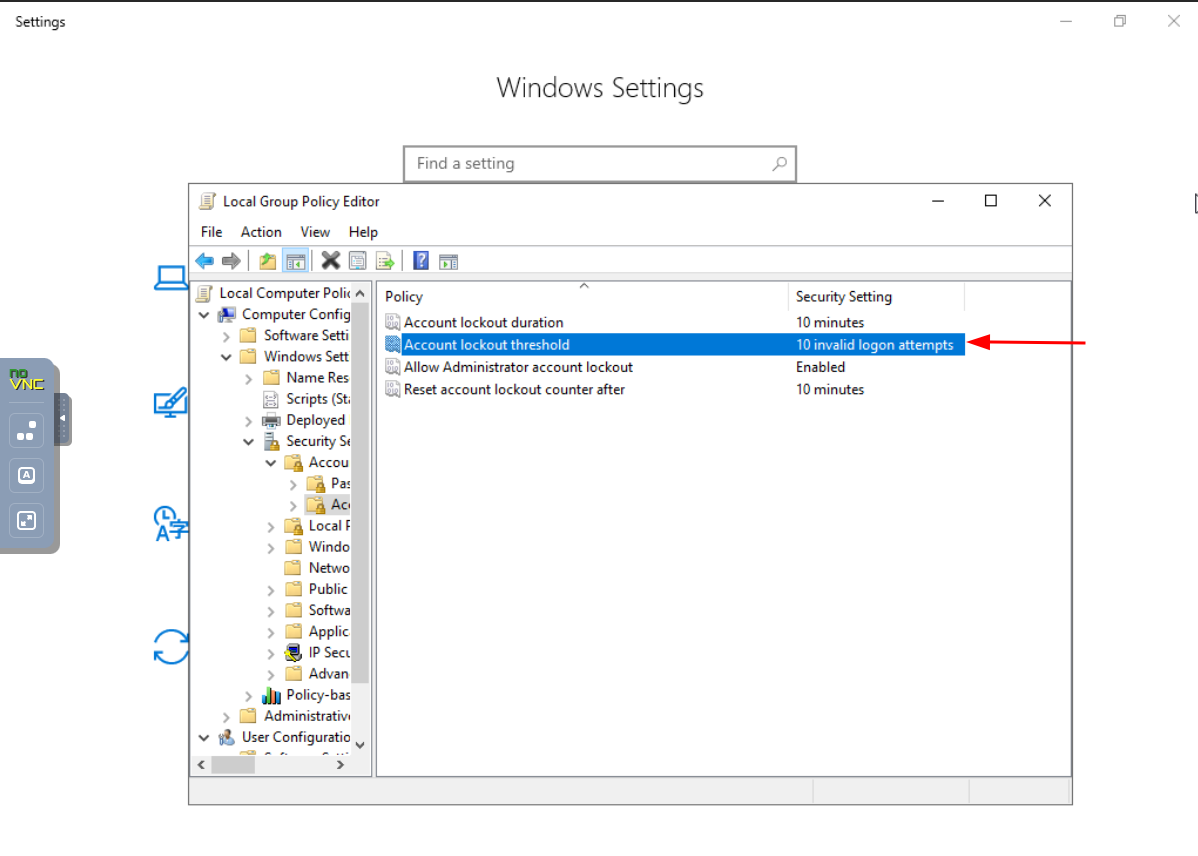
Before jumping into the solutions, it helps to understand the underlying mechanisms that cause a Windows 10 lockout. Windows utilizes security protocols designed to protect unauthorized users from guessing your credentials through brute-force attacks. When a specific threshold of incorrect password entries is met—often set by local security policies or Microsoft online account protections—the operating system temporarily or permanently suspends access to the user profile.
In many modern home and office environments, users link their local Windows 10 installation to a Microsoft account (MSA). When this occurs, password changes made on a smartphone, tablet, or web browser can create a synchronization lag on the local machine. If the computer is offline, it will attempt to authenticate against an outdated cached credential, resulting in a lockout even if you type the new password correctly. Alternatively, corrupted system files or an accidental toggle of the Caps Lock key can trigger repetitive login failures. Recognizing these root causes ensures you choose the most effective fix for your specific scenario.
Prerequisites and Initial Assessments
Before attempting any advanced troubleshooting steps, you should perform a few basic physical and environmental checks to eliminate simple user errors:
- Check the Keyboard State: Ensure that the Caps Lock or Num Lock keys are not accidentally enabled, which can drastically alter your password input.
- Verify Layout and Language: Look at the bottom-right corner of the login screen to verify that your keyboard language input matches your regional layout (e.g., US vs. UK English).
- Inspect Peripheral Connections: Disconnect unnecessary USB devices, external hubs, or secondary keyboards that might be sending ghost keystrokes or interfering with the primary input device.
- Test Network Connectivity: If you use a Microsoft account, check if your computer is connected to the internet via Wi-Fi or Ethernet. If it is offline, it cannot verify recent password modifications made on other devices.
Once you have verified these baseline elements, you can proceed to the primary solutions detailed below.
Quick Fix 1: Reset Your Microsoft Account Password Online
If your Windows 10 device is linked to a Microsoft email address (such as Outlook, Hotmail, or Live), your primary login credential is tied to Microsoft's cloud infrastructure. When a lockout occurs due to forgotten credentials or synchronization errors, resetting the password via a separate device is often the fastest and cleanest path to recovery.
Step-by-Step Recovery Procedure
- Access the Recovery Portal: Using a smartphone, tablet, or secondary computer, navigate to the official Microsoft Account Recovery page.
- Input Your Identifier: Enter the email address, phone number, or Skype name associated with your locked Windows 10 account.
- Verify Your Identity: Complete the security verification challenge. Microsoft will typically send a security code to an alternate email address or phone number linked to your profile.
- Enter the Code: Type the numerical security code into the web browser prompt to confirm your identity.
- Create a New Password: Choose a strong, unique password that meets Microsoft's complexity requirements.
- Reconnect Your PC: Return to your locked Windows 10 computer. Ensure the machine is connected to the internet (click the network icon in the bottom-right corner if necessary). Enter your new password.
Note: If the computer refuses the new password immediately, restart the machine while maintaining an active internet connection to force a background credential sync with Microsoft servers.
Quick Fix 2: Utilize an Alternate Sign-In Method (PIN, Picture Password, or Biometrics)
Windows 10 supports multiple sign-in options under Windows Hello. If you are locked out using your traditional alphanumeric password, you may still have a secondary authentication method configured that bypasses the primary account block.
Exploring Available Sign-In Options
When you arrive at the login screen, look closely underneath the password text box. You will typically see a clickable link labeled Sign-in options. Clicking this reveals alternative authentication pathways previously configured on the system.
- PIN (Personal Identification Number): Often, a four-digit or alphanumeric PIN remains active even if the main Microsoft or local account password has encountered an error state.
- Picture Password: If you set up gestures (circles, lines, taps) on a specific background image, you can draw those gestures to unlock the machine.
- Biometric Sign-In: Systems equipped with a fingerprint reader or infrared webcam supporting Windows Hello Face recognition can often authenticate you directly, overriding a password lockout.
If one of these alternative methods succeeds, your first action upon reaching the desktop should be to navigate to Settings > Accounts > Sign-in options to reset, update, or clear the failing credential.
Quick Fix 3: Boot into Safe Mode and Enable the Built-In Administrator Account
When standard account recovery fails—such as when dealing with a standalone local account with no internet connectivity—you can leverage Windows 10’s hidden, default Administrator account. This account typically remains disabled by default, but it can be accessed through the Advanced Startup Environment to reset credentials for locked profiles.
Executing the Recovery Process via Safe Mode
To perform this fix, you must access the Windows Recovery Environment (WinRE).
- Trigger the Recovery Environment: On the login screen, press and hold the Shift key on your keyboard while clicking the Power icon in the bottom-right corner, then select Restart. Alternatively, if you cannot reach the login screen, force-restart your PC twice during the boot animation to automatically trigger WinRE.
- Navigate to Advanced Startup: Once the blue options screen appears, click Troubleshoot, select Advanced options, click Startup Settings, and then click Restart.
- Select Safe Mode with Command Prompt: When your computer reboots to the Startup Settings list, press 4 or F4 to enable Enable Safe Mode (or 6 / F6 for Safe Mode with Command Prompt).
- Access the Administrator Tool: Once the system boots into the simplified Safe Mode interface, right-click the Start button and select Terminal (Admin) or Command Prompt (Admin).
- Reset the User Account: Type the following command to view a list of all local accounts on the machine, ensuring you target the correct spelling of your locked username:
net user - Apply a New Password: Execute the command to force a password change for your locked account, replacing
Usernamewith your actual account name andNewPasswordwith your desired new password:net user Username NewPassword - Reboot Normally: Close the command prompt window and restart your computer normally. You can now log into your profile using the newly created password.
Comparison of Windows 10 Recovery Methods
To help you decide which path to take, the table below outlines the requirements, pros, and cons of each quick fix.
| Fix Method | Primary Requirement | Best Used For | Pros | Cons |
|---|---|---|---|---|
| Online Password Reset | Secondary device & internet access | Microsoft-linked accounts | Fast, preserves user data and cloud settings | Requires active internet connection and secondary verification device |
| Alternative Sign-In | Pre-configured PIN or biometrics | Quick bypass of password errors | Instant desktop access without recovery tools | Only works if a secondary method was previously set up |
| Safe Mode & Command Prompt | Physical access & WinRE availability | Local accounts or offline machines | Highly effective when internet access is unavailable | Requires navigation of text-based command-line tools |
Frequently Asked Questions
Will resetting my password delete my personal files?
No. Resetting your password using Microsoft's online portal, alternative sign-in methods, or the local command prompt in Safe Mode only alters authentication credentials. Your documents, applications, and personal settings remain entirely untouched.
What should I do if the Microsoft password reset email does not arrive?
First, check your spam or junk folder. If it is not there, verify that you entered the email address correctly. You can also choose an alternative verification method, such as receiving an SMS text message or using an authenticator app associated with your account.
Why does Windows 10 keep locking me out repeatedly?
Repeated lockouts usually indicate an active background process—such as a mobile app, disconnected device, or outdated mail client—attempting to log in with old credentials. Check your connected devices, review your app passwords, and ensure your system is fully updated.
Can I use a password reset USB drive on Windows 10?
Yes, if you created a password reset disk prior to being locked out, you can insert the USB drive into your PC. Click the "Reset password" link that appears beneath the password box after a failed attempt, and follow the wizard instructions to create a new password.
Is it possible to bypass a Windows 10 lockout without a password?
While third-party tools exist, using built-in features like Safe Mode with Command Prompt or Microsoft's official recovery portal provides a secure, reliable, and manufacturer-supported method to restore access without compromising system stability.
Recommendations and Best Practices
Experiencing a lockout serves as an important reminder of the value of account maintenance. Once you regain access to your Windows 10 desktop, take proactive steps to prevent future disruptions:
- Create a Password Reset Disk: Generate a password reset USB flash drive immediately via the Control Panel so you have a physical fallback option for local accounts.
- Keep Contact Information Updated: Ensure your Microsoft account recovery phone number and alternate email address are current.
- Establish Secondary Logins: Configure Windows Hello PIN or fingerprint login as a reliable backup to alphanumeric passwords.
By implementing these habits, you can resolve minor authentication hiccups swiftly and maintain secure, uninterrupted access to your workstation.