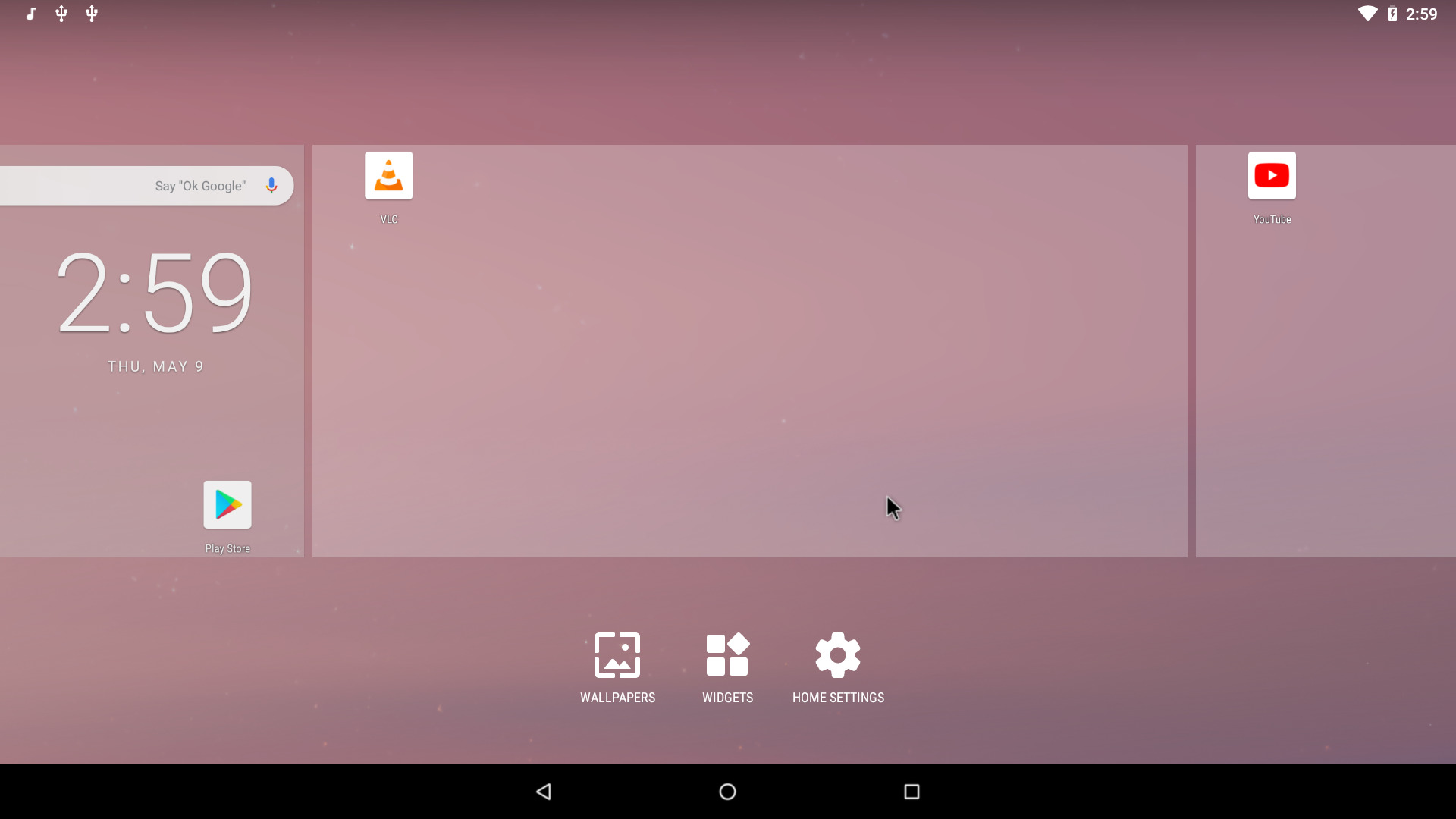
The Android-x86 project is an open-source initiative that ports the Android mobile operating system to run natively on devices powered by AMD and Intel x86 processors. By replacing the ARM-based architecture requirements with x86-compatible code, it allows users to install Android on traditional laptops, desktops, and tablets, effectively repurposing older hardware into functional, modern workstations.
The Genesis and Evolution of the Android-x86 Project
The Android-x86 project began in 2009, shortly after the initial release of the Android Open Source Project (AOSP). Founded by Chih-Wei Huang and Yi Sun, the project’s primary goal was to provide a way for developers and enthusiasts to run Android on netbooks—a category of small, low-powered laptops that were popular at the time. What started as a series of patches for the Asus Eee PC eventually grew into a massive undertaking that supports a wide array of hardware from brands like Dell, HP, Lenovo, and Microsoft.
As of 2026, the project remains the foundational "upstream" source for nearly every major Android-based desktop operating system. While Google officially focuses on ARM-based mobile devices and ChromeOS, the Android-x86 contributors have spent over fifteen years bridge-building between the Linux kernel and the specific needs of desktop hardware. This includes developing custom drivers for Wi-Fi cards, sound chips, and graphics processing units (GPUs) that were never originally intended to interface with the Android framework.
The evolution of the project has mirrored the release cycle of AOSP. Each major Android version—from the early days of Froyo and Gingerbread to the modern iterations of Android 13 and 14—has seen a corresponding x86 port. These ports are not merely emulations; they are native builds that interact directly with the system's CPU and RAM, providing significantly better performance than software-based emulators like BlueStacks or NoxPlayer.
Technical Architecture and How It Works
The magic of Android-x86 lies in its ability to translate the mobile-centric Android environment into something a standard PC can understand. This involves three critical components: the Linux Kernel, the Mesa Graphics Library, and the Hardware Abstraction Layer (HAL).
The Linux Kernel
Android-x86 uses a much newer Linux kernel than what is typically found on a standard Android smartphone. Because PC hardware is incredibly diverse, the project integrates the latest stable kernels to ensure support for modern peripherals, such as NVMe drives, USB 3.2 controllers, and high-refresh-rate displays. This kernel acts as the bridge between the Android system services and the physical hardware.
Mesa and GPU Acceleration
Standard Android is designed for mobile GPUs like Adreno or Mali. PCs use Intel UHD, AMD Radeon, or NVIDIA GeForce graphics. To bridge this gap, Android-x86 utilizes Mesa, an open-source implementation of OpenGL, Vulkan, and other graphics APIs. Mesa allows Android to use hardware acceleration on PC GPUs, which is essential for smooth UI transitions and gaming performance.
The Hardware Abstraction Layer (HAL)
The HAL is a set of interfaces that allows the Android framework to communicate with hardware-specific drivers. The Android-x86 team writes custom HALs for PC-specific components like physical keyboards, touchpads, and Ethernet ports—features that are often absent or handled differently in the standard mobile versions of Android.
System Requirements and Hardware Compatibility in 2026
While Android-x86 is famous for its ability to run on older machines, the requirements have shifted as the Android OS itself has become more resource-intensive. For a smooth experience in 2026, certain hardware benchmarks are recommended.
| Component | Minimum Requirement | Recommended for 2026 |
|---|---|---|
| Processor | Intel Core 2 Duo / AMD Athlon 64 | Intel Core i5 (8th Gen+) or AMD Ryzen 5 |
| Memory (RAM) | 2 GB | 8 GB or more |
| Storage | 8 GB (HDD) | 32 GB (SSD/NVMe) |
| Graphics | OpenGL ES 2.0 compatible | OpenGL ES 3.0+ / Vulkan support |
| Firmware | Legacy BIOS | UEFI with Secure Boot disabled |
| Connectivity | Ethernet | Intel or Atheros-based Wi-Fi cards |
Compatibility remains a primary challenge. While most Intel and AMD CPUs work flawlessly, wireless chipsets are hit-or-miss. Realtek and Broadcom chips occasionally require manual firmware injection, whereas Intel Wireless cards are generally supported "out of the box." Furthermore, modern features like "Sleep/Wake" and "Auto-Rotate" on 2-in-1 laptops can be temperamental depending on the specific sensor drivers available in the Linux kernel.
Installation Strategies and Deployment
The Android-x86 project provides various ways to experience the OS, ranging from non-destructive testing to full-scale hard drive replacements.
Live USB Session
Most users begin by downloading an ISO image from the official project site or mirrors. Using a tool like Rufus or Etcher, the image is flashed onto a USB drive. Booting from this drive allows the user to run Android-x86 in "Live Mode," where the OS runs entirely in RAM. This is the safest way to test hardware compatibility without affecting the existing Windows or Linux installation.
Hard Drive Installation (Dual Boot)
For those committed to using Android-x86, the installer allows for a permanent partition on the internal drive. The project uses the GRUB (Grand Unified Bootloader) to manage start-up. During installation, the user can choose to install GRUB, which will detect other operating systems like Windows 11 or 10, allowing the user to select which OS to boot into every time the computer starts.
Virtualization
Android-x86 is a popular choice for VirtualBox and VMware users. Running Android as a Virtual Machine (VM) is an excellent way for developers to test apps in a controlled environment. However, virtualization often lacks full hardware acceleration unless specific GPU passthrough techniques are used, which can make the interface feel sluggish compared to a native installation.
Solving the App Compatibility Gap
One of the biggest hurdles for Android on x86 hardware is that the vast majority of Android apps (APKs) are compiled for ARM processors. When you try to run an ARM-based app on an Intel-based PC, it will usually crash or refuse to install.
To solve this, Android-x86 often integrates a "Native Bridge" library, such as Intel’s Houdini. This library acts as a real-time translator, converting ARM instructions into x86 instructions on the fly. While this enables many games and apps (like Instagram or TikTok) to run on a PC, it does come with a performance penalty. In 2026, many developers have moved toward "Universal" or "x86_64" APKs, but the Native Bridge remains a vital component for legacy app support.
Key Benefits of Using Android-x86 Today
There are several compelling reasons why the Android-x86 project remains relevant in a landscape dominated by Windows and macOS.
- Reviving Old Hardware: A laptop that struggles to run Windows 11 may feel lightning-fast with Android-x86. Because the OS is lightweight and designed for mobile efficiency, it breathes new life into devices destined for a landfill.
- Native Android Gaming: Unlike emulators that add layers of latency, native Android-x86 provides the lowest possible input lag for mobile gaming on a PC.
- App Development: It provides a native environment for developers to test how their apps handle different screen aspect ratios, physical keyboards, and mouse inputs.
- Dedicated Media Center: With its simple interface and access to streaming apps (Netflix, YouTube, Spotify), Android-x86 is an excellent choice for a DIY Home Theater PC (HTPC).
- Open Source Privacy: Unlike proprietary Android "forks," the core Android-x86 project is transparent and free of the bloatware often pre-installed by hardware manufacturers.
Android-x86 vs. Modern Alternatives
While the original Android-x86 project is the upstream source, several "distros" have emerged that take the core code and add user-friendly features.
- Bliss OS: Perhaps the most active fork in 2026, Bliss OS offers a more "desktop-like" experience with a taskbar, start menu, and better window management (Desktop Mode). It often includes more recent kernel updates than the standard Android-x86 builds.
- PrimeOS: This version is heavily optimized for gaming, featuring a built-in key-mapping tool that allows users to play touch-based games like PUBG or Call of Duty Mobile using a keyboard and mouse.
- Waydroid: For users already running Linux, Waydroid is a container-based approach that runs Android apps at near-native speeds within the Linux desktop environment, rather than requiring a separate partition.
Common Troubleshooting and Limitations
Users should be aware that Android-x86 is not a "perfect" desktop replacement. Several persistent issues exist:
- DRM Constraints: Because the project is not "Google Certified," some apps that require Widevine DRM (like Netflix or Disney+) may be limited to Standard Definition (SD) resolution or may not work at all.
- Power Management: Laptops may not hibernate correctly. The battery drain in "Sleep" mode is often higher than it would be on Windows.
- Camera Support: Most integrated webcams use proprietary interfaces that are difficult to support in Android-x86, leading to the camera not being detected in apps like Zoom or Teams.
- Disk Formatting: To install apps and save data, the project requires the disk to be formatted in EXT4 or NTFS. Beginners often struggle with the manual partitioning steps required during the installation process.
Frequently Asked Questions
Can I run Google Play Store on Android-x86?
Yes, most official builds of Android-x86 include Google Play Services. This allows you to log in with your Google account and download apps exactly as you would on a smartphone. If a build does not include them, they can often be sideloaded using "OpenGApps."
Does Android-x86 support multi-window mode?
Yes. Since Android 7.0, multi-window support has been a native feature. The Android-x86 project further enhances this with a "Taskbar" feature (found in the "Advanced Options" during setup) that allows you to run apps in free-form windows, much like a traditional desktop OS.
Is it safe to use for online banking?
While the project is open-source and generally safe, it does not receive the same rapid security patching as a Google Pixel or a Samsung Galaxy device. Additionally, if you enable "Root" access (which is an option during installation), the system becomes more vulnerable to malicious apps. For sensitive financial tasks, a mainstream OS like Windows, macOS, or a hardened Linux distro is generally preferred.
Will it work on my MacBook?
Android-x86 can run on Intel-based MacBooks, but it is notoriously difficult to get working on Apple Silicon (M1/M2/M3) chips. For Intel Macs, the main hurdles are the proprietary Broadcom Wi-Fi drivers and the T2 security chip found in later models, which may block the installation of third-party bootloaders.
Can I use a mouse and keyboard?
Absolutely. Android-x86 treats the mouse as a touch input (the cursor acts as your finger). It supports right-clicking as a "Back" button or context menu in some apps, and physical keyboards work natively with standard shortcuts like Alt+Tab for switching apps and Ctrl+C/V for copy-pasting.
Final Recommendation
For those looking to explore the Android-x86 project in 2026, the best approach is to start with a Live USB. This allows you to verify that your specific Wi-Fi card and GPU are supported without any risk to your data. If your goal is a polished desktop experience, consider using Bliss OS, as it builds upon the Android-x86 foundation with modern UI enhancements. However, for a pure, unmodified Android experience on a PC, the original Android-x86 project remains the gold standard for open-source porting.