Securing sensitive data on Windows has never been more critical, with modern threats ranging from targeted malware to physical theft and unauthorized network access. The right encryption software safeguards personal files, corporate documents, and entire system drives using robust cryptographic algorithms like AES-256 and XTS-AES. Whether you need full-disk protection, hidden containers, or seamless cloud-integrated file sharing, evaluating the top tools ensures your data remains confidential and tamper-proof.
Understanding Windows Encryption: Built-in Solutions vs. Third-Party Tools
Before exploring third-party software, it is essential to understand what Windows provides natively. Microsoft includes BitLocker in Windows Pro, Enterprise, and Education editions, while Device Encryption is available on most modern Windows Home editions when signed in with a Microsoft account.
BitLocker is an exceptional built-in utility that uses the Trusted Platform Module (TPM) chip on your motherboard to secure hardware-level root-of-trust authentication. However, Windows Home users are often left without advanced BitLocker management tools unless they upgrade their operating system. Furthermore, privacy-conscious users may prefer open-source third-party alternatives that offer transparent auditing, cross-platform compatibility, and granular control over encryption keys without relying on proprietary ecosystems.
When choosing a Windows encryption tool, consider your specific threat model:
- Full-Disk Encryption (FDE): Secures the entire operating system, installed applications, and user data, rendering the drive unreadable if removed from the machine.
- Container/File-Level Encryption: Creates a virtual encrypted file (vault) that acts as a secure drive when mounted with a password or keyfile.
- Cloud-Integrated Encryption: Encrypts specific folders before syncing them to cloud storage providers like OneDrive, Google Drive, or Dropbox.
The 7 Best Windows Encryption Software Options
1. VeraCrypt
VeraCrypt remains the gold standard for open-source disk encryption on Windows. Descended from the discontinued TrueCrypt project, VeraCrypt provides enhanced security algorithms and resolves historical vulnerabilities found in its predecessor. It supports full-disk encryption for system partitions and allows users to create virtual encrypted disks or hidden operating systems within decoy volumes.
- Primary Strength: Open-source transparency and plausible deniability (hidden volumes).
- Algorithm Support: AES, Serpent, Twofish, and cascaded combinations (e.g., AES-Twofish-Serpent).
- Ideal For: Privacy advocates, security professionals, and users requiring military-grade volume protection.
2. Microsoft BitLocker
For users running Windows Pro, Enterprise, or Education editions, BitLocker is an integrated, highly optimized solution. Because it is built directly into the operating system, it integrates seamlessly with hardware-based security features like TPM 2.0 and Windows Hello. It operates transparently in the background with minimal performance overhead.
- Primary Strength: Native operating system integration and hardware acceleration via TPM.
- Algorithm Support: AES-128 and AES-256 (XTS mode).
- Ideal For: Enterprise environments, IT administrators, and Windows Pro users who prefer a zero-install solution.
3. AxCrypt
AxCrypt is designed for users who need file-level encryption rather than full-disk protection, focusing heavily on ease of use. It integrates directly into Windows Explorer via context menus, allowing users to encrypt and decrypt individual files or folders with a simple right-click. It also features key management for teams and cloud storage awareness.
- Primary Strength: Intuitive user interface and seamless file-sharing capabilities.
- Algorithm Support: AES-128 and AES-256.
- Ideal For: Business professionals, remote workers, and individuals who need to securely share documents via email or cloud storage.
4. 7-Zip
While primarily known as an archive utility, 7-Zip is one of the most accessible tools for encrypting individual file packages on Windows. By utilizing the AES-256 standard within 7z and ZIP container formats, users can compress and encrypt batches of files behind a strong master password.
- Primary Strength: Lightweight, free, open-source, and universally available.
- Algorithm Support: AES-256 for 7z and ZIP archives.
- Ideal For: Quick, ad-hoc encryption of document bundles for backup or transfer.
5. Boxcryptor Successor Alternatives (Cryptomator)
With the retirement of dedicated enterprise tools like Boxcryptor, Cryptomator has filled the gap for client-side cloud encryption. Cryptomator encrypts individual files on your local machine using AES-256 before they are synchronized to cloud storage services. This ensures that cloud providers never hold the decryption keys to your personal data.
- Primary Strength: Zero-knowledge architecture specifically engineered for cloud storage folders.
- Algorithm Support: AES-256.
- Ideal For: Users heavily reliant on OneDrive, Dropbox, Google Drive, or iCloud who want zero-knowledge cloud security.
6. Symantec Endpoint Encryption (Broadcom)
Symantec Endpoint Encryption is an enterprise-grade solution designed for centralized management across large corporate networks. It allows IT departments to enforce strict compliance policies, manage recovery keys remotely, and deploy full-disk and removable-media encryption across entire corporate fleets running Windows.
- Primary Strength: Centralized policy management and enterprise compliance reporting.
- Algorithm Support: AES and RSA.
- Ideal For: Large organizations, enterprise IT departments, and regulated industries requiring strict data governance.
7. DiskCryptor
DiskCryptor is an open-source system encryption tool designed as a lightweight alternative to heavier proprietary solutions. It provides full-disk encryption for system and data partitions with high performance efficiency, utilizing native kernel-level drivers to maximize read and write speeds on modern solid-state drives (SSDs).
- Primary Strength: High performance and low resource overhead on system drives.
- Algorithm Support: AES, Twofish, and Serpent.
- Ideal For: Advanced users seeking fast open-source full-disk encryption with minimal system impact.
Comparison of Top Windows Encryption Software
| Software | Primary Type | Open Source? | Cost | Best Suited For |
|---|---|---|---|---|
| VeraCrypt | Disk / Container | Yes | Free / Open Source | Advanced privacy and hidden volumes |
| Microsoft BitLocker | Full Disk | No | Free (Built-in Pro/Ent) | Native OS integration and hardware security |
| AxCrypt | File-Level | No | Freemium (Subscription) | Quick file sharing and right-click encryption |
| 7-Zip | Archive / File | Yes | Free / Open Source | Ad-hoc file archiving and basic encryption |
| Cryptomator | Cloud / File | Yes | Free (Desktop paid) | Securing files in cloud storage providers |
| Symantec Endpoint | Enterprise FDE | No | Paid Commercial | Enterprise network compliance and management |
| DiskCryptor | Full Disk | Yes | Free / Open Source | Fast system-drive encryption |
Step-by-Step Guide: How to Encrypt a Drive Using VeraCrypt
If you choose an open-source solution like VeraCrypt for container or drive encryption, follow this standard procedure to set up a secure volume:
- Download and Install: Visit the official VeraCrypt website, verify the digital signatures, and install the application on your Windows PC with administrator privileges.
- Create a Volume: Launch VeraCrypt and click the Create Volume button to open the creation wizard.
- Select Volume Type: Choose Create an encrypted file container (for a portable file vault) or Encrypt a non-system partition/drive (for a secondary physical drive), then click Next.
- Choose Encryption Options: Select Standard VeraCrypt volume and pick your encryption algorithm (AES is recommended for hardware acceleration) and hash algorithm (SHA-512).
- Allocate Storage Size: Specify the size of the container (e.g., 10 GB) if you are creating a file container.
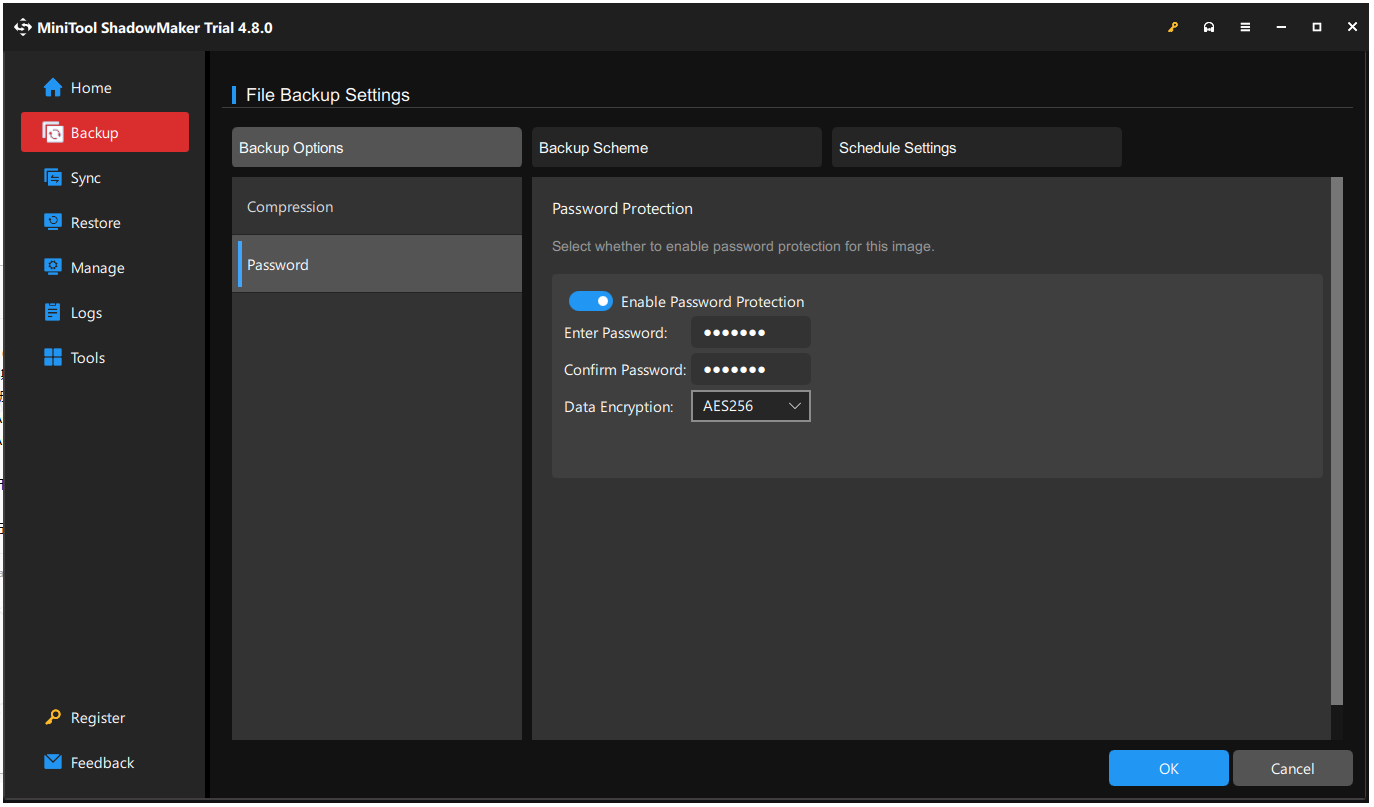
- Set a Strong Password: Enter a complex passphrase and optionally configure keyfiles for two-factor authentication.
- Format the Volume: Move your mouse randomly within the wizard window to generate cryptographic entropy, then click Format to finalize the encrypted volume.
Common Mistakes to Avoid When Using Encryption Software
- Neglecting Backup Passwords and Recovery Keys: Encryption software is designed to lock data permanently if credentials are lost. Always back up your recovery keys, keyfiles, and passwords in a secure physical location or password manager.
- Using Weak Passwords: Algorithms like AES-256 are mathematically unbreakable via brute-force in a reasonable timeframe, but weak passwords can be guessed instantly. Use long, passphrase-based credentials.
- Forgetting to Unmount Volumes: Leaving encrypted containers mounted on public or shared workstations leaves your data accessible to anyone who sits at your terminal. Always dismount volumes when finished.
- Ignoring System Updates: Cryptographic tools rely on underlying operating system APIs and kernel stability. Keep both Windows and your encryption software updated to patch potential security vulnerabilities.
Frequently Asked Questions
Is BitLocker enough to keep my Windows PC secure?
Yes, for most users running Windows Pro or Enterprise, BitLocker provides exceptional security against physical theft and unauthorized offline access. However, users who require multi-algorithm support, hidden containers, or cross-platform compatibility often prefer open-source alternatives like VeraCrypt.
Can encrypted files slow down my computer performance?
Modern processors include hardware acceleration instructions (such as AES-NI) that handle encryption and decryption processes with negligible impact on CPU performance. While older systems or slower mechanical hard drives might experience a minor overhead, modern solid-state drives running encrypted volumes show minimal speed reduction.
What happens if I forget my VeraCrypt password?
There is no "forgot password" feature in robust open-source encryption software like VeraCrypt. If you lose your password and any associated keyfiles, your data is permanently locked and mathematically impossible to recover. This security measure prevents malicious actors from bypassing authentication.
Are cloud-based encryption tools safe to use with OneDrive?
Yes, tools like Cryptomator use client-side encryption, meaning files are encrypted locally on your computer before they are uploaded to OneDrive or other cloud providers. This ensures that even if the cloud provider's servers are compromised, your data remains unreadable without your local decryption key.
Do I need administrator rights to install encryption software on Windows?
Most full-disk and container-based encryption software, such as VeraCrypt or BitLocker, require local administrator privileges to install system drivers, modify boot sectors, and configure partition tables. File-level utilities like 7-Zip may sometimes be installed in user space, but full cryptographic functionality often demands elevated rights.
Conclusion and Next Actions
Selecting the ideal Windows encryption software depends on your technical expertise and daily workflow requirements. If you manage an enterprise environment, leverage native BitLocker or centralized solutions like Symantec. For maximum personal privacy and cross-platform flexibility, VeraCrypt and Cryptomator remain premier choices. Begin by auditing your sensitive files, choosing the tool that aligns with your threat model, and establishing strict recovery-key backup habits immediately.