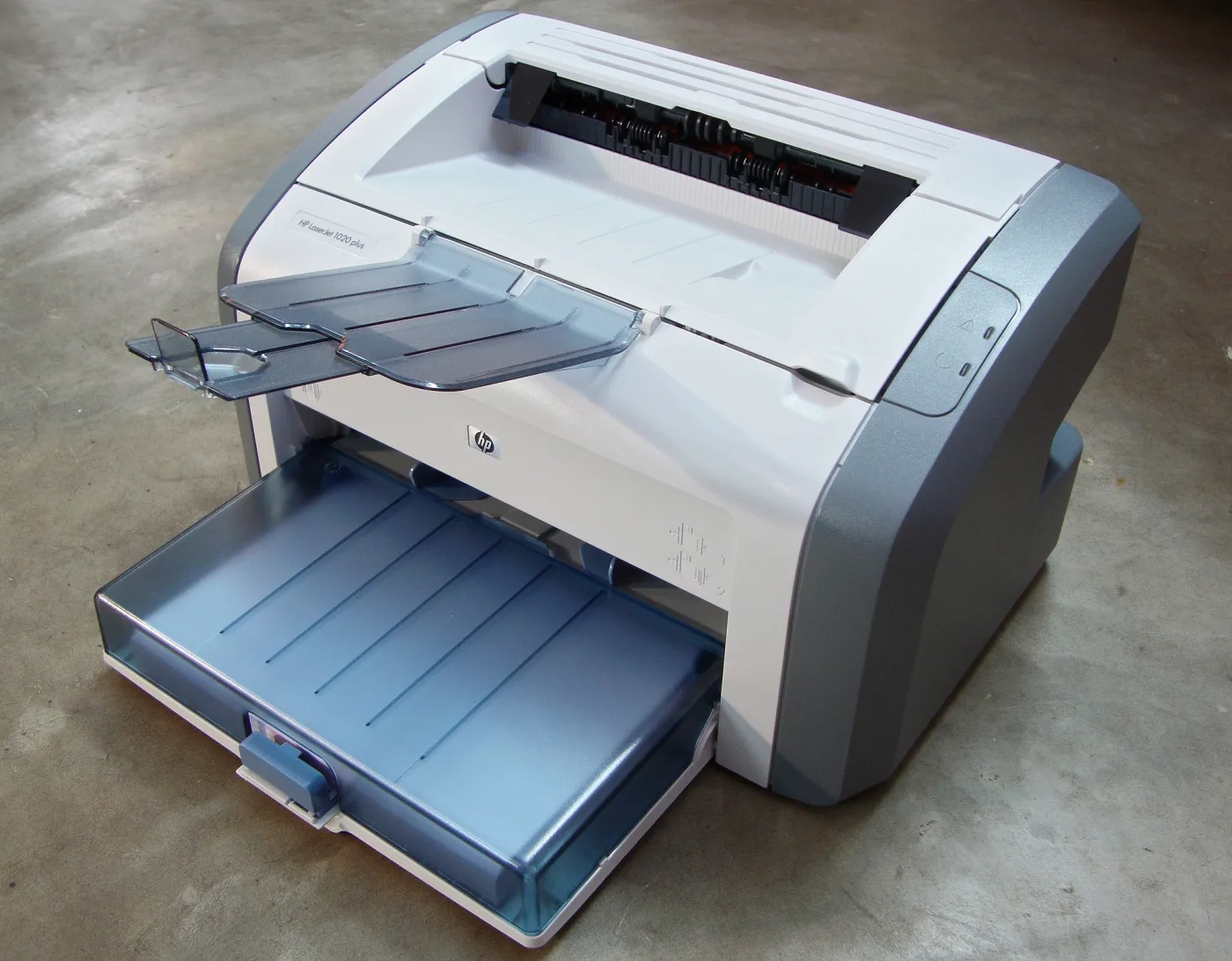
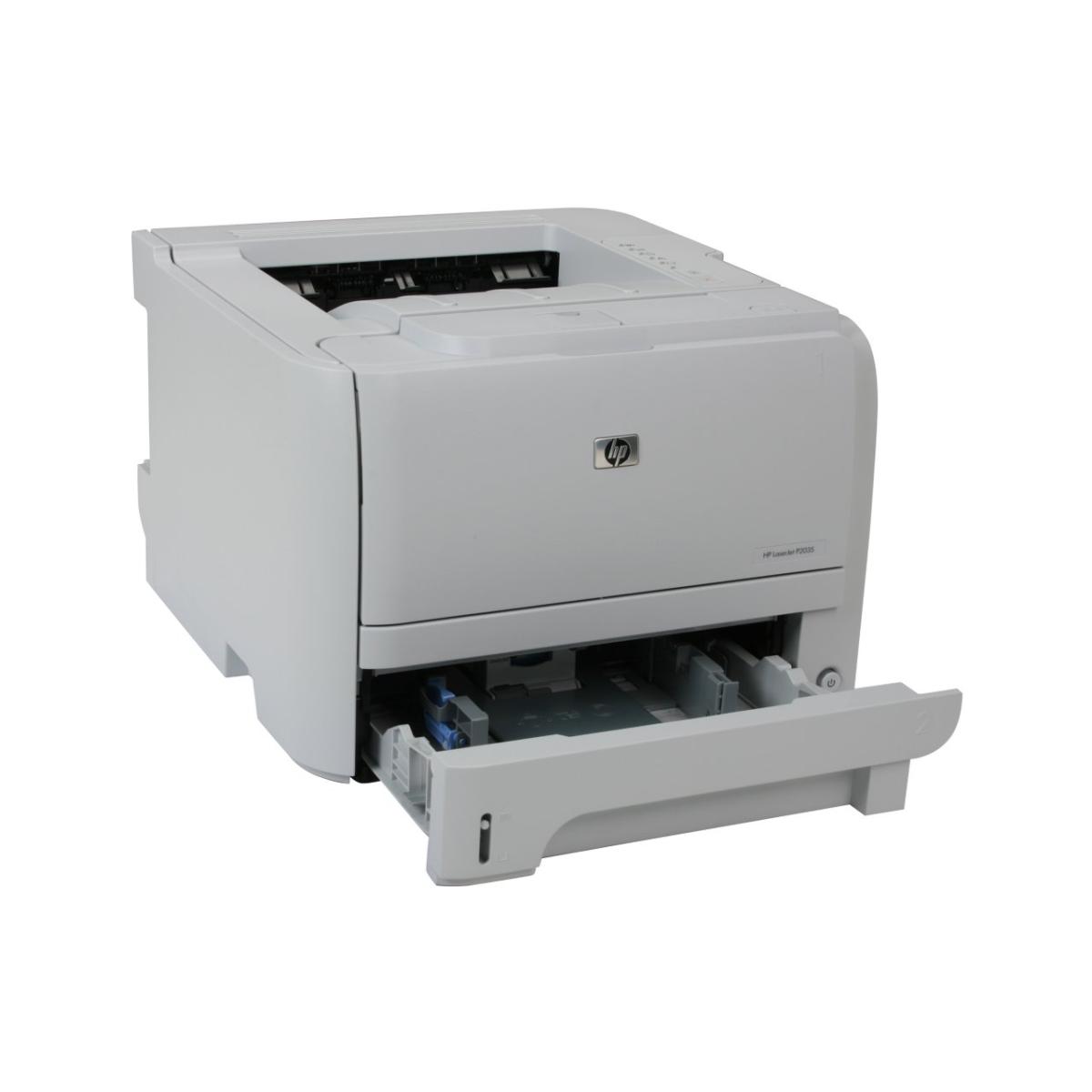
To install the HP LaserJet 1018 driver on Windows 10 in 2026, connect your printer via USB and allow Windows Update to automatically detect and install the built-in driver. If automatic detection fails, manually add the printer through the "Printers & Scanners" settings, selecting the HP LaserJet 1018 from the Windows Update driver list.
Understanding the HP LaserJet 1018 Compatibility in 2026
The HP LaserJet 1018 remains a legendary piece of hardware in the printing world. Originally released in the mid-2000s, this monochrome laser printer was designed for simplicity, reliability, and a small desktop footprint. However, because it is a host-based printer, it relies heavily on the computer's processor to handle print jobs rather than its own internal memory. This architectural choice makes driver compatibility a critical factor when using the device on modern operating systems like Windows 10.
By 2026, Windows 10 has entered a mature phase of its lifecycle. While Microsoft has shifted primary focus to newer iterations, Windows 10 remains a staple for many legacy hardware users. The challenge with the HP LaserJet 1018 is that HP no longer produces new, dedicated installer packages specifically for Windows 10. Instead, users must rely on the Microsoft Windows Update Catalog or the drivers already embedded within the Windows operating system (often referred to as "in-OS" drivers).
Successfully running an HP LaserJet 1018 on Windows 10 involves bridging the gap between 20-year-old hardware architecture and contemporary 64-bit driver signing requirements. Because the 1018 does not support standard printing languages like PCL or PostScript, generic drivers will not function. You must use the specific driver designed for the 1018 or its very close siblings in the 1020 series.
Technical Specifications and Prerequisites
Before attempting an installation, it is important to verify that your hardware and cables are in working order. Older USB printers are often sensitive to the quality of the connection, especially when used with modern USB 3.0 or USB-C ports through adapters.
| Feature | Specification |
|---|---|
| Printer Type | Monochrome Laser |
| Print Language | Host-based (Proprietary) |
| Connection Type | USB 2.0 High Speed |
| Max Resolution | 600 x 600 dpi (HP REt technology) |
| Driver Architecture | 32-bit and 64-bit support |
| Windows 10 Status | Supported via Windows Update/In-OS |
| Recommended Cable | USB 2.0 A-to-B (under 2 meters) |
Hardware Requirements
- USB Cable Integrity: Ensure you are using a high-quality USB 2.0 A-to-B cable. Given the age of the LaserJet 1018, cables can degrade. If the computer does not "chimne" when the printer is plugged in, the cable is the first suspect.
- Port Selection: If possible, plug the printer directly into a USB 2.0 port (usually colored black) rather than a USB 3.0 or 3.1 port (usually blue or red). Some older host-based controllers in printers have synchronization issues with high-speed USB 3.0 ports.
- Power Cycle: Always start the process with the printer turned off. You should only power the device on when prompted by the OS or after the manual driver selection process is ready.
Method 1: Automatic Installation via Windows Update
In 2026, the most reliable method for installing legacy HP drivers is allowing Windows 10 to fetch the "Plug and Play" (PnP) signature from its online servers. This method ensures that you receive a driver that has been digitally signed by Microsoft, which is mandatory for 64-bit versions of Windows 10.
Step-by-Step Execution
- Disconnect the Printer: Ensure the USB cable is not plugged into the computer.
- Enable Windows Update: Go to Settings > Update & Security > Windows Update and ensure your system is current. This prepares the local driver store to receive new files.
- Connect and Power On: Plug the USB cable into the computer and turn the printer on.
- Wait for Detection: Windows 10 should display a notification: "Setting up a device." In many cases, Windows will identify the HP LaserJet 1018 and download the necessary files silently in the background.
- Verification: Navigate to Settings > Devices > Printers & Scanners. Look for "HP LaserJet 1018." If it says "Ready," the installation was successful.
If the printer appears as an "Unspecified Device" or "Unknown Device" in the Device Manager, you will need to proceed to the manual installation method described below.
Method 2: Manual Driver Selection (The "Add Printer" Wizard)
If the automatic process fails, it is usually because the specific hardware ID of your printer isn't triggering the correct download. You can force Windows 10 to look through its entire database of drivers to find the HP LaserJet 1018 files.
Manual Setup Procedure
- Open Printers & Scanners from the Windows search bar.
- Click Add a printer or scanner.
- Wait a few seconds for the text "The printer that I want isn't listed" to appear, then click it.
- Select the last radio button: "Add a local printer or network printer with manual settings" and click Next.
- Choose a Printer Port: Select "Use an existing port." From the dropdown menu, find the port labeled USB001 (Virtual printer port for USB). If you have multiple USB printers, it might be USB002 or USB003. Click Next.
- Driver Selection: You will see two columns (Manufacturer and Printers). Click the Windows Update button. Warning: This will cause Windows to freeze for 2 to 5 minutes while it downloads the full list of legacy drivers from the internet. Do not close the window.
- Once the list refreshes, select HP (or Hewlett-Packard) in the left column.
- Scroll down the right column to find HP LaserJet 1018.
- Follow the prompts to "Use the driver that is currently installed" (if asked) and complete the wizard.
This manual method is the most effective way to overcome "Driver Unavailable" errors on Windows 10. By using the official Windows Update button within the wizard, you access a repository of drivers that Microsoft maintains specifically for older hardware that no longer receives active manufacturer support.
Troubleshooting Common Driver Issues
Even with the correct driver installed, the HP LaserJet 1018 can exhibit quirks due to its host-based nature. Here are the most frequent issues encountered in a 2026 Windows 10 environment.
The Print Queue Stalls
Because the 1018 relies on the computer to process data, any interruption in the Print Spooler service can cause jobs to sit in the queue indefinitely.
- Solution: Open the Services app (type
services.mscin the search bar). Find the Print Spooler service. Right-click it and select Restart. This often clears the communication "logjam" between the OS and the printer.
"Driver is Unavailable" Error
This typically happens when Windows tries to use a generic "Class Driver" instead of the specific LaserJet 1018 driver.
- Solution: Go to Device Manager. Find the printer under "Printers" or "Software devices." Right-click it and select Update Driver. Choose "Browse my computer for drivers" and then "Let me pick from a list of available drivers on my computer." Select the HP LaserJet 1018 from that list.
64-bit vs 32-bit Architecture
If you are running a 64-bit version of Windows 10 (which is standard for most 2026 systems), you cannot use the original 32-bit drivers found on the CD-ROM that came with the printer in 2006.
- Solution: You must use the drivers provided through the Windows Update method mentioned above, as they contain the necessary x64 signatures.
Performance and Longevity in 2026
Using a printer from 2006 in 2026 raises questions about efficiency and sustainability. The HP LaserJet 1018 is famous for its low cost per page and simple mechanical design. Unlike modern inkjet printers, the toner in a 1018 cartridge does not dry out, making it an excellent choice for low-volume users or as a secondary "text-only" printer.
However, users should be aware that the 1018 lacks modern features like Wi-Fi, AirPrint, or duplex (double-sided) printing. If you need to print from a mobile device or a laptop without a USB port, you would need to connect the 1018 to a PC that is sharing the printer over a local network, or use a dedicated USB print server.
Maintenance Tips for the 1018
- Toner Life: The HP 12A (Q2612A) cartridge is widely available and very robust. If the print becomes faint, remove the cartridge and shake it gently from side to side to redistribute the remaining toner.
- Pickup Rollers: If the printer fails to pull paper, the rubber pickup roller may be dried out. Cleaning it with a small amount of isopropyl alcohol can restore its grip.
- Paper Quality: Avoid using very thick cardstock, as the 1018 has a relatively curved paper path which can lead to frequent jams with heavy media.
Frequently Asked Questions
Can I use the HP LaserJet 1020 driver for my 1018?
Yes, in many cases, the HP LaserJet 1020 driver is functionally identical to the 1018 driver. If you cannot find the "1018" listed in the Windows Update menu, selecting the "1020" or "1022" driver often works perfectly because they share the same host-based print engine and communication protocol.
Why won't my HP LaserJet 1018 work with a USB hub?
The HP LaserJet 1018 is a high-speed USB 2.0 device that requires a stable, direct connection for the "host-based" data transfer to work correctly. Unpowered USB hubs often fail to provide enough voltage or timing precision for the printer to receive the processed image data from the PC, leading to "Print Error" notifications. Always use a direct port on the motherboard or a powered hub.
Does HP still offer official support for the 1018 on Windows 10?
HP has moved the LaserJet 1018 into "End of Life" (EOL) status. This means they no longer provide phone support or create new software for it. However, they continue to host the legacy driver files on their servers, which are accessed by the Windows 10 "Add Printer" wizard. You are essentially using "community-verified" legacy support.
How do I fix the "User Intervention Required" error?
This error usually indicates a physical issue or a communication break. First, ensure the printer lid is fully closed and paper is loaded. If the error persists, it is often a ghost job in the queue. Clear the print queue, turn the printer off, wait 30 seconds, and turn it back on. This resets the printer’s internal buffer.
Is there a Windows 10 driver for the 1018 on the HP website?
If you visit the HP Support website, you may find a "HP LaserJet USB (DOT4) communication driver" or a "Universal Print Driver." While the Universal Print Driver (UPD) works for many HP printers, it often fails with the 1018 because the 1018 is host-based and doesn't understand the PCL language the UPD uses. Stick to the driver found via Windows Update for the best results.
Final Recommendation
For the best experience with the HP LaserJet 1018 on Windows 10 in 2026, avoid third-party driver download sites, which often bundle malware or incorrect files. Stick exclusively to the manual "Add Printer" wizard combined with the Windows Update list refresh. This ensures you are getting a clean, digitally signed driver that is compatible with the 64-bit architecture of modern Windows 10 builds. Once installed, treat this printer as a dedicated text-only workhorse, and it will likely continue to serve you well for years to come.