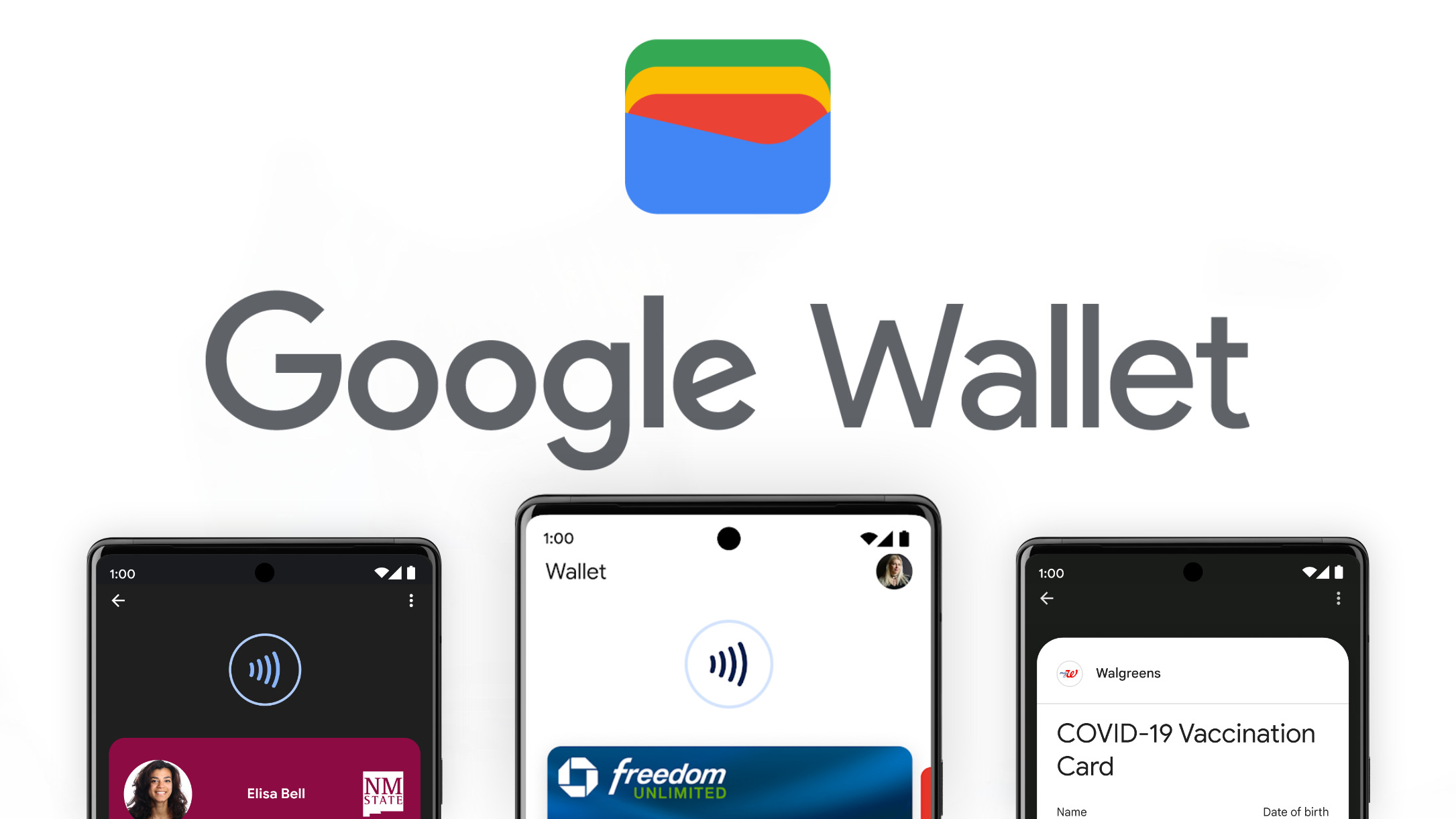
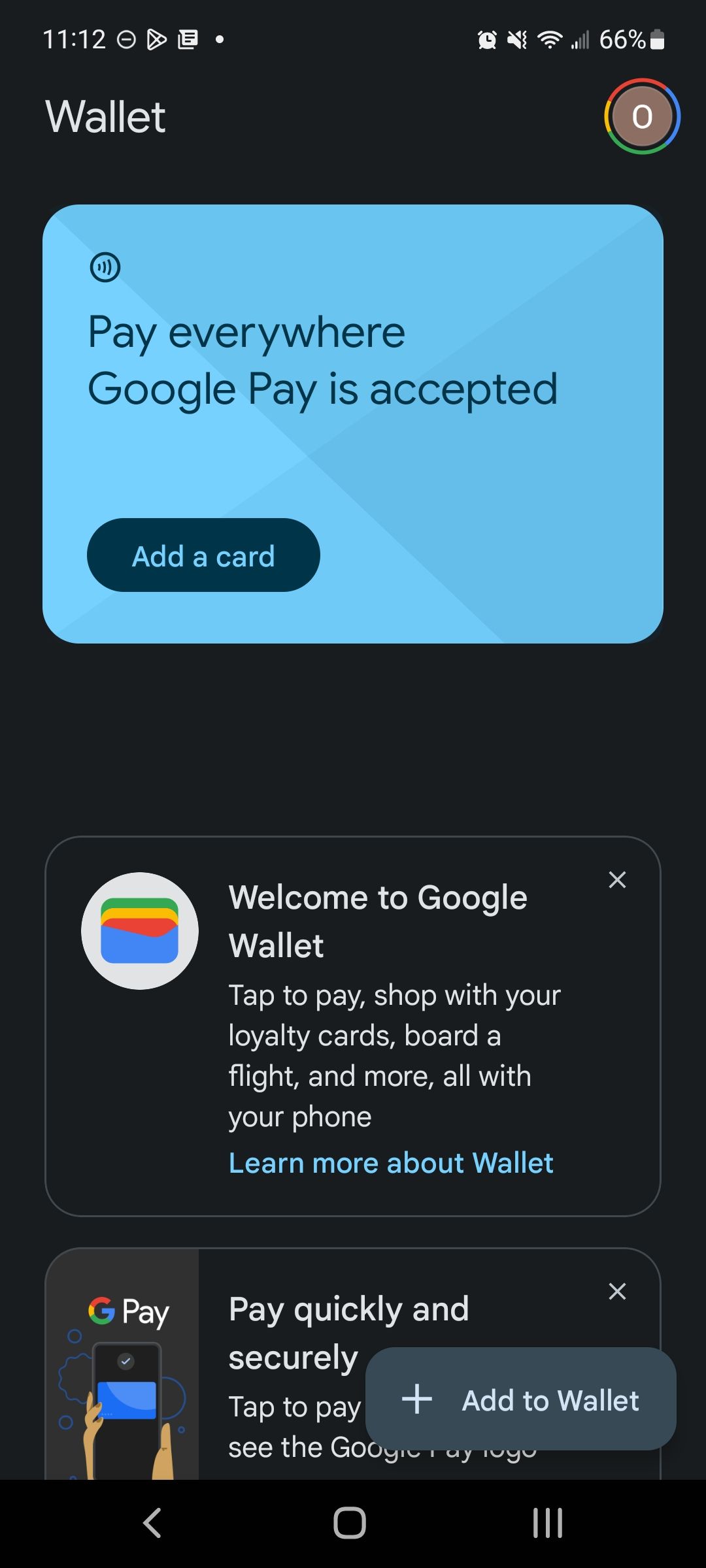
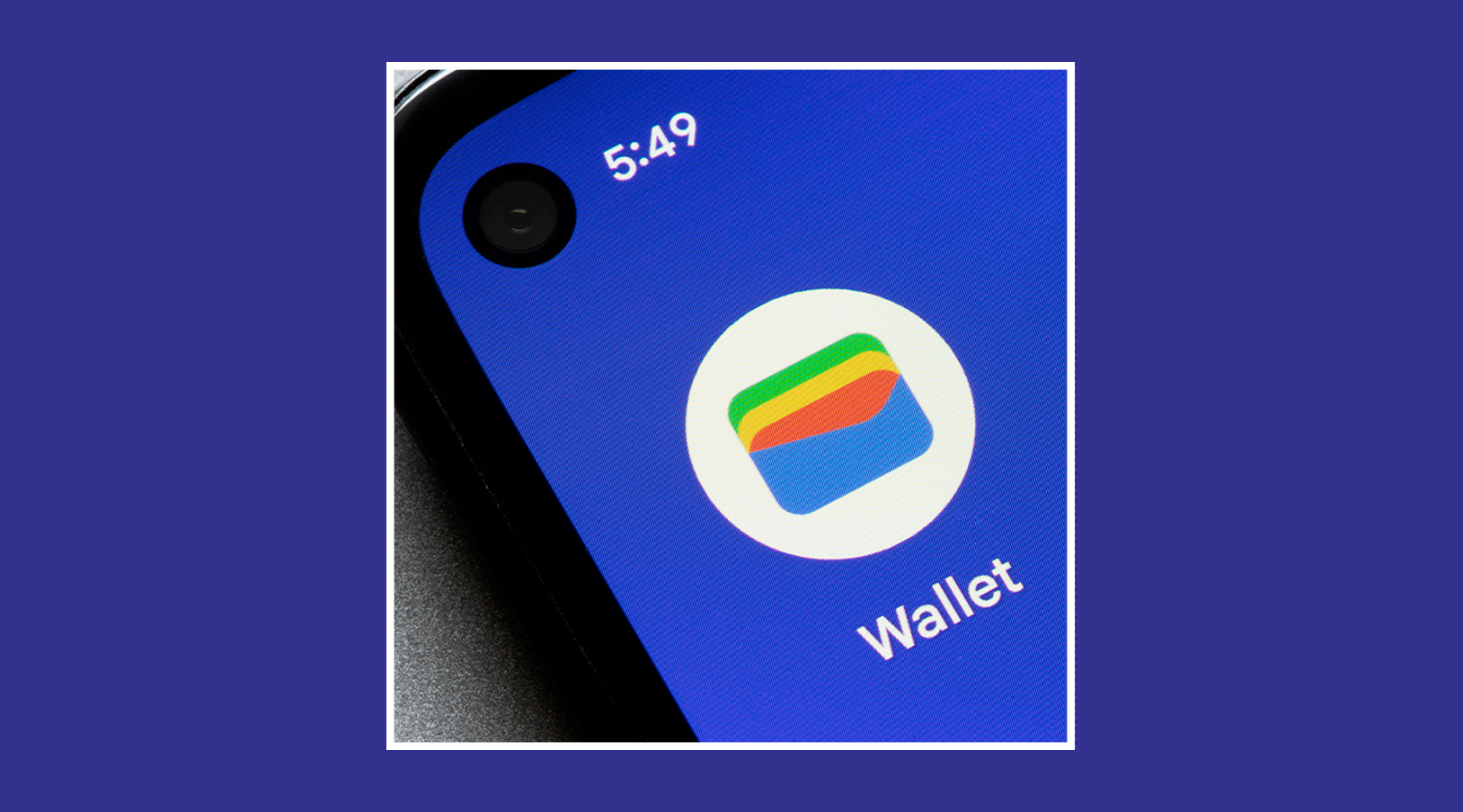
No, Google Pay and Google Wallet are not the same, though they are deeply integrated. Google Wallet is the physical "container" or app on your device that stores digital items like credit cards, IDs, and tickets. Google Pay is the actual payment service and brand used to process transactions at checkouts, whether online or in-store.
The confusion between these two entities stems from years of rebranding, merging, and splitting of Google’s financial services. As of 2026, the ecosystem has stabilized into a clear hierarchy: Google Wallet is the user interface and storage locker, while Google Pay is the engine that facilitates the movement of money. Understanding this distinction is vital for managing your digital footprint, securing your financial data, and ensuring a seamless "tap-to-pay" experience.
The Structural Relationship: Ecosystem vs. Service
To understand why Google maintains two distinct names for what feels like a single experience, it is helpful to use the analogy of a physical wallet. Your leather wallet is the physical object that holds your plastic Visa card. When you pull that card out to pay, the transaction is processed by the banking network.
In this digital scenario, Google Wallet is the leather holder, and Google Pay is the transaction network.
Google Wallet: The Digital Storage Hub
Google Wallet is an Android-based application designed to replace the contents of your physical back pocket. Since its significant re-introduction in 2022 and the subsequent consolidation of the "GPay" app features in 2024, Wallet has become a comprehensive repository. It utilizes the Secure Element (SE) or Host Card Emulation (HCE) on your smartphone to securely store sensitive data.
Items stored in Google Wallet include:
- Payment Cards: Credit, debit, and prepaid cards.
- Digital Keys: Car keys, home locks, and hotel room keys.
- Identification: Government-issued IDs and driver’s licenses (in supported jurisdictions).
- Transit Passes: Subway, bus, and train tickets.
- Credentials: Student IDs, gym memberships, and library cards.
- Health Records: Vaccination records and insurance cards.
Google Pay: The Payment Brand and Processor
Google Pay is the overarching brand for the payment experience. When you see a "Buy with Google Pay" button on a website or a contactless symbol at a grocery store terminal, you are interacting with the Google Pay service. It is the technology that communicates with your bank, verifies the availability of funds, and uses tokenization to complete the sale without sharing your actual card number with the merchant.
In 2026, you generally do not "open" a Google Pay app in most Western markets (such as the US, UK, or EU). Instead, you open Google Wallet to manage your cards, and Google Pay functions automatically in the background when you initiate a payment.
A Brief History of Rebranding (2011–2026)
The primary reason users ask if these two are the same is Google’s complex history of naming conventions. This timeline clarifies how we arrived at the current 2026 standard.
- 2011: Google Wallet launches as a pioneer in NFC (Near Field Communication) mobile payments.
- 2015: Android Pay is introduced, focusing strictly on tap-to-pay functionality, while Google Wallet pivots toward peer-to-peer (P2P) payments.
- 2018: Google merges Android Pay and Google Wallet into a single brand called Google Pay.
- 2020: A new, feature-rich "GPay" app is launched in certain markets (US, India, Singapore), introducing personal finance management and rewards.
- 2022: Google announces the return of Google Wallet at Google I/O, positioning it as the primary app for "digital essentials."
- 2024: Google officially sunsets the standalone Google Pay (GPay) app in the United States, migrating all payment management and "tap-to-pay" settings into the Google Wallet app.
- 2026: The distinction is now standardized: Google Wallet is the application for storage and management, and Google Pay is the name of the payment service used across the web and at physical points of sale.
Technical Specifications and Security Architecture
The distinction between the two is also technical. While Wallet handles the user interface and local storage encryption, Google Pay handles the cloud-based transaction processing and security.
Tokenization: The Core of Google Pay
When you add a credit card to Google Wallet, Google Pay does not store or share your actual 16-digit card number. Instead, it creates a Virtual Account Number or a "token."
When you tap your phone at a terminal, Google Pay sends this token and a one-time dynamic security code to the merchant. If a merchant’s database is hacked, your actual credit card number remains safe because it was never present in their system. This tokenization process is the primary security advantage of using Google Pay over a physical plastic card.
Secure Element and Encryption
Google Wallet utilizes the hardware-level security of your Android device. Modern smartphones contain a Secure Element (SE), a dedicated chip designed to resist tampering. Your encrypted payment credentials stay within this hardware, isolated from the rest of the operating system. This ensures that even if your phone is infected with malware, your wallet contents remain protected.
Features and Functional Comparison
While they work together, their feature sets are distinct. The following table outlines which entity is responsible for specific tasks in the current 2026 environment.
| Feature | Google Wallet (The App) | Google Pay (The Service) |
|---|---|---|
| Primary Function | Storage and organization of digital items. | Execution of financial transactions. |
| Device Availability | Android, Wear OS (Smartwatches). | Android, iOS (limited), Web browsers, Apps. |
| Storage of Non-Payment Items | Yes (IDs, boarding passes, keys). | No. |
| Contactless Tap-to-Pay | Managed through the Wallet interface. | Powered by Pay's tokenization tech. |
| Online Checkout | Not used directly for web shopping. | Used via "Google Pay" checkout buttons. |
| Peer-to-Peer (P2P) Payments | Not the primary focus. | Handled via service integrations (e.g., Google Pay in India). |
| Security Mechanism | Device encryption and biometric lock. | Tokenization and fraud detection. |
Regional Variations: Why Differences Persist
Despite efforts to unify the brand, the experience of Google Pay and Google Wallet can vary based on your geographic location. As of 2026, there are two main "versions" of the Google payment experience globally.
The Wallet-First Markets (US, UK, Europe, Australia, Canada)
In these regions, Google has prioritized the Google Wallet app. Users download Google Wallet from the Play Store to store everything from their Amex card to their Starbucks rewards. When they go to a store, they see the Google Pay logo on the card reader. In these markets, the standalone "Google Pay" app no longer exists or is used only for account management and transaction history.
The GPay-First Markets (India and Singapore)
In markets like India, the "Google Pay" app (often referred to as GPay) remains a standalone powerhouse. This is largely due to the integration of the Unified Payments Interface (UPI). In India, the GPay app is used for direct bank-to-bank transfers, utility bill payments, and even mobile recharges. While Google Wallet has been introduced in these regions to store non-payment items (like movie tickets), the GPay app remains the primary tool for financial movement.
How to Set Up and Use Both Entities
To use Google Pay in 2026, you must first set up Google Wallet. The process is streamlined to ensure that the service and the storage hub work in tandem.
Setting Up Google Wallet
- Download and Install: Ensure the Google Wallet app is installed from the Google Play Store. On most modern Android devices, it is pre-installed.
- Authentication: Open the app and sign in with your primary Google Account. You will be required to set a screen lock (PIN, pattern, or biometrics) if you haven't already. This is a mandatory security requirement for payment apps.
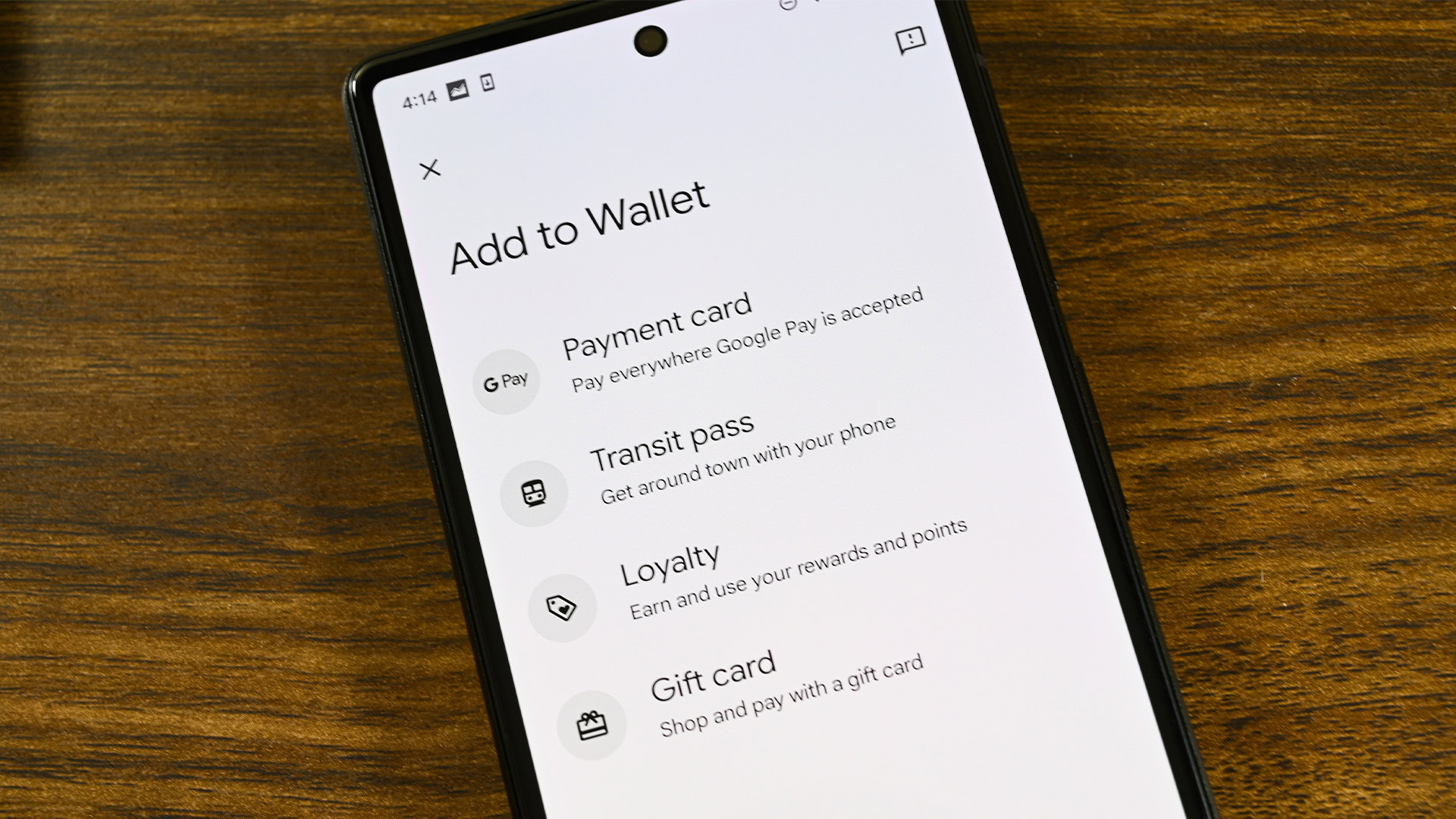
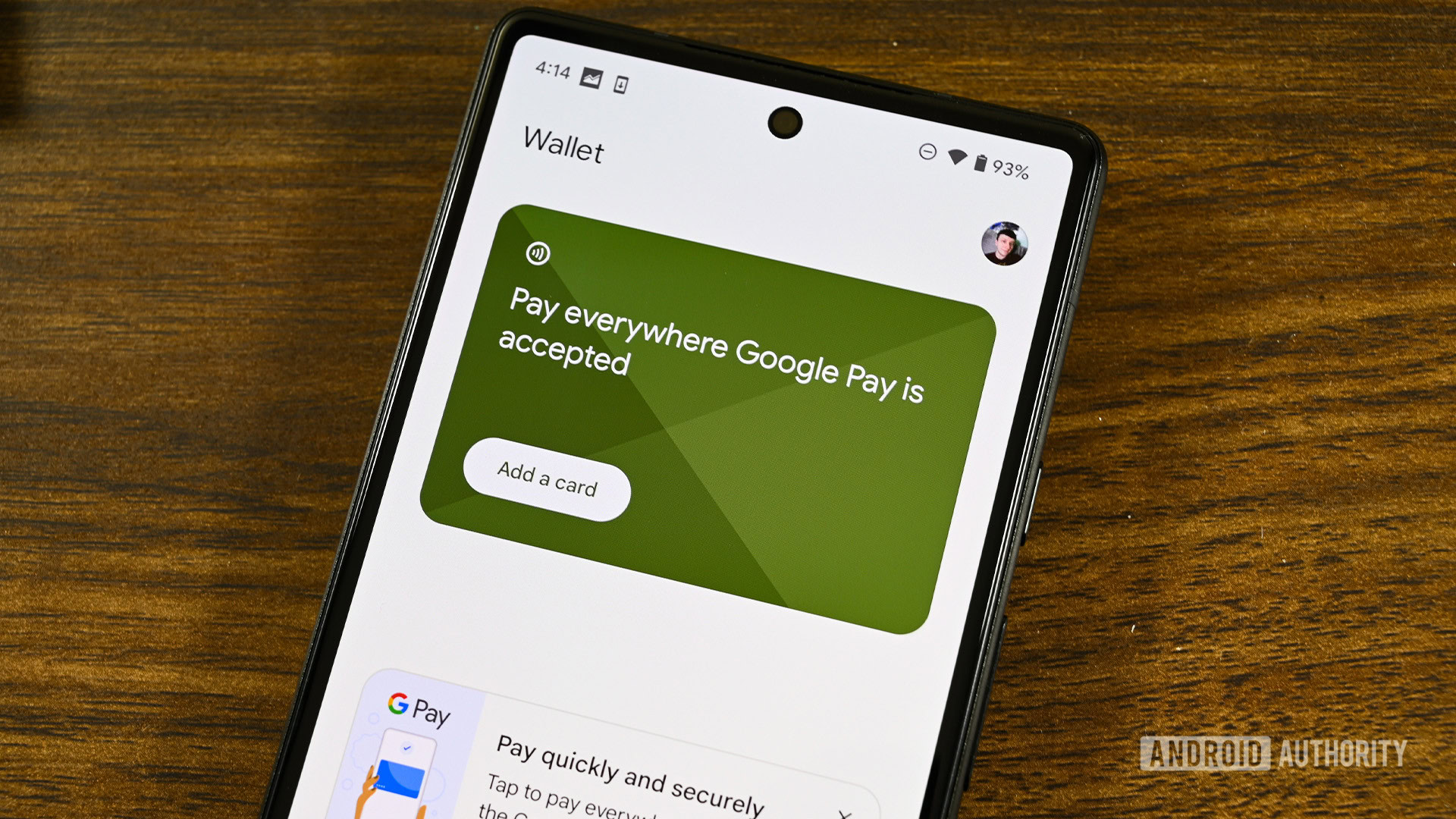
- Adding Cards: Tap "Add to Wallet" and select "Payment card." You can scan your physical card using the camera or enter the details manually.
- Bank Verification: Your bank will verify the card. This usually involves receiving a text message or email with a verification code. Once verified, Google Pay generates a token for that card.
Using Google Pay for Transactions
Once your card is in the Wallet, you can use Google Pay in three ways:
- In-Store: Wake your phone (you don’t necessarily need to open the Wallet app), ensure NFC is on, and hold the back of the phone near the contactless terminal. The Google Pay service will automatically engage.
- In-App: When shopping in apps like Uber or DoorDash, select Google Pay as your payment method at checkout.
- Web Browsers: On sites using Chrome or other supported browsers, look for the Google Pay button. Your address and payment info will autofill securely.
Common Mistakes and Troubleshooting
Despite the integrated nature of these services, users often encounter hurdles when the distinction between storage and payment causes technical friction.
"Wallet" is Installed, but "Pay" is Not Working
This often happens if NFC (Near Field Communication) is disabled in your phone's settings. Google Wallet may show your cards perfectly, but the Google Pay service cannot "talk" to the terminal without NFC. Always ensure NFC is toggled on in your "Connected Devices" settings.
Default Payment App Conflict
If you have multiple payment apps (like Samsung Pay or a specific banking app), your phone may not know which one to use. In your Android settings, go to Apps > Default Apps > Tap & Pay and ensure that Google Wallet (powered by Google Pay) is selected as the primary service.
Card "Not Supported" for Contactless
Sometimes you can add a card to Google Wallet for "online use only." This happens if your specific bank has not yet authorized Google Pay for contactless transactions. In this case, the card is stored in the Wallet app, but the Google Pay tap-to-pay service will be disabled for that specific card.
The Role of Wear OS in 2026
With the advancement of Wear OS 5 and Wear OS 6 by 2026, the distinction has moved to the wrist. Google Wallet on smartwatches is a "companion" app. It syncs with your phone's Wallet to provide quick access to your most-used cards and transit passes. The Google Pay engine on the watch utilizes the same tokenization technology, allowing for phone-free payments on LTE-enabled watches.
Practical Expert Guidance: Which One Should You Care About?
For the average consumer, the distinction is largely academic until something goes wrong. However, keeping the following guidelines in mind will help you navigate the ecosystem:
- Manage in Wallet: If you need to update an expiration date, delete a card, or add a boarding pass, look for the Google Wallet icon on your home screen.
- Look for Pay at Checkout: When you are at a cash register or an online checkout page, look for the Google Pay logo. Do not be confused if the "Wallet" brand is missing; the payment service is still Pay.
- Security First: Because Google Wallet and Google Pay are linked to your Google Account, ensure you have Two-Factor Authentication (2FA) enabled. If you lose your phone, you can use Google’s "Find My Device" to remotely wipe your Wallet and de-authorize Google Pay transactions.
Google Pay and Google Wallet represent two sides of the same coin. Wallet is your digital briefcase, and Pay is your digital currency. By 2026, they have evolved into a cohesive unit that provides one of the most secure and versatile ways to handle both your identity and your finances in an increasingly paperless world.
Frequently Asked Questions
1. Do I need to pay a fee to use Google Pay or Google Wallet?
No, Google does not charge users fees for storing cards in Google Wallet or for making purchases via Google Pay. However, your mobile carrier may charge for data usage, and your bank may still apply its standard transaction fees or interest rates associated with your credit or debit card.
2. Can I use Google Wallet/Pay without an internet connection?
Yes, for a limited number of transactions. Google Pay uses stored tokens on your device's Secure Element to complete "tap-to-pay" transactions at physical terminals. However, your device will eventually need to connect to the internet to refresh these security tokens and update your transaction history in the Wallet app.
3. What happens to my Google Pay cards if I lose my phone?
Since your payment information is tied to your Google Account and secured by tokenization, your actual card numbers are not at risk. You should immediately go to your Google Account settings on another device and use the "Find My Device" feature to lock or erase your phone. This will instantly disable Google Pay and remove access to your Google Wallet contents on that specific device.
4. Is Google Wallet available on iPhone?
In a limited capacity. You can download the Google Pay app on iOS to manage your account or send money (in supported regions), but you cannot use Google Wallet for "tap-to-pay" at physical stores on an iPhone in the same way you can on Android. Apple restricts the NFC chip primarily to Apple Pay, although 2026 regulations in certain regions like the EU have begun to open this access to third-party developers.
5. Can I store my physical ID or Driver’s License in Google Wallet?
Yes, but this is highly dependent on your location. As of 2026, many US states and several countries have authorized Google Wallet to hold digital versions of government IDs. You should check the "Add to Wallet" menu in the app to see if "ID Card" is a supported option in your current jurisdiction.