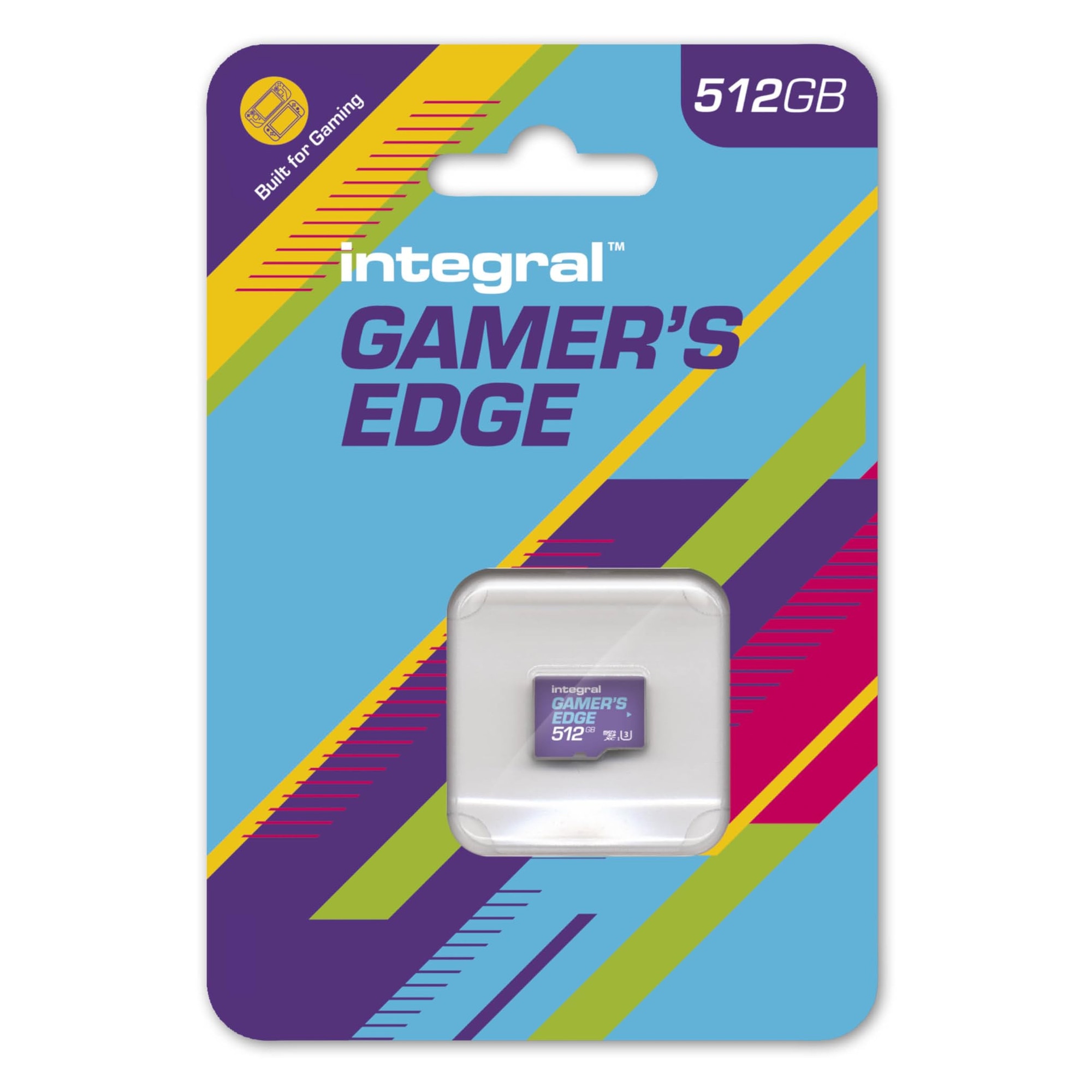
A 512GB microSDXC card is the optimal storage upgrade for the Nintendo Switch, providing enough space to house approximately 30 to 50 large-scale AAA digital titles simultaneously. To ensure peak performance, you must select a card that supports the UHS-I interface and maintains a minimum read speed of 60-95 MB/s to align with the console’s hardware bandwidth limits.
The Necessity of Expanded Storage in 2026
By 2026, the Nintendo Switch ecosystem—encompassing the original model, the Switch Lite, and the Switch OLED—has seen its digital library expand to thousands of titles. While the hardware remains a staple of portable gaming, its internal storage has always been a primary bottleneck. The original Switch and the Lite models offer a meager 32GB of internal eMMC memory, while the OLED model provides 64GB. When you account for the system software and mandatory updates, the actual usable space is even smaller.
A single major release, such as The Legend of Zelda: Tears of the Kingdom or The Witcher 3: Wild Hunt Complete Edition, can occupy between 15GB and 32GB of space. Without an external storage solution, a user might only be able to install one or two high-fidelity games before being forced to delete content. A 512GB card effectively solves this "storage anxiety," providing a massive overhead that accommodates not just base games, but years of downloadable content (DLC), software patches, and high-resolution screen captures.
Why 512GB is the Modern "Sweet Spot"
While 1TB and even 2TB microSD cards are available in 2026, the 512GB variant remains the industry's sweet spot for price-to-performance. It offers a significant leap over the 128GB or 256GB cards that were common in previous years without the steep price premium associated with the highest-capacity cards. For the average gamer who balances a mix of digital indies and physical AAA cartridges, 512GB is often more than they will ever fill, yet it provides the security of never having to manage storage during a major sale on the Nintendo eShop.
Understanding Technical Requirements for the Switch
The Nintendo Switch is compatible with three types of SD cards: microSD (up to 2GB), microSDHC (4GB - 32GB), and microSDXC (64GB and above). Since we are focusing on the 512GB capacity, you will exclusively be looking at the microSDXC (eXtended Capacity) standard.
UHS-I vs. UHS-II
One of the most common mistakes consumers make is purchasing an expensive UHS-II card for their Switch. UHS-II cards feature a second row of pins designed for ultra-high-speed data transfer in professional cameras. However, the Nintendo Switch hardware only supports the UHS-I (Ultra High Speed Phase I) interface. While a UHS-II card will technically work (it is backwards compatible), it will default to UHS-I speeds. You are essentially paying a 50% to 100% premium for speed that the console cannot physically utilize.
Speed Classes and Ratings
When browsing for a 512GB card, you will encounter several symbols on the packaging:
- Speed Class 10: Represented by a '10' inside a circle. This is the minimum standard for modern gaming.
- UHS Speed Class 3 (U3): Represented by a '3' inside a 'U'. This indicates a minimum sustained write speed of 30MB/s.
- Video Speed Class 30 (V30): Indicates the card can handle 30MB/s of sustained video recording.
- Application Performance Class 2 (A2): This is a newer standard (A1 vs A2) that measures Input/Output Operations Per Second (IOPS). While A2 is technically superior for running apps on smartphones, the benefit on the Nintendo Switch is marginal because the console’s operating system handles data differently than Android or iOS.
For the Switch, the most critical metric is the Sequential Read Speed. Nintendo recommends a card with a transfer speed of 60 to 95 MB/s. Most reputable 512GB cards in 2026 easily exceed this, often advertising speeds up to 160MB/s or 190MB/s.
Top 512GB MicroSD Card Recommendations
Several manufacturers dominate the storage market, but for gaming, reliability and heat resistance are paramount. The Switch can generate significant heat during long play sessions in docked mode, which can stress lower-quality flash memory.
1. SanDisk microSDXC for Nintendo Switch (Official Licensed)
These cards are easily identifiable by their Nintendo-themed branding (often featuring a Mushroom, Star, or Leaf). While you pay a slight premium for the branding, these cards are specifically tested and guaranteed for Switch compatibility. In 2026, these remain the most popular "set it and forget it" option for parents and casual gamers.
2. Samsung EVO Select / PRO Plus
Samsung’s EVO Select line is often the best value on the market. These cards are known for their durability, being waterproof, temperature-proof, and X-ray proof. The PRO Plus version offers slightly better write speeds, which can marginally decrease the time it takes to download and install a game from the eShop.
3. SanDisk Extreme
If you use your Switch for more than just gaming—perhaps you also use the SD card in a drone or a 4K camera occasionally—the SanDisk Extreme is a robust choice. It offers high write speeds (V30/U3) that ensure that even the largest game patches are written to the disk as fast as the Switch hardware allows.
4. Lexar Play
The Lexar Play series is specifically marketed toward mobile gaming. It prioritizes read speeds and is often priced aggressively during holiday sales. It is a reliable alternative to the SanDisk and Samsung giants.
Comparison of Popular 512GB Options
| Feature | SanDisk Licensed | Samsung EVO Select | SanDisk Extreme | Lexar Play |
|---|---|---|---|---|
| Max Read Speed | Up to 100 MB/s | Up to 130 MB/s | Up to 190 MB/s | Up to 150 MB/s |
| Speed Class | U3, V30, A1 | U3, V30, A2 | U3, V30, A2 | U3, V30, A2 |
| Durability | High | Excellent (6-proof) | High | Standard |
| Primary Benefit | Guaranteed Support | Best Price/Value | High Performance | Focused on Gaming |
| A-Rating | A1 | A2 | A2 | A2 |
How to Install and Format Your New SD Card
Once you have purchased your 512GB card, the installation process is straightforward, but there are critical steps to prevent data corruption.
Physical Installation
- Power down the console completely. Do not simply put it into Sleep Mode. Hold the power button for three seconds, select "Power Options," and then "Turn Off."
- Locate the microSD card slot. On the original Switch and the OLED model, this is behind the kickstand. On the Switch Lite, it is under a small flap on the bottom edge.
- Insert the card with the label facing away from the console (for the original model) or according to the directional arrow on the slot.
- Push until you hear a click.
System Formatting
Upon turning the console back on, you may see a prompt stating that the card needs to be formatted.
- Navigate to System Settings (the gear icon on the home screen).
- Scroll down to System at the bottom of the sidebar.
- Select Formatting Options at the bottom of the list.
- Select Format microSD Card and follow the prompts.
Note on File Systems: The Nintendo Switch uses the exFAT file system for large SD cards. If your console has never used an SDXC card before, it may prompt you to perform a one-time system update to enable exFAT support. This requires an internet connection.
Managing Your Library: Internal vs. External Storage
A common question is whether games run faster on the internal storage than on a 512GB SD card. Technical benchmarks show that internal storage is the fastest, followed closely by the SD card, with physical cartridges being the slowest for loading times.
However, the difference between internal storage and a high-quality SD card (like a SanDisk Extreme or Samsung EVO) is usually less than two seconds for a 30-second loading screen. Because of this negligible difference, it is recommended to keep your most played, high-loading-time games (like Zelda or Monster Hunter) on the internal storage and move everything else to the SD card.
Moving Games to the SD Card
You do not need to delete and redownload games to move them.
- Go to System Settings > Data Management.
- Select Move Data Between System / microSD Card.
- Choose the games you wish to move and select "Move Data."
Guarding Against Counterfeit Cards
The 512GB market is rife with counterfeit products, particularly on third-party marketplaces. These "fake" cards are often 16GB or 32GB cards that have been hacked to report a false capacity of 512GB to the operating system.
When you use a fake card, the Switch will appear to download games normally. However, once the actual physical capacity is reached, the card will begin overwriting existing data or simply fail to save new data, leading to corrupted game files and lost save progress.
Red Flags of Counterfeit Cards:
- Unrealistic Pricing: If a 512GB card is priced significantly lower (e.g., $10-$15) than the market average from reputable brands.
- Unfamiliar Branding: Generic names with no web presence or warranty information.
- Packaging Errors: Look for typos or low-quality printing on the card itself.
To verify a card's authenticity, you can use a PC tool such as H2testw or FakeFlashTest. These utilities write data to every sector of the card and verify it to ensure the advertised capacity is genuine.
Frequently Asked Questions
Is 512GB too much for a Nintendo Switch?
For most users, 512GB is not "too much," but rather a comfortable ceiling. If you primarily buy physical cartridges, you may only need 128GB or 256GB for patches and DLC. However, if you are a digital-first gamer or take advantage of eShop sales, 512GB allows you to keep your entire library accessible without the need for constant re-downloading.
Can I use a 512GB card from my camera in my Switch?
Yes, as long as it is a microSDXC card. However, be aware that formatting the card for use in the Switch will erase all existing photos or videos. Furthermore, if the card has a lower speed rating (Class 4 or 6), you may experience stuttering during FMV sequences or longer loading times in games.
Does the Switch support 512GB cards with A2 ratings?
Yes, the Switch supports A2 rated cards. While the console does not fully utilize the increased IOPS (Input/Output Operations Per Second) that the A2 standard provides for mobile apps, these cards often feature higher-quality flash controllers, which can contribute to better long-term reliability compared to older A1 cards.
My Switch says the SD card is corrupted. What should I do?
First, try restarting the console. if the error persists, remove the card and check the gold contacts for dust or debris. You can clean them gently with a dry microfiber cloth. If the error continues, you may need to reformat the card using a PC (using the SD Association's "SD Memory Card Formatter") and then re-format it again in the Switch. If errors still occur, the card may be failing or counterfeit.
Will a 512GB SD card improve my game's graphics?
No. An SD card only affects storage capacity and the speed at which data is loaded into the console's RAM. It does not improve the GPU performance, frame rate, or resolution of the games themselves.
Final Recommendation
For the best experience in 2026, purchase a Samsung EVO Select 512GB or a SanDisk 512GB Licensed microSDXC. Both offer the perfect balance of UHS-I speed, reliability, and value. Ensure you buy from an authorized retailer to avoid counterfeit stock. Once installed, prioritize moving your largest digital files to the card, keeping your internal storage reserved for your one or two "daily driver" games to maximize loading efficiency.