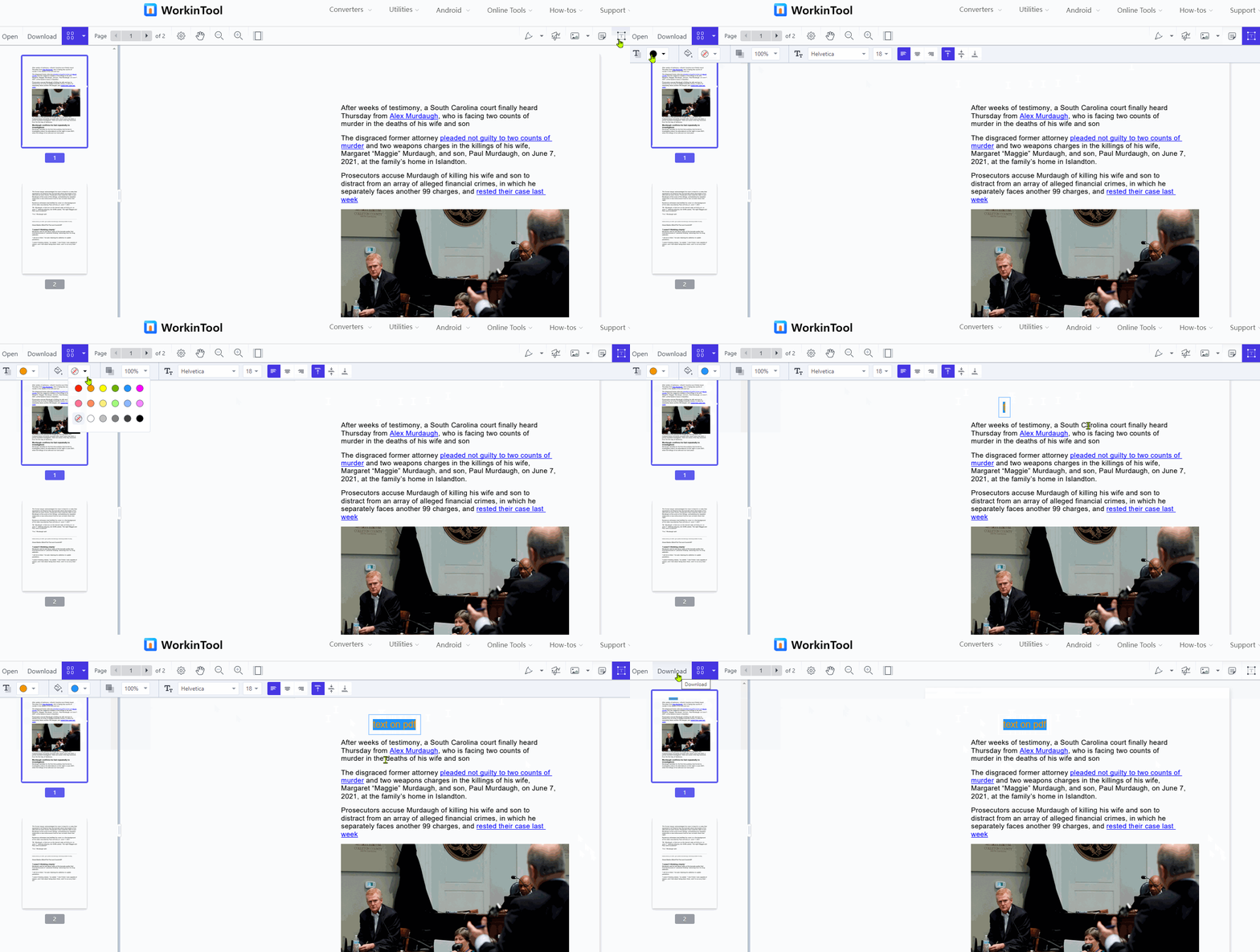
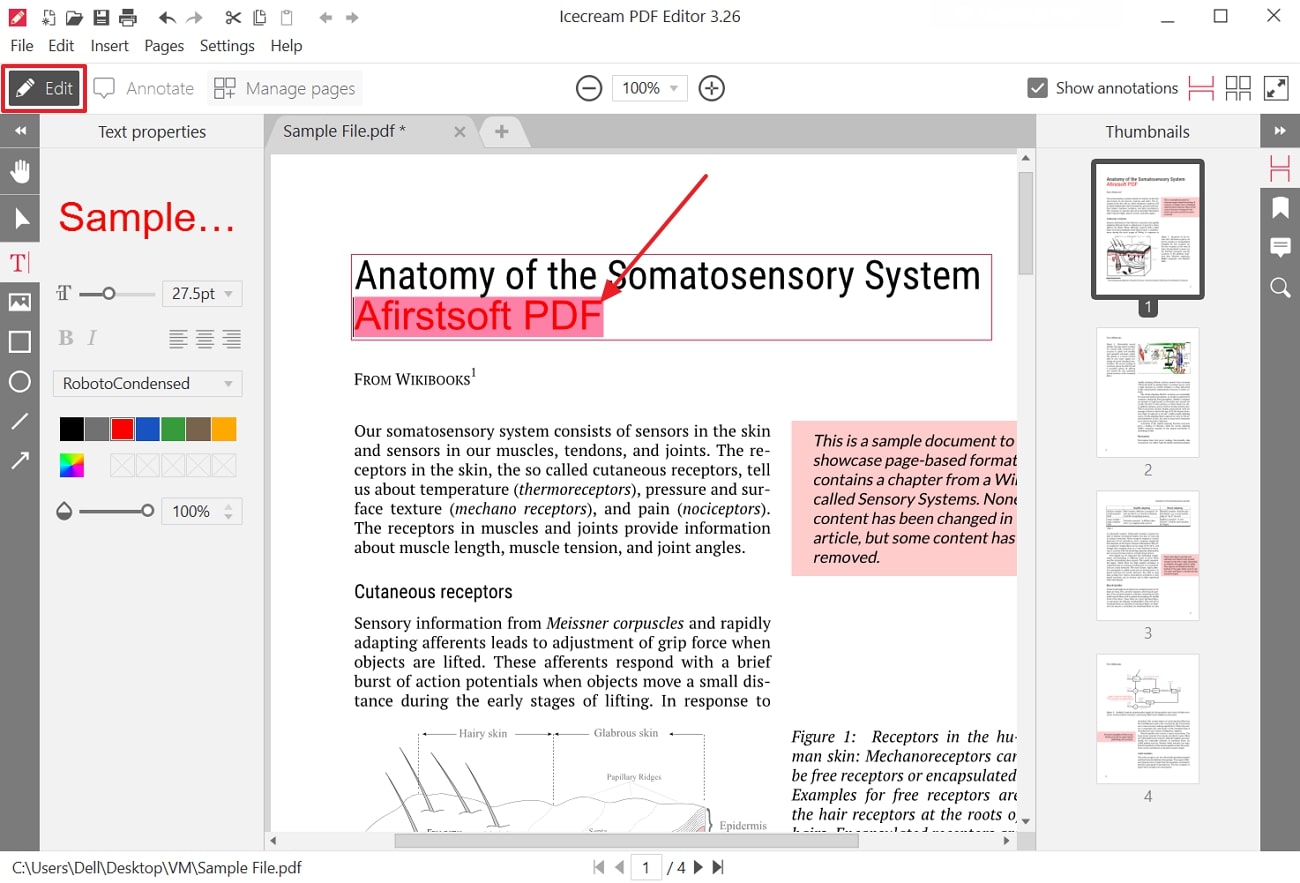
Adding text to a PDF in Adobe requires using the Acrobat software suite to either edit existing document content or overlay new information onto a static file. By utilizing the Edit PDF toolset, users can insert, resize, and reformat text directly within a document, allowing for corrections, annotations, or the completion of non-interactive forms without needing the original source file.
Understanding Adobe Acrobat’s Editing Environment
Adobe Acrobat is the industry standard for Portable Document Format (PDF) manipulation. When you need to add text to a PDF, you are not merely "typing" over an image; you are interacting with the document's internal structure. Adobe Acrobat identifies the fonts, paragraph styles, and layout elements of the existing document to match your new text as closely as possible.
It is important to distinguish between "Editing" and "Commenting." If your goal is to simply mark up a document for review or feedback, the Commenting tools are often more appropriate. However, if your intent is to modify the actual content of the PDF—such as correcting a typo, adding a missing paragraph, or filling in a professional document—the Edit PDF tool is the correct function to employ.
Prerequisites for Editing PDFs in Adobe
Before attempting to add text, ensure you have the appropriate software and permissions. Adobe Acrobat (Pro or Standard) is a paid subscription service. The free Adobe Acrobat Reader application does not provide the capability to edit existing text within a PDF; it is strictly for viewing, signing, and annotating.
Additionally, verify that the PDF is not restricted by security settings. Some documents are saved with "password security" or "permissions restrictions" that prevent editing. If you open a PDF and notice that the "Edit PDF" icon is grayed out or a lock icon appears in the sidebar, the author of the document has restricted modifications. You will need the document password or permission from the owner to proceed.
Step-by-Step: Adding Text Using Adobe Acrobat Pro or Standard
To add new text to a PDF, follow these precise steps within the Adobe Acrobat desktop application:
- Open the File: Launch Adobe Acrobat and select the "Open" option from the file menu to locate your document.
- Access the Tool Center: In the right-hand pane or the top toolbar, select the "Edit PDF" tool.
- Initiate Text Entry: Click the "Add Text" icon located in the format toolbar.
- Place the Cursor: Click anywhere on the page where you wish to insert new text. A bounding box will appear.
- Type Your Content: Input your text. You can drag the corners of the bounding box to adjust the width and height of the text block to suit your document layout.
- Formatting: Use the "Format" panel on the right side of the screen to adjust the font family, font size, color, line spacing, and alignment. Adobe will attempt to auto-detect the fonts used in the original document; if the specific font is not installed on your computer, Acrobat will substitute it with a visually similar system font.
- Finalize: Once your text is placed, click outside the text box to save the changes to the active document. Remember to save your file (Ctrl+S or Command+S) to commit these changes to the PDF structure.
Technical Considerations and Best Practices
When you add text to a PDF in Adobe, you are making a permanent structural change. Unlike a word processor, where text flows naturally between pages, a PDF is a fixed-layout format. Adding a large paragraph might cause the text to overlap with images or run off the page edge if not managed correctly.
Font Matching: Adobe Acrobat is highly effective at font matching, but if you are working with a highly stylized or proprietary font not present on your system, the aesthetic integration might be imperfect. If the visual consistency of the document is critical, consider using the "Edit" function to replace the entire text block rather than simply appending to it.
Preserving Document Integrity: If you are adding text to an official or legal document, always ensure the final output remains accessible. Avoid using extremely small font sizes or colors that contrast poorly with the background, as these can fail accessibility checks for screen readers.
Comparing Methods for Document Modification
Depending on your specific workflow, different Adobe-related approaches may be better suited for your needs.
| Method | Best For | Technical Complexity | Limitation |
|---|---|---|---|
| Edit PDF Tool | Permanent content changes | Low | Requires paid subscription |
| Comment/Sticky Note | Feedback and review | Minimal | Does not change underlying text |
| Fill & Sign | Completing digital forms | Minimal | Limited to specific form fields |
| Export to Word | Extensive rewrites | Medium | May lose complex layout formatting |
Troubleshooting Common Issues
If you find that the software is not behaving as expected, consider these common resolution paths:
- Scanned Documents: If your PDF was created by scanning a paper document, the "Edit PDF" tool will first attempt to perform Optical Character Recognition (OCR). If the scan quality is poor, the software may be unable to recognize characters. You may need to run the "Enhance Scan" tool before attempting to add text.
- Missing Permissions: If you cannot select existing text, check the document properties (File > Properties > Security). If "Changing the Document" is set to "Not Allowed," you cannot edit the text without the document password.
- System Latency: Adobe Acrobat is a resource-intensive application. If you are working on a very large PDF (hundreds of pages), your system might lag while rendering text edits. Ensure your operating system is updated and sufficient RAM is allocated to the application.
Frequently Asked Questions
1. Can I add text to a PDF using the free version of Adobe Acrobat? No. The free Adobe Acrobat Reader allows you to view and comment on PDFs, but it does not include the "Edit PDF" tools. You must have an active subscription to Adobe Acrobat (Standard or Pro) to add or modify existing text.
2. Will the text I add look exactly like the original document? Adobe tries to match the font, size, and style of the existing text. However, if the original font is not installed on your computer, Acrobat will use a substitute. For best results, use standard fonts like Helvetica, Times New Roman, or Arial, which are widely supported.
3. Why can't I edit the text in a specific PDF? This is likely due to security settings or document format. If the document is a "flat" image (such as a scan without OCR), you cannot edit text until you run OCR. If the document is password-protected, you require the owner's password to enable editing.
4. What is the difference between "Add Text" and "Fill & Sign"? "Add Text" is a general-purpose tool for inserting text anywhere on a document. "Fill & Sign" is specifically designed to interact with form fields (PDFs designed to receive data). Use "Fill & Sign" if you are completing a standardized form to ensure the data is aligned with the provided fields.
5. How can I ensure my added text is secure? If you want to prevent others from editing the text you have added, save the document and then apply a "Password for Permissions." This allows you to set a password required to change the document's security settings or edit the content, keeping your revisions safe.
Final Recommendation
To effectively add text to a PDF in Adobe, prioritize using the "Edit PDF" tool for precision and permanent integration. If you are performing repetitive tasks, such as filling out multiple similar forms, take the time to convert your documents into true "Acrobat Forms." This allows for faster entry and consistent formatting. Always keep a backup of the original, unedited file before making significant changes, as modifying the underlying PDF structure can sometimes lead to unexpected layout shifts. By maintaining a logical folder structure for your original and edited versions, you ensure that your workflow remains professional and organized throughout 2026 and beyond.