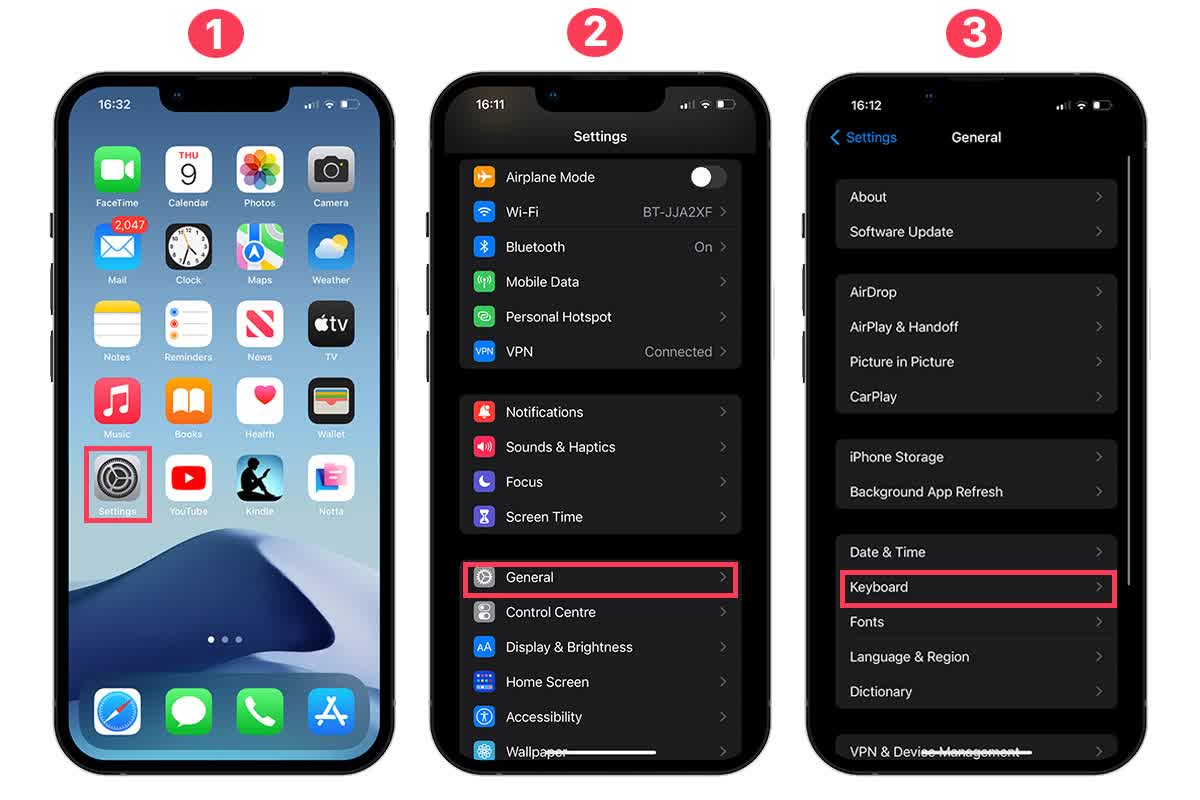
To activate voice commands on your iPhone, navigate to Settings > Siri & Search and enable "Listen for 'Siri'" for virtual assistance. For comprehensive hands-free device navigation, go to Settings > Accessibility > Voice Control and toggle it on. These features allow you to control your device entirely through spoken instructions and AI-driven interactions.
Understanding Voice Interaction on iPhone in 2026
As of 2026, voice interaction on the iPhone has evolved into a multi-layered ecosystem. While many users use the terms "Siri" and "Voice Control" interchangeably, they serve distinct purposes within the iOS environment. Siri functions as a proactive personal assistant powered by advanced Apple Intelligence, capable of cross-app execution and contextual awareness. In contrast, Voice Control is a robust accessibility feature designed for users who require or prefer to operate the entire user interface without physical touch.
Activating these features requires a basic understanding of your device’s hardware and the current operating system (iOS 19 or later). Modern iPhones utilize dedicated on-device processing via the Apple Neural Engine, ensuring that most voice commands are processed locally. This shift has significantly reduced latency and increased privacy, as your voice data often never leaves the device.
Prerequisites and Requirements for Setup
Before initiating the setup process, ensure your device meets the necessary technical specifications to handle the latest voice processing models.
Hardware Compatibility
Most voice command features are available on all modern iPhones, but the most advanced Apple Intelligence features (integrated into Siri) require an iPhone 15 Pro or any subsequent model released through 2026. These devices contain the necessary RAM and NPU (Neural Processing Unit) overhead to manage generative AI tasks alongside standard voice recognition.
Software and Connectivity
- iOS Version: Ensure your device is updated to the latest version of iOS. Voice recognition models are frequently updated for better accuracy.
- Internet Access: While much of the processing is on-device in 2026, an initial internet connection is required to download high-quality speech recognition files and to authorize Siri services.
- Storage Space: Voice Control requires approximately 400MB to 1GB of local storage for its offline dictionary and command processing engine.
Step-by-Step Setup: Activating Siri (The Virtual Assistant)
Siri is the primary way most users interact with their iPhones using their voice. It is designed for tasks like setting reminders, sending messages, and querying information.
1. Enabling the Trigger Phrase
Go to Settings and scroll down to Siri & Search. Here, you will see the option "Listen for." In 2026, Apple allows for multiple trigger options:
- "Siri": A more natural, shortened trigger.
- "Hey Siri": The traditional long-form trigger.
- Off: Disables active listening.
2. Voice Training
If you enable the trigger phrase, the iPhone will prompt you to "Set Up 'Hey Siri'." You will be asked to repeat several phrases. This process creates a unique mathematical model of your voice, ensuring the device only responds to you. This is a critical security step that prevents unauthorized users from triggering your phone.
3. Siri When Locked
In the same Siri & Search menu, ensure "Allow Siri When Locked" is toggled on if you wish to use voice commands while your phone is on a table or in your pocket. However, be aware that for sensitive data (like reading emails), Siri may still require Face ID or a passcode.
4. The Action Button Shortcut
For users with an iPhone 15 Pro or newer, you can map the Action Button to trigger Siri. Go to Settings > Action Button and swipe to the Siri icon. This provides a tactile way to activate voice commands in loud environments where a wake word might not be picked up.
Step-by-Step Setup: Activating Voice Control (Full Device Navigation)
Voice Control is a separate, more powerful engine. It is found in the Accessibility settings and is designed for users who need to perform every gesture—swiping, tapping, and scrolling—via voice.
1. Initial Activation
Navigate to Settings > Accessibility > Voice Control. Toggle the switch at the top to On. Upon the first activation, your iPhone will download the necessary files for your primary language. A blue microphone icon will appear in the status bar (next to the time), indicating the device is listening.
2. Language Selection
Under the Voice Control settings, tap Language. As of 2026, Apple has expanded support to dozens of localized dialects. Select your preferred language to ensure the phonetic engine recognizes your specific accent.
3. Continuous vs. On-Demand Listening
Within the Voice Control menu, you can manage how the microphone behaves:
- Attention Aware: On devices with Face ID, Voice Control will only listen when it detects you are looking at the screen. This prevents accidental triggers during conversations with other people.
- Wake Word: You can say "Go to sleep" to temporarily pause Voice Control and "Wake up" to resume it.
4. Customizing Commands
Tap Customize Commands to see a library of every possible action. You can create custom phrases for specific tasks. For example, you can create a command called "Post to Social" that opens a specific app and pastes your clipboard.
Comparing Voice Interaction Modes on iPhone
It is helpful to understand the technical and functional differences between the two primary ways to "activate voice command."
| Feature | Siri (Virtual Assistant) | Voice Control (Accessibility) |
|---|---|---|
| Primary Goal | Task automation and information. | Navigating the UI and gestures. |
| Trigger Method | Wake word ("Siri") or Button. | Always listening or Attention Aware. |
| Internet Required | Partial (for web searches). | No (100% On-device). |
| Privacy Focus | Personalized (Apple Intelligence). | Private (No data leaves device). |
| Complexity | Simple, conversational. | Complex, command-based. |
| Visual Feedback | Glowing orb/Siri interface. | On-screen numbers or grids. |
Advanced Voice Command Customization
Once the basic setup is complete, you can refine how the iPhone responds to your voice to make the experience more efficient.
Vocabulary and Dictation
In Settings > Accessibility > Voice Control, there is a Vocabulary section. If you frequently use technical jargon, medical terms, or unique names that the iPhone struggles to recognize, you can manually add them here. This teaches the phonetic engine to prioritize those specific spellings when it hears the corresponding sounds.
Using Grids and Numbers
For users who cannot touch the screen, Voice Control offers two powerful overlay modes:
- Show Names: Displays the name of every button on the screen. You simply say "Tap [Button Name]."
- Show Numbers: Places a small number next to every clickable element. You say "Tap 5."
- Show Grid: Divides the screen into a numbered grid. You can say "Tap 12" to zoom into a specific area, then "Tap 3" to click a precise pixel. This is essential for apps that do not have standard accessibility labels.
Apple Intelligence Integration (2026 Updates)
By 2026, Siri's voice commands are no longer limited to rigid syntax. Thanks to large language models (LLMs) running on the A-series chips, you can use natural language. Instead of saying "Siri, send a photo to John," you can say "Hey Siri, take that picture I took at the park yesterday and send it to the group chat with my brother." The system now understands "that picture" by looking at your recent library context.
Troubleshooting Common Voice Command Issues
Even with the advancements of 2026, setup can occasionally encounter hurdles.
- Microphone Not Responding: Ensure that the microphones (located at the bottom and near the rear camera) are not blocked by a third-party case. Test the hardware by recording a Voice Memo.
- "Siri" Not Triggering: Check Settings > Screen Time > Content & Privacy Restrictions > Allowed Apps to ensure Siri & Dictation haven't been restricted.
- Voice Control Files Not Downloading: This usually happens due to insufficient storage or a metered Wi-Fi connection. Connect to a stable, unmetered network and ensure at least 2GB of free space is available.
- Incorrect Recognition: Recalibrate your voice model by toggling "Listen for 'Siri'" off and then back on. This will force a new voice training session.
Security and Privacy Considerations
In 2026, Apple emphasizes "Private Cloud Compute" for voice tasks that require off-device power. However, for most voice commands:
- On-Device Processing: Commands like "Open Photos" or "Turn on the lights" are processed entirely by the Neural Engine.
- Data Minimization: Apple uses random identifiers rather than your Apple ID to process voice requests that do go to the cloud.
- Physical Indicators: Always look for the orange or green dot in the Dynamic Island or status bar. These are hardware-level indicators that the microphone or camera is active.
FAQs
Can I use voice commands on my iPhone without an internet connection?
Yes. As of 2026, Voice Control is entirely on-device and does not require internet once the initial files are downloaded. Siri can also perform many basic tasks offline, such as setting timers, launching apps, and controlling system settings like brightness or Bluetooth, thanks to the power of modern Apple silicon.
What is the difference between Voice Control and Siri?
Siri is a personal assistant meant for "doing things" (e.g., "Tell me the weather" or "Email my boss"). Voice Control is an accessibility tool meant for "interacting with the screen" (e.g., "Swipe left," "Scroll down," or "Tap the blue button"). Most users only need Siri, while users with motor impairments or those who need 100% hands-free use rely on Voice Control.
How do I stop my iPhone from listening for "Siri"?
Navigate to Settings > Siri & Search and toggle off "Listen for 'Siri'" and "Press Side Button for Siri." To ensure all voice processing is disabled, also go to Settings > Accessibility > Voice Control and ensure it is toggled off.
Can I create my own custom voice commands?
Yes. Under Settings > Accessibility > Voice Control > Customize Commands, you can select "Create New Command..." You can type a specific phrase and assign it to a custom gesture or a specific shortcut. For instance, saying "Clean Up" could trigger a shortcut that closes all apps and clears your notifications.
Why does Siri sound different or more "human" in 2026?
Apple updated its text-to-speech engine using neural prosody, which allows Siri to better mimic human inflection and emotion. This is part of the Apple Intelligence suite, which uses advanced generative models to make the assistant feel less robotic and more conversational.
Practical Next Action
After activating your preferred voice command method, the best way to master it is to use it for daily tasks. Start by asking Siri to manage your calendar or use Voice Control to navigate a simple app like Weather. If you find the device isn't recognizing you accurately, revisit the Voice Training section in settings to retrain the model in a quiet environment.