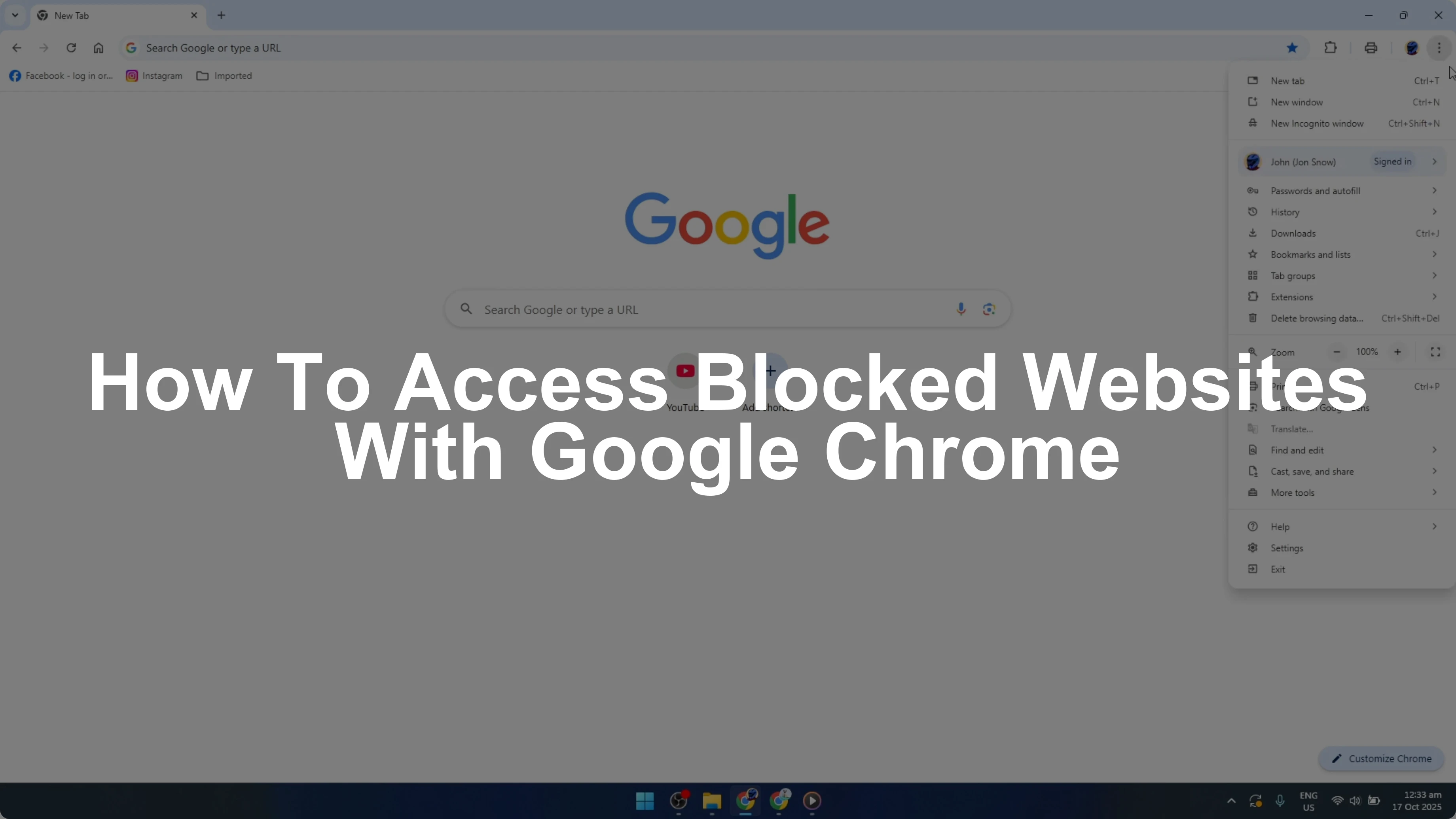
An "Access Denied" error in Google Chrome typically occurs when corrupted browsing data, restrictive browser extensions, misconfigured proxy settings, or firewall blocks prevent the browser from reaching a website or local file. You can usually resolve the issue by clearing your browser cache and cookies, disabling conflicting extensions, turning off active VPNs or proxies, and verifying local file system permissions.
Understanding Why Google Chrome Displays "Access Denied"
When Google Chrome displays an "Access Denied" message, the underlying issue falls into one of two distinct categories: server-side access restrictions or client-side system permissions. Identifying which type of error you are encountering is the first step toward applying the correct fix.
Server-Side Access Restrictions (HTTP 403 / WAF Blocks)
Web servers use Web Application Firewalls (WAFs) like Cloudflare, Akamai, or AWS WAF to protect websites from malicious traffic, bot networks, and unauthorized requests. If a server issues an HTTP 403 Forbidden status code or a custom "Access Denied" page, it means the server received your request but actively refused to process it. Common triggers include:
- Flagged IP Addresses: Your internet protocol (IP) address may have been flagged due to malicious traffic originating from your internet service provider (ISP) subnetwork or a shared Virtual Private Network (VPN) node.
- Corrupted or Stale Cookies: Session tokens stored in your browser may no longer match the server's security requirements, causing the server to reject your request as invalid or suspicious.
- Header Alterations by Extensions: Privacy-focused extensions or proxy scripts can modify your request headers (such as the
User-AgentorReferer), leading the security filter to flag your browser as an automated bot.
Client-Side and File System Permissions (ERR_ACCESS_DENIED)
If Chrome shows a native browser error page reading ERR_ACCESS_DENIED or Access to the file was denied, the block originates on your local computer or local area network (LAN). Common triggers include:
- Operating System File Permissions: When opening a local file (
file:///path) such as an HTML document or PDF, Chrome may lack the necessary Read privileges under Windows NTFS or macOS POSIX file permissions. - Locked Chrome Profile Data: Corrupted permissions inside Chrome's system directory—specifically the
%LOCALAPPDATA%\Google\Chrome\User Datadirectory on Windows—can prevent Chrome from reading your local preferences or cache files. - Antivirus and Firewall Software: Local security suites (such as Windows Defender Firewall or third-party suites like Bitdefender or Norton) may block
chrome.exefrom accessing specific network ports or local directories.
Method 1: Clear Browser Cache and Cookies
Outdated cache files and corrupted session cookies are the primary cause of sudden access errors on websites you frequently visit. Clearing this data forces Chrome to establish a fresh, unauthenticated handshake with the target server.
Step-by-Step Instructions:
- Open Google Chrome.
- Press
Ctrl + Shift + Deleteon Windows orCmd + Shift + Deleteon macOS to open the Clear browsing data window. Alternatively, navigate tochrome://settings/clearBrowserData. - In the dropdown menu for Time range, select All time.
- Check the boxes next to Cookies and other site data and Cached images and files.
- Click Clear data.
- Close all open Chrome windows, restart the browser, and attempt to visit the site again.
Chrome Menu -> Settings -> Privacy and security -> Clear browsing data -> All time -> Clear data
Note: Clearing cookies will log you out of most active website sessions, requiring you to re-enter your credentials.
Method 2: Identify and Disable Conflicting Extensions and VPNs
Browser extensions—particularly ad blockers, script blockers, privacy managers, and proxy extensions—frequently inject custom code into network requests. If an extension modifies request headers incorrectly, the remote web server may reject the connection.
Step 1: Test Access in Incognito Mode
Incognito Mode runs Chrome without most installed extensions active by default.
- Click the three vertical dots in the upper-right corner of Chrome.
- Select New Incognito Window (or press
Ctrl + Shift + N/Cmd + Shift + N). - Navigate to the website that threw the "Access Denied" error.
If the page loads without issue in Incognito Mode, an active extension or cached state in your primary profile is causing the conflict.
Step 2: Isolate the Problematic Extension
- Open a normal Chrome window and navigate to
chrome://extensions/. - Toggle off all extensions using the switch on each card.
- Turn extensions back on one at a time, refreshing the problematic webpage after enabling each one until the "Access Denied" error reappears.
- Once identified, click Remove to delete the problematic extension or adjust its site permission settings.
Step 3: Disable System-Wide VPNs
If you use a system-level VPN service (such as ExpressVPN, NordVPN, or ProtonVPN), disconnect from the server. Web application firewalls frequently block known data center IP ranges associated with VPN providers to combat spam and automated scraping.
Method 3: Reset Local Network Configuration and Flush DNS Cache
A corrupted local Domain Name System (DNS) cache or invalid Winsock catalog entries can route Chrome's network traffic to obsolete server nodes, triggering access blocks.
Flushing DNS via Command Prompt (Windows)
- Press the Windows Key, type
cmd, right-click Command Prompt, and select Run as administrator. - Type the following commands sequentially, pressing Enter after each:
ipconfig /flushdns ipconfig /release ipconfig /renew netsh winsock reset
- Restart your computer to complete the socket reset.
Flushing Chrome's Internal Host Resolver Cache
Chrome maintains its own internal DNS cache separate from the operating system.
- Open Chrome and type
chrome://net-internals/#dnsinto the address bar. - Click the Clear host cache button.
- Type
chrome://net-internals/#socketsinto the address bar. - Click Flush socket pools.
Method 4: Adjust Windows Proxy and Security Settings
If your operating system is configured to route traffic through an offline or restricted proxy server, Chrome will be unable to load web resources, returning access errors.
Disabling Manual Proxy Server in Windows
- Press
Windows Key + Ito open Settings. - Navigate to Network & internet > Proxy.
- Under Automatic proxy setup, ensure Automatically detect settings is toggled On.
- Under Manual proxy setup, ensure Use a proxy server is set to Off.
Checking Operating System Firewalls
- Open the Control Panel and navigate to System and Security > Windows Defender Firewall.
- Select Allow an app or feature through Windows Defender Firewall in the left sidebar.
- Locate Google Chrome (
chrome.exe) in the list of applications. - Ensure both the Private and Public checkboxes are selected. If the settings are greyed out, click Change settings at the top of the window first.
Method 5: Resolve Local File System Permission Errors
When Chrome throws an Access to the file was denied error while opening local documents (like C:\Users\Username\Documents\file.html), the underlying issue is related to OS-level file security permissions.
Restoring NTFS File Permissions on Windows
- Open File Explorer and navigate to the file or folder Chrome cannot access.
- Right-click the file and select Properties.
- Select the Security tab at the top of the window.
- Click the Edit... button to modify permissions.
- Highlight your current user account or the Users group in the top pane.
- Under Permissions for Users, ensure that Read and Read & execute are set to Allow.
- Click Apply, then OK.
Resetting Chrome User Data Directory Permissions
If Chrome cannot read its own internal profile data:
- Close Google Chrome completely.
- Press
Windows Key + Rto open the Run dialog box. - Type
%LOCALAPPDATA%\Google\Chromeand press Enter. - Right-click the User Data folder and select Properties.
- Ensure the Read-only attribute at the bottom of the General tab is unchecked.
- Switch to the Security tab and verify your user account has Full control.
Method 6: Reset Google Chrome to Default Settings
If structural configuration errors or altered flags are preventing Chrome from operating properly, resetting the browser restores all default configurations without deleting saved bookmarks or passwords.
How to Perform a Settings Reset:
- Open Chrome and navigate to
chrome://settings/reset. - Click Restore settings to their original defaults.
- Read the confirmation dialog, which notes that startup pages, new tab pages, search engines, and pinned tabs will be reset, while extensions will be disabled and temporary data cleared.
- Click Reset settings.
Diagnostic Matrix for Chrome "Access Denied" Variants
The table below outlines common manifestations of the error, their primary causes, and recommended solutions.
| Error Screen / Code | Technical Root Cause | Primary Fix Method | Secondary Remedy |
|---|---|---|---|
| HTTP 403 Forbidden | Server-side firewall (Cloudflare/Akamai) flagged request | Clear cookies & site data | Turn off active VPN / Change IP |
| ERR_ACCESS_DENIED | Operating system access restriction on local file | Edit file security permissions (NTFS/POSIX) | Move file to User directory |
| Access Denied (Cloudflare) | Bot detection triggered by automated extensions | Disable privacy/ad-block extensions | Verify device system time |
| Profile Data Access Block | Locked %LOCALAPPDATA% profile directory |
Uncheck "Read-only" on User Data folder | Create new Chrome profile |
| ERR_PROXY_CONNECTION_FAILED | Windows Proxy misconfigured or dead proxy IP | Disable manual proxy settings in OS | Reset Winsock catalog (netsh) |
Advanced Troubleshooting: Managing Command-Line Switches
For developers and system administrators diagnosing local server environments or file restrictions, Chrome supports command-line switches to modify security contexts during testing.
Running Chrome Without Extension Interference
To launch Chrome in a completely clean environment without loading background extension processes:
- Open the Run dialog (
Windows Key + R). - Enter the following command:
chrome.exe --disable-extensions
Addressing Local Cross-Origin Access (file:///)
When testing local web apps that import external assets via file:/// protocols, Chrome blocks requests by default due to strict CORS implementation. To allow local file reads for development purposes:
- Open Command Prompt.
- Run Chrome with the local file access switch:
chrome.exe --allow-file-access-from-files
Caution: Using security override flags during daily browsing introduces significant risks. Use these flags strictly within isolated development environments.
Frequently Asked Questions
Why does Google Chrome display "Access Denied" on only one specific website?
When the error is restricted to a single site, the issue is almost always server-side. The website's security layer (such as Cloudflare or AWS WAF) has flagged your IP address, your browser session cookies are corrupted, or your VPN's server location is blocked by the host. Clear the cookies for that specific domain and attempt access without a VPN.
What is the difference between an HTTP 403 error and Chrome's ERR_ACCESS_DENIED?
An HTTP 403 error originates from the remote web server, indicating that the server understood your request but explicitly refused to authorize it. ERR_ACCESS_DENIED originates locally from Google Chrome or your operating system, indicating that Chrome was physically blocked from accessing a local file, socket, or network resource on your own computer.
Can a VPN cause an "Access Denied" error in Google Chrome?
Yes. Many websites use automated web application firewalls to block traffic coming from known VPN servers to prevent automated scraping, fraud, and distributed denial-of-service (DDoS) attacks. Disconnecting from your VPN or switching to a different server location usually resolves the issue.
Will resetting Google Chrome delete my saved passwords and bookmarks?
No. Using the "Restore settings to their original defaults" option in Chrome clears temporary cache data, site permissions, and active cookies while disabling extensions. Your saved passwords, browsing history, and bookmarks remain intact and attached to your Google profile.
How do I fix "Access to the file was denied" when opening local HTML or PDF files?
This error occurs when your operating system user account lacks the necessary Read permissions for the file. Right-click the file, go to Properties > Security, click Edit, and ensure your user account is granted Read permissions. Alternatively, move the file out of restricted system folders into your Downloads or Documents folder.
Summary of Next Actions
To successfully resolve an "Access Denied" error in Google Chrome, follow this logical progression:
- Isolate the Error Scope: Check if the issue occurs on all websites or just one, and determine if it involves remote URLs or local
file:///paths. - Clear Site Data: Execute a full browser cache and cookie purge via
chrome://settings/clearBrowserData. - Audit Extensions & Network Wrappers: Test the site in Incognito Mode (
Ctrl + Shift + N), disable suspect browser extensions, and disconnect from external VPN servers. - Reset Network Interfaces: Flush both the Windows DNS cache (
ipconfig /flushdns) and Chrome's internal socket pools (chrome://net-internals/#sockets). - Verify System Permissions: For local files, ensure your OS user account has explicit Read privileges in the file's security properties tab.
If the error persists across multiple networks and devices when accessing a specific domain, the target web server may be experiencing an active service outage or targeted block. Contact the site administrator directly to verify whether your IP range has been blacklisted.