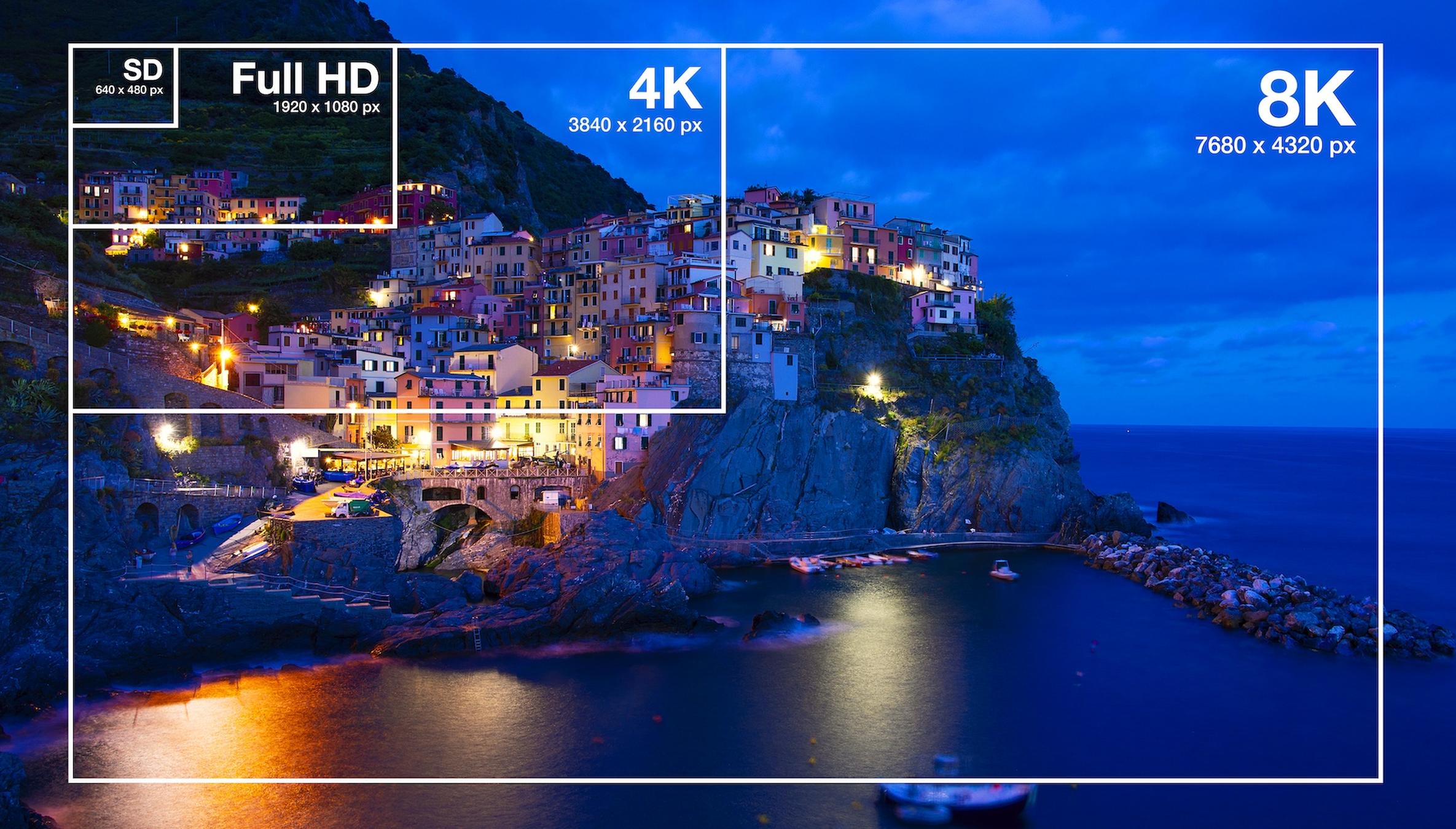
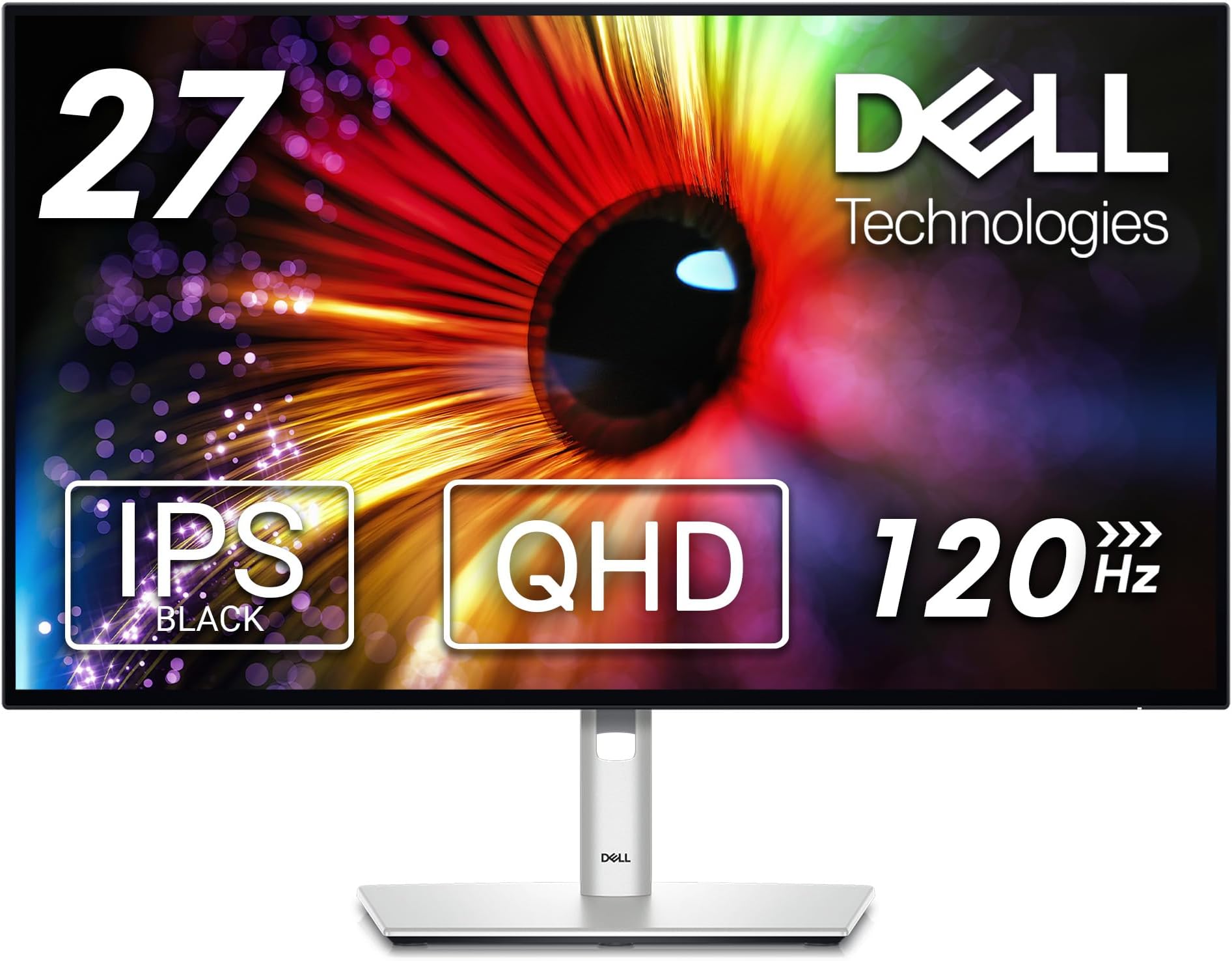
The 2560 x 1440 resolution, commonly referred to as Quad HD (QHD) or 1440p, represents a display standard featuring 2,560 horizontal pixels and 1,440 vertical pixels. Providing a total of 3,686,400 pixels, it serves as the middle ground between standard Full HD (1920 x 1080) and Ultra HD/4K (3840 x 2160), offering a sharp balance of visual fidelity, desktop real estate, and hardware accessibility for modern computing tasks.
The Technical Foundation of QHD
Resolution is the measurement of the total number of pixels that constitute an image on a display. In the case of 2560 x 1440, the product of these two dimensions yields the total pixel count. While the term "1440p" is often used interchangeably with QHD, the "p" stands for "progressive scan," indicating how the image is drawn onto the screen in a single pass.
This resolution is technically categorized as a "Quad" version of the legacy 720p (1280 x 720) high-definition standard. Because 2560 is exactly double 1280, and 1440 is exactly double 720, the total pixel count is four times that of the 720p standard. This mathematical relationship is why the term "Quad HD" became the industry-standard branding.
QHD vs. Competitor Resolutions
To understand the position of 1440p in the current hardware ecosystem, it is essential to compare it against the two dominant adjacent standards: 1080p and 4K.
Full HD (1080p)
Full HD, at 1920 x 1080, remains the most common resolution for casual users and entry-level gaming. However, as monitor sizes increase—typically beyond 24 inches—the pixel density (pixels per inch, or PPI) at 1080p begins to diminish, leading to visible pixelation or "stair-stepping" on slanted lines. 1440p resolves this by adding roughly 77% more pixels to the screen, providing significantly sharper text and more detailed imagery.
4K (Ultra HD)
Ultra HD at 3840 x 2160 offers four times the resolution of 1080p. While 4K provides unparalleled clarity, it requires significant hardware overhead. Graphics cards must render over 8 million pixels compared to the 3.6 million of 1440p. For many users, 1440p represents a "sweet spot" where the visual leap over 1080p is substantial, but the performance penalty on the graphics processing unit (GPU) remains manageable.
Summary Comparison Table
| Resolution | Dimensions | Total Pixels | Visual Impact | Hardware Demand |
|---|---|---|---|---|
| 1080p (FHD) | 1920 x 1080 | 2,073,600 | Standard | Low |
| 1440p (QHD) | 2560 x 1440 | 3,686,400 | High | Moderate |
| 2160p (4K) | 3840 x 2160 | 8,294,400 | Ultra | Very High |
The Impact on Desktop Real Estate
Beyond gaming and media consumption, resolution serves as a functional tool for productivity. A 2560 x 1440 display provides 33% more horizontal and vertical workspace than 1080p.
For professionals, this extra space is transformative. Users can comfortably snap two documents side-by-side without horizontal scrolling. Graphic designers and video editors gain a more granular view of their timelines and assets. Unlike 4K displays, which often require "Display Scaling" in Windows or macOS to make text and icons readable (effectively sacrificing the extra workspace to compensate for high pixel density), 1440p on a standard 27-inch monitor often works perfectly at 100% scale. This allows the user to utilize every available pixel for actual content rather than relying on software-based enlargement.
Hardware Requirements and Performance
Transitioning to 2560 x 1440 requires consideration of both the display hardware and the computer driving it.
Connectivity Standards
To achieve a resolution of 2560 x 1440 at high refresh rates (e.g., 144Hz or 165Hz), cable bandwidth matters.
- DisplayPort (1.2 or higher): This is the preferred method. DisplayPort 1.2 can support 1440p at 144Hz, while versions 1.4 or higher provide ample headroom for even higher refresh rates and HDR metadata.
- HDMI (2.0 or higher): Modern HDMI cables support 1440p comfortably. It is important to ensure both the monitor port and the graphics card port support the same standard to avoid being capped at 60Hz.
GPU Capabilities
In 2026, most mid-range graphics cards are designed specifically with 1440p gaming in mind. When choosing a GPU, one should look at the "VRAM" (Video Random Access Memory) buffer. Higher resolutions require more memory to store textures and frame data. A card with at least 10GB to 12GB of VRAM is recommended for modern AAA titles at 1440p to ensure smooth frame delivery without frequent stuttering.
Common Myths and Misconceptions
A recurring point of confusion involves the difference between "aspect ratio" and "resolution."
- Aspect Ratio: This is the proportional relationship between the width and height. 2560 x 1440 is a 16:9 aspect ratio, meaning for every 16 units of width, there are 9 units of height.
- Ultrawide Variations: You may encounter resolutions such as 3440 x 1440. This is an "Ultrawide" version of 1440p. It maintains the same vertical height (1440 pixels) but expands the horizontal width to create a 21:9 aspect ratio. While it shares the same name-brand suffix, it is significantly more demanding on hardware due to the increased horizontal pixel count.
FAQ: Common User Questions
1. Is 1440p better than 4K for gaming? "Better" depends on your priorities. 1440p is better if you prioritize high frame rates (FPS) and fluid motion, as it is easier for hardware to drive. 4K is better if you prioritize extreme image clarity and have the budget for a high-end GPU to maintain playable frame rates.
2. Can I use a 1440p monitor with a laptop that only supports 1080p? If your laptop’s graphics port supports the output, you can connect it to a 1440p monitor. The monitor will display at its native 1440p resolution. However, the laptop’s internal graphics chip must be capable of rendering that many pixels, or you may experience lag during demanding tasks.
3. Why does my text look small on my new 1440p monitor? Because 1440p has a higher pixel density than 1080p, items like text and icons will naturally appear smaller. You can fix this by going to your operating system’s Display Settings and adjusting the "Scale and Layout" percentage (e.g., setting it to 125%) until the text reaches a comfortable reading size.
4. Do I need a specific cable to reach 144Hz at 1440p? Yes. You should use a high-quality DisplayPort 1.4 cable or an HDMI 2.1 cable. Older cables, such as older versions of HDMI 1.4, may be limited to 60Hz at 1440p, which will negate the benefits of a high-refresh-rate monitor.
5. Is 1440p the same as 2K? Technically, no. In cinema, "2K" refers to 2048 x 1080 pixels. However, in consumer monitor marketing, "2K" is frequently used as a colloquial synonym for 1440p. While technically imprecise, most retailers and manufacturers use "2K" to describe 2560 x 1440 displays.
Final Recommendations for Buyers
When selecting a 2560 x 1440 monitor in 2026, the ideal screen size is generally 27 inches. This size provides a pixel density of approximately 109 PPI, which is considered the "sweet spot" for text clarity on Windows and macOS.
Before finalizing a purchase:
- Check your current GPU’s output ports: Ensure your computer has a DisplayPort or HDMI port that supports the resolution and refresh rate of the monitor you are considering.
- Consider panel technology: IPS (In-Plane Switching) panels offer the best color accuracy and viewing angles for 1440p monitors, while VA (Vertical Alignment) panels offer better contrast ratios.
- Verify refresh rate support: If you are a gamer, ensure the monitor supports the same variable refresh rate technology (G-Sync or FreeSync) as your graphics card to eliminate screen tearing.
By choosing a 1440p display, you are investing in a standard that maximizes the efficiency of modern hardware while providing a visual experience that is significantly more immersive and productive than the aging 1080p standard.