Connecting to Virgin Media’s 5GHz Wi-Fi network ensures faster download speeds and reduced interference, making it ideal for streaming 4K video, online gaming, and heavy data transfers. To connect quickly, ensure your device supports 5GHz bands, verify that your Virgin Hub has both 2.4GHz and 5GHz bands enabled under a unified or separate SSID, and select the appropriate network name from your device’s Wi-Fi settings menu before entering your network password.
Virgin Media’s Hub routers—ranging from the Hub 3 to the Hub 5—are dual-band or tri-band gateways capable of broadcasting across both the crowded 2.4GHz frequency and the faster, shorter-range 5GHz frequency. Understanding how these bands operate and knowing how to steer your devices toward the 5GHz connection can dramatically improve your home network experience.
Understanding Virgin Media Hub Wi-Fi Bands
Modern Virgin Media routers are designed to simplify connectivity by using a feature called "Channel Optimization" or "Smart Connect." By default, many Virgin Hubs broadcast both the 2.4GHz and 5GHz bands under a single network name (SSID) and password. When this setting is active, the hub automatically steers your connected devices to the band it deems most appropriate based on signal strength and distance.
However, automatic band steering does not always choose the 5GHz band, especially if your device is located a few rooms away from the router. The 5GHz frequency offers significantly higher throughput and less congestion because fewer household appliances operate on it compared to 2.4GHz. The trade-off is physical propagation: 5GHz waves struggle to penetrate thick walls, masonry, and floors as effectively as 2.4GHz waves.
Comparing 2.4GHz and 5GHz Virgin Media Bands
| Feature | 2.4GHz Wi-Fi Band | 5GHz Wi-Fi Band |
|---|---|---|
| Max Theoretical Speed | Lower (typically up to 450-600 Mbps) | Higher (up to 1300 Mbps or more) |
| Range | Wider coverage area, better wall penetration | Shorter coverage area, easily blocked by solid walls |
| Network Congestion | High (shared with Bluetooth, microwaves, baby monitors) | Low (wider channels, fewer competing devices) |
| Best Used For | Smart home devices, IoT, long-range browsing | 4K streaming, online gaming, video conferencing |
Prerequisites Before Connecting to 5GHz
Before attempting to force or establish a connection to your Virgin Media 5GHz network, verify that your hardware meets the necessary specifications. Skipping these preliminary checks is the most common reason users fail to find or connect to the high-speed band.
- Device Compatibility: Ensure your smartphone, laptop, tablet, or smart TV has a wireless network adapter that supports 802.11ac (Wi-Fi 5) or 802.11ax (Wi-Fi 6). Devices manufactured before 2015 often lack 5GHz hardware support entirely.
- Physical Proximity: Position yourself within line of sight or within the same room as the Virgin Hub for the initial connection. Thick brick walls can drop the 5GHz signal completely, making the SSID invisible on your device.
- Hub Identification: Check the sticker on the bottom or back of your Virgin Hub (Hub 3, Hub 4, or Hub 5) to locate the default network name (SSID) and network password (Wi-Fi Key).
Step-by-Step Instructions to Connect Quickly
Depending on whether your Virgin Hub uses a unified SSID or split SSIDs, you can establish your 5GHz connection using one of two primary methods.
Method 1: Connecting via Smart Connect (Unified SSID)
If your Virgin Hub is running its factory default settings, both bands share one name.
- Open the Wi-Fi settings menu on your computer, smartphone, or tablet.
- Look for the network name listed on the sticker of your Virgin Hub.
- Tap or click the network name and input the exact Wi-Fi password (case-sensitive).
- Move your device closer to the router and initiate a heavy data task (like loading a speed test). The router’s band-steering algorithm will frequently promote the device to the 5GHz channel automatically.
Method 2: Separating SSIDs for Dedicated 5GHz Access
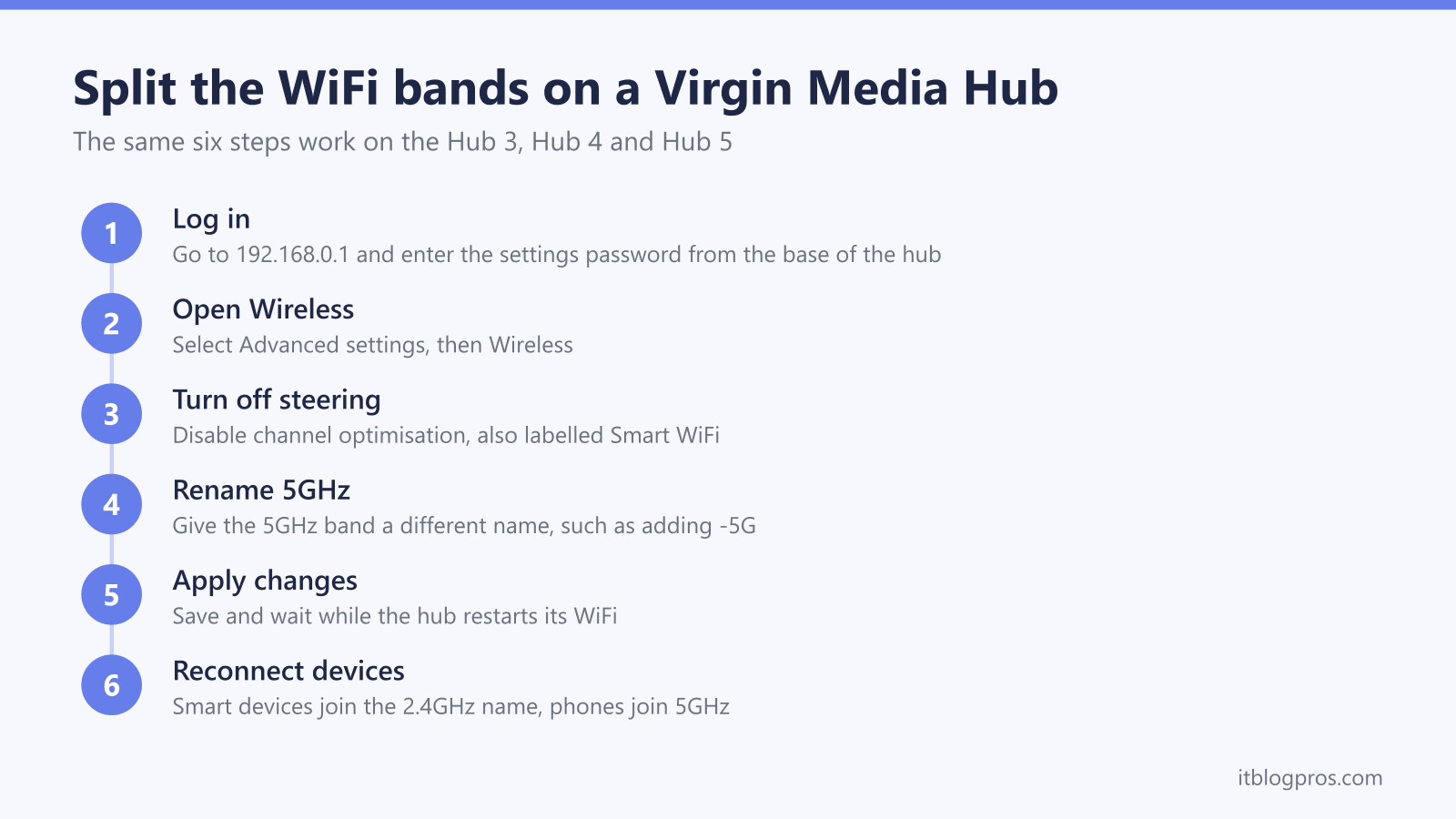
If you want absolute control and wish to guarantee that your device connects exclusively to the 5GHz band without relying on automatic steering, you must split the bands via the Hub administration panel.
- Open a web browser on a device already connected to your Virgin network.
- Type the default gateway address into the URL bar (typically
192.168.0.1) and press Enter. - Log in using the Hub Settings password printed on the sticker beneath your router.
- Navigate to the Advanced Settings menu, select Wireless, and then choose Security or Wi-Fi Band.
- Locate the option to split the 2.4GHz and 5GHz bands (sometimes labeled as "Channel Optimization" or "Primary/Secondary SSID").
- Disable Smart Connect or toggle the setting to separate the names. Rename the 5GHz network by adding a distinct suffix (for example,
VirginWiFi_5GHz). - Save your changes. The router will restart its wireless radios.
- Go back to your client device, scan for available networks, select your newly named 5GHz network, and enter your password.
Troubleshooting Common Connection Issues
Even with correct configurations, users occasionally encounter hurdles when trying to lock onto a Virgin Media 5GHz signal. Review these troubleshooting steps if your device fails to connect.
- The 5GHz network is not showing up: This almost always indicates that your client device does not possess a 5GHz-compatible wireless card, or you are too far away from the hub. Test with a modern smartphone held right next to the router to isolate the issue.
- Frequent disconnects or dropping to 2.4GHz: If your device keeps losing the 5GHz signal, environmental interference or physical barriers are likely to blame. Consider repositioning your Virgin Hub out of TV cabinets, off the floor, and away from thick concrete walls.
- Incorrect password errors: Ensure Caps Lock is off when typing the Wi-Fi key. If you have ever changed the password via the router GUI, the sticker password will no longer work; you must use the updated custom password.
- Hub firmware glitches: Temporary software freezes on the router can cause wireless broadcast errors. Perform a hard power cycle by unplugging the Virgin Hub from the wall outlet for 60 seconds, then plugging it back in and waiting for all indicator lights to stabilize.
Frequently Asked Questions
How do I know if my device is currently connected to the 5GHz band?
On Windows 10 and 11, open Settings > Network & Internet > Wi-Fi, click on your connected network properties, and scroll down to view the "Connection type," which will display either 802.11ac or 802.11ax for 5GHz/6GHz bands. On macOS, hold down the Option key and click the Wi-Fi menu bar icon to view the active channel and transmit rate. On most modern smartphones, you can check your router's attached devices list via the Virgin Media Connect app.
Should I split my Virgin Media Wi-Fi bands?
Splitting your bands is recommended if you want dedicated control over high-bandwidth devices like gaming consoles and streaming sticks, preventing them from accidentally latching onto the slower 2.4GHz band. However, leaving them unified (Smart Connect) is more convenient for casual users and smart home ecosystems that only support 2.4GHz.
Why does my 5GHz Wi-Fi have a shorter range than 2.4GHz?
Wireless frequencies operate on physics principles where higher frequencies carry more data but possess shorter wavelengths that struggle to pass through physical barriers. The 5GHz signal waves are easily absorbed by water, concrete, metal studs, and thick timber doors, drastically reducing their effective range compared to lower-frequency 2.4GHz waves.
Can I connect smart home plugs and bulbs to the Virgin 5GHz network?
Most budget smart home devices, smart plugs, and older wireless security cameras only contain 2.4GHz Wi-Fi chips and cannot detect or connect to a 5GHz network. If you are setting up smart home tech and experiencing pairing failures, ensure your phone is temporarily connected to the 2.4GHz band during the setup process.
What is the fastest Virgin Media Hub for wireless performance?
The Virgin Media Hub 5 is the provider's first router to feature Wi-Fi 6 (802.11ax) technology, offering faster multi-device handling, higher peak throughput speeds, and superior efficiency on the 5GHz band compared to older models like the Hub 3 or Hub 4.
Ensure your device supports 802.11ac or Wi-Fi 6 standards, place your hardware close to the router during setup, and choose between unified smart steering or split SSIDs to secure a stable, high-speed 5GHz connection on your Virgin Media network.