Accessing Google Docs on a Windows PC is straightforward, requiring only a modern web browser to navigate to docs.google.com and sign in with a Google account, or using progressive web apps and offline extensions for desktop-like functionality.
Introduction to Google Docs on Windows
Google Docs has evolved from a lightweight web experiment into one of the most powerful and widely used word processing environments in the world. For Windows users, accessing the platform does not require downloading a traditional standalone desktop application like Microsoft Word. Instead, Google Docs is primarily designed as a cloud-native, browser-based service. This architectural choice ensures that documents are continuously saved, easily shared, and accessible across multiple devices without manual file transfers.
However, operating entirely in a browser window can sometimes feel limiting for users accustomed to traditional desktop software. Windows users often look for ways to integrate Google Docs seamlessly into their daily desktop workflows, set up offline access for work without an internet connection, and pin documents directly to their taskbars or start menus. Understanding the nuances of accessing Google Docs on Windows involves examining browser compatibility, account management, offline storage configuration, and advanced productivity shortcuts that bridge the gap between cloud computing and the Windows desktop environment.
System Requirements and Prerequisites
Before attempting to access and utilize Google Docs on a Windows operating system, ensuring that your hardware and software meet the necessary technical specifications will guarantee a smooth, lag-free writing experience. Because Google Docs runs inside a web browser, the performance of the application is closely tied to your web browser and system memory.
Operating System and Browser Compatibility
Google Docs officially supports current and recent major releases of popular web browsers. To ensure full compatibility and security when accessing Google Docs on Windows 10 or Windows 11, you should use one of the following recommended browsers:
- Google Chrome: As Google’s proprietary browser, Chrome receives native feature rollouts first and offers the most robust support for offline extensions and progressive web app (PWA) installations.
- Microsoft Edge: Built on the Chromium engine, modern versions of Edge run Google Docs smoothly and support nearly all Chrome-based extensions.
- Mozilla Firefox: Fully supported for standard web editing, though certain specialized offline features may require specific configuration adjustments.
- Brave or Opera: Chromium-based browsers that handle Google Docs efficiently, provided strict privacy blockers are not overly aggressive and blocking necessary Google scripts.
Google Account Requirements
To create, edit, and store documents in Google Docs, you must have a valid Google Account. This can be a personal @gmail.com account or a managed Google Workspace account provided by an employer, school, or organization.
- Personal Accounts: Provide access to standard personal storage pooled across Google Drive, Gmail, and Google Photos (typically 15 GB of free storage).
- Workspace Accounts: Managed by an administrator, these accounts offer enhanced security controls, custom domain emails, and centralized administration features, while maintaining the exact same core document editing interface.
Methods for Accessing Google Docs on Windows
Depending on your workflow preferences, there are multiple ways to reach and interact with Google Docs on a Windows computer. Choosing the right method depends on how frequently you use the service and whether you prefer dedicated application shortcuts.
- Web Browser Access
- Navigate to docs.google.com
- Log in with Google Account
- Desktop Shortcut / PWA
- Install via Browser Menu
- Run in Dedicated Window
1. Direct Web Browser Access
The most universal method for accessing Google Docs requires no setup or installation.
- Launch your preferred web browser on your Windows PC.
- Navigate to the primary URL:
https://docs.google.com. - If prompted, sign in using your Google account email address and password. If you have multiple Google accounts, you can switch between them using the account profile menu in the upper-right corner.
- Once authenticated, you will arrive at the Google Docs home screen, where you can start a new blank document from the template gallery or open existing files from your recent list.
2. Creating a Windows Desktop Shortcut
If you prefer launching Google Docs directly from your desktop or taskbar without opening a generic browser tab first, you can create a dedicated desktop shortcut using Google Chrome or Microsoft Edge.
- Open your browser and navigate to
docs.google.com. - Click the browser menu button (the three vertical dots in the upper-right corner of Chrome or Edge).
- Navigate to Save and share or More tools, then select Create shortcut... (or Install page as an app in newer versions).
- Name the shortcut (e.g., "Google Docs") and check the box to Open as window if available.
- Click Create. A dedicated icon will now appear on your Windows desktop, and you can pin it to your taskbar for one-click access.
Enabling Offline Access on Windows
One of the most common concerns for Windows users transitioning to a cloud-based word processor is what happens when the internet connection drops. Google Docs features a robust offline mode that allows you to view, create, and edit documents without an active Wi-Fi or Ethernet connection. Changes sync automatically the next time your computer reconnects to the internet.
Prerequisites for Offline Mode
Before enabling offline access, ensure the following conditions are met:
- You must be using Google Chrome or Microsoft Edge.
- You must not be using private browsing or Incognito mode.
- Your Windows computer must be connected to the internet during the initial setup phase.
- You must have sufficient free hard drive space on your Windows system drive to store local copies of your files.
Step-by-Step Configuration
- Open Google Chrome and navigate to Google Drive (
drive.google.com) or the Google Docs home screen (docs.google.com). - Click on the Settings gear icon located in the upper-right corner of the interface.
- Select Settings from the drop-down menu.
- Locate the Offline section within the General settings tab.
- Check the box labeled "Sync Google Docs, Sheets, Slides and Forms files to this computer so you can edit offline."
- Confirm the prompt to turn on offline access. Google will begin syncing your most recent and frequently accessed documents to local storage.
| Feature | Online Mode | Offline Mode |
|---|---|---|
| Document Creation | Instantaneous | Available for pre-synced or newly created local files |
| Collaborative Editing | Real-time multi-user viewing and typing | Single-user editing; changes queue for upload |
| Storage Location | Google Cloud Drive | Local browser cache & cloud sync queue |
| Requirement | Active internet connection | Chrome/Edge browser + Offline extension enabled |
Managing Files and Storage on Windows
Working with Google Docs on Windows involves interacting with the broader Google ecosystem, specifically Google Drive. Understanding how files are structured, organized, and managed helps prevent data loss and ensures efficient document retrieval.
Cloud Storage vs. Local Files
Unlike Microsoft Office, which defaults to saving .docx files directly to your Windows Documents folder or local hard drive, Google Docs saves files natively in the cloud.
- File Formats: Google Docs uses a proprietary cloud format. When you download a file from Google Docs to your Windows PC, you must choose a compatible export format, such as Microsoft Word (
.docx), PDF (.pdf), Plain Text (.txt), or Rich Text Format (.rtf). - Google Drive for Desktop: For users who want a deeper integration between their Windows File Explorer and Google Drive, Google offers the Google Drive for desktop application. Installing this tool maps your Google Drive as a virtual drive letter (usually
G:\) within Windows File Explorer. While Google Docs files appear in this virtual drive, double-clicking them will open your default web browser to edit them online.
Troubleshooting Common Access Issues
When attempting to access Google Docs on Windows, users may occasionally encounter loading errors, authentication loops, or synchronization failures. Below are the most common issues and their verified resolutions.
Infinite Loading Screens or Blank Pages
If Google Docs stalls on a grey loading screen or displays a blank white page:
- Clear Browser Cache: Corrupted browser data frequently interferes with complex web applications. Clear your cache and cookies for
google.comvia your browser settings. - Disable Conflicting Extensions: Aggressive ad blockers, privacy extensions, or script blockers (such as uBlock Origin or Privacy Badger) can accidentally block necessary Google API scripts. Whitelist
docs.google.comin your extension settings. - Test Incognito Mode: Open an Incognito/Private window and attempt to log in. If it works, a browser extension or corrupted cookie is causing the conflict in your standard browsing session.
Account Mismatch and Permission Errors
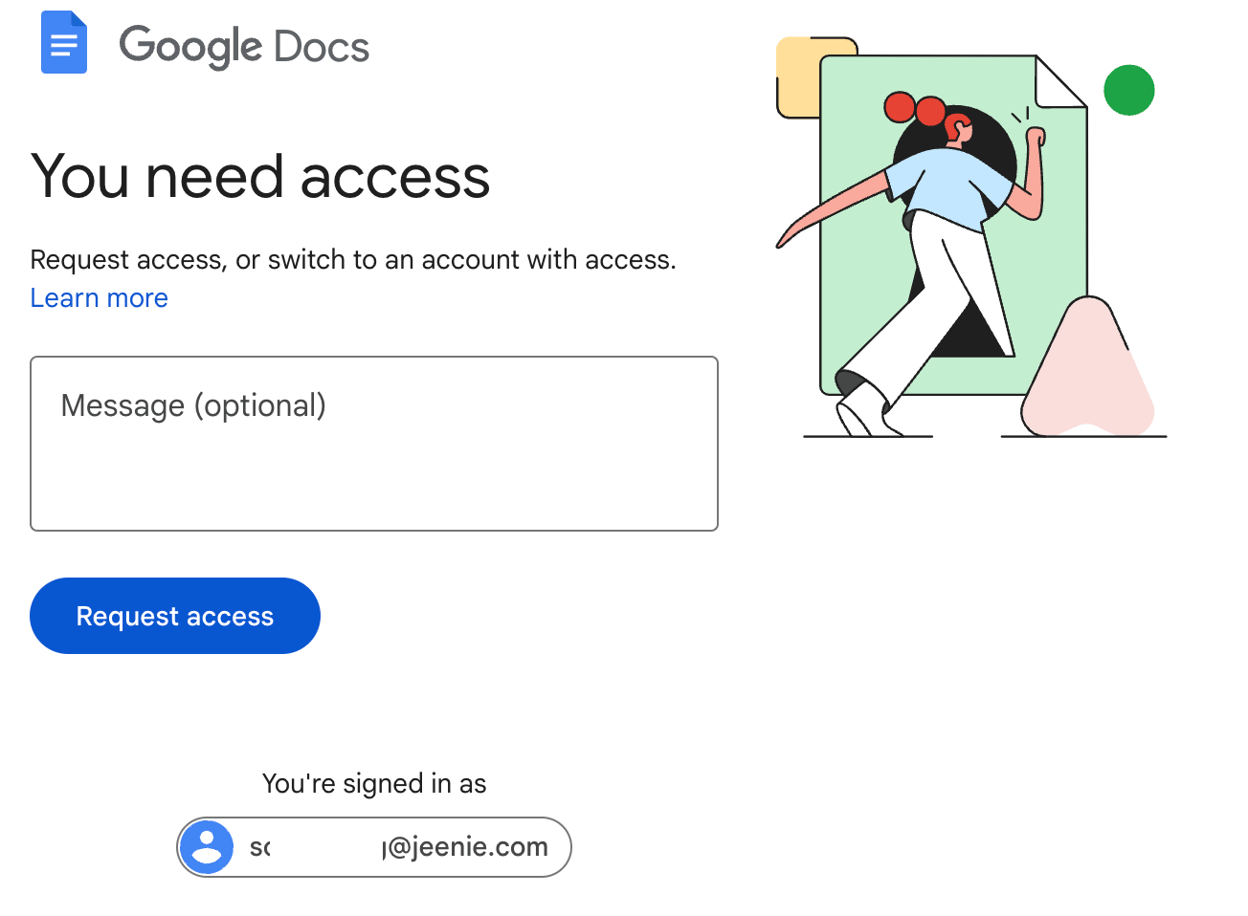
Because many Windows users manage multiple Google accounts (personal, professional, and educational), permission errors frequently occur when opening shared document links.
- Sign-Out and Re-Sign-In: Use the multi-account sign-in feature to add all active accounts to your browser session, or sign out completely and log back into the specific account associated with the document.
- Incognito Isolation: Copy the shared document link and paste it into an Incognito window to force the browser to prompt for the correct Google account credentials without interference from currently active login tokens.
Frequently Asked Questions
Can I use Google Docs on Windows without an internet connection?
Yes. You can use Google Docs offline on Windows by using the Google Chrome or Microsoft Edge browser, installing the Google Docs Offline extension, and enabling offline mode in your Google Drive settings. Files edited offline will automatically synchronize to the cloud once your PC reconnects to the internet.
Do I have to pay to use Google Docs on Windows?
No. Google Docs is completely free for personal use with a standard Google Account, which includes 15 GB of shared cloud storage across Google Drive, Gmail, and Photos. Paid upgrades are available through Google Workspace for businesses requiring custom domains and expanded administrative controls.
How do I save a Google Doc as a Microsoft Word file on Windows?
To convert and download a Google Doc to your Windows PC as a Word file, open the document, click File in the top menu, select Download, and choose Microsoft Word (.docx). The file will download directly to your default Windows Downloads folder.
Why is Google Docs running slowly on my Windows computer?
Sluggish performance is usually caused by heavy browser resource consumption, an excessive number of open tabs, or an exceptionally large document with hundreds of embedded images. Try closing background tabs, restarting your browser, or splitting large documents into smaller files to improve responsiveness.
Can I install a native Google Docs desktop app on Windows 11?
Google does not offer a standalone native Win32 .exe desktop application for Google Docs. However, you can install Google Docs as a Progressive Web App (PWA) via Google Chrome or Microsoft Edge, which creates a dedicated desktop shortcut and opens the app in its own standalone window without browser tabs.
Conclusion and Next Actions
Accessing and utilizing Google Docs on a Windows PC is a flexible process centered around modern web browsers, cloud synchronization, and optional offline configurations. By setting up browser shortcuts, enabling offline access for travel or internet outages, and understanding file conversion options, Windows users can replicate or exceed the productivity of traditional desktop word processors. To get started, open your preferred browser, navigate to docs.google.com, log in with your Google credentials, and pin a dedicated shortcut to your Windows taskbar for instant access to your documents.