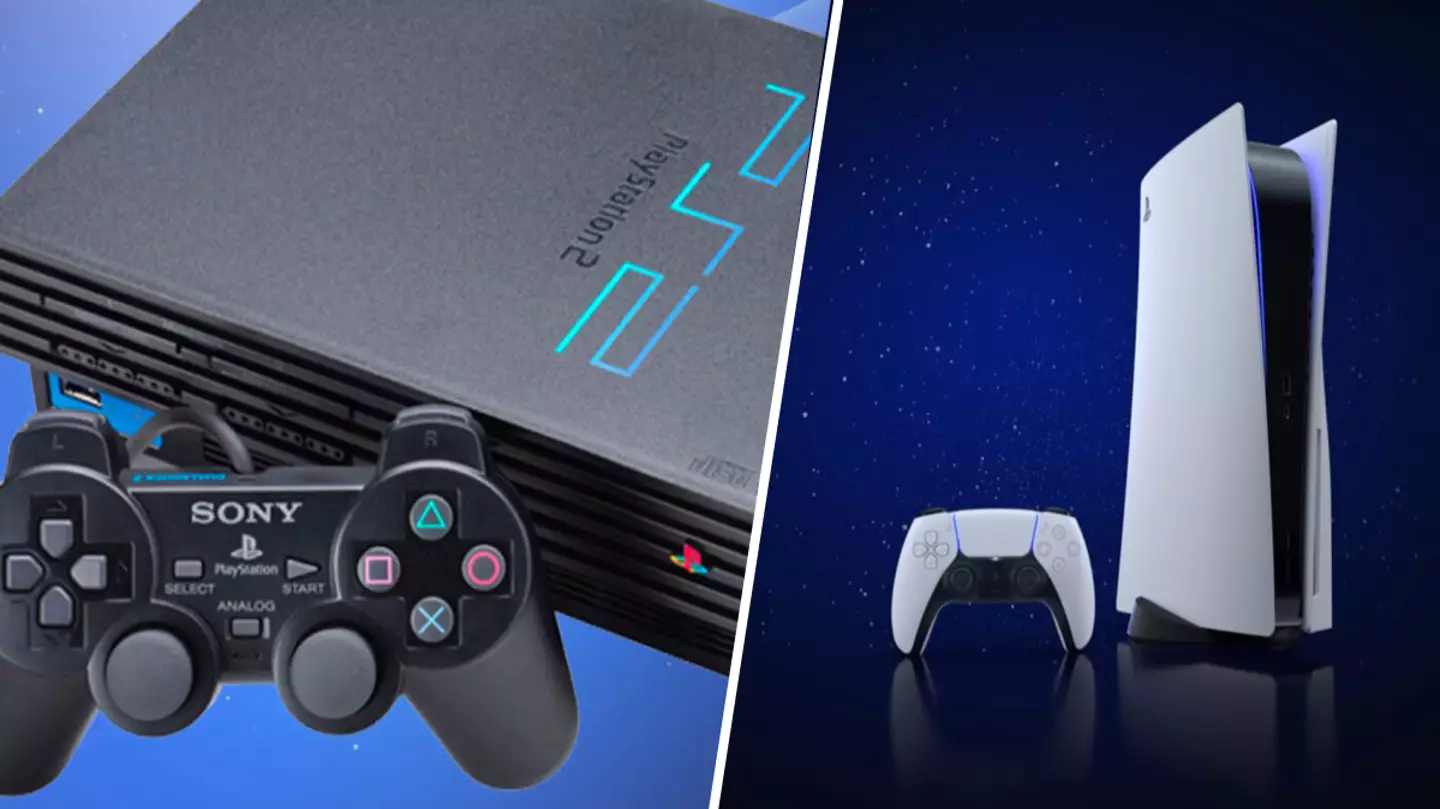
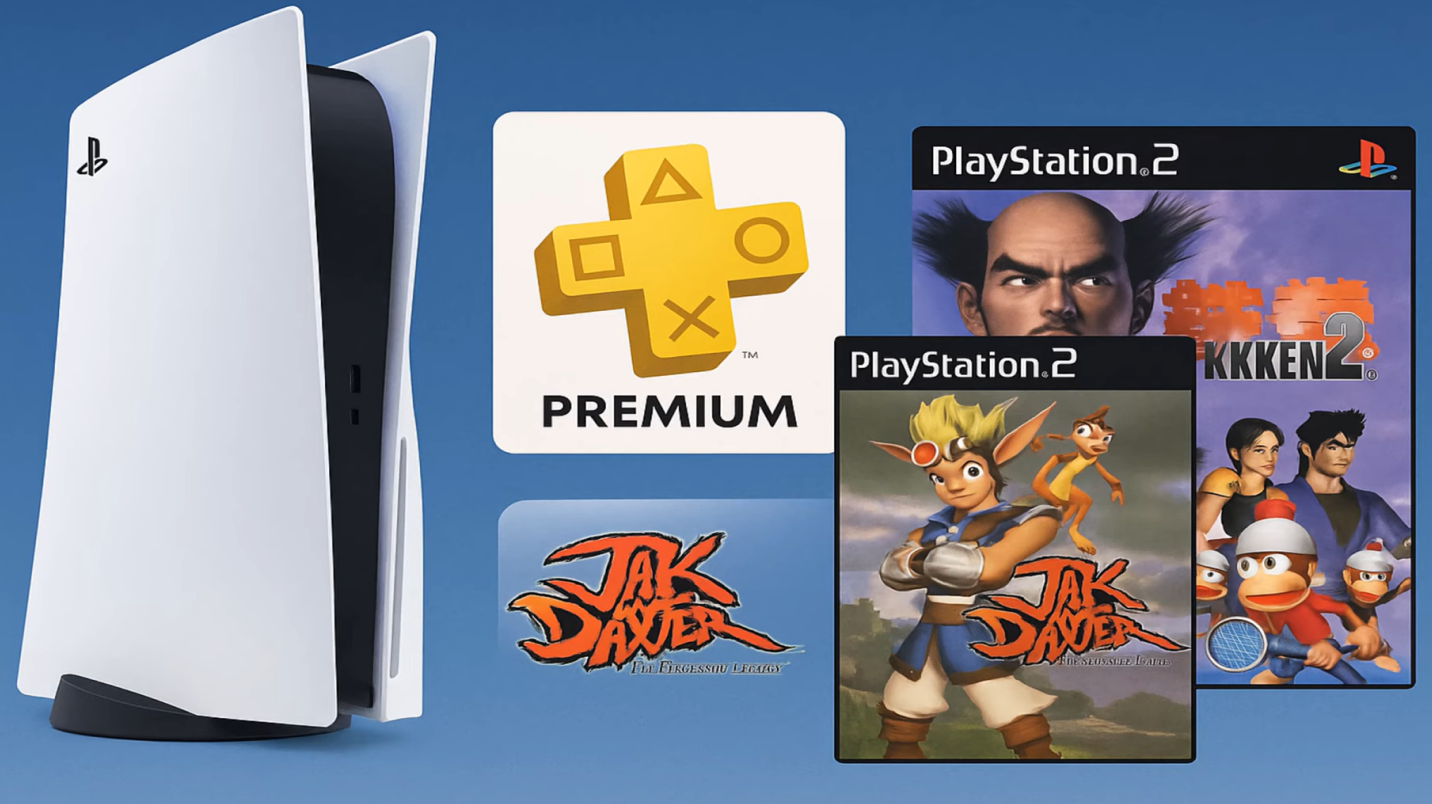
Playing PlayStation 2 games on a PlayStation 3 using multiMAN requires a system running a custom firmware (CFW) or compatible hybrid firmware (HFW) with HEN enabled. Because the PS3 lacks native hardware backward compatibility on most models, multiMAN mounts ISO images and utilizes the system's software emulation environment or netemu layers, allowing users to load and play backed-up PlayStation 2 titles directly from an internal or external storage drive.
Understanding PS3 Backward Compatibility and multiMAN
The PlayStation 3 console family underwent several hardware revisions throughout its commercial lifespan, creating a fragmented landscape regarding how software interacts with older generations of media. The original "fat" models launched in 2006 included the actual "Emotion Engine" and "Graphics Synthesizer" chips, providing full hardware-level backward compatibility for PlayStation 2 discs. Later fat revisions removed the Emotion Engine and relied on partial hardware emulation (using the GS chip paired with software CPU emulation). Finally, the slim and super slim models dropped physical backward compatibility entirely, leaving them dependent on software solutions.
Despite these physical hardware variations across models, software modifications change the equation entirely. When a PlayStation 3 is running custom firmware like REBUG, Evilnat, or Cobra-enabled systems, the hypervisor restrictions are bypassed. This opens up access to the system's underlying LV2 kernel and allows homebrew applications like multiMAN to interface directly with the storage drives and optical drive emulators.
multiMAN functions primarily as a backup manager, media player, and file manager. When utilized for PlayStation 2 backups, it does not magically turn a non-compatible slim console into a launch model with an Emotion Engine. Instead, it relies on the Cobra payload built into modern custom firmware. Cobra includes advanced ISO mounting capabilities and a built-in software netemu (network emulator) and ps2_softemu. When you mount a PS2 ISO through multiMAN, the firmware intercepts the system calls and routes the game code through the appropriate software emulator. Consequently, almost all PS3 models can boot and play a vast catalog of PlayStation 2 games via multiMAN, provided the custom firmware environment is correctly configured.
System Prerequisites and Hardware Requirements
Before attempting to run PlayStation 2 games using multiMAN, your console must meet specific structural and software requirements. Skipping these prerequisites will result in black screens, error codes, or complete system crashes when attempting to launch titles.
Custom Firmware (CFW) or HEN Support
Your PlayStation 3 must be capable of running unsigned code. This means it must either be a hardware-compatible model running a robust Custom Firmware (such as Evilnat Cobra CFW) or a later slim/super slim model running a Hybrid Firmware (HFW) with PS3HEN enabled. Standard retail firmware (OFW) distributed by Sony blocks homebrew applications like multiMAN from mounting ISO images or interacting with low-level system emulators.
Storage Format Specifications
The storage drive you use to store your PlayStation 2 backups must be formatted correctly.
- Internal Hard Drives (HDD/SSD): Can be formatted in the native PlayStation 3 file system (FAT32 or internal UFS2 structure accessed via FTP/file manager), but files larger than 4GB must be handled carefully if transferred via external drives.
- External USB Drives: Must be formatted to FAT32 or exFAT (depending on your CFW/Cobra version support). Because FAT32 has a strict 4GB file size limit, and many PS2 ISO files exceed this size, formatting your external drive to exFAT or splitting large ISOs using tools like PS2_Classics_GUI or Cobra USB split utilities is often necessary.
Directory Structure Requirements
multiMAN is very strict about where backup files must be placed to recognize them. PlayStation 2 ISO files must be placed in a specific folder on the root of your storage device:
- Path:
dev_hdd0/PS2ISO/(for internal storage) - Path:
dev_usb000/PS2ISO/(for external USB storage)
If the folder is named incorrectly (e.g., "PS2 Games" or "ps2iso"), multiMAN will not scan or display the titles in its retro library view.
| Console Model Type | Hardware Backward Compatibility | multiMAN / CFW Compatibility | Recommended Emulator Mode |
|---|---|---|---|
| Original "Fat" (CECHA/CECHB) | Full (EE + GS chips) | Fully Compatible | Native / Hardware Level |
| Original "Fat" (CECHC/CECHE) | Partial (GS chip only) | Fully Compatible | Hybrid / Hardware-Software |
| Slim / Super Slim (All models) | None | Fully Compatible (via CFW/HEN) | Software Emulation (ps2_netemu) |
Step-by-Step Guide: Loading and Playing PS2 Games with multiMAN
Executing the process successfully requires careful adherence to file placement, console navigation, and proper mounting procedures.
Step 1: Transfer Your PS2 ISO Backups
- Obtain legally dumped ISO backups of your PlayStation 2 game collection.
- Connect your external USB drive to your computer.
- Ensure there is a folder named exactly
PS2ISOon the root directory of the drive. If it does not exist, create it manually. - Drag and drop your
.isofiles directly into thePS2ISOfolder. - Safely eject the USB drive from your computer and plug it into the right-hand USB port of your PlayStation 3 console.
Step 2: Launch multiMAN and Refresh the Library
- Power on your PS3 and ensure your HEN exploit is active (if using a non-CFW model).
- Navigate to the Game column on the XMB (XrossMediaBar) and select multiMAN.
- Allow the application to load fully. Once inside the multiMAN dashboard, look at the top menu categories.
- Scroll to the Retro column or select the PS2 filter from the sidebar/menu options to narrow down the displayed content.
- If your games do not appear immediately, press the Refresh option (often found under the global menu or by pressing the appropriate controller shortcut, such as pressing Select + Start to refresh USB devices).
Step 3: Mount the Game ISO
- Highlight the desired PlayStation 2 game cover art or title in the multiMAN interface.
- Press X on your controller to mount the ISO.
- multiMAN will automatically process the request, close or minimize itself, and return you to the standard PlayStation 3 XMB interface.
Step 4: Launch and Play the Game
- On the XMB, look under the Game column. You will see a newly mounted virtual disc icon representing your PlayStation 2 game (often labeled as PS2 Classic or displaying the game's specific disc header ID).
- Press X on the virtual disc icon to launch the game.
- The screen will transition, and your PlayStation 2 game will boot up just as if you had inserted an original physical disc into the tray.
Understanding Compatibility and Emulator Settings
Not every PlayStation 2 game runs flawlessly through software emulation on the PlayStation 3. While compatibility lists maintained by the homebrew community indicate that a significant majority of the library runs with playable or perfect performance, certain titles suffer from graphical glitches, audio stuttering, or slow frame rates.
When using Cobra-enabled custom firmware, the system uses ps2_netemu.elf by default for non-backward-compatible consoles. You can often adjust settings or configurations by pressing Triangle on a game title within multiMAN before mounting it. This opens game-specific settings where you can toggle widescreen hacks, memory card bindings, or alternative compatibility patches if your specific version of CFW supports them.
Furthermore, ensure that your controllers are properly synced. Wireless DualShock 3 controllers generally work natively once the game boots, but older titles may require the controller to be plugged in via a USB cable during initial boot sequences to register player one input correctly.
Troubleshooting Common Issues
When working with legacy homebrew tools and software emulation, users frequently encounter minor hurdles. Reviewing these standard troubleshooting steps helps resolve most errors quickly.
Games Not Showing Up in multiMAN
- Cause: Incorrect folder naming or unsupported file format.
- Solution: Verify that your folder is named strictly
PS2ISO(all capital letters) and that the game file ends in.iso. Files compressed in.raror.zipformats must be extracted before placing them on the drive.
Black Screen Upon Launching the Virtual Disc
- Cause: Bad ISO dump, incorrect region mismatch, or corrupted Cobra payload.
- Solution: Re-rip your physical disc to create a clean ISO. Ensure your custom firmware is updated to a stable, modern version (such as Evilnat Cobra) and that your system region matches the game region where applicable.
Memory Card Not Detected or Saving Fails
- Cause: Internal virtual memory card assignments are missing or corrupted.
- Solution: On the PS3 XMB, navigate to the Game column, scroll up to Memory Card Utility (PS2/PS1), and ensure you have created internal memory card files and assigned them to Slot 1 and Slot 2.
Frequently Asked Questions
Can I play burnt physical PS2 discs in my PS3 via multi-MAN?
No, multiMAN is designed to read and mount digital ISO backup images stored on internal or external hard drives. The physical Blu-ray drive laser in non-backward-compatible PS3 models cannot read standard PlayStation 2 DVDs, even if the system is running custom firmware.
Do I need to convert my PS2 ISOs into classic PKG packages?
No, when using multiMAN alongside a Cobra-enabled custom firmware, converting ISOs to PKG files is unnecessary. multiMAN mounts the ISO directly, letting you launch the game straight from the XMB disc icon without installing PKG packages to your internal hard drive.
Can I use external USB controllers to play PS2 games?
Support for external USB controllers in PS2 games on the PS3 is extremely limited and generally unreliable. It is strongly recommended to use an original Sony DualShock 3 or compatible Bluetooth controller connected properly to the console.
What should I do if a game freezes during cutscenes?
Software emulation is imperfect for certain demanding titles. Check community-maintained PS3 netemu compatibility lists to see if your specific game requires a configuration patch, or try rebuilding your database through the PS3 Safe Mode menu.
Is it safe to go online while running multiMAN?
Connecting to official Sony servers while running custom firmware and homebrew applications like multiMAN carries a very high risk of permanent console and account bans. It is strongly recommended to disable syscalls (using features built into modern CFW like Evilnat) or avoid connecting to the PlayStation Network entirely while using homebrew tools.