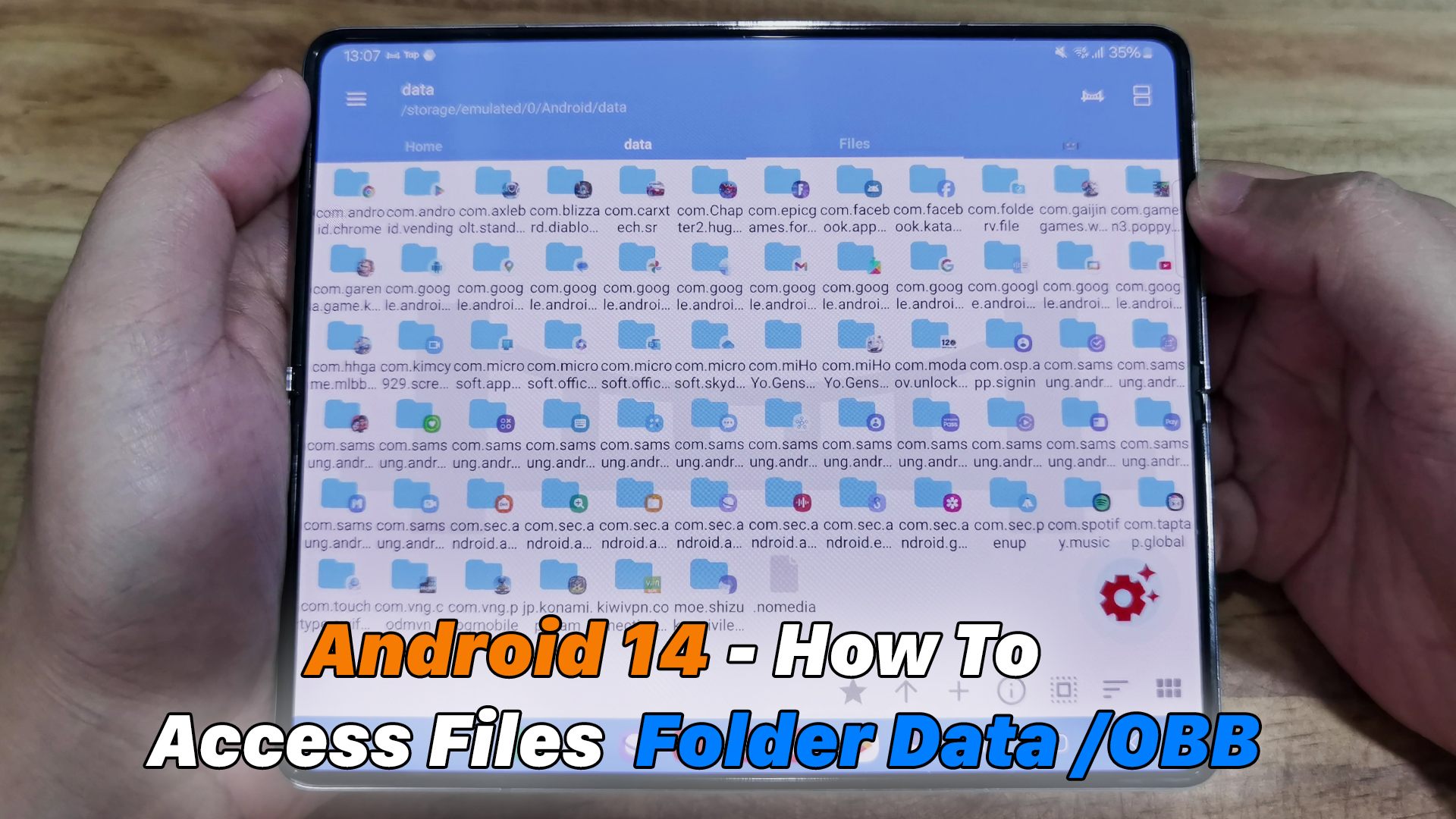
Accessing the Android data folder safely requires using specialized file managers or developer tools, as modern versions of the Android operating system enforce strict security restrictions to protect user privacy and app data integrity. By utilizing compatible third-party file explorers with SAF (Storage Access Framework) support or leveraging a computer via USB debugging, users can navigate these protected directories without risking system instability or data corruption.
Understanding Android Storage Security and the Data Folder
Android has evolved significantly since its early days regarding file system security. In older iterations of the operating system, any application with basic storage permissions could read and write freely across shared external storage directories. While this openness allowed for deep customization and effortless file management, it also created severe security vulnerabilities, privacy leaks, and fragmentation issues known widely as "storage clutter."
To resolve these challenges, Google introduced scoped storage with Android 10 and heavily enforced it starting with Android 11 and subsequent versions up to modern releases. Scoped storage restricts how applications and users interact with the file system. Under this paradigm, apps are given isolated storage sandboxes. Consequently, the primary system storage directories—specifically /Android/data and /Android/obb on external or emulated storage volumes—became heavily restricted.
When you attempt to open these specific folders using the built-in default file manager on newer Android builds, you are often met with a blank screen or an access-denied prompt. This is not a software bug or a glitch; it is an intentional security barrier designed to prevent malicious applications from silently harvesting user data, reading cached credentials, or modifying game assets without consent. Understanding this security architecture is the first step toward accessing these directories safely. Attempting to bypass these protections blindly using unverified root exploits or outdated applications can compromise your device security, trigger Android's Factory Reset Protection, or corrupt app states.
Prerequisites Before Accessing Protected Android Directories
Before attempting to view or modify files within the restricted Android data directories, you must gather the appropriate tools and verify your device state. Entering these directories unprepared can lead to accidental deletions or failed operations.
- Determine Your Android Version: Check your device settings under "About Phone" to identify your Android version. Devices running Android 11, 12, 13, 14, and newer require specialized file managers because standard system tools block access.
- Backup Critical Data: Before altering any files within app-specific data directories, perform a local or cloud backup. Modifying or deleting cache, databases, or configuration files can cause apps to crash or lose progress.
- Sufficient Battery and Storage: Ensure your device has at least 50% battery charge and adequate free space, particularly if you plan to copy large game cache files (
.obb) or application databases. - Install a Compatible File Manager: Download a reputable, SAF-compliant file manager from the official Google Play Store. Avoid downloading random APK files from untrusted third-party websites, as these often contain malware or adware.
Method 1: Using SAF-Compliant Third-Party File Managers
The safest and most user-friendly approach for non-rooted devices involves utilizing third-party file explorers that harness Android's built-in Storage Access Framework. Applications like Solid Explorer, CX File Explorer, and Files by Marcapps (or similarly audited open-source utilities) are engineered to request specific, user-granted permissions directly from the Android system UI.
Step-by-Step Guide to SAF Access
- Download and Install: Open the Google Play Store on your Android device and install a trusted, SAF-capable file manager such as Solid Explorer or CX File Explorer.
- Navigate to the Target Directory: Open the file manager and grant basic storage permissions if prompted. Navigate to your primary storage volume, then proceed to
Android>dataorAndroid>obb. - Handle the Permission Prompt: When you tap on the
datafolder, the file manager will display a system prompt stating that contents cannot be displayed due to privacy restrictions, accompanied by a button reading "Use this folder" or "Allow Access." - Authorize the Root Request: Tap the authorization button. A system dialog box will appear asking you to confirm access to the specific folder. Tap Allow or Select.
- Verify Access: Once confirmed, the file manager gains temporary or persistent URI permission to read and write within that directory tree, allowing you to view databases, configuration files, and saved states.
| File Manager | SAF Support | Root Requirement | Cost Model | Best For |
|---|---|---|---|---|
| Solid Explorer | Yes | Optional | Freemium / Paid | Advanced dual-pane management and cloud integration |
| CX File Explorer | Yes | Optional | Free (Ad-supported) | Clean interface and lightweight performance |
| Files by Google | Limited | No | Free | General file cleanup (does not natively open /Android/data) |
Method 2: Accessing via a Computer Using USB Debugging
If third-party file managers fail to grant the level of access you require—or if you are working with deeply nested system caches—connecting your Android device to a computer via USB is a reliable, powerful alternative. This method relies on Android Debug Bridge (ADB), a developer utility that communicates directly with the device daemon.
Enabling Developer Options and USB Debugging
Before you can communicate with your phone via a computer, you must unlock the hidden developer settings:
- Open your device Settings.
- Navigate to About Phone > Software Information.
- Tap Build Number seven times rapidly until a toast notification appears stating, "Developer mode has been turned on."
- Return to the main Settings menu and select Developer Options.
- Scroll down and toggle on USB Debugging.
Connecting and Navigating via ADB
- Connect the Device: Plug your Android phone into your Windows, macOS, or Linux computer using a high-quality USB data cable. Set the USB connection mode to "File Transfer" or "MTP" if prompted.
- Open Terminal or Command Prompt: Launch your computer's command-line interface. Ensure you have the platform-tools (ADB) package installed.
- Authorize the Computer: Type
adb devicesin your terminal. Look at your phone screen for an RSA fingerprint authorization prompt. Check "Always allow from this computer" and tap Allow. - Execute Shell Commands: Type
adb shellto enter the Android command-line environment. - Navigate Safely: Due to modern Android permission boundaries, standard shell users may still face limitations inside
/sdcard/Android/dataunless the device is rooted or you utilize specific backup/restore intents. However, developers can pull specific app databases for debugging purposes using targeted package extraction commands.
Method 3: Root Access and Advanced File Management
For power users who require absolute, unrestricted read and write privileges across the entire Android file system, rooting the device remains an option. Rooting grants superuser (su) privileges, bypassing both scoped storage restrictions and standard Android sandbox boundaries.
While rooting allows you to use advanced applications like MiXplorer or Root Explorer to view every single file within /data/data (the internal application storage, distinct from /sdcard/Android/data), it introduces significant security and maintenance risks:
- Security Vulnerabilities: Malicious apps granted superuser permissions can compromise the entire operating system, intercept banking data, or install persistent rootkits.
- Warranty Voiding: Depending on the manufacturer (such as Samsung, Motorola, or Google), unlocking the bootloader and rooting can permanently void hardware warranties.
- Broken OTA Updates: Rooted devices frequently fail Over-The-Air system updates, requiring manual firmware flashing and re-rooting procedures.
- SafetyNet and Integrity Failures: Many banking apps, secure enterprise software, and high-end games utilize Play Integrity APIs to detect root access and refuse to run.
If you choose to root your device, proceed with extreme caution. Never modify system partition files unless you have a verified, functional custom recovery (such as TWRP) installed to restore a Nandroid backup if the system fails to boot.
Common Risks, Mistakes, and Troubleshooting
Attempting to access and modify system directories without proper understanding frequently leads to data loss or application malfunction. Review these common pitfalls to protect your device:
- Clearing App Data vs. Cache: Accidentally clearing the "Data" of an application via system settings or direct file deletion wipes all user profiles, downloaded media, and saved game states. Only clear the "Cache" subdirectory unless you intend to reset the application completely.
- Corrupting Permissions: When using third-party file managers to copy files into
/Android/data/, file ownership and SELinux context permissions can become mismatched. If an app crashes immediately after you paste files into its data folder, use the file manager's permission settings to match ownership or reinstall the app cleanly. - Incompatible File Explorers: Avoid downloading obscure file explorer apps from unverified forums. Many exploit tools leverage outdated exploits that can trigger security flags or introduce spyware onto your device.
- Stubborn Folders: On Android 13 and Android 14, Google tightened SAF restrictions further, blocking apps from even accessing the parent
Android/datadirectory directly through traditional intent pickers in some security patches. If your SAF file manager fails, updating the app or relying on ADB backup extraction is usually the only viable workaround.
Frequently Asked Questions
Why is the Android data folder hidden or blocked?
Google restricts access to the /Android/data and /Android/obb folders via scoped storage to protect user privacy and prevent malicious apps from reading sensitive cached data, personal files, or login credentials stored by other applications.
Can I access the Android data folder without a computer?
Yes. You can access these folders directly on your device by installing a reputable, SAF-compliant file manager from the Google Play Store—such as Solid Explorer or CX File Explorer—and granting the necessary system folder permissions when prompted.
Why do I see a blank screen when opening the Android data folder?
If you are using the default system file manager or an outdated third-party app, Android blocks visibility to prevent unauthorized access. Using a modern SAF-compliant file manager allows you to tap "Use this folder" and unlock viewing permissions.
Is it safe to delete files inside the Android data folder?
Deleting files inside app subdirectories can cause applications to malfunction, lose saved progress, or require re-downloading asset packs. Only delete contents if you are clearing space from uninstalled applications or troubleshooting a specific corrupted app cache.
Do I need to root my phone to access app data?
No. You do not need root access for everyday file management or accessing external storage paths like /sdcard/Android/data. Root access is only required to view internal system databases located in /data/data, which are strictly hidden from normal user profiles.
Conclusion and Recommended Next Actions
Accessing your Android data folder safely requires respecting the operating system's built-in security boundaries. For most users, installing a trusted SAF-compliant file explorer provides the ideal balance of convenience and security without endangering device stability. If you are a developer or advanced user troubleshooting specific application behaviors, utilize official ADB tooling over unverified root scripts. Always back up critical personal files before modifying system directories, and ensure you rely solely on verified applications downloaded from official distribution channels.