Amazon Prime transactions encompass any financial activity tied to an Amazon Prime membership, including recurring subscription fees, digital content rentals through Prime Video, add-on channel subscriptions, and purchases made using Prime-exclusive benefits. Managing these transactions requires navigating the "Your Payments" and "Your Account" sections of the Amazon dashboard to track billing dates, verify charge amounts, and distinguish between membership dues and individual digital orders.
The Amazon Prime ecosystem has evolved significantly by 2026, moving beyond a simple annual delivery fee into a complex web of micro-transactions, automated renewals, and integrated third-party services. For many users, a glance at a bank statement revealing an "Amazon" charge can be confusing. Is it the monthly membership? A movie rental? A forgotten subscription to a specialized video channel like Paramount+ or Mubi? Understanding how to audit these transactions is essential for maintaining financial health and ensuring you are only paying for the services you actively use.
The Diverse Anatomy of Amazon Prime Transactions
When we discuss "Amazon Prime transactions," we are rarely talking about a single line item. In the current 2026 digital economy, Amazon has streamlined the purchasing process to the point where "1-Click" transactions can occur almost invisibly. It is vital to categorize these charges to understand where your money is going.
Membership Fees: Monthly vs. Annual
The most common Prime transaction is the membership fee itself. Depending on your selection, this occurs either once a year or once a month. As of 2026, many users opt for the annual plan to save on the total cost, but the monthly plan remains popular for those who prefer flexibility. These transactions are usually labeled clearly on bank statements as "Amazon Prime" or "Amzn Prime Member."
Prime Video Channels and Add-ons
One of the most frequent sources of "mystery" charges is Prime Video Channels. Amazon allows users to subscribe to third-party networks (like Max, Starz, or BritBox) directly through their Prime interface. These are billed as separate transactions, often on different days of the month than your main Prime membership. If you see multiple smaller charges throughout the month, they are likely related to these individual channel subscriptions.
Digital Content Rentals and Purchases
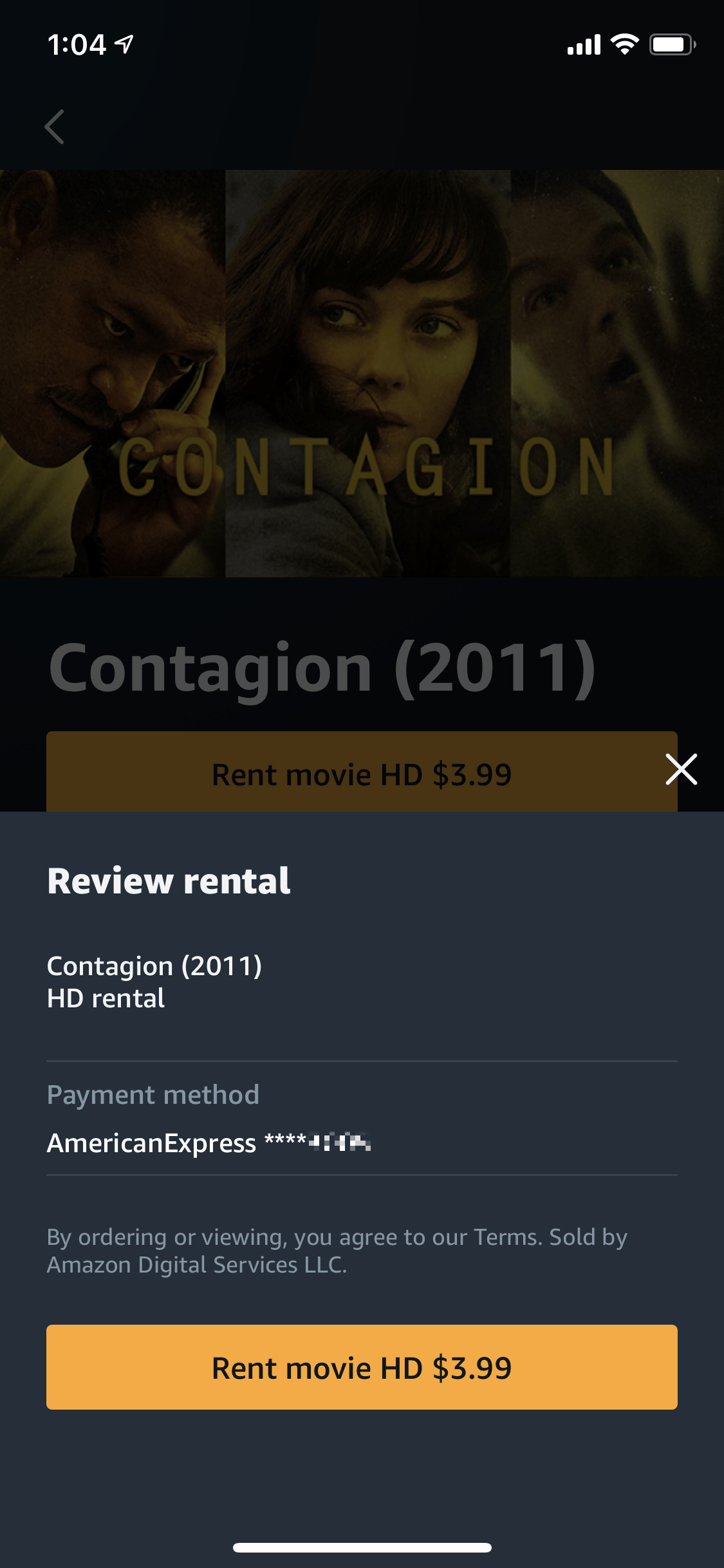
While many movies and shows are "Free to Prime," a significant portion of the library requires an additional transaction. Renting a 4K title or purchasing a digital season of a show generates an immediate transaction. Because these are processed through the same payment pipeline as the Prime membership, they often appear under similar merchant descriptors, leading to initial confusion for the account holder.
Amazon Kids+ and Other Extensions
For families, Amazon Prime transactions often include the Kids+ subscription. While Prime members receive a discounted rate, it is still a separate recurring transaction. Similarly, services like ComiXology or specialized Kindle subscriptions may be bundled or billed alongside Prime-related activities.
How to Access and Audit Your Transaction History
To effectively manage your Amazon Prime transactions, you must move beyond your bank's mobile app and use Amazon's internal accounting tools. The "Your Payments" portal is the definitive source of truth for every cent charged to your cards.
Navigating the "Your Payments" Dashboard
- Log in to your Amazon account and hover over the "Account & Lists" menu.
- Select "Your Account" from the dropdown.
- Locate the "Payments" box and click on "Your Payments."
- Switch to the "Transactions" tab at the top of the page.
In this view, Amazon provides a chronological list of every charge, refund, and pending authorization. Each entry includes a link to the "Order Details," which is the most critical tool for disambiguation. By clicking the order number, you can see exactly what was purchased—whether it was a physical item, a digital movie rental, or a subscription renewal.
Using the "Payments & Transactions" Filter
The transaction list can be overwhelming if you shop frequently. In 2026, the interface allows you to filter by "Subscriptions" or "Digital Orders." This is the fastest way to isolate Prime-specific transactions. If you are looking for a specific charge that appeared on your credit card, you can match the "Transaction ID" or the exact dollar amount to the entries in this list.
| Charge Descriptor | Transaction Type | Frequency | Actionable Step |
|---|---|---|---|
| AMZN Prime Member | Core Membership Fee | Monthly/Annual | Check "Manage Membership" to cancel or change plan. |
| Amazon Digital SVCS | Prime Video, Kindle, or Music | One-time or Monthly | Review "Digital Orders" to identify the specific media. |
| AMZN MKTP US | Third-party seller purchase | One-time | Review "Your Orders" for physical goods delivered. |
| Prime Video Channels | Add-on Subscriptions | Monthly | Check "Prime Video" settings under "Channels" to unsub. |
| Amazon Pay | External Merchant Purchase | One-time | Visit the Amazon Pay portal to see third-party transactions. |
Identifying and Resolving Unrecognized Charges
One of the primary reasons users search for "Amazon Prime transactions" is to identify a charge they don't recognize. Before contacting customer support or filing a bank dispute, there are several common scenarios to investigate.
The "Hidden" Subscription Trap
Many users sign up for a "7-day free trial" of a Prime Video channel to watch a specific series or movie. If the trial is not canceled before the expiration date, it automatically converts into a paid monthly subscription. These transactions often surprise users because they occur weeks after the initial interaction. To resolve this, navigate to "Prime Video Settings" and then "Channels" to see a list of active monthly commitments.
Household Sharing and Authorized Users
Amazon Household allows two adults to share Prime benefits. However, depending on how "Amazon Household" is configured, one person's purchases may be charged to the other's "Default Payment Method." If you see a transaction you didn't make, check with other members of your household to see if they rented a movie or bought an app through a shared device like a Fire TV or Echo Show.
Pre-authorizations and Pending Charges
When you sign up for a trial or update your payment method, Amazon may issue a "pending" transaction of $0.00 or $1.00 to verify the card's validity. These are not actual charges and will vanish from your bank statement within a few business days. Furthermore, if you pre-order a digital item, the transaction may be authorized days before the content is actually released.
Managing Payment Methods for Prime Transactions
In 2026, Amazon utilizes a "Backup Payment Method" system. This means that if your primary credit card is declined for a Prime transaction—perhaps due to expiration or a temporary limit—Amazon will automatically attempt to charge other cards stored in your wallet.
Updating Your Billing Preferences
To prevent Prime transactions from hitting the wrong bank account, you must explicitly set your "Preferred Payment Method" for subscriptions:
- Go to "Your Account" -> "Prime."
- Click on "Update your payment method."
- Ensure the correct card is selected and toggle the "Backup Payment Method" setting according to your preference. If you disable backup payments, be aware that your Prime benefits may be suspended immediately if your primary card fails.
Handling Expired Cards
Amazon often uses "Account Updater" services provided by card networks (Visa, Mastercard). This allows them to receive updated card numbers and expiration dates directly from your bank. If you see a Prime transaction on a "new" card that you haven't manually entered into Amazon yet, this automated synchronization is likely the cause.
Refunds, Cancellations, and Dispute Resolution
If a Prime transaction is legitimate but unwanted—such as an accidental "1-Click" purchase of a movie or an unwanted membership renewal—Amazon’s refund policies are generally user-friendly, provided you act quickly.
Accidental Digital Purchases
For Prime Video rentals or purchases, you can often request an immediate refund through the "Your Orders" section if you have not yet started streaming the content. Once the "Play" button is pressed, the transaction is typically considered final. However, in 2026, Amazon's automated chat assistant can often override this for accidental purchases reported within 24 to 48 hours.
Membership Fee Refunds
If your annual Prime membership renews and you realize you no longer want the service, you can receive a full refund of the most recent transaction if you have not used any Prime benefits (like Prime shipping or Prime Video) since the renewal date. If you have used the benefits, Amazon may offer a prorated refund based on the remaining months, though this is subject to specific regional terms and conditions.
Avoiding Bank Disputes (Chargebacks)
It is highly recommended to resolve transaction issues directly with Amazon rather than filing a chargeback with your bank. Filing a dispute for a legitimate Amazon Prime transaction can lead to the permanent suspension of your entire Amazon account, including access to Kindle libraries, cloud photos, and digital content. Always attempt to use the "Customer Service" portal first.
Security and Fraud Prevention
As Prime transactions are recurring and often automated, they are a frequent target for phishing scams. In 2026, sophisticated "billing problem" emails are common.
Verifying Real Transactions vs. Phishing
A legitimate Amazon transaction will always be reflected in your "Your Payments" dashboard. If you receive an email claiming there is a problem with your Prime transaction and asking you to click a link to "update your billing info," do not click it. Instead, go directly to Amazon.com in your browser and check your account status. Amazon will never ask for your full credit card number or social security number via email.
Enabling Purchase Sign-ins
To prevent unauthorized "1-Click" transactions from children or guests using your devices, you should enable "Purchase Sign-in" or "PIN requirements" on all Fire TV and Alexa-enabled devices. This adds a layer of security, requiring a code or password before any Prime-related transaction can be completed.
FAQs About Amazon Prime Transactions
Why was I charged $14.99 (or the current monthly rate) twice in one month? This usually occurs if you have two separate Amazon accounts using the same credit card, or if you recently switched from a monthly to an annual plan. It can also happen if a previous month's payment failed and Amazon successfully re-tried the charge in the current month alongside the new billing cycle. Check the "Transactions" tab in "Your Payments" to see the specific billing period for each charge.
Can I change the date my Prime membership transaction occurs? Amazon does not currently allow users to manually shift the billing date of an active membership. The transaction date is determined by the day you originally signed up. To change the date, you would effectively need to cancel your membership, wait for it to expire, and then re-subscribe on your preferred day of the month.
Why does my bank statement say "Amazon Digital" for a Prime charge? "Amazon Digital" or "Digital SVCS" is the standard merchant category for any service that does not involve physical shipping. This includes Prime Video rentals, Prime Video Channel subscriptions, and Kindle books. If you see this descriptor, it is a signal to check your "Digital Orders" history rather than your physical "Orders" history.
What happens to my transactions if I cancel Prime? Canceling Prime stops future recurring transactions for the membership itself. However, it does not automatically cancel "Prime Video Channels" or other standalone subscriptions like Kindle Unlimited. Each of these must be managed and canceled individually within their respective settings menus.
How do I get a receipt for a Prime transaction for tax purposes? For every Prime transaction, Amazon generates a formal invoice. Go to "Your Payments," find the specific transaction, and click on "View Invoice." This document includes the tax breakdown, the payment method used, and the Amazon GST/VAT registration number, which is necessary for business expense claims.
Summary of Actionable Steps
To maintain total control over your Amazon Prime transactions in 2026, perform a "Subscription Audit" every three months. Open your Amazon app, navigate to "Memberships & Subscriptions," and look for any active services you no longer use. Simultaneously, verify that your "Default Payment Method" is linked to a card that offers the best rewards for digital purchases, and ensure "Backup Payments" are configured to avoid service interruptions. By staying proactive, you can enjoy the benefits of Prime without the stress of unexpected financial line items.