Configuring Office 365 SMTP ports requires understanding Microsoft's specific network requirements, security protocols, and connection limits. Administrators must use port 587 with STARTTLS for secure client submissions, port 25 for server-to-server routing, and authenticate via authenticated SMTP client submission or direct send methods to ensure reliable email delivery across enterprise environments.
Introduction to Microsoft 365 SMTP Architecture
Managing business email infrastructure often brings system administrators face-to-face with the intricacies of mail routing, security policies, and network configurations. Within the Microsoft 365 and Office 365 ecosystem, Simple Mail Transfer Protocol (SMTP) settings serve as the backbone for applications, multi-function printers, line-of-business software, and client devices attempting to send outbound messages. When setting up these integrations, administrators frequently encounter connectivity blocks, authentication errors, and security warnings if they misconfigure the underlying network ports.
Understanding how Microsoft 365 handles mail submission requires looking past generic email server setups. Unlike traditional on-premises Exchange servers that might leave multiple relay ports wide open behind a corporate firewall, cloud-hosted productivity suites enforce strict encryption standards, authentication requirements, and rate limits. Resolving these challenges successfully depends on mastering five foundational elements regarding Office 365 SMTP ports: standard port allocations, encryption protocols, authentication prerequisites, alternative submission methods for non-authenticated devices, and common troubleshooting steps for blocked connections.
1. Standard Port Allocations: Port 587 vs. Port 25
When configuring applications or devices to send mail through Microsoft 365, choosing the correct port is the single most critical step in establishing a stable connection. Microsoft primarily relies on two ports for different mail flow scenarios, and confusing them will almost certainly result in dropped packets or authentication failures.
Port 587 for Client Submission
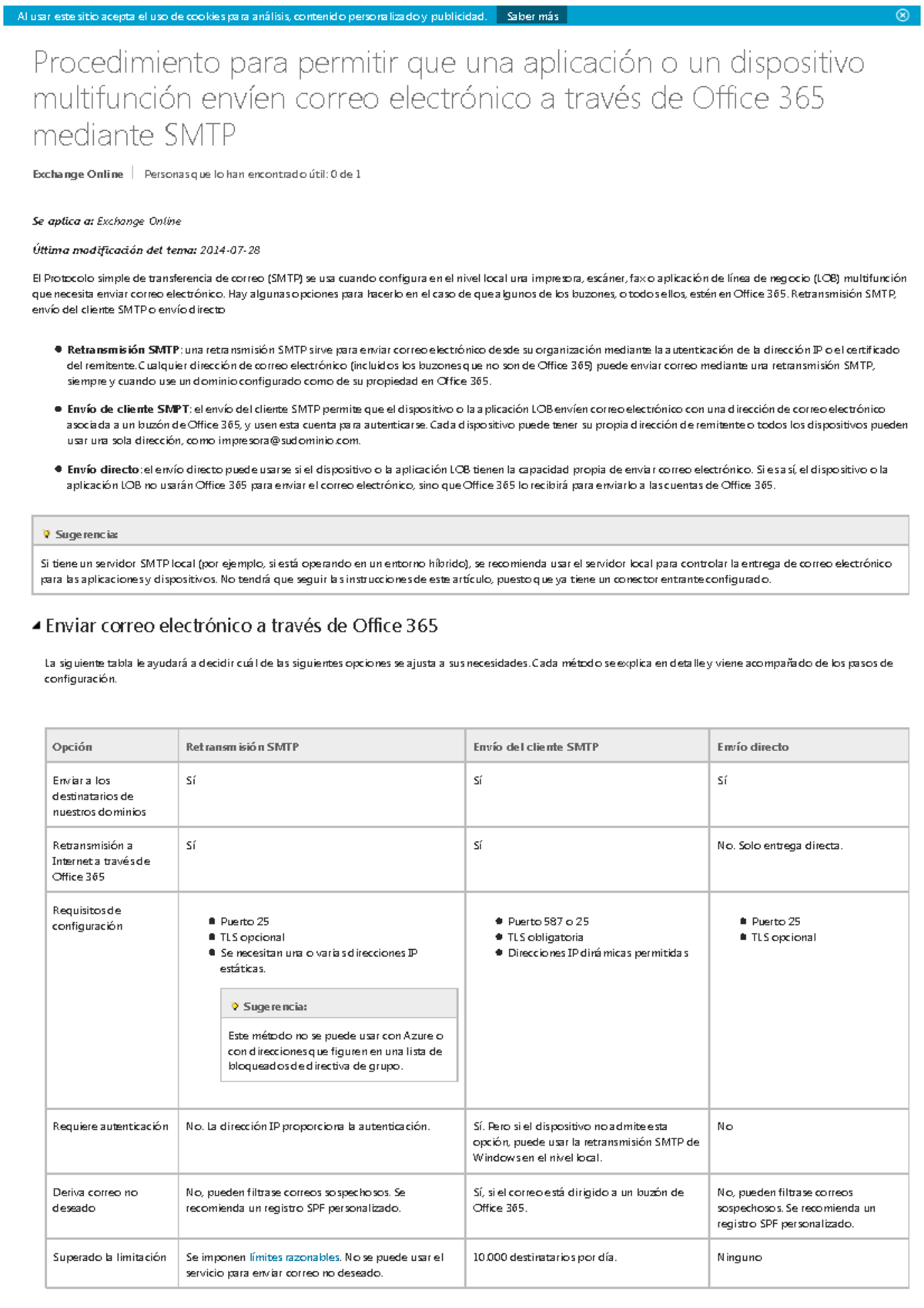
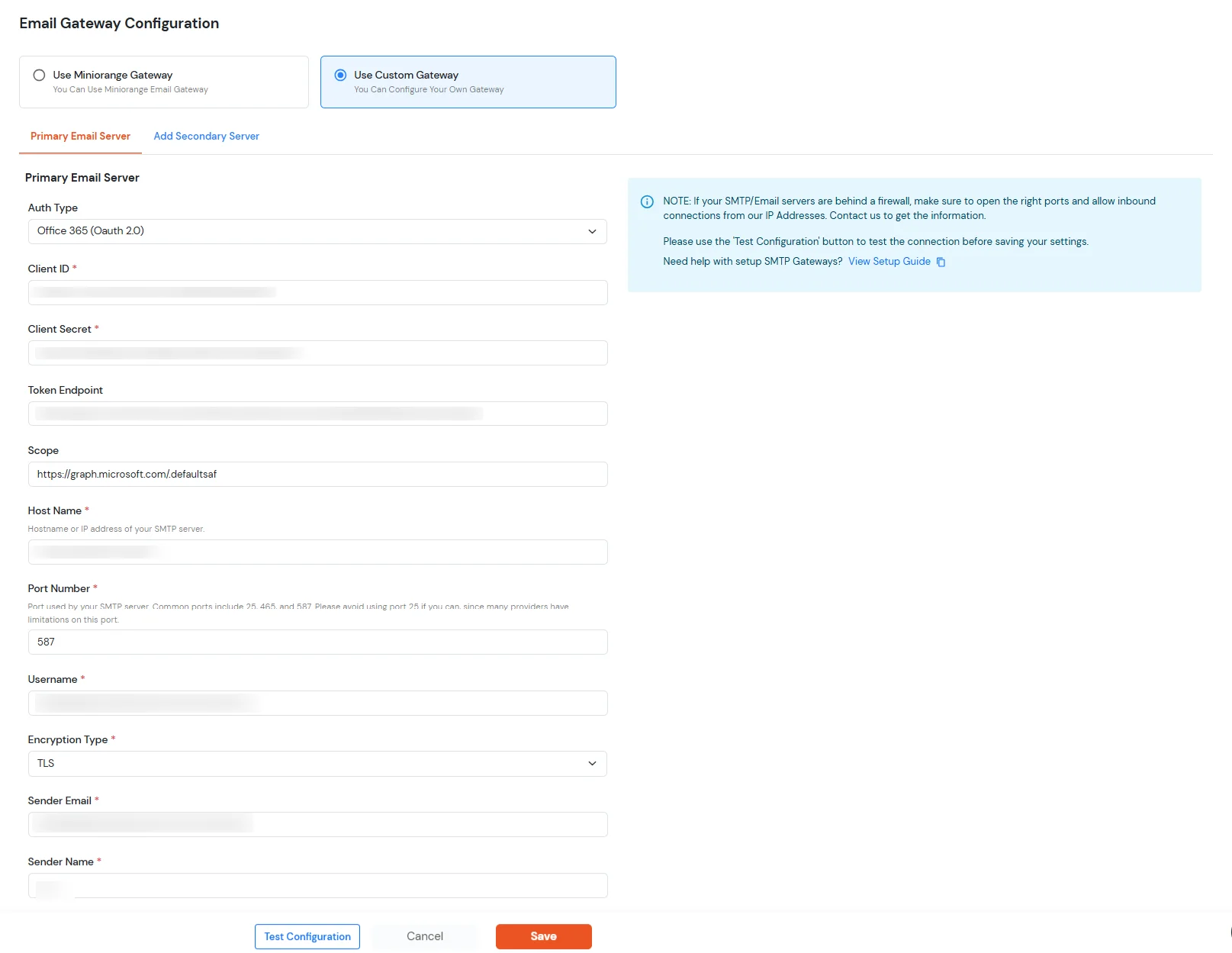
Port 587 is the industry-standard port for secure mail submission. In the context of Microsoft 365, this is the designated port used when individual users configure mail clients (such as Outlook, Apple Mail, or Thunderbird) or when applications send mail on behalf of a specific user account.
- Primary Function: Client SMTP submission (
smtp.office365.com). - Encryption Requirement: Requires TLS/STARTTLS encryption.
- Authentication: Mandates full credentials (a valid Office 365 email address and password).
Port 25 for Enterprise Mail Routing
Port 25 is the traditional, foundational port for SMTP, originally designed for unencrypted server-to-server relay. However, modern cloud environments treat direct inbound and outbound mail traffic on port 25 with extreme scrutiny.
- Primary Function: Traditional inter-server mail transfer and legacy application routing via direct send.
- Encryption Requirement: Opportunistic TLS.
- Authentication: Often relies on IP-based connector rules rather than user credentials when routing via Exchange Online connectors.
| Port Number | Primary Use Case | Recommended Endpoint | Encryption Type | Authentication Method |
|---|---|---|---|---|
| Port 587 | End-user apps, multi-function printers, devices | smtp.office365.com |
STARTTLS (Required) | Full User Credentials |
| Port 25 | Server-to-server routing, legacy connectors | Your tenant MX endpoint | Opportunistic TLS | IP Whitelisting / Connector |
| Port 465 | Legacy SSL submission (Generally unsupported) | Not Recommended | SMTPS | Not Officially Supported |
2. Encryption Standards: Mandatory STARTTLS and Security Protocols
Security is non-negotiable in modern cloud architectures. Microsoft 365 explicitly deprecates plaintext communication to prevent credential harvesting, man-in-the-middle attacks, and data interception across public networks. Consequently, understanding how transport layer security operates over these ports is vital.
The Role of STARTTLS on Port 587
When a device connects to smtp.office365.com on port 587, the session typically initiates in plaintext before immediately upgrading to an encrypted channel via the STARTTLS command. Devices or legacy software that do not support STARTTLS will fail to authenticate or transmit messages. Administrators must verify that their firewall policies do not strip or alter these security commands during packet inspection.
Deprecation of Insecure Ciphers and Port 465
Historically, some mail systems utilized port 465 for implicit SSL (SMTPS), where the entire session was encrypted from the very first handshake. Microsoft 365 officially mandates explicit TLS via port 587 for client submissions. Attempting to force implicit SSL on port 465 against Office 365 endpoints will typically result in a connection timeout or a rejected handshake. Ensuring that all connecting firmware, printer software, and custom scripts are updated to support explicit STARTTLS prevents sudden email delivery failures.
3. Authentication Requirements and Modern Authentication Shifts
Gone are the days when any script could stream emails through a cloud service anonymously. Microsoft 365 enforces rigorous identity verification to prevent compromised mailboxes from turning enterprise tenants into spam distribution hubs.
Authenticated SMTP Client Submission
To use port 587 successfully, the connecting application must supply a fully licensed Office 365 mailbox account credential. This includes the full email address and account password. Furthermore, administrators must verify that Authenticated SMTP is enabled globally or on a per-mailbox basis within the Microsoft 365 Admin Center or via Exchange Online PowerShell.
The Impact of Modern Authentication (OAuth 2.0)
Microsoft has aggressively phased out Basic Authentication (Basic Auth) across Exchange Online in favor of Modern Authentication utilizing OAuth 2.0.
- Legacy Apps Affected: Older multi-function printers and legacy line-of-business applications that rely on basic username and password combinations over SMTP face severe roadblocks.
- Workarounds: If an application cannot support OAuth 2.0, administrators must either use an alternative mail routing method (such as an SMTP relay connector) or selectively re-enable Authenticated SMTP for that specific legacy account, provided tenant security baselines permit it.
4. Alternative Methods: Direct Send and SMTP Relay
Not every device or application in an enterprise environment is capable of providing user credentials or supporting modern authentication protocols. For scenarios where port 587 with full authentication is unviable, Microsoft 365 provides two alternative architectural patterns: Direct Send and Office 365 SMTP Relay.
Direct Send (Printer-to-Cloud)
Direct Send allows devices to route emails directly to Microsoft 365 without requiring a mailbox license or user authentication credentials.
- Target Endpoint: Your organization's MX record endpoint (e.g.,
yourdomain-com.mail.protection.outlook.com). - Port Used: Port 25.
- Limitations: Messages can only be sent to internal recipients within your organization. Sending external mail via Direct Send will be rejected by Exchange Online Protection (EOP) to prevent open-relay abuse. Furthermore, volume caps apply, making this suitable primarily for internal scan-to-email printers.
Office 365 SMTP Relay (Connector-Based)
For enterprise applications requiring outbound email delivery to external domains without embedding user credentials, an SMTP relay configured via an Exchange Online Connector is the optimal solution.
- Target Endpoint: Your tenant's MX record endpoint.
- Port Used: Port 25.
- Authentication: Validated via the public static IP address of your organization's network rather than user credentials.
- Prerequisites: Requires a configured Inbound Connector in Exchange Online and a properly published Sender Policy Framework (SPF) record that includes your public IP address.
5. Troubleshooting Blocked Connections and Network Constraints
Even when configurations appear correct, network boundaries, Internet Service Provider (ISP) blocks, and firewall rules frequently disrupt Office 365 SMTP traffic. System administrators must systematic isolate where failures occur during troubleshooting.
Common ISP Restrictions on Port 25
Many consumer-grade and even some commercial ISPs deliberately block or throttle outbound traffic on port 25 to prevent residential malware infections from spamming the global internet. If an on-premises server or local appliance attempts to use Direct Send or SMTP Relay over port 25 and hangs indefinitely, the local ISP is often the culprit. In such cases, routing mail through a smart host provided by the ISP or shifting to authenticated submission on port 587 (if supported) provides an immediate workaround.
Firewall and Network Security Inspection
Enterprise firewalls often feature deep packet inspection (DPI) or intrusion prevention systems (IPS) that can inadvertently disrupt STARTTLS negotiations on port 587. When troubleshooting timeouts or unexpected connection drops:
- Verify that outbound traffic to
smtp.office365.comis permitted on TCP port 587. - Ensure that intermediary proxies are not intercepting TLS certificates without proper certificate trust chains.
- Run network diagnostic tools, such as
TelnetorTest-NetConnection, from the host machine to confirm reachability:Test-NetConnection -ComputerName smtp.office365.com -Port 587
Frequently Asked Questions
Can I use port 465 for Office 365 SMTP submissions?
No, Microsoft 365 does not officially support or listen on port 465 for implicit SSL submissions. You must configure your devices and applications to use port 587 with explicit STARTTLS encryption.
Why is my printer failing to send emails through Office 365?
Printer failures usually stem from disabled Authenticated SMTP on the mailbox, lack of TLS support on older printer firmware, or ISP blocks on port 25 if attempting Direct Send. Verify that the mailbox has SMTP AUTH enabled and is utilizing port 587 with valid credentials.
How many emails can I send through Office 365 SMTP ports daily?
Exchange Online enforces strict outbound recipient limits to prevent spamming. Standard mailboxes are typically capped at 10,000 recipients per day, though throttling can occur sooner if sending patterns trigger anti-abuse heuristics.
Do I need a paid Microsoft 365 license for every device sending mail?
If you use authenticated client submission on port 587, the sending account requires a licensed mailbox. If you utilize an IP-based SMTP relay connector (port 25), you can route application mail without dedicating an individual user license to every single device, provided volume remains within acceptable limits.
What should I do if my ISP blocks port 25?
If your ISP blocks outbound port 25, you cannot use Direct Send or standard SMTP relay configurations. You must either request that your ISP unblock the port, route traffic through your ISP's designated smart host, or reconfigure your devices to use authenticated submission on port 587.
Conclusion and Next Actions
Mastering Office 365 SMTP ports ensures that your business-critical applications, multi-function printers, and mail clients communicate securely and reliably with the cloud. Start by auditing your current device landscape to identify which applications require authenticated submission on port 587 versus connector-based relaying on port 25. Next, verify that Authenticated SMTP is enabled for your service accounts and confirm that your network firewalls permit outbound traffic without aggressive SSL interception. Taking these structured steps eliminates common connectivity bottlenecks and safeguards your organization's email delivery infrastructure.