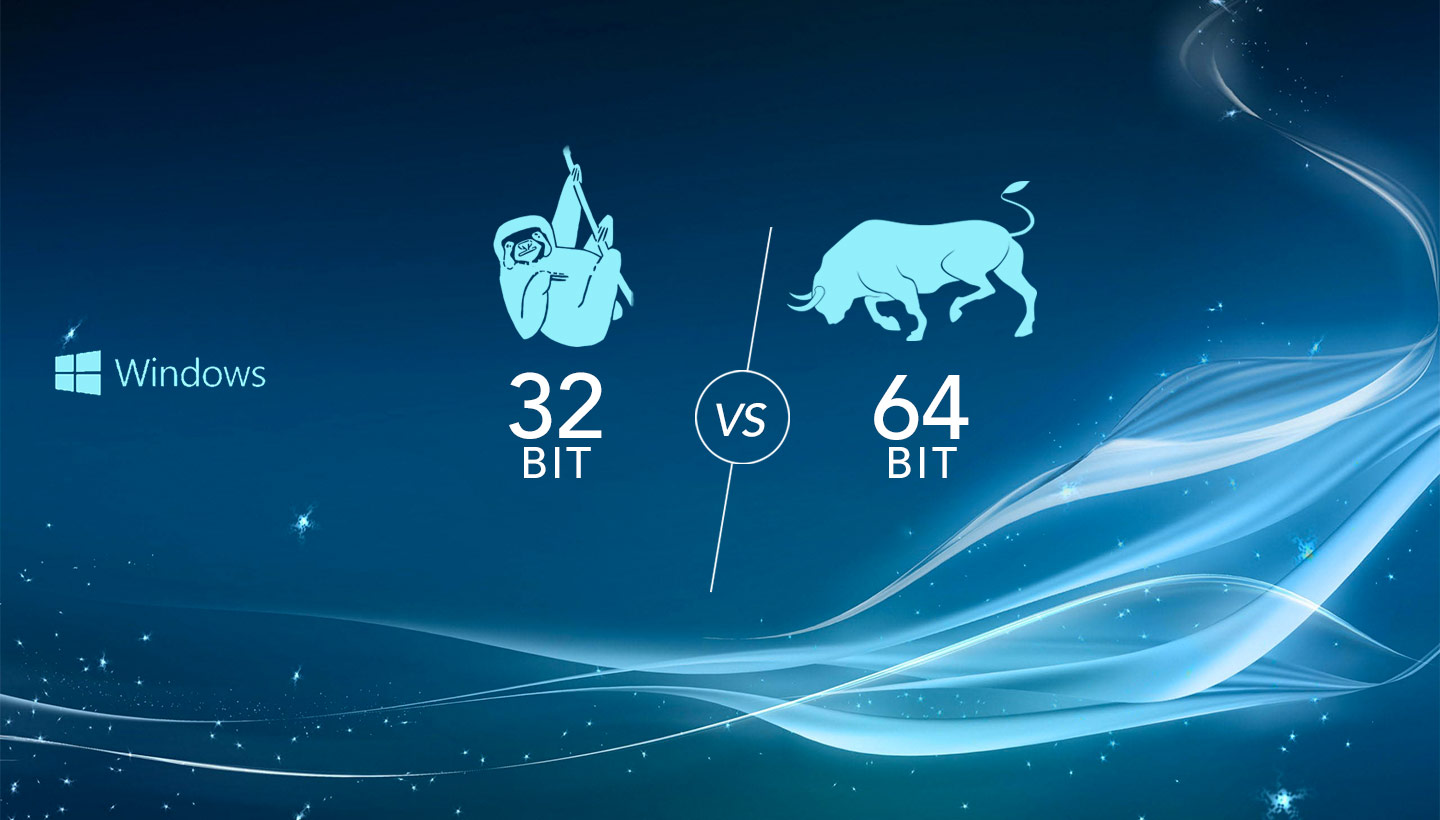
Knowing whether your computer is running a 32-bit or 64-bit version of Windows is essential for installing software, updating drivers, and upgrading hardware. You can easily check your system architecture by opening the About your PC settings menu through the Start menu, where the System type field will display your operating system and processor details.
Verifying your Windows operating system architecture is a fundamental computer maintenance task. Whether you are downloading a new web browser, installing a resource-heavy video editing suite, or troubleshooting a performance bottleneck, knowing whether your operating system is 32-bit or 64-bit ensures software compatibility. Installing a 64-bit application on a 32-bit system will cause errors, while running 32-bit software on a 64-bit machine often underutilizes your computer's full processing power.
Operating system architecture dictates how your computer handles data. A 32-bit system can process data in 32-bit chunks and typically supports a maximum of 4 gigabytes (GB) of RAM. In contrast, a 64-bit system handles 64-bit chunks, allowing it to utilize vastly more RAM—often 128 GB, terabytes, or more depending on the motherboard and Windows edition. Because modern software and hardware demands exceed the limits of older architectures, almost all contemporary computers utilize 64-bit systems. However, older machines, specialized industrial hardware, or legacy enterprise setups may still rely on 32-bit environments.
Understanding 32-Bit Versus 64-Bit Architecture
Before diving into the verification methods, it is helpful to understand the underlying technical differences between these two architectures. The terms "32-bit" and "64-bit" refer to the way a computer's processor (CPU)—also known as the central processing unit—manages information.
The bit-size represents the width of the CPU's registers, which are storage locations used to hold data and instructions. A 64-bit processor can store and process significantly larger blocks of data per clock cycle than a 32-bit processor. This architectural leap translates directly into performance advantages, especially when running memory-intensive applications, virtual machines, or modern video games.
Furthermore, memory addressing capacity is the most practical distinction for everyday users. Because a 32-bit integer can only represent $2^{32}$ unique values, a 32-bit operating system can theoretically address a maximum of 4,294,967,296 memory locations, or 4 GB of RAM. In practice, due to hardware reservation limits, a 32-bit Windows system typically only recognizes and utilizes around 3.25 GB to 3.5 GB of installed RAM. A 64-bit operating system removes this restriction, capable of addressing theoretical limits in the exabyte range, far exceeding any physical RAM capacity currently available to consumer hardware.
Prerequisites and Preparation
To check your Windows system type, you do not need administrative privileges for most methods, though certain advanced system tools may require an administrator account. These verification steps apply across multiple versions of the operating system, including Windows 10 and Windows 11.
Before beginning, ensure that your computer is fully powered on and that you have access to the desktop environment. You do not need to download third-party software, as Windows includes numerous built-in diagnostic tools designed specifically to surface hardware and software architecture details.
10 Steps to Verify Your Windows Architecture
Because Windows provides multiple paths to the same system information, you can choose the method that best matches your technical comfort level. Below are ten distinct methods, ranging from standard graphical user interface menus to command-line utilities.
1. Check Through the Windows Settings App (Modern Method)
The most user-friendly way to find your system architecture on Windows 10 and Windows 11 is through the Settings application.
- Click the Start button and select the gear icon (Settings), or press the Windows Key + I keyboard shortcut.
- Navigate to System in the left-hand or top navigation menu.
- Scroll down and click on About.
- Look for the System type entry under device specifications. It will display whether you are running a 64-bit operating system with a 64-bit processor, or a 32-bit operating system with a 32-bit or 64-bit processor.
2. Use the Classic System Control Panel
For users accustomed to legacy Windows interfaces, the Control Panel provides a direct summary of system properties.
- Press the Windows Key + R to open the Run dialog box.
- Type
controland press Enter to open the Control Panel. - Set the "View by" option in the top right corner to Large icons or Small icons.
- Click on System.
- Review the System type line under the "System" section to see your bit architecture and processor details.
3. Utilize the System Information Tool (msinfo32)
The System Information utility provides an exhaustive breakdown of your hardware resources, components, and software environment.
- Press the Windows Key + R to open the Run dialog box.
- Type
msinfo32and press Enter or click OK. - In the System Summary window that opens, look for the System Type item in the right-hand pane.
- If your system is 64-bit, it will read X64-based PC. If it is 32-bit, it will read X86-based PC. Note that an "x64-based PC" running a 32-bit operating system indicates your hardware can support a 64-bit upgrade, whereas an "x86-based PC" cannot.
4. Query the System Properties via Shortcut Key
You can bypass navigating through menus by using a dedicated hardware shortcut.
- Press the Windows Key + Pause/Break key simultaneously on your keyboard (note: some modern keyboards lack a Pause/Break key, making this method situational).
- This immediately launches the classic System window displaying your edition, processor, installed memory (RAM), and System type.
5. Run the Command Prompt (cmd)
If you prefer text-based interfaces, the Command Prompt can query your operating system configuration instantly.
- Press the Windows Key + S or click the search bar, type
cmd, and press Enter to open the Command Prompt. - Type the command
systeminfoand press Enter. - Allow a few moments for the system to gather information. Scroll through the output to find the line labeled System Type, which will explicitly state whether your architecture is x86 (32-bit) or x64 (64-bit).
6. Query Architecture Using PowerShell
Windows PowerShell offers a streamlined scripting environment to extract precise system variables.
- Right-click the Start button and select Terminal or PowerShell, or type
powershellin the Windows search bar. - Type or paste the following command and press Enter:
Get-WmiObject Win32_OperatingSystem | Select-Object OSArchitecture - The console will return either 64-bit or 32-bit directly.
- Alternatively, you can check the processor architecture by typing:
[Environment]::Is64BitOperatingSystemThis will returnTrue(for 64-bit) orFalse(for 32-bit).
7. Inspect the File Explorer Directories
Windows organizes 32-bit and 64-bit programs into distinct default installation folders on the primary drive. You can visually verify your architecture by inspecting these directories.
- Open File Explorer and click on This PC.
- Open your primary drive (usually Local Disk (C:)).
- Examine the folder structure. A 64-bit version of Windows will contain both a Program Files folder (for 64-bit applications) and a Program Files (x86) folder (for 32-bit applications). A 32-bit version of Windows will only contain a single Program Files folder.
8. Review the Task Manager Performance Tab
The Task Manager provides real-time resource monitoring alongside core operating system details.
- Press Ctrl + Shift + Esc to open the Task Manager directly.
- Click on the Performance tab (represented by a CPU graph icon on the left-hand menu in Windows 11 or top menu in Windows 10).
- Select CPU from the list of hardware components.
- Look at the bottom of the details pane for Speed, Cores, and finally Sockets and Virtualization, where the underlying architecture type is typically referenced alongside the processor model name.
9. Check the Registry Editor (regedit)
The Windows Registry stores low-level settings for the operating system and installed applications, including architecture identifiers.
- Press the Windows Key + R, type
regedit, and press Enter. Click Yes if prompted by User Account Control (UAC). - Navigate to the following registry path:
HKEY_LOCAL_MACHINE\Hardware\Description\System\CentralProcessor\0 - Look at the value entries in the right pane. An entry named
Identifierwill reference x86 or Intel64/AMD64, confirming your processor capability.
10. Verify via DirectX Diagnostic Tool (dxdiag)
The DirectX Diagnostic Tool is primarily used for troubleshooting graphics and audio issues, but it also summarizes core system specifications.
- Press the Windows Key + R, type
dxdiag, and press Enter. - If prompted to check if drivers are digitally signed, click Yes or No to proceed.
- On the System tab, locate the Operating System field. It will explicitly display the version of Windows along with its bit architecture (e.g., Windows 11 Pro 64-bit).
Comparison of Windows Architectures
To summarize the operational differences and capabilities of 32-bit and 64-bit systems, review the comparison table below:
| Feature | 32-Bit Windows | 64-Bit Windows |
|---|---|---|
| Maximum RAM Support | 4 GB (Practical limit ~3.25 GB to 3.5 GB) | Terabytes (Practically limited by hardware/edition) |
| Processor Compatibility | 32-bit (x86) and some early 64-bit chips | 64-bit (x64 / ARM64) processors only |
| Software Support | Runs 32-bit applications only | Runs both 64-bit and legacy 32-bit applications |
| Security Features | Basic software execution prevention | Advanced security (Driver Signature Enforcement, Kernel Patch Protection) |
| Common Application Use | Legacy enterprise software, older embedded systems | Modern gaming, professional media creation, general consumer use |
Common Questions and Troubleshooting
Can I upgrade my 32-bit Windows to 64-bit?
You cannot perform an in-place software upgrade from a 32-bit operating system to a 64-bit operating system. Doing so requires a clean installation of Windows. Furthermore, your computer's processor must be 64-bit capable (which you can check via msinfo32). If your CPU is strictly 32-bit, you cannot run a 64-bit operating system regardless of installation media.
What happens if I run a 64-bit application on a 32-bit system?
If you attempt to execute a 64-bit installer or program on a 32-bit Windows machine, the operating system will generate an error message stating that the app cannot run on your PC or that the file is not compatible with your version of Windows.
Does 32-bit or 64-bit affect internet browsing speed?
Architecture does not directly dictate internet download speeds, but a 64-bit browser running on a 64-bit operating system can manage larger web applications, handle heavy JavaScript frameworks more efficiently, and utilize more system memory without crashing.
How do I know if my processor is 64-bit capable?
Open the System Information tool (msinfo32) as detailed in Step 3. If the "System Type" lists X64-based PC, your hardware supports 64-bit operating systems. If it lists X86-based PC, your processor is strictly 32-bit.
Next Actions
Now that you have verified your Windows architecture, you can proceed with confidence when downloading software installers, selecting hardware upgrades like RAM modules, or planning system migrations. If you discovered that your modern hardware is running an outdated 32-bit operating system, consider backing up your personal files and performing a clean installation of a 64-bit version of Windows to unlock your computer's complete processing and memory potential.