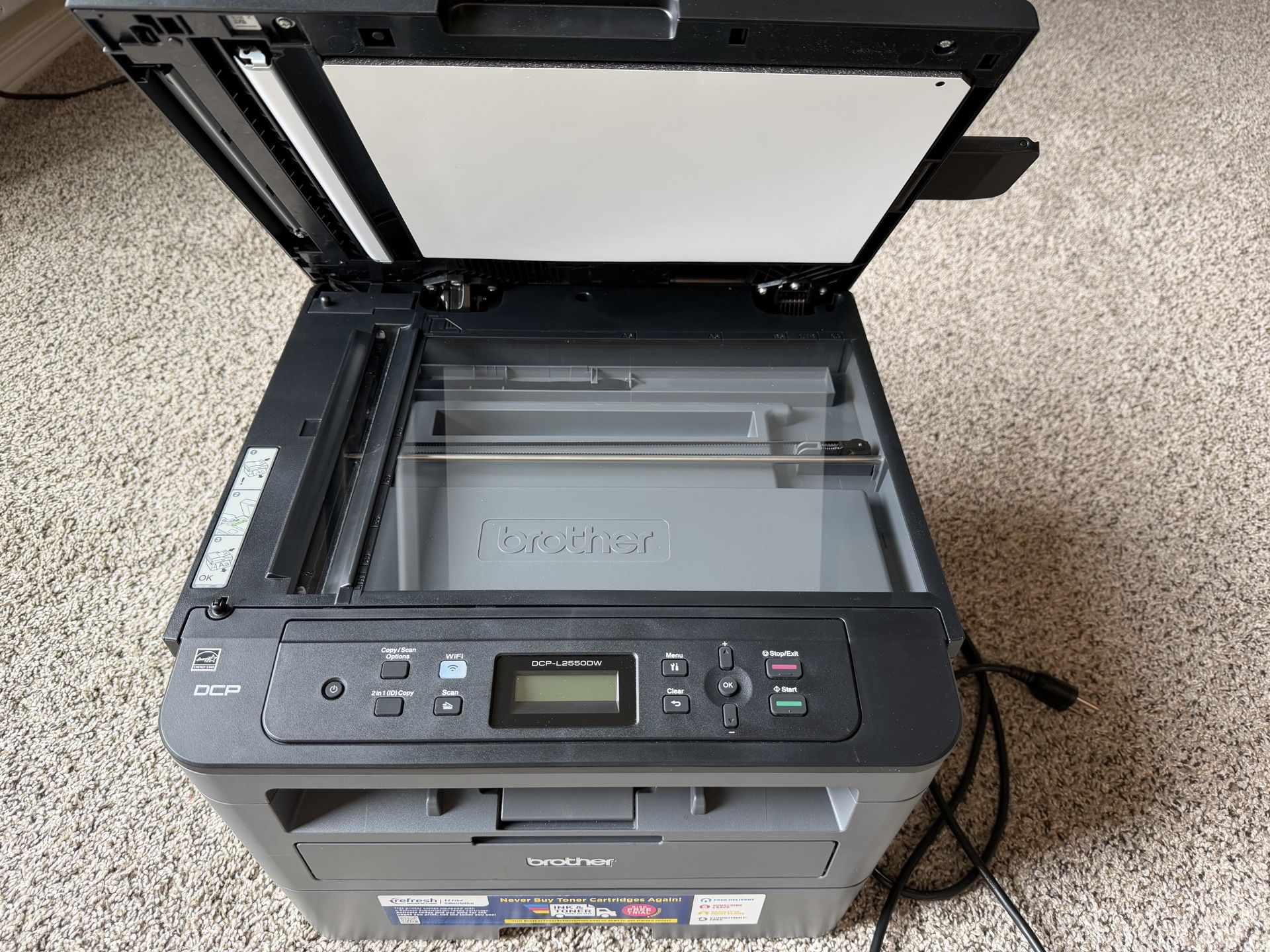
The Brother DCP-L2550DW manual provides essential instructions for installing, configuring, and maintaining this monochrome laser multi-function printer. It encompasses several documents, primarily the Online User's Guide for detailed operation, the Quick Setup Guide for hardware assembly, and specialized guides for network configuration and safety. Accessing these official resources ensures optimal print performance, efficient scanning, and long-term device reliability.
In 2026, the Brother DCP-L2550DW continues to be a cornerstone for small office and home office (SOHO) environments. While hardware remains robust, the way users interact with the documentation has evolved toward a digital-first approach. Understanding the layout and specific contents of the Brother DCP-L2550DW manual is the first step toward mastering this high-speed, multi-function peripheral.
Navigating the Brother DCP-L2550DW Manual Ecosystem
Brother does not provide a single, massive book for the DCP-L2550DW. Instead, the documentation is partitioned into several specialized guides. This modularity allows users to find specific information without sifting through irrelevant data.
The Online User’s Guide
The Online User’s Guide is the most comprehensive resource. It is designed as a searchable HTML interface, though PDF versions are usually available for offline viewing. This manual covers every software-based feature, from advanced scanning settings to security protocols. It is the primary reference for understanding the printer’s internal menu structure and the Brother iPrint&Scan desktop and mobile applications.
The Quick Setup Guide
Typically found as a physical sheet or a brief PDF, the Quick Setup Guide is the first document a user should consult. It uses visual diagrams to guide the user through unboxing, removing protective tapes, installing the toner cartridge and drum unit assembly, and loading paper. It also covers the initial power-on sequence and the primary connection to a computer or network.
The Reference Guide and Safety Guide
The Reference Guide provides a condensed version of the most common tasks, such as making a basic copy or checking the machine’s status. The Safety Guide is a critical legal and operational document that outlines power requirements, environmental limitations (such as humidity and temperature), and warnings regarding the laser assembly and fuser unit heat.
Hardware Setup and Initial Configuration
The manual places significant emphasis on the physical setup of the DCP-L2550DW. Because this is a laser printer, the installation of consumables is more involved than that of an inkjet printer.
Consumables Installation
The DCP-L2550DW uses a two-part consumable system: the TN730 or TN760 toner cartridge and the DR730 drum unit. The manual provides step-by-step instructions on how to "lock" the toner into the drum unit before sliding the entire assembly into the printer. A common error addressed in the manual is failing to hear the "click," which indicates the toner is not seated correctly, often leading to "No Toner" errors even with a new cartridge.
Paper Handling Specifications
A key section of the manual is dedicated to paper capacity and media types. The DCP-L2550DW features a 250-sheet capacity tray and a manual feed slot for specialized media. The manual specifies that the main tray supports 16 to 43 lb (60 to 163 g/m²) paper, while the manual feed slot can handle thicker media up to 61 lb (230 g/m²). Using paper outside these specifications can lead to frequent jams or damage to the fuser.
Connectivity and Network Integration
As a wireless-enabled multi-function printer, the DCP-L2550DW offers several connection methods. The manual provides detailed workflows for each, which is essential for maintaining a stable connection in 2026's complex network environments.
Wireless Setup (Wi-Fi)
The manual outlines three primary ways to connect to a Wi-Fi network:
- Wi-Fi Protected Setup (WPS): The easiest method, requiring a single button push on the router and a few clicks on the printer’s control panel.
- Setup Wizard: A manual method where the user selects the SSID from the printer's 2-line LCD and enters the password (network key).
- Wireless Direct: Allows a mobile device or computer to connect directly to the printer without a router, which is useful for guest printing or environments without a permanent local area network (LAN).
Ethernet and USB Connections
For those prioritizing stability or security, the manual details the use of the 10Base-T/100Base-TX Ethernet port. It notes that the printer cannot use the wired and wireless interfaces simultaneously. Additionally, for a direct "plug-and-play" experience, the manual provides instructions for USB 2.0 connectivity, emphasizing that the USB cable should be connected only when prompted by the driver installation software to avoid port mapping errors.
Operating the Multi-Function Features
The "DCP" in the model name stands for Digital Copier Printer, and the manual explores these features in depth, particularly the scanning and copying capabilities.
Advanced Copying Functions
The DCP-L2550DW is equipped with a 50-sheet Automatic Document Feeder (ADF). The manual explains how to use the ADF for multi-page copying and how to use the flatbed glass for bound documents like books or passports. Specific instructions are provided for N-in-1 copying (fitting multiple pages onto one sheet) and ID card copying, which allows both sides of a card to be printed on a single side of paper.
Scanning Workflows
Scanning is managed through the Brother iPrint&Scan software or via the control panel. The manual explains the various scan destinations:
- Scan to PC: Sends the document to a folder on the connected computer.
- Scan to OCR: Converts the scanned image into editable text.
- Scan to Email: Attaches the scan directly to an outgoing email.
- Scan to FTP/Network: (Advanced) Used in office environments for centralized document management.
Maintenance and Troubleshooting Guidelines
To ensure the printer lasts through 2026 and beyond, the manual provides a rigorous maintenance schedule. Laser printers require periodic cleaning of the internal components to prevent streaks and smudges.
Cleaning the Corona Wire
A unique feature of Brother laser printers mentioned in the manual is the built-in corona wire cleaner. If printouts show vertical stripes, the manual instructs the user to slide the green tab on the drum unit back and forth several times. Failure to return the tab to the "home" position (indicated by a small arrow) will result in a solid black vertical stripe on all pages.
Interpreting Error Codes
The 2-line LCD on the DCP-L2550DW displays specific status messages. The manual provides a comprehensive table to decode these.
| LCD Message | Meaning | Recommended Action |
|---|---|---|
| Replace Toner | Toner cartridge is exhausted. | Install a new TN730 or TN760 cartridge. |
| Drum Near End | Drum unit is reaching the end of its life. | Purchase a DR730 drum unit soon. |
| Jam Rear | Paper is caught in the back of the machine. | Open the back cover and clear the fuser area. |
| No Paper | The tray is empty or not seated. | Refill the paper tray or adjust the guides. |
| Print Unable 0A | Internal hardware or fan error. | Turn the machine off and then back on. |
Resolving Paper Jams
The manual identifies three main areas for jams: the paper tray, the internal duplex tray, and the rear fuser area. It provides a specific sequence for clearing jams: always pull the paper in the direction of the paper path to avoid tearing the sheet, which can leave small fragments that cause recurring sensor errors.
Software and Driver Management
In 2026, keeping drivers updated is crucial for compatibility with the latest versions of Windows, macOS, and Linux. The manual directs users to the Brother Solutions Center for the "Full Driver & Software Package."
Brother iPrint&Scan
This software has become the primary interface for Brother users. The manual explains how to use the app to check ink/toner levels, perform remote scans, and update the printer's firmware. Firmware updates are particularly important, as they often contain security patches and improvements to wireless stability.
Web Based Management (WBM)
For advanced users or IT administrators, the manual describes the Web Based Management utility. By entering the printer’s IP address into a web browser, users can access a password-protected portal to configure deep-level settings, such as SMTP server details for scanning to email, power-save timeouts, and user restriction locks.
Frequently Asked Questions
How do I find the IP address of my Brother DCP-L2550DW?
To find the IP address, press the Menu button on the control panel, navigate to Network, then select WLAN or Wired LAN, and find the TCP/IP settings. Alternatively, you can select Print Reports from the Menu and choose Network Configuration. The printer will print a sheet containing the current IP address, MAC address, and node name. This is useful for troubleshooting connectivity issues or accessing the Web Based Management portal.
What is the difference between TN730 and TN760 toner?
According to the Brother manual and specifications, the TN730 is the standard-yield toner cartridge, typically providing approximately 1,200 pages. The TN760 is the high-yield version, offering up to 3,000 pages. Both are compatible with the same DR730 drum unit. For users with high-volume needs, the TN760 offers a lower cost-per-page, though the initial purchase price is higher.
How do I reset the drum counter after replacing the DR730?
The printer does not automatically detect a new drum unit; you must manually reset the counter. With the front cover open and the machine turned on, press and hold the OK button for about two seconds until "Drum Unit" appears. Press OK again, and then press the Up Arrow to reset the counter. Close the front cover to complete the process. This ensures the "Replace Drum" message disappears and the machine accurately tracks the new unit's life.
Why is my printer showing "Deep Sleep" and not waking up?
"Deep Sleep" is a power-saving mode. Normally, the printer wakes up automatically when it receives a print job. If it fails to wake, the manual suggests checking the connection (Wi-Fi or Ethernet). If the connection is active, you may need to adjust the "Sleep Time" settings in the General Setup menu. In some network environments, "Deep Sleep" can cause the printer to drop off the network; disabling "IPv6" or setting a "Static IP" often resolves this "ghosting" issue.
Can I print on envelopes with the DCP-L2550DW?
Yes, but you must use the manual feed slot located behind the small front flap above the main paper tray. The manual instructs users to insert one envelope at a time, with the side to be printed facing up and the flap on the left. You must also adjust the paper guides to fit the envelope width. For best results, the manual recommends opening the back cover (the face-up output tray) to allow the envelope to exit straight out the back, preventing curling.
How do I factory reset the DCP-L2550DW?
To perform a factory reset, press Menu, navigate to Initial Setup, and select Reset. Choose Factory Reset and then follow the prompts to confirm by pressing the Right Arrow or 1 (depending on your specific firmware version). This will clear all network settings, custom shortcuts, and user preferences, returning the machine to its out-of-the-box state.
Final Recommendation for Users
To get the most out of your Brother DCP-L2550DW, it is highly recommended to download the Online User's Guide in PDF format and save it to a local device or cloud storage. While the physical Quick Setup Guide is useful for the first ten minutes, the detailed troubleshooting and network configuration sections in the full manual are invaluable for long-term ownership. Always ensure you are using the latest version of the manual from the official Brother support website to reflect any firmware-driven changes to the menu system or software features.