You cannot run a traditional antivirus scan on an iPhone because Apple’s iOS operating system uses strict sandboxing architecture. Sandboxing prevents apps from inspecting system files or accessing data stored by other applications. However, traditional computer viruses do not exist on non-jailbroken iPhones, and third-party security apps instead focus on network security, phishing defense, and privacy protection.
Understanding the iOS Security Architecture: Why Antivirus Scanners Don't Exist on iPhone
If you search the App Store for an "antivirus scanner," you will find numerous security applications from trusted cybersecurity vendors. However, none of these apps function like traditional desktop antivirus software. They cannot scan your internal storage, inspect system memory, or search installed applications for malicious code. Understanding why requires examining the fundamental security architecture built into iOS.
- iOS Application
- App Sandbox Container
- App Executable
- App Data/Files
- Web Storage
- Blocked Access (Sandboxing Isolation)
- Other App Data
- System Kernel
- Photos
- System File System
- App Sandbox Container
App Sandboxing Explained
At the core of Apple's security model is sandboxing. Every iOS application runs inside its own isolated environment—a virtual container—that strictly limits its access to the rest of the operating system. An app is assigned a dedicated directory on the storage drive when installed. It can read and write files within its own directory, but it is technically barred from peeking into the data containers of other apps or modifying core system files.
Because an antivirus application is subject to the exact same sandboxing rules as any other app, it cannot scan your device's file system or analyze other running programs for malicious signatures. If an application attempted to bypass this isolation to inspect system memory, the iOS kernel would immediately terminate the process.
Mandatory Code Signing and Apple's App Review
Before any software can run on an iOS device, it must be cryptographically signed. Apple enforces mandatory code signing, which verifies that the software comes from an identified developer and has not been altered or tampered with since its creation.
Furthermore, every app published on the App Store must undergo Apple’s App Review process. Human reviewers and automated static analysis tools inspect the code to ensure compliance with Apple's strict developer guidelines. This multi-layered screening process prevents software containing known malware, keyloggers, or trojans from reaching end-user devices in the first place.
System Integrity Protection and Signed System Volumes
Modern versions of iOS utilize a Signed System Volume (SSV). The core operating system files reside on an isolated volume that is cryptographically locked and read-only. Even if a malicious script were somehow executed on the device, it could not overwrite system libraries or modify kernel files because the underlying operating system volume cannot be written to while the device is running.
Can iPhones Get Viruses or Malware? The Real Threat Landscape
While traditional file-infecting viruses do not target or thrive on iOS, it is a dangerous misconception that iPhones are completely immune to security threats. The nature of threats on iOS differs significantly from those on Windows or Android.
| Threat Vector | Description |
|---|---|
| 1. Social Engineering & Phishing | Fake alerts, credential harvesting |
| 2. Rogue Configuration Profiles | Unauthorized VPNs, fake MDM setups |
| 3. Calendar Spam & Push Scams | Intrusive URL links in Calendar |
| 4. Device Jailbreaking | Disabling sandbox protections |
| 5. Advanced Zero-Click Exploits | Targeted spyware (e.g., Pegasus) |
1. Jailbreaking Risks
Jailbreaking is the process of removing the security restrictions imposed by Apple, granting root-level access to the iOS file system. While jailbreaking allows users to install unauthorized apps and customize the system, it completely disables app sandboxing and code signing enforcement. A jailbroken iPhone loses its native security boundaries, making it susceptible to conventional malware, keyloggers, ransomware, and unauthorized remote access tools.
2. Malicious Configuration Profiles and Web Exploits
One of the most common threat vectors on iOS involves Configuration Profiles (also known as Mobile Device Management or MDM profiles). Organizations use these profiles to manage company-owned devices, install internal apps, and configure network settings.
However, cybercriminals often trick users into downloading rogue configuration profiles from deceptive websites. These malicious profiles can:
- Reroute web traffic through unauthorized proxy servers or VPNs to capture personal data.
- Force the installation of unverified, third-party software outside the App Store.
- Override DNS settings to direct you to fake banking or login pages.
3. Phishing, Smishing, and Web-Based Pop-Up Scams
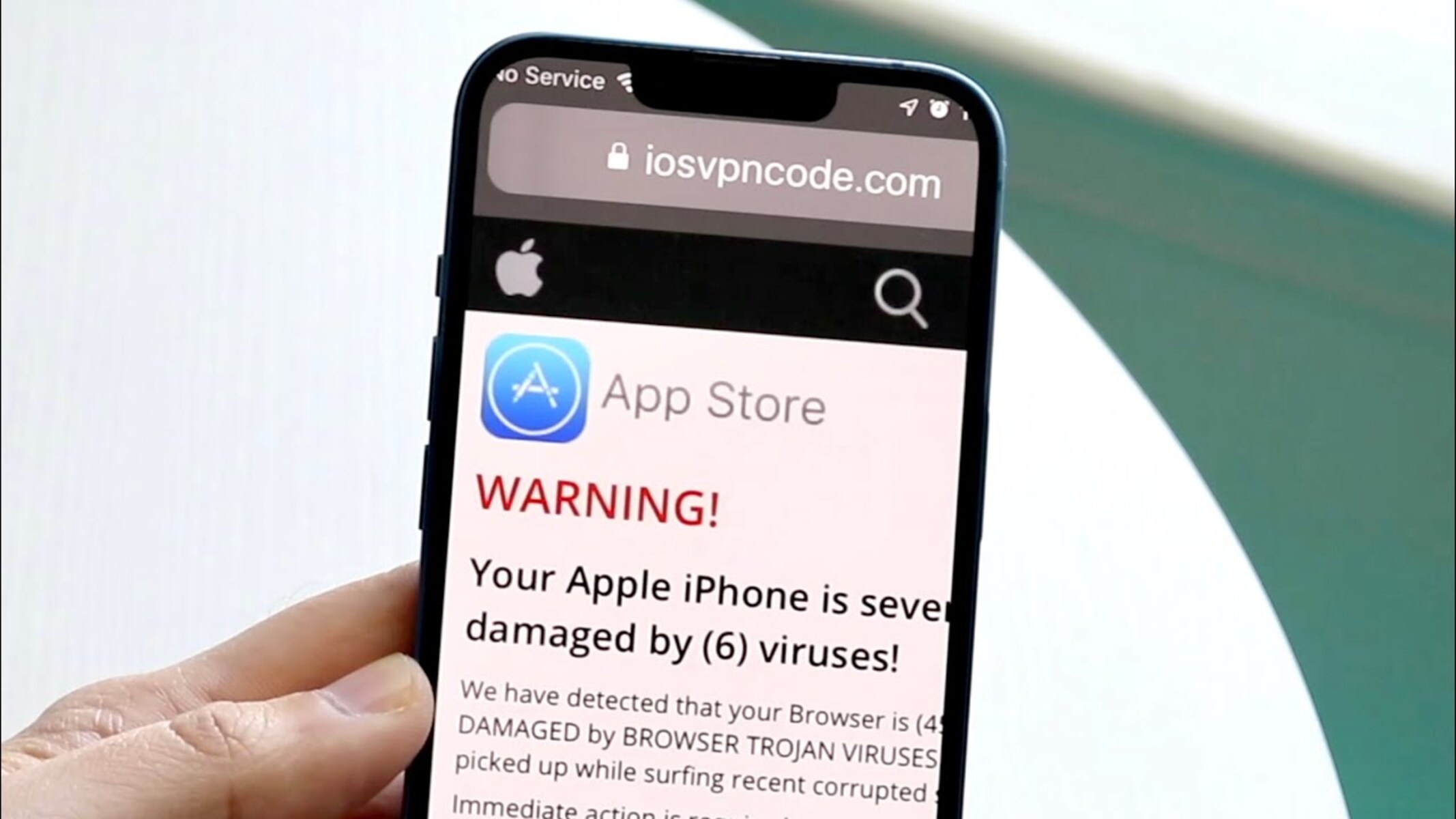
The vast majority of reported "iPhone viruses" are actually web-based scams. Users browsing the internet may encounter intrusive browser pop-ups displaying alarming messages such as "Warning! Your iPhone has been infected with (3) viruses! Click here to scan now."
These pop-ups are entirely fake. Web pages cannot scan your hardware or detect malware on your iPhone. Their goal is social engineering: coercing you into calling a paid toll-free support number, entering personal credentials, downloading a dubious profile, or subscribing to expensive, unwanted app services.
4. Advanced Targeted Exploits (Spyware)
In rare cases, highly sophisticated threat actors deploy zero-click exploits to target specific individuals, such as journalists, activists, executives, and public figures. Surveillance software (such as Pegasus or similar state-sponsored spyware) targets zero-day vulnerabilities in iOS components like iMessage or WebKit to bypass system protections quietly. These targeted attacks are exceptionally rare and do not target the general public at random.
What "Security Apps" Actually Do on iOS
If third-party iOS applications cannot scan system files or detect traditional viruses, what services do reputable security products provide? Major security vendors offer specialized iOS utility apps designed to protect users against external threats and privacy risks.
| Permitted Features (Network & Web) | Impossible Features (System Level) |
|---|---|
| [X] Web Protection & URL Filtering | [ ] Deep System File Scanning |
| [X] Wi-Fi Security & VPN Encryption | [ ] Background RAM App Scans |
| [X] Identity & Data Breach Alerts | [ ] Automatic Virus Removal |
| [X] Call & SMS Spam Blocking | [ ] Core Kernel File Auditing |
- Web and Phishing Protection: Utilizing local VPN protocols or custom DNS configurations, these apps block connections to known malicious domains, phishing sites, and command-and-control servers.
- Wi-Fi Network Security: Security apps analyze public Wi-Fi networks to alert users to unencrypted connections, suspicious router configurations, or man-in-the-middle risks.
- Data Breach Monitoring: They monitor dark web databases for leaked email addresses, passwords, and compromised accounts associated with your credentials.
- Call and Text Spam Filtering: Using iOS extension APIs, security tools flag or filter suspected spam calls and phishing SMS messages (smishing).
Comparison: Traditional Desktop/Android Antivirus vs. iOS Security Architecture
Understanding how security differs across platforms helps set realistic expectations for maintaining device health.
| Feature / Capability | Windows / macOS Antivirus | Android Security Software | iOS Built-in Security Architecture |
|---|---|---|---|
| System File Access | Full disk access to read, scan, and delete system files. | Deep file system scanning (subject to OS version permissions). | Strictly isolated via App Sandboxing; no cross-app access. |
| Real-Time Memory Scan | Monitors active RAM processes continuously. | Scans active applications and background APKs. | Blocked by OS kernel design. |
| Code Signing Requirements | Optional; warning prompts shown for untrusted binaries. | Enforced by default, but sideloading APKs is permitted. | Mandatory; unsigned code will not execute on non-jailbroken devices. |
| Primary Distribution Source | Direct web downloads, installer files, software stores. | Google Play Store, third-party APK repositories. | Apple App Store exclusively (or managed corporate distribution). |
| Threat Vector Focus | Viruses, trojans, ransomware, rootkits, bad executables. | Rogue APKs, deceptive permissions, web phishing. | Web phishing, rogue profiles, calendar spam, zero-day exploits. |
| System Update Delivery | Vendor app updates combined with OS patches. | Google Play system updates and carrier/OEM OS patches. | Centralized, direct software updates and Rapid Security Responses from Apple. |
How to Check Your iPhone for Security Issues and Suspicious Behavior
Because you cannot press a single "Scan" button on iOS, inspecting your device involves auditing settings, evaluating app permissions, and identifying unusual system behavior.
- Step 1: Check VPN & Device Management
- Settings > General > VPN & Device Management
- Remove any unexpected configuration profiles
- Step 2: Inspect App Store & Storage
- Settings > General > iPhone Storage
- Identify and delete unfamiliar or side-loaded apps
- Step 3: Review Subscriptions & Calendar Accounts
- Settings > Calendar > Accounts
- Delete unauthorized subscribed calendars
- Step 4: Audit Privacy Settings
- Settings > Privacy & Security > Safety Check
- Revoke unnecessary camera, location, & micro permissions
1. Inspect Installed Configuration Profiles
Rogue profiles are the closest functional equivalent to malware on a non-jailbroken iPhone.
- Open the Settings app.
- Tap General.
- Scroll down and select VPN & Device Management.
- Look under the Configuration Profile section. If you see a profile listed that was not provided by your employer, school, or trusted cellular carrier, tap the profile and select Remove Profile.
2. Review Storage and App List
Check for unexpected applications that may have been downloaded via social engineering.
- Go to Settings > General > iPhone Storage.
- Scroll through the complete list of installed applications.
- If you find an app you do not recognize, tap it and select Delete App. Pay close attention to utility apps, flashlight apps, or fake security tools installed outside your normal routine.
3. Check Subscribed Calendars
If your Calendar app is flooded with spam events claiming your phone has a virus or offering prize payouts:
- Open Settings > Calendar > Accounts (or Passcodes & Accounts on older iOS versions).
- Tap Subscribed Calendars.
- Look for any calendar feed you did not intentionally add. Tap it and select Delete Account.
4. Check Battery and Cellular Data Usage
Malicious background activities, rogue web proxies, or adware often consume abnormal amounts of system resources.
- Battery Check: Navigate to Settings > Battery. Examine the app usage list under Battery Usage By App. Look for unfamiliar apps consuming high percentages of battery in the background.
- Cellular Data Check: Navigate to Settings > Cellular. Scroll down to inspect cellular data consumption per app. If an unused app has consumed gigabytes of data, uninstall it immediately.
5. Audit Privacy and Tracking Permissions
Ensure that installed applications only access sensitive hardware when strictly necessary.
- Open Settings > Privacy & Security.
- Review permissions for Location Services, Camera, Microphone, and Photos.
- Disable access for any app that does not require those capabilities to function properly.
Step-by-Step Guide to Removing Security Threats and Fixing Issues
If your iPhone is experiencing persistent browser redirects, system sluggishness, or unwanted pop-ups, follow these resolution steps in order.
- Update iOS
- Remove Profiles
- Clear Web Cache
- Force Restart
- Reset Network
- Full Erase & Restore
Step 1: Install the Latest iOS Updates
Apple frequently releases system updates that patch security vulnerabilities exploited by web scripts or spyware.
- Go to Settings > General > Software Update.
- If an update is available, tap Update Now or Download and Install.
- Enable Automatic Updates and Security Responses & System Files to receive critical security patches immediately.
Step 2: Clear Safari Cache and Web Data
Persistent security warnings, scam pop-ups, and hijacked search pages are almost always stored in your browser's local cache.
- Go to Settings > Apps > Safari (or Settings > Safari on older iOS releases).
- Scroll down and tap Clear History and Website Data.
- Select All History and tap Clear History.
- Scroll down further, tap Advanced > Website Data, and select Remove All Website Data.
- Ensure that Block Pop-ups and Fraudulent Website Warning are toggled On.
Step 3: Remove Suspicious Third-Party Web Extensions
If pop-ups persist after clearing your cache, an unwanted browser extension may be installed.
- Open Settings > Apps > Safari > Extensions.
- Review the list of active extensions.
- Tap any unfamiliar extension and toggle it off or select Uninstall.
Step 4: Perform a Force Restart
A force restart clears temporary cache memory, stops running processes, and resets transient software glitches without erasing your user data.
- For iPhone 8, iPhone SE (2nd/3rd gen), iPhone X, 11, 12, 13, 14, 15, 16, and newer:
- Press and quickly release the Volume Up button.
- Press and quickly release the Volume Down button.
- Press and hold the Side button until the Apple logo appears, then release.
Step 5: Reset Network Settings
If your internet traffic is being re-routed or your DNS settings appear compromised, resetting network configurations restores default settings.
- Go to Settings > General > Transfer or Reset iPhone.
- Tap Reset.
- Select Reset Network Settings.
- Enter your passcode to confirm. Note: This will clear saved Wi-Fi networks and Bluetooth pairings.
Step 6: Perform a Factory Reset (Final Resort)
If you suspect your device has been jailbroken without your knowledge or compromised by advanced targeted software, a complete factory wipe restores the device to a pristine state.
- Back up your essential photos, contacts, and documents to iCloud (ensure you do not back up unneeded configuration profiles).
- Open Settings > General > Transfer or Reset iPhone.
- Select Erase All Content and Settings.
- Confirm your choice and wait for the device to reset.
- Set up the iPhone as a new device or restore from a known secure backup created prior to the security issue.
Proactive Best Practices for Protecting Your iPhone
Maintaining a secure iPhone environment relies on smart digital hygiene rather than active virus scanning software.
- Keep iOS updated automatically (Settings > General)
- Never install untrusted Mobile Device Management (MDM) profiles
- Avoid jailbreaking or using unauthorized third-party app stores
- Enable Two-Factor Authentication (2FA) for your Apple Account
- Ignore pop-up warnings claiming your device is "infected"
- Activate Lockdown Mode if targeted by advanced threats
- Never Sideload or Install Unverified Profiles: Only download software directly from the official Apple App Store. Reject prompts from websites asking you to install "configuration profiles" or "management certs" to view content or download free media.
- Enable Two-Factor Authentication (2FA): Protect your Apple Account (Apple ID) with 2FA to prevent unauthorized remote access to your iCloud backups, device locations, and stored credentials.
- Be Cautious on Public Wi-Fi: Avoid logging into sensitive services (such as online banking) over unencrypted public networks. Use a trusted Virtual Private Network (VPN) service to encrypt outbound traffic.
- Use Two-Factor Verification for Passwords: Store strong, unique passwords in iCloud Keychain or an independent password manager, and activate passkeys where available.
- Consider Lockdown Mode for High-Risk Environments: If your personal profile makes you a target for targeted cyberattacks, enable Apple's Lockdown Mode (Settings > Privacy & Security > Lockdown Mode). This extreme protection feature disables specific web technologies, blocks attachment processing in Messages, and prevents incoming FaceTime calls from unknown contacts.
Frequently Asked Questions
Why do some App Store apps claim to be "antivirus" for iPhone?
Cybersecurity vendors use the term "antivirus" loosely in marketing to signal that an application provides digital security features. While these applications cannot run file-based virus scans due to iOS sandboxing, they offer secondary security services such as dangerous website filtering, Wi-Fi security checks, VPN encryption, and identity theft alerts.
What should I do if a web pop-up says my iPhone is infected?
Close the browser tab immediately. Do not tap any buttons inside the pop-up, do not call listed telephone numbers, and do not enter personal information. These warnings are fake advertisements (scamware) designed to trick you into downloading unwanted software or revealing personal information. Clear your Safari browsing history under Settings > Apps > Safari to clear persistent pop-ups.
Can a compromised Wi-Fi network infect my iPhone with a virus?
A malicious Wi-Fi network cannot inject a virus directly into an unjailbroken iPhone. However, an attacker managing an unsafe network can monitor unencrypted traffic, intercept data sent over insecure websites (man-in-the-middle attacks), or redirect your browser to fraudulent phishing pages. Always use HTTPS sites and consider turning on a reputable VPN when connecting to public Wi-Fi networks.
Does restarting your iPhone remove malware?
Restarting your iPhone can terminate active background processes and clear temporary volatile memory (RAM). In cases where non-persistent scripts or web-based exploits are running in memory, restarting the device stops the execution. However, if a rogue configuration profile or malicious app is installed on the storage drive, restarting will not delete it; you must manually uninstall the profile or app.
What is Lockdown Mode and when should I use it?
Lockdown Mode is an extreme, optional protection feature introduced by Apple in iOS 16. It is designed for individuals who might be personally targeted by sophisticated digital threats, such as state-sponsored mercenary spyware. Lockdown Mode strictly limits device functionality by blocking most message attachments, disabling complex web browsing features, blocking incoming calls from unfamiliar accounts, and disabling wired connections when locked. Most everyday users do not need to enable Lockdown Mode.
Summary and Recommended Actions
You cannot scan your iPhone for viruses because the iOS operating system isolates apps within secure sandboxes, preventing software from accessing other files or core system directories. This design protects your device from traditional computer viruses.
If your iPhone is displaying strange behavior, unwanted pop-ups, or excessive data consumption, take the following immediate steps to audit and secure your device:
- Audit Configuration Profiles: Navigate to Settings > General > VPN & Device Management and remove any profiles you do not recognize.
- Clear Browser Cache: Go to Settings > Apps > Safari and tap Clear History and Website Data.
- Delete Unfamiliar Applications: Inspect Settings > General > iPhone Storage and delete apps you did not download personally.
- Update iOS: Install the latest software update via Settings > General > Software Update to ensure all known security vulnerabilities are patched.
- Ignore Pop-Up Warnings: Never pay for services or enter credentials in response to web pages claiming your iPhone is infected.
By maintaining updated software and auditing installed profiles and permissions, your iPhone will remain secure without needing traditional antivirus scanning software.