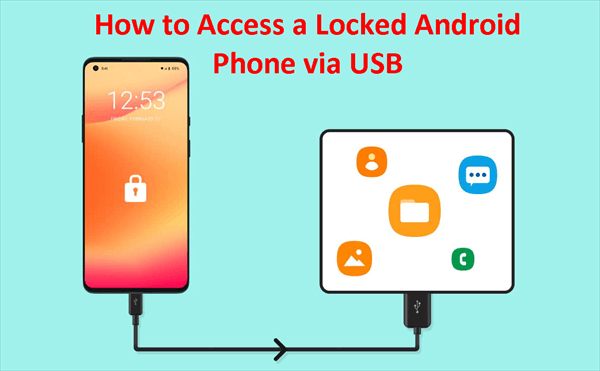
When an Android phone becomes locked, whether due to a forgotten pattern, PIN, password, or security protocols like Factory Reset Protection (FRP), gaining access requires understanding specific authentication mechanisms, security architectures, and official recovery procedures.
An Android phone can be locked by a standard screen lock (PIN, pattern, or password), a carrier network lock, or Google's Factory Reset Protection (FRP). To regain access to a screen-locked device, you can use Google's Find My Device service, enterprise management credentials, or perform a hardware factory reset, though this will erase local data unless a cloud backup exists. Carrier locks require contacting your mobile provider for an unlock code after fulfilling contract terms, while FRP requires entering the original Google account credentials associated with the device after a wipe.
Understanding Android Security Architecture and Lock Types
Modern Android operating systems employ multi-layered security frameworks designed to protect user data from unauthorized physical and remote access. Understanding the exact nature of an "android phone locked" scenario is the essential first step toward remediation. Locks generally fall into three distinct categories: screen locks, carrier locks, and security-driven device locks like Factory Reset Protection (FRP). Each type serves a specific security objective and requires entirely different methodologies to resolve.
Screen locks protect personal information from casual snoopers or physical theft. They utilize hardware-backed security modules, such as a Trusted Execution Environment (TEE) or a dedicated cryptographic chip (like Titan M on Google Pixel devices), to store hashed versions of your PIN, password, or biometric template. When you enter a credential, the system hashes the input and compares it against the stored secure hash. If they match, the TEE releases the master encryption key, decrypting the user partition on the fly via file-based encryption (FBE).
Carrier locks, by contrast, are firmware or software restrictions placed on the device's baseband modem. These restrictions prevent the phone from registering on cellular networks operated by competitors. They are entirely separate from operating system security and do not affect your ability to access apps, photos, or settings while disconnected from cellular data or connected to Wi-Fi.
Finally, Factory Reset Protection (FRP) is an anti-theft mechanism introduced by Google in Android 5.0 Lollipop. When a device is factory reset outside of the standard settings menu—such as through the hardware recovery menu—FRP triggers upon reboot. It demands the credentials of the Google account that was last synchronized on the device, rendering the hardware useless to anyone who steals it and attempts a wipe.
Common Causes and Prevention of Phone Lockouts
Lockouts generally occur due to human error, unexpected software behavior, or administrative policies. Recognizing how these situations arise helps prevent future incidents and guides you toward the correct troubleshooting path.
Forgotten Screen Credentials
The most frequent cause of a locked Android phone is a forgotten PIN, pattern, or password. This often happens when users frequently change their security credentials, rely on complex patterns they do not use daily, or allow children to play with the device, resulting in accidental multiple incorrect entry attempts.
Multiple Incorrect Attempts and Timeouts
When you enter an incorrect screen lock credential multiple times, Android institutes progressive security lockouts. Initial incorrect entries trigger a 30-second timeout. Subsequent failures can extend this delay to several minutes, and on many modern builds, continuous failures will trigger an automatic secure wipe if configured in the security settings.
Second-Hand Purchases and Enterprise Restrictions
Buying a used Android phone from secondary marketplaces frequently leads to an FRP lockout. If the previous owner performs a factory reset from the recovery menu without first removing their Google account from the device settings, the new user will be blocked at the setup screen. Similarly, enterprise devices enrolled in Mobile Device Management (MDM) platforms can be remotely locked or wiped by system administrators if compliance policies are violated.
Preventive Best Practices
- Enable Cloud Backup: Regularly synchronize your contacts, photos, and app data to Google Drive or a manufacturer cloud service (such as Samsung Cloud). This ensures that if a factory reset becomes necessary, your data is recoverable.
- Biometric Fallbacks: Always register an alternative unlock method, such as a fingerprint or face unlock, alongside a strong PIN or password that you have securely documented.
- Account Verification: Ensure you know the exact email address and password of the primary Google account logged into the device before initiating troubleshooting.
Step-by-Step Methods to Unlock an Android Phone
When faced with an active lockout, the available solutions depend heavily on the Android version, manufacturer software customizations, and whether you have access to connected recovery accounts.
Method 1: Using Google Find My Device (Android 4.4 to Android 7.1)
On older versions of Android, Google provided a "Forgot Pattern" or "Forgot PIN" feature directly on the lock screen after multiple failed attempts, which allowed authentication using Google account credentials. For devices running Android 8.0 Oreo and newer, this direct on-device recovery option was removed for security reasons. Instead, you must use the remote web interface.
- Navigate to the official Google Find My Device portal using a computer or another mobile device.
- Log in with the exact Google account credentials currently active on the locked phone.
- Select the locked device from the list of registered hardware at the top of the interface.
- Click on the Secure Device or Erase Device option. Choosing "Secure" on supported older builds allows you to set a temporary lock screen message and password, while erasing will wipe the device entirely.
Method 2: Manufacturer-Specific Recovery Services
Major Android OEMs provide proprietary remote management tools that can unlock devices without a full factory reset, provided the service was set up prior to the lockout.
- Samsung SmartThings Find / Find My Mobile: For Samsung Galaxy users, logging into the Samsung SmartThings Find portal with a Samsung account allows you to select Unlock. This command bypasses the screen lock remotely, provided the device has an active internet connection (Wi-Fi or cellular data) and the remote unlock toggle was previously enabled in settings.
- Xiaomi, OnePlus, and Other OEMs: Many manufacturers require utilizing their proprietary cloud ecosystems or servicing centers if recovery credentials are lost.
Method 3: Performing a Hard Factory Reset via Recovery Mode
If remote unlocking services are unavailable and you cannot remember your credentials, performing a hard factory reset through the hardware recovery menu is the universal fallback. Note that this action deletes all local data on the device.
- Power off the locked Android phone completely. If the device refuses to turn off, wait for the battery to drain or press and hold the Power and Volume Down buttons simultaneously until the screen goes black.
- Boot into Recovery Mode by holding a specific combination of physical buttons. This varies by manufacturer:
- Google Pixel / Motorola / OnePlus: Press and hold Power + Volume Down.
- Samsung Galaxy: Press and hold Power + Volume Up (and Bixby button on older models).
- Xiaomi / Redmi: Press and hold Power + Volume Up.
- Use the Volume Down button to navigate the text menu until Recovery Mode or Wipe data/factory reset is highlighted.
- Press the Power button to select it.
- Confirm the action by navigating to Factory data reset and pressing the Power button.
- Once the wipe process completes, select Reboot system now.
Note: Upon rebooting, the device will prompt you to complete the initial setup wizard. If FRP is active, you must enter the original Google account username and password.
Comparison of Android Unlocking and Recovery Solutions
Choosing the right approach depends on your specific lockout scenario, data preservation priorities, and access to auxiliary tools.
| Unlocking Method | Data Preservation | Technical Difficulty | Requirements & Prerequisites |
|---|---|---|---|
| OEM Remote Unlock (e.g., Samsung Find My Mobile) | Preserves Data | Low | Samsung account logged in; active internet connection; remote unlock setting enabled. |
| Google Find My Device (Erase) | Data is Erased | Low | Known Google account credentials; active internet connection; location services enabled. |
| Hardware Factory Reset | Data is Erased | Moderate | Ability to access Recovery Mode via physical button combinations; FRP credentials required post-wipe. |
| Carrier Network Unlock | Preserves Data | Low | Fulfilled contract terms; device fully paid off; official unlock code from carrier customer service. |
| Professional Third-Party Tools | Variable | High | Windows/Mac computer; USB debugging enabled (rarely applicable on locked screens); financial cost. |
Troubleshooting Carrier and FRP Locks
Beyond screen lockouts, users frequently encounter restrictions related to cellular networks or anti-theft protection. Resolving these issues requires adherence to strict verification protocols.
Resolving Factory Reset Protection (FRP) Lockouts
If you performed a factory reset and are stuck on the "Verify your account" screen, you must enter the exact email address and password that was synced to the phone before the wipe.
- Common Pitfall: Entering a newly created Google account or an account that was added only briefly. FRP locks the device to the primary account that established the device profile.
- Resolution: If you cannot remember the account password, you must recover it via the Google Account Recovery Page using a secondary device, wait the mandatory security waiting period (often 24 to 72 hours for security locks), and then input the newly updated password on the locked phone.
Resolving Carrier Network Locks
When an Android phone displays messages such as "SIM network unlock PIN" or "Network locked," it means the device hardware is restricted to a specific telecommunications carrier.
- Eligibility: Carriers are legally or regulatory obligated in many jurisdictions (such as the United States under FCC guidelines or the European Union) to unlock devices once the purchase contract is fulfilled, the device is fully paid off, or the customer is traveling internationally.
- Procedure: Contact your carrier's customer support department, provide the device's IMEI number (found by dialing
*#06#or checking the SIM tray), and request an unlock code or an over-the-air network authorization.
Frequently Asked Questions
Can I bypass an Android lock screen without losing my data?
On modern Android versions (Android 8.0 and above), bypassing a secure lock screen without losing data is virtually impossible unless you can utilize manufacturer-specific remote unlock services (such as Samsung's Find My Mobile) that were pre-configured on the device. Security encryption ties user data directly to the lock screen credentials, meaning a wipe is typically required if remote methods fail.
What is Google Factory Reset Protection (FRP) and how do I avoid it?
FRP is an automatic security feature that triggers when a phone is wiped outside of the settings menu. To avoid getting locked out by FRP when selling, gifting, or resetting your phone, always navigate to Settings > Accounts (or Users & Accounts) > Remove Account for all Google accounts before performing a factory reset.
Why won't my phone connect to Find My Device to unlock it?
Remote unlocking services require two conditions to be met: the device must be powered on, and it must have an active connection to the internet via Wi-Fi or cellular data. If the phone is powered off, offline, or has mobile data toggled off from the lock screen, remote commands cannot reach the device. In this scenario, a hardware factory reset is the only viable path.
How do I find my device's IMEI number if the phone is locked?
For carrier network unlocking or warranty verification, you can find the 15-digit IMEI number by dialing *#06# directly from the emergency call dialer on the lock screen. Alternatively, the IMEI is frequently printed on the original retail packaging box or laser-etched onto the physical SIM card tray.
Recommendations and Next Actions
If you are currently locked out of your Android phone, begin by attempting manufacturer-specific web portals like Samsung SmartThings Find if you use a Galaxy device. If those services are unavailable or your device belongs to another manufacturer, prepare to perform a hardware factory reset via Recovery Mode. Ensure you have your primary Google account email and password ready to complete the post-reset setup wizard and clear Factory Reset Protection. For ongoing device security, maintain an active cloud backup schedule so that future recovery procedures do not result in permanent data loss.