Connecting Airtable to Microsoft Power BI allows organizations to transform flexible, low-code database records into high-level business intelligence. As of 2026, the most effective way to integrate these platforms is through Airtable’s Web API using Personal Access Tokens (PATs) or by employing dedicated third-party data connectors. This integration enables automated data refreshes, complex relational modeling, and advanced visualization that exceeds Airtable's native "Interface Designer" capabilities.
Understanding the Airtable and Power BI Ecosystem
Airtable has evolved significantly from a simple spreadsheet-database hybrid into a robust enterprise platform. However, while its internal reporting tools are excellent for operational tracking, they often lack the "slicing and dicing" power required for deep financial modeling or cross-departmental analytics. Power BI fills this gap by acting as the centralized visualization layer.
In 2026, the integration landscape is defined by security and scalability. The legacy use of API keys has been entirely replaced by scoped Personal Access Tokens, which provide more granular control over what data Power BI can ingest. Understanding how these two entities interact—one as a flexible data entry and management tool (Airtable) and the other as a rigid, high-performance analytical engine (Power BI)—is the first step toward a successful deployment.
Prerequisites for a Successful Integration
Before initiating the connection, you must ensure that your environment meets specific technical requirements. Attempting to link these services without the correct permissions or identifiers will result in authentication failures.
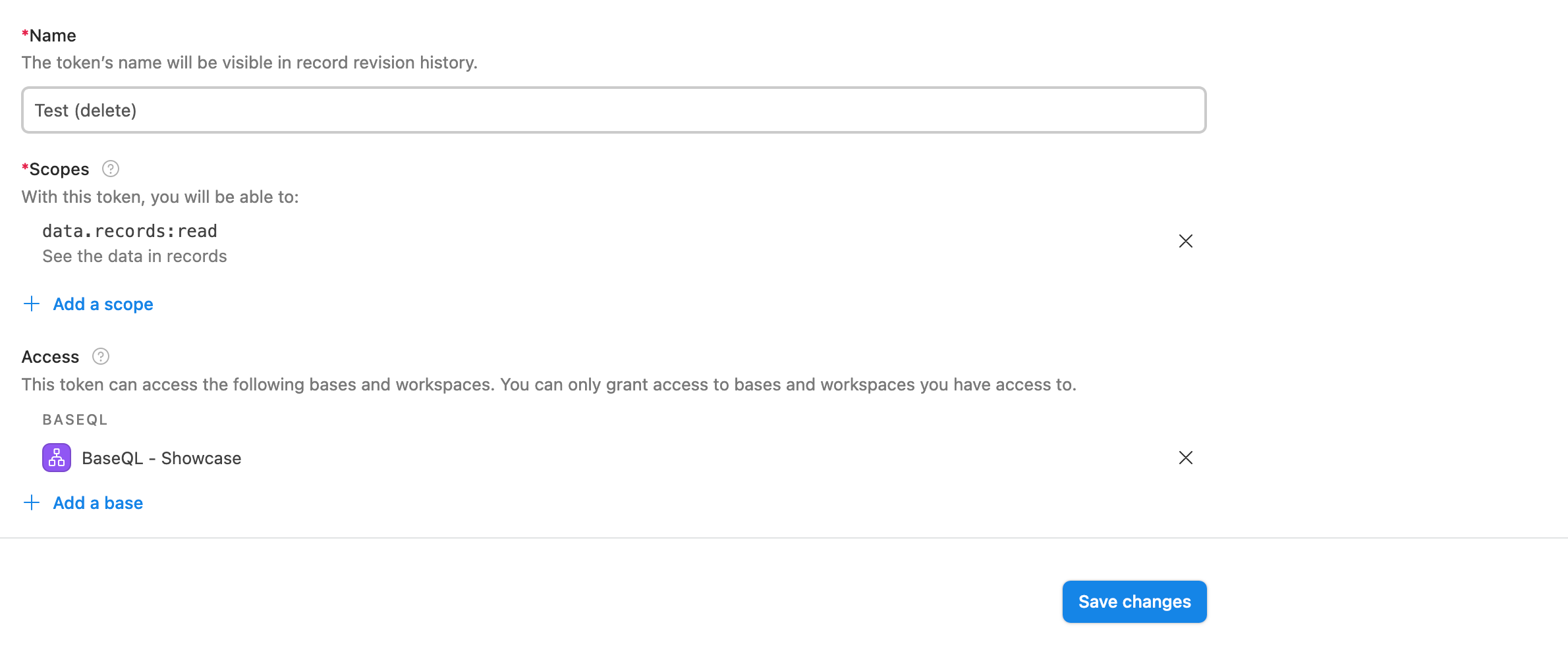
- Airtable Personal Access Token (PAT): You must generate a token within your Airtable account settings. This token should have
data.records:readandschema.bases:readscopes. - Base and Table IDs: Power BI requires the unique identifiers for the specific base and table you wish to query. These can be found in the Airtable API documentation (the "Help" menu within your base) or by inspecting the URL of your base.
- Power BI Desktop: While the Power BI Service (web version) handles scheduled refreshes, the initial data modeling and connection setup must be performed in the Power BI Desktop application.
- Data Structure Readiness: Airtable is "schema-flexible," meaning users can change column types easily. For Power BI to work effectively, your Airtable views should be locked or stabilized to prevent breaking the Power Query transformation steps.
Method 1: Connecting via the Native Web API (Power Query)
The most direct and cost-effective method involves using Power BI’s "Web" connector to fetch data from the Airtable REST API. This method is preferred for developers who want to avoid the cost of third-party middleware.
Step 1: Generating the Request URL
The Airtable API uses a standard URL format to serve data. The basic structure is:
https://api.airtable.com/v0/{Your_Base_ID}/{Your_Table_Name_or_ID}
If your table name contains spaces, you must use URL encoding (e.g., "Project Tracker" becomes "Project%20Tracker"). It is often safer to use the Table ID (starting with tbl) to avoid issues with renamed tables.
Step 2: Configuring Authentication in Power BI
Open Power BI Desktop and select Get Data > Web. In the dialog box, select the Advanced option.
- URL Parts: Enter your request URL.
- HTTP Request Header Parameters: In the first box, type
Authorization. In the second box, typeBearer YOUR_PERSONAL_ACCESS_TOKEN. Ensure there is a single space between "Bearer" and your token.
Step 3: Handling JSON Transformation
Airtable returns data in a nested JSON format. When the data loads into the Power Query Editor, you will initially see a list of "Records."
- Click on the List link in the "records" row.
- Convert the list to a table using the To Table button in the toolbar.
- Click the Expand icon (two arrows pointing away from each other) in the column header.
- Uncheck "Use original column name as prefix" to keep your headers clean.
- Repeat the expansion process for the "fields" column, which contains your actual Airtable data.
Method 2: Utilizing Third-Party Middleware and Connectors
For organizations with massive datasets or those who require a "no-code" approach to data engineering, third-party connectors are a viable alternative. These tools handle the API pagination and JSON flattening automatically.
Dedicated Data Pipelines
Services like Coupler.io, Skyvia, or Fivetran act as an intermediary. They extract data from Airtable on a schedule and push it into a SQL database or directly into Power BI. The primary advantage here is the bypass of Airtable’s 100-records-per-request limit, which otherwise requires complex "offset" logic in Power Query M language.
Integration Platforms (IPaaS)
Tools like Make (formerly Integromat) or Zapier can be used to push Airtable records to a Power BI streaming dataset. This is particularly useful for real-time dashboards where you need to see updates the moment a record is modified in Airtable. However, this method is generally less efficient for historical bulk data analysis than the direct API method.
Comparison of Integration Approaches
| Feature | Native API (Power Query) | Third-Party Connectors | Power BI Streaming Dataset |
|---|---|---|---|
| Cost | Free (Included with Power BI) | Monthly Subscription Fee | Free / Pro License |
| Setup Complexity | High (Requires M-code knowledge) | Low (Plug-and-play) | Medium |
| Data Volume | Best for < 50,000 records | Unlimited (Scalable) | Limited per push |
| Refresh Rate | Scheduled (Up to 8x/day) | Scheduled or Real-time | Real-time |
| Maintenance | Manual updates if schema changes | Managed by the provider | High (Requires workflow logic) |
Advanced Technical Considerations: Pagination and Rate Limits
One of the most common pitfalls in the Airtable Power BI integration is the 100-record limit. By default, Airtable’s API only returns 100 records per request. If your table has 5,000 records, a simple "Web" connection will only see the first 100.
Implementing Pagination in Power Query
To retrieve all records, you must implement a recursive function or a loop in Power Query M language that looks for an "offset" value in the JSON response. If an offset exists, the function must call the API again using that offset as a parameter.
let Pagination = (url) => let RawData = Json.Document(Web.Contents(url, [Headers=[Authorization="Bearer YOUR_TOKEN"]])), NextOffset = try RawData[offset] otherwise null, Records = RawData[records], Result = if NextOffset <> null then List.Combine({Records, Pagination(url & "?offset=" & NextOffset)}) else Records in Result in Pagination
Note: This is a conceptual representation of the M-code required to handle Airtable's pagination.
Managing Rate Limits
Airtable enforces a limit of 5 requests per second per base. If your Power BI report has multiple queries hitting the same base simultaneously, you may trigger a 429 "Too Many Requests" error. To mitigate this, consolidate your data into fewer tables within Airtable or use a data warehouse as a staging area.
Data Cleaning and Optimization in Power BI
Once the data is inside Power BI, it often requires "massaging" to be useful for visualization.
- Handling Linked Records: Airtable's linked record fields arrive in Power BI as lists of IDs. You will need to perform a "Merge Queries" operation in Power BI to join the main table with the related table to see actual names instead of alphanumeric strings.
- Date Formatting: Airtable's ISO dates are generally well-received by Power BI, but ensure you set the "Data Type" to Date/Time in the Query Editor to enable time-intelligence features like Year-over-Year growth.
- Multi-Select Fields: These are returned as delimited lists. Use the "Split Column by Delimiter" function if you need to count the frequency of specific tags across your dataset.
Troubleshooting Common Integration Issues
Error: "Access to the resource is forbidden"
This is almost always an issue with the Personal Access Token. Double-check that the token has not expired and that it has been granted access to the specific base you are trying to query. In Power BI, go to File > Options and settings > Data source settings and clear your permissions to re-enter the credentials.
Issue: Missing Data After Refresh
If new columns added to Airtable are not appearing in Power BI, it is likely because the "Expand" step in Power Query is hard-coded to only include the columns that existed during the initial setup. You must go back into the Power Query Editor, click the gear icon on the "Expanded Fields" step, and check the new columns.
Problem: Performance Lag
As bases grow, the API connection can become slow. To optimize performance, use the fields[] parameter in your Airtable URL to only request the specific columns needed for your report. For example: .../TableName?fields[]=Status&fields[]=Date. This reduces the JSON payload size significantly.
Frequently Asked Questions
Can I connect Power BI to Airtable without a Pro account?
Yes, you can use the Airtable Web API with a Free Airtable account. However, your API rate limits and record counts are subject to the limitations of your specific Airtable plan. Power BI Desktop is free, but you will need a Power BI Pro or Premium license to publish the report to the web and schedule automated data refreshes.
How often can the data refresh?
With a standard Power BI Pro license, you can schedule up to 8 refreshes per day. If you use a Power BI Premium capacity, this increases to 48 refreshes per day. If you require real-time updates, you must use a middleware tool that supports "Push" logic into a Power BI streaming dataset.
Is the connection secure?
Yes, using Personal Access Tokens (PATs) with the Authorization: Bearer header ensures that your data is encrypted in transit via HTTPS. Ensure that you do not share your PAT or embed it in clear text within shared Power BI files (.pbix) if other users have "Owner" permissions and can inspect the query code.
Can I write data back to Airtable from Power BI?
No, the standard Power BI integration is one-way (Read-only). Power BI is designed for data consumption. If you need to send data from a Power BI dashboard back to Airtable, you would need to use a Power Auto-mate integration or embed an Airtable form/interface within a Power BI "Power Apps" visual.
Does the integration support Airtable Attachments?
The API provides the URL for attachments stored on Airtable's servers. Power BI can ingest these URLs and display images using the "Image URL" data category. However, be aware that Airtable attachment URLs are often temporary (expiring) for security reasons, so you may need a workaround for long-term image persistence.
Final Recommendation
For most professional use cases in 2026, the Native Web API method is the recommended starting point due to its lack of additional costs and high degree of customization. However, if your data exceeds 10,000 records or you find yourself struggling with complex "M" coding for pagination, investing in a dedicated connector like Coupler.io or Fivetran will save significant engineering time and ensure a more stable data pipeline.
To begin, start by creating a scoped Personal Access Token in Airtable with "read" permissions, and attempt a simple "Get Data" pull for a single table. Once the connection is validated, you can then move on to the more complex tasks of handling pagination and relational modeling.