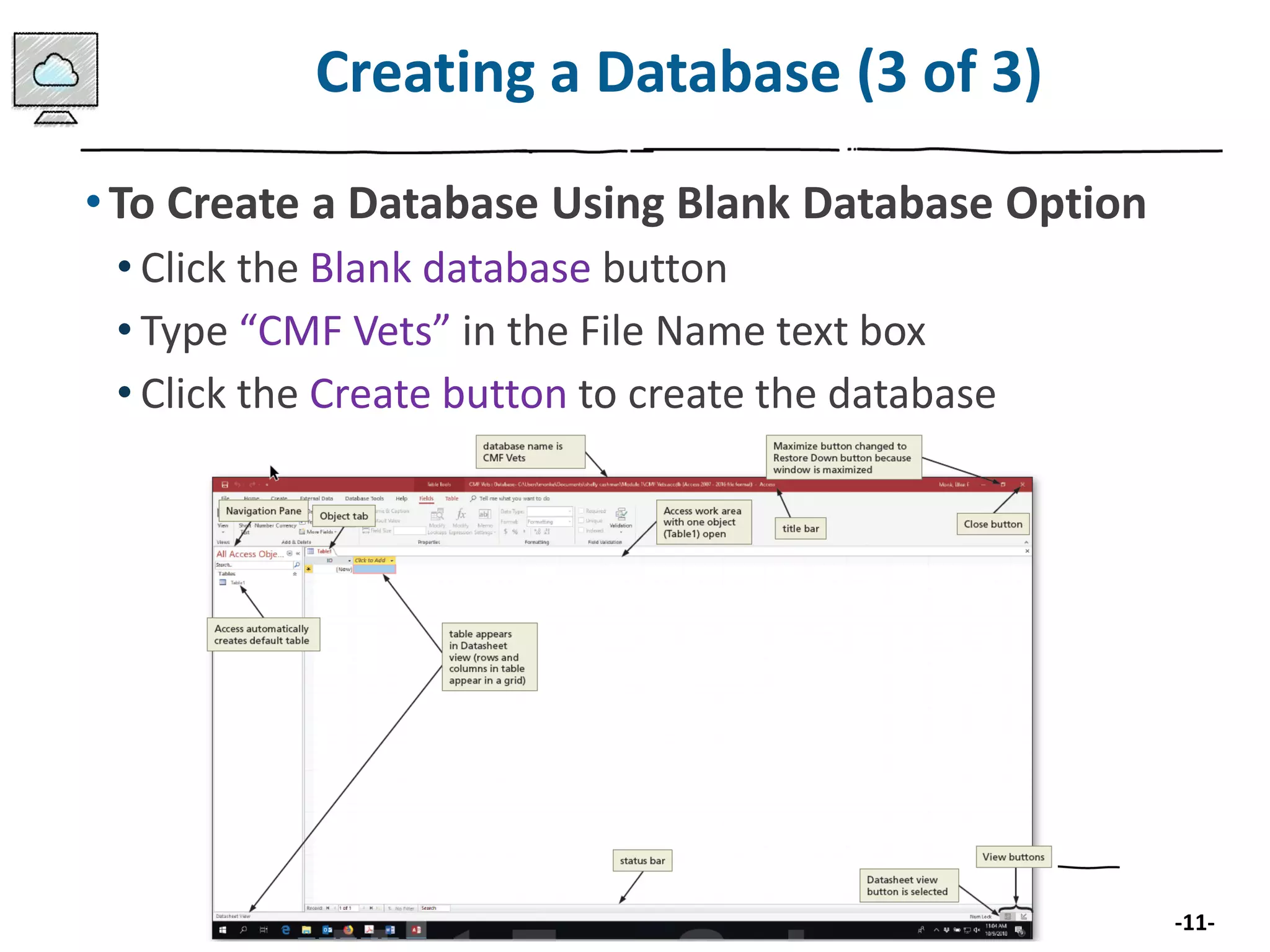
Opening and managing a Microsoft Access database (*.accdb or *.mdb) directly on an iPad presents a notable technical challenge because Microsoft does not offer a native, fully functional version of Access for iPadOS. Finding a workable solution requires understanding your precise workflow needs—whether you need to view data, run complex queries, modify table structures, or write VBA code—and evaluating the alternative access methods, cloud workarounds, and database migration strategies available for the platform.
Understanding the Core Compatibility Issue
To successfully access or manage data stored in a Microsoft Access database from an iPad, you must first understand why native execution is impossible. Microsoft Access is an integral part of the Microsoft Office suite designed specifically for Windows desktop operating systems. It relies heavily on the Windows operating system architecture, the Microsoft Jet Database Engine (or the newer Access Database Engine), Windows-specific file systems, and support for Visual Basic for Applications (VBA) macros.
IPadOS, by contrast, is a mobile operating system built on a different kernel, utilizing a sandboxed app environment that prevents traditional desktop file execution and dynamic link library (.dll) loading. Furthermore, Access uses a desktop file structure where multiple users or processes might lock local files, a paradigm that mobile file systems and cloud storage sync tools handle very differently. Because of these architectural boundaries, you cannot simply download an app from the App Store and open a .accdb file locally on your iPad with full read-write capabilities and macro support.
This reality shapes every strategy for interacting with an Access database on an iPad. Solutions generally fall into three categories: remote desktop connection (RDP), migrating the database backend to a cloud-compatible platform while retaining the iPad as a client, or converting the database into a web-friendly format. Each approach carries distinct operational trade-offs regarding cost, complexity, and performance.
Option 1: Remote Desktop Access (The Desktop-in-the-Cloud Approach)
For users who require full, uncompromised access to a desktop Microsoft Access environment—including custom forms, reports, macros, and VBA modules—remote desktop solutions represent the most reliable technical pathway.
How Remote Access Works on iPad
Remote desktop software allows your iPad to act as a client window displaying the desktop of a host computer running Windows. The actual database file remains on the host machine or a local network server, where Microsoft Access is installed and running. Your iPad sends touch or keyboard inputs to the host, and the host streams the visual output back to your tablet screen.
Leading Client Applications for iPadOS
- Microsoft Remote Desktop: Developed by Microsoft, this free application connects directly to Windows Pro, Enterprise, or Windows Server editions via Remote Desktop Protocol (RDP). It supports external keyboards, mice, and trackpads, making data entry significantly easier.
- TeamViewer / AnyDesk: These third-party remote access utilities are useful if your host computer sits behind a complex firewall or router configuration that complicates standard RDP setup. They require client software on both the iPad and the host machine.
- Parallels Access: Known for adapting desktop interfaces specifically for touch navigation, Parallels makes interacting with dense desktop applications like Access slightly more manageable on a tablet screen.
Advantages and Limitations
- Pros: 100% fidelity. Every query, macro, form, and report functions exactly as it does on your desktop. No data migration or database redesign is required.
- Cons: Requires a host computer to remain powered on and connected to the internet. Performance depends heavily on the speed and stability of your internet connection. Touch-only navigation can feel sluggish and imprecise without an attached physical keyboard and mouse.
Option 2: Migrating to a Cloud or Web-Based Backend
If your primary goal is to decentralize data entry and allow multiple users—including iPad users—to interact with Access data concurrently without maintaining an always-on host computer, migrating the data structure away from a local file-based format is necessary.
Access Services and SharePoint Limitations
Historically, Microsoft allowed organizations to publish Access databases to SharePoint via Access Services. However, Microsoft deprecated Access Services in SharePoint Online and has phased out support in recent versions of SharePoint Server. Consequently, direct browser-based rendering of classic Access web apps is no longer a viable modern pathway.
Modern Hybrid Strategies: Decoupling Front-End and Back-End
A more sustainable architectural approach involves separating the Access database into its two core components: the backend (tables and data) and the frontend (forms, queries, and reports).
- Migrating the Backend to Microsoft SQL Server or Azure SQL: You can export your Access tables to an Azure SQL Database or an on-premises SQL Server instance.
- Connecting the Frontend: On the desktop side, your Access frontend can link directly to the new cloud tables.
- Accessing Data on the iPad: Once the data resides in a cloud database, you can build a modern, mobile-friendly interface using low-code platforms like Microsoft Power Apps. Power Apps natively supports iPadOS through dedicated apps or web browsers, allowing users to view, edit, and submit database records securely from a tablet.
Advantages and Limitations
- Pros: Enables true multi-user cloud collaboration, eliminates file-locking corruption issues common with shared network folders, and provides a modern touch-optimized interface on the iPad.
- Cons: Requires significant technical expertise to migrate schemas, rewrite queries in T-SQL, and build a new front-end interface in Power Apps or a similar tool. This approach completely abandons native Access forms and reports.
Option 3: Exporting and Converting Data for iPad Consumption
If your requirements on the iPad are strictly read-only—such as reviewing sales reports, checking inventory lists, or analyzing customer logs—you do not need active database connectivity. You can export the necessary data into formats natively supported by iPad applications.
Common Export and Viewing Formats
- Microsoft Excel / CSV Files: You can export Access tables or query results to Excel spreadsheets and open them on the iPad using the Microsoft Excel app or Apple Numbers. While functional for viewing and basic filtering, this destroys relational integrity and relational constraints.
- PDF Reports: For static reporting, generating PDF snapshots of your Access reports and storing them in cloud storage (such as OneDrive, iCloud Drive, or Dropbox) allows seamless viewing, annotation, and offline access via the iPad's native Files app or PDF readers.
- SQLite Converters: Developers sometimes convert small Access datasets into SQLite databases, which can be queried on an iPad using specialized database client apps available on the App Store. However, this requires technical data transformation scripts.
| Solution Approach | Primary Functionality | Cost & Complexity | Best Suited For |
|---|---|---|---|
| Remote Desktop (RDP) | Full read/write, macros, VBA, forms, reports | Low software cost; Medium setup complexity | Power users needing complete desktop Access functionality on the go. |
| Cloud Backend + Power Apps | Collaborative data entry, modern mobile UI | High cost/subscription; High complexity | Businesses requiring multi-user iPad data entry without desktop dependencies. |
| Data Export (Excel/PDF) | Static viewing, reporting, offline access | Free; Low complexity | Users who only need to read reports or check static data snapshots. |
| Third-Party Database Viewers | Basic record inspection via file conversion | Variable cost; Medium complexity | Technical users comfortable converting and managing lightweight databases locally. |
Step-by-Step Guidance: Setting Up Remote Access for Your iPad
For most individuals and organizations seeking the fastest path to using Access on an iPad, Remote Desktop remains the practical standard. Follow this structured process to establish a secure connection:
- Prepare the Host Computer: Ensure your Windows PC has Microsoft Access installed and that the database file is placed in a reliable directory. Configure your Windows power settings so the computer does not enter sleep mode automatically.
- Enable Remote Access in Windows: On your Windows Pro or Enterprise machine, navigate to Settings > System > Remote Desktop, and toggle the switch to On. Note the exact PC name for later connection.
- Install the Client App: Download the Microsoft Remote Desktop app from the Apple App Store onto your iPad.
- Configure Network and Security: If connecting from outside your local Wi-Fi network, ensure your router permits port forwarding (TCP port 3389) or, preferably, establish a secure Virtual Private Network (VPN) connection to your home or office network. Avoid exposing RDP ports directly to the public internet without a secure gateway.
- Establish Connection: Open the app on your iPad, tap the plus icon (
+) to add a new PC, enter your Windows machine name or IP address, and supply your Windows login credentials. Once connected, launch Access on your remote desktop interface.
Common Mistakes to Avoid
- Attempting to sync
.accdbfiles via iCloud or OneDrive for simultaneous editing: Opening the same Access file directly from a cloud sync folder across multiple devices simultaneously causes severe file corruption and data loss. Access is not built for concurrent cloud-file synchronization. - Expecting native App Store solutions: Searching the App Store for "Microsoft Access for iPad" often leads to third-party database utilities that cannot read proprietary Access file formats natively. Verify file format compatibility before purchasing third-party tools.
- Neglecting security protocols: Leaving remote desktop ports exposed to the open internet without multi-factor authentication or a VPN invites unauthorized access and ransomware vulnerabilities.
Troubleshooting Common iPad Access Issues
- Connection Drops in Remote Desktop: If your RDP session freezes or disconnects frequently, check your iPad's Wi-Fi stability. Adjusting the remote desktop display resolution settings inside the iPad app can also reduce bandwidth demands and improve session responsiveness.
- Keyboard Shortcut Conflicts: When using an external iPad keyboard with Remote Desktop, key combinations like
Ctrl+CorAlt+Tabmay occasionally trigger on the iPadOS level rather than inside the Windows remote session. Configure the app's keyboard shortcut settings to pass keys directly to the remote PC. - Audio and Clipboard Sync Failures: If you cannot copy text between your iPad and the remote Windows session, check the connection settings within the Microsoft Remote Desktop app to ensure clipboard sharing and device redirection options are enabled.
Summary and Recommended Next Actions
Accessing a Microsoft Access database on an iPad requires bridging an architectural gap between a desktop-bound relational database engine and a mobile operating system. If you need complete feature parity—including forms, reports, and VBA code—use a secure Remote Desktop connection to a host Windows PC. If your goal is modern, collaborative data collection across multiple iPads, invest time in migrating your database backend to a cloud database paired with a Power Apps front-end. For simple data reviews, export your tables to Excel or PDF and distribute them via cloud storage. Assess your exact operational workflows, determine your budget and technical resources, and select the integration pathway that aligns with your requirements.