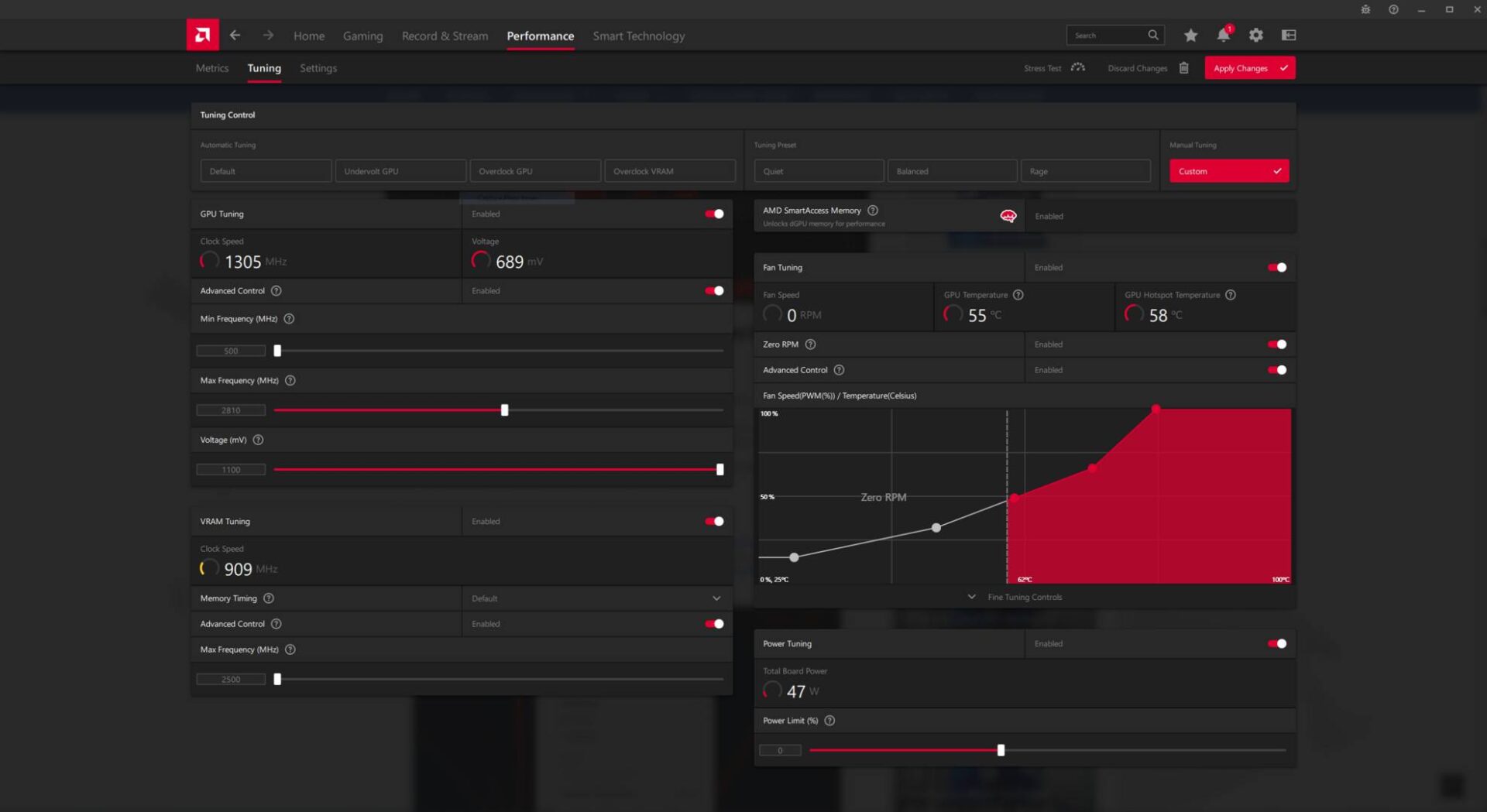
Overclocking your AMD GPU involves increasing the clock speed and voltage of your graphics card’s processor and memory to achieve higher frame rates and improved rendering performance. Using the integrated AMD Software: Adrenaline Edition, users can safely tune their hardware by adjusting power limits, frequency curves, and fan profiles to extract latent performance from their specific silicon.
Understanding the Fundamentals of GPU Overclocking
Overclocking is the process of manually pushing a graphics processing unit (GPU) beyond its factory-set operating frequencies. When you overclock an AMD GPU, you are effectively telling the hardware to perform more computational cycles per second. This directly correlates to higher frames per second (FPS) in gaming, faster video encoding times, and improved responsiveness in compute-heavy applications.
Modern GPUs, including those from the AMD Radeon RX series, ship with "boost clocks." These are dynamic frequency targets that the card will attempt to reach based on current thermal, power, and voltage headroom. Overclocking shifts these boundaries, allowing the card to sustain higher boost clocks for longer periods.
Risks and Safety Considerations
It is critical to understand that overclocking carries inherent risks. While modern hardware features robust protection mechanisms—such as thermal throttling and automatic voltage regulation—excessive settings can cause system instability, driver crashes, and, in rare instances, long-term hardware degradation. Because you are increasing the power draw, you must ensure your Power Supply Unit (PSU) can handle the increased load. Always remember that any damage caused by aggressive manual overclocking may void your manufacturer's warranty.
Prerequisites for Successful Overclocking
Before you begin, you must verify that your system is in an optimal state. Overclocking an unstable system will only lead to frustration, as you will be unable to distinguish between a "bad overclock" and underlying software conflicts.
- System Stability: Ensure your operating system is up to date and that you are using the latest official AMD Adrenaline drivers.
- Power Overhead: Check your PSU wattage. If you are using a 650W PSU with a card that peaks at 300W while gaming, you have little room for the additional 30-50W that an overclock might demand.
- Thermal Headroom: Overclocking increases heat output. Ensure your PC case has adequate airflow and that your GPU fans are functioning correctly.
- Baseline Benchmarking: You cannot measure performance gains without a baseline. Run a benchmark (such as 3DMark or a built-in game benchmark) at stock settings and record the results.
Utilizing AMD Software: Adrenaline Edition
AMD provides an integrated suite for tuning that eliminates the need for third-party software. To access these tools:
- Right-click your desktop and select AMD Software: Adrenaline Edition.
- Navigate to the Performance tab and select Tuning.
- Choose the Manual tuning option.
From here, you are presented with several critical controls:
- GPU Tuning: Allows you to set a Maximum Frequency (MHz) and Voltage (mV).
- VRAM Tuning: Adjusts the memory clock speed. Increasing this is often the most effective way to gain bandwidth-limited performance.
- Power Tuning: Increases the "Power Limit." This is essential; if you increase the core frequency but keep the power limit at 0%, the card will hit its power ceiling and throttle immediately.
- Fan Tuning: Allows for a custom fan curve. Increasing fan speed at higher temperatures is necessary to combat the extra heat generated by higher voltage.
Step-by-Step Optimization Workflow
Overclocking is an iterative process. Never jump to the maximum settings, as this will lead to immediate system instability. Follow this "step-and-test" methodology.
1. Increase Power Limit
Navigate to the Power Tuning section and slide the power limit to its maximum allowed value (usually +15% or +20%). This tells the card it is permitted to draw more power to maintain higher boost frequencies.
2. The Core Frequency Sweep
Begin by increasing your maximum GPU frequency in increments of 25–50 MHz. After each adjustment, apply the settings and run a stable, demanding game or benchmark for at least 15 minutes. Watch for "artifacts" (visual glitches), sudden freezes, or a return to the desktop (CTD).
3. Voltage Tuning (Undervolting/Overvolting)
Many modern AMD cards benefit from undervolting. By lowering the voltage slightly while maintaining the frequency, you reduce the heat output. This often allows the card to boost higher for longer because it isn't hitting its thermal or power limits as quickly. If you must add voltage to stabilize a high clock, do so in tiny increments (e.g., 5-10 mV).
4. Memory Overclocking
Memory stability is tested differently than core stability. If your memory clock is too high, you may not see an immediate crash, but you will see "stuttering" or checkerboard patterns on the screen. Increase the VRAM clock in 50 MHz increments.
Comparison Table: Stock vs. Overclocked Characteristics
| Feature | Stock Settings | Overclocked Settings |
|---|---|---|
| Power Consumption | Baseline (Factory Spec) | Higher (Potential +20%) |
| Thermal Output | Standard | Increased (Requires aggressive fan) |
| Stability | Certified/Guaranteed | Variable (Requires testing) |
| Performance | Factory Benchmark | Generally 3%–10% higher |
| Voltage | Auto-managed | Manual/Fine-tuned |
Troubleshooting Common Issues
Even with careful planning, you will likely encounter stability issues. Here is how to handle them:
- System Hangs/Black Screens: This usually indicates the core frequency is too high for the voltage provided. Open Adrenaline settings, lower the frequency, or reset to "Default" if the system fails to boot.
- Driver Timeout: AMD Software will often reset to default settings after a driver timeout. This is your primary diagnostic tool—if you see this message, your last change was unstable.
- Visual Artifacts: This is a classic sign of unstable VRAM. If you see flickering textures or floating geometry, lower your memory frequency immediately.
- Thermal Throttling: If your clock speeds drop significantly during long sessions, your GPU is hitting its temperature limit. Adjust your Fan Tuning to be more aggressive or increase your case airflow.
Frequently Asked Questions
Will overclocking make my GPU last less time?
Technically, operating components at higher temperatures and voltages can accelerate electromigration, a process that degrades silicon over time. However, if you stay within the software-limited power constraints of the Adrenaline suite, the impact on a card’s lifespan is usually negligible over the typical hardware upgrade cycle.
Is undervolting the same as overclocking?
Undervolting is the process of reducing voltage while keeping the clock speed the same or slightly higher. It is a form of optimization that often leads to better "effective" performance because the GPU can sustain higher average boost clocks without hitting thermal limits.
Can I overclock every AMD GPU?
Most modern Radeon RX cards are unlocked for overclocking, but lower-end or passively cooled cards may have locked power limits in their BIOS. If the "Tuning" tab in Adrenaline does not appear, your specific card model may not support manual overclocking.
Should I use third-party tools like MSI Afterburner?
While MSI Afterburner is popular, AMD’s native Adrenaline software is generally preferred for AMD GPUs. It is better optimized for the hardware, less likely to cause driver conflicts, and supports AMD-specific features like Radeon Chill and Anti-Lag.
Does overclocking improve gaming at all resolutions?
Overclocking provides the most benefit at 1080p and 1440p resolutions where the GPU is the primary bottleneck. At 4K, you are often limited by VRAM bandwidth or pixel fill rate, meaning overclocking may provide diminishing returns compared to lower resolutions.
What is the "Voltage Curve" and do I need it?
Advanced users can adjust the voltage curve to provide less power at lower frequencies and higher power only at max boost. This is an advanced technique that maximizes efficiency. Beginners should stick to the simple "Max Frequency/Voltage" slider until they are comfortable with basic stability testing.
Final Recommendation
Start your overclocking journey by simply increasing the power limit and using the "Auto-Undervolt" feature found in the AMD Adrenaline software. This automated process is highly reliable and often provides an immediate performance boost with better thermal efficiency. Once you have a feel for the stability of your card, you can manually refine the frequency and memory settings to squeeze out the final percentage of performance. Always prioritize system stability—a 2% performance gain is not worth a system that crashes during a critical moment.