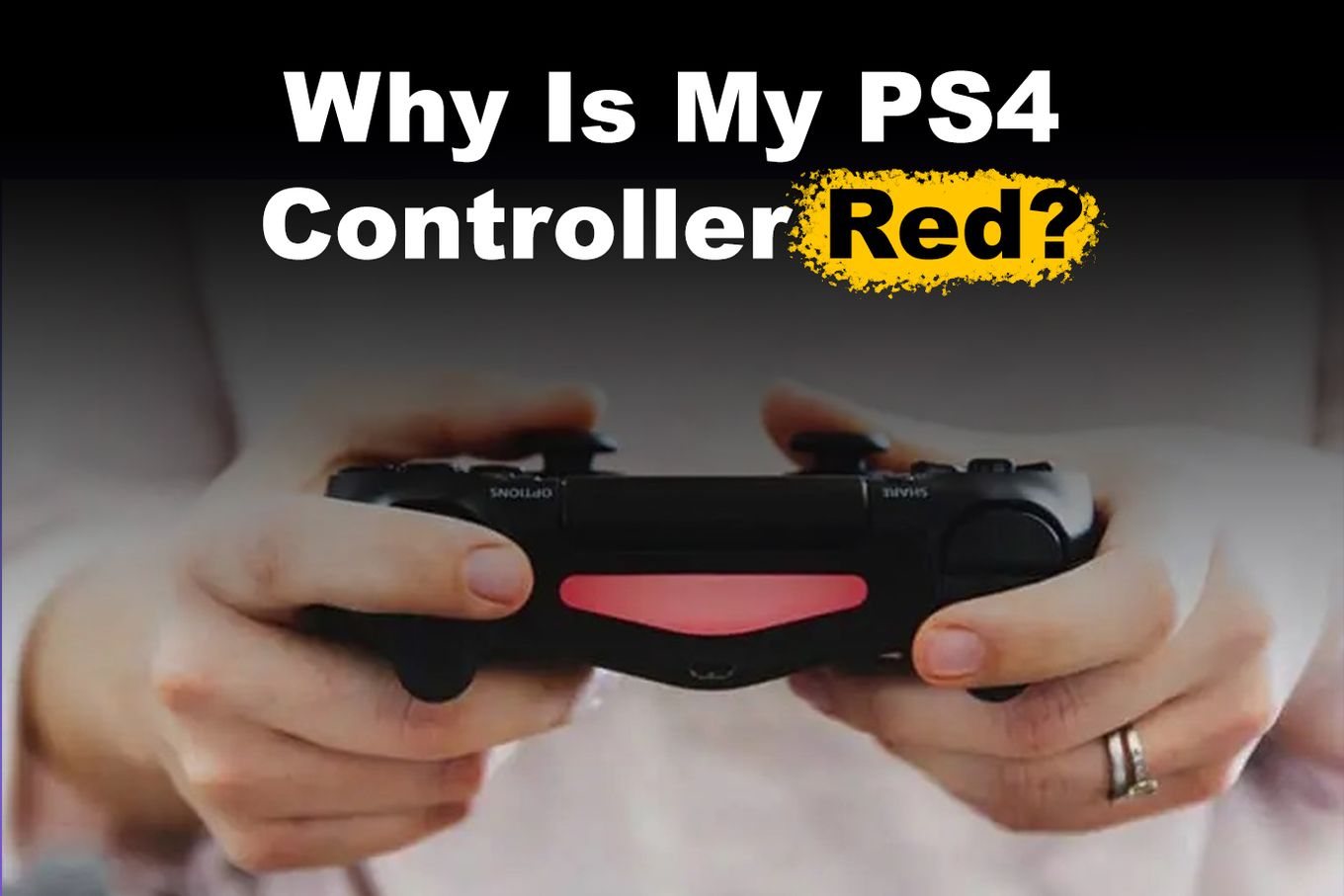
When your PlayStation 4 controller fails to pair or maintain a connection with your console, the most effective and reliable solution is to perform a hard reset on the controller using the physical reset button located on the back, followed by a resynchronization process using a high-quality data-capable USB cable. This process resolves the vast majority of wireless handshake failures and hardware-software communication errors.
Understanding the Connection Discontinuity
The PlayStation 4 DualShock 4 controller relies on a Bluetooth-based communication protocol to interact with the console. Under normal circumstances, the console and controller maintain a "handshake" that allows for instant wireless input. When this connection fails, it is usually due to one of three factors: a corrupted pairing profile, a depleted internal battery that cannot maintain the wireless signal, or interference from other Bluetooth devices in the immediate vicinity.
Many users mistakenly believe that plugging a controller into the PS4 via USB will automatically pair it to the system. While USB connectivity provides power, it does not guarantee a Bluetooth pairing if the controller’s internal software or the console’s Bluetooth cache has become unresponsive. Addressing this requires a structured approach that moves from simple physical resets to more complex troubleshooting involving the system’s safe mode.
Step-by-Step Hardware Reset
Before attempting any software-based troubleshooting, you must clear the controller’s temporary memory. The DualShock 4 is equipped with a small, recessed reset button that is often overlooked.
- Locate the Reset Hole: On the back of the controller, near the L2 shoulder button, you will find a tiny hole. This is the hardware reset access point.
- Prepare a Tool: Use a paperclip, a SIM card ejector tool, or a similar thin, rigid object. Do not use toothpicks or anything that could break off inside the hole.
- Execute the Reset: With the console powered on, press and hold the button inside the hole for approximately five to ten seconds. This action cuts power to the controller’s internal wireless chip, forcing it to lose its existing pairing memory.
- Reconnect: Once the reset is complete, plug the controller into the PS4 using a USB cable that is confirmed to support data transfer. Many cheap charging cables are "charge-only" and will not transmit the pairing signal required for the console to recognize the controller.
- Finalize: Press the PlayStation (PS) button on the controller. The light bar should briefly glow, indicating a successful handshake between the devices.
Troubleshooting USB Cable Limitations
A common point of failure is the assumption that any Micro-USB cable will work for connecting a controller to a PS4. The PlayStation 4 requires a data-capable cable for initial synchronization. If you are using a cable that came with a cheap wall charger or a device that does not support data, the console will charge the controller but will not "see" it as an input device.
If the controller shows an orange light when plugged in (indicating charging) but fails to interact with the console, the cable is likely the bottleneck. Always test with the original Sony-supplied cable if available, or a known-good data cable from another external hard drive or high-quality smartphone peripheral. Ensure the USB port on the console is clean and free of dust or debris, which can also cause intermittent connectivity issues.
Addressing Interference and Bluetooth Congestion
The 2.4GHz frequency band, which the DualShock 4 uses for Bluetooth, is notoriously crowded. If your PS4 is located inside an entertainment cabinet, near a router, or adjacent to other Bluetooth devices, signal degradation can prevent the controller from maintaining a stable link.
- Distance: Ensure the controller is within 10–15 feet of the console during the initial re-pairing phase.
- Obstacles: Metal surfaces and thick glass can block the signal. Move the console to an open, well-ventilated space.
- Router Proximity: If the console is placed directly on top of or under a high-performance Wi-Fi router, the electromagnetic interference may overwhelm the controller’s signal. Relocate the console at least two feet away from wireless transmitters.
Advanced Troubleshooting: Safe Mode
If the standard reset does not restore connectivity, there may be a deeper issue with the PS4 system software’s Bluetooth driver. Accessing Safe Mode can often force a recalibration of peripheral device management.
Accessing Safe Mode
- Turn off your PS4 completely. Do not leave it in Rest Mode.
- Press and hold the power button on the front of the console.
- Keep holding until you hear two beeps—one when you first press it, and a second one about seven seconds later.
- Release the button and connect the controller via a confirmed data cable.
Once in Safe Mode, navigate to the option labeled "Restore Default Settings." This will not delete your saved games or media; it simply resets the system’s network and peripheral configuration, which often clears out the persistent communication errors preventing the controller from connecting wirelessly.
Comparative Troubleshooting Matrix
Use the following table to identify the most likely cause of your connection failure based on the behavior of the controller’s light bar.
| Light Bar Behavior | Likely Cause | Recommended Action |
|---|---|---|
| No light at all | Dead battery or bad cable | Charge for 30 minutes; try a new data cable |
| Solid Orange light | Charging, but not paired | Perform hardware reset; use data cable |
| White light flashing | Trying to pair, but failing | Remove interference; check Bluetooth settings |
| Light turns on then off | Battery or internal board error | Try secondary controller to isolate hardware fault |
FAQ: Frequently Asked Questions
Why does my controller only work when plugged in via USB? This typically happens when the Bluetooth radio in the controller or the console has lost the security handshake. Performing a hard reset and re-pairing while connected via a data cable usually fixes this, but if it persists, the internal Bluetooth module in the controller may be physically damaged.
Can I pair a PS4 controller to a PS4 without a cable? No. For security and communication reasons, the PS4 requires a physical USB-to-controller connection to establish a new Bluetooth pairing. Once the pair is established, you can remove the cable and continue wirelessly, but the initial link must be made via wire.
What if the light bar blinks white but never turns blue? This indicates that the controller is attempting to communicate with the console but is being rejected or is timing out. This is often caused by a "full" Bluetooth device list in the PS4 settings. Navigate to Settings > Devices > Bluetooth Devices and remove any old or unused controllers from the list before attempting to pair again.
Is it possible that the PS4 internal Bluetooth antenna is broken? While rare, the antenna inside the PS4 can fail, especially if the console has been dropped or subject to extreme heat. If multiple different controllers fail to connect to your console even after being tested on another PS4, the console's internal wireless board is likely the point of failure.
Should I update the controller firmware? The PS4 does not allow you to manually update controller firmware through the standard settings menu; however, system software updates frequently include peripheral driver updates. Ensure your PS4 is updated to the latest system version to maintain compatibility.
Final Recommendation
For the vast majority of users facing a PS4 controller connectivity issue, the combination of a hard hardware reset (using a paperclip in the back hole) and the use of a verified, high-quality data-transfer USB cable will resolve the problem within minutes. If these steps fail, prioritize testing the controller on a different console. If the controller works elsewhere, the issue lies with your console’s system software or wireless hardware, and you should consider a full system initialization (factory reset) as a last resort, ensuring you back up your data to the cloud or an external drive first.