Finding the single best printer for Windows 7 requires balancing reliable core driver support, modern hardware efficiency, and the realities of operating an older operating system. For a Windows 7 environment, the ideal choice is a monochrome or color laser printer from a manufacturer like Brother, such as the Brother HL-L2350DW, which provides robust PCL or BR-Script drivers, stable USB and wired or secure wireless connectivity, and an absence of mandatory cloud-based account setups that often break compatibility with legacy platforms.
Understanding the Windows 7 Printing Ecosystem in 2026
Operating a computer running Windows 7 in 2026 presents unique technical challenges, particularly when integrating modern peripherals. Microsoft officially ended extended support for Windows 7 in January 2020. Consequently, most printer manufacturers have phased out dedicated software development kits (SDKs), modern companion apps, and automated installer packages for this legacy platform.
When searching for the 1 best printer for Windows 7, consumers and enterprise users alike must look past glossy marketing materials that emphasize smartphone integration, cloud printing ecosystems, and automatic over-the-air firmware updates. Instead, the focus must shift entirely toward hardware longevity, universal driver availability, basic Printer Command Language (PCL) or PostScript emulation, and local connection stability.
Many contemporary printers rely heavily on cloud-based configuration tools and modern web-based setup wizards that fail to load or authenticate correctly within older web browsers like Internet Explorer 11 or outdated versions of Chrome and Firefox supported by Windows 7. Therefore, the best printer for this operating system is one that can be installed using basic, standalone inf-style drivers, offers a physical USB connection or a straightforward local network configuration via an embedded web server (EWS), and requires minimal proprietary software bloat.
Key Criteria for Evaluating Legacy-Compatible Printers
Selecting a printing device that functions seamlessly with Windows 7 demands careful evaluation of specific hardware and software metrics. Ignoring these criteria often results in communication errors, partial page printouts, or complete inability of the spooler service to recognize the device.
Driver Availability and Architecture
The single most critical factor is the availability of standalone 32-bit (x86) and 64-bit (x64) drivers. Many manufacturers provide a basic driver package or universal printer driver (UPD) that strips away unnecessary user-interface applications while retaining core printing functionality.
- Universal Printer Drivers: Brands like HP, Xerox, and Lexmark offer universal drivers that communicate using standard PCL or PostScript languages, bypassing the need for OS-specific native components.
- WHQL Certification: Drivers that carry Windows Hardware Quality Labs certification ensure stable integration with the Windows 7 print spooler architecture, minimizing Blue Screen of Death (BSOD) risks associated with faulty kernel-mode printing components.
Connection Interfaces
While wireless printing is convenient, configuring modern Wi-Fi security protocols (such as WPA3 or enterprise-grade authentication) can be problematic on unpatched or partially patched Windows 7 machines.
- USB 2.0 / 3.0: A direct USB connection remains the gold standard for legacy reliability. It removes network handshake issues, IP address conflicts, and router firewall blocks.
- Ethernet (RJ-45): Hardwired local area network connections offer a stable alternative, allowing the printer to be assigned a static IP address accessible via standard TCP/IP port configuration in the Windows 7 Devices and Printers control panel.
Consumables and Maintenance Costs
Legacy systems are frequently deployed in environments focused on cost-efficiency, such as small businesses, home offices, or specialized industrial setups. Laser printers generally outperform inkjet alternatives for Windows 7 users because toner cartridges do not dry out during periods of infrequent use, which is common for secondary or archival legacy workstations.
Top Contender: Brother HL-L2350DW as the Ideal Choice
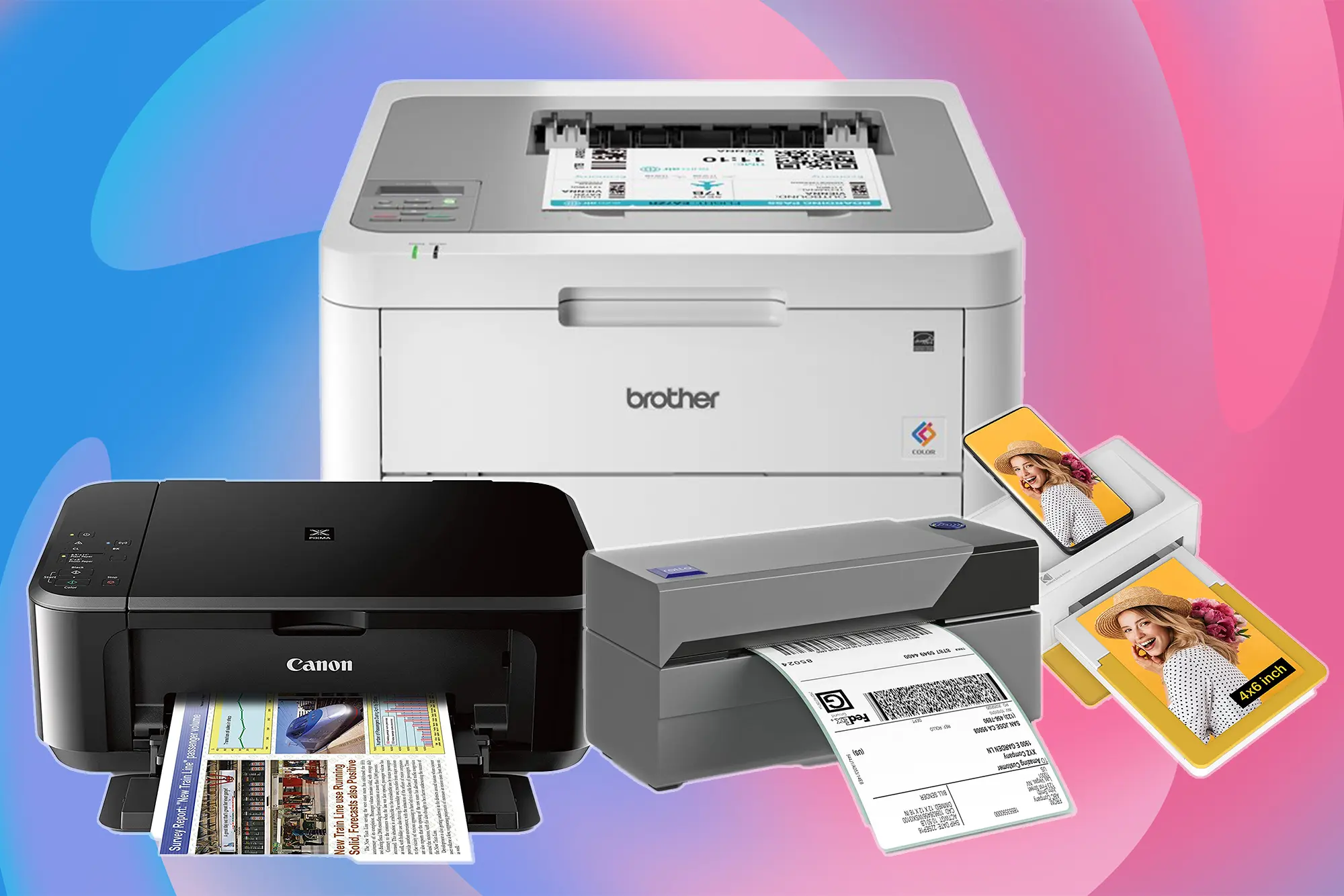
When examining the current market for hardware that maintains backward compatibility, the Brother HL-L2350DW monochrome laser printer stands out as the most reliable option for Windows 7 environments.
Why the Brother HL-L2350DW Excels on Windows 7
Brother has maintained a reputation for supporting legacy operating systems longer than many of its competitors. For the HL-L2350DW, Brother provides dedicated, downloadable standalone driver packages for both Windows 7 32-bit and 64-bit architectures directly on their official support portal, without forcing users through mandatory online registration walls or cloud software suites.
| Feature | Specification | Impact on Windows 7 Integration |
|---|---|---|
| Printer Type | Monochrome Laser | Eliminates ink-clogging issues during intermittent legacy system use. |
| Connectivity | USB 2.0, Wi-Fi 802.11 b/g/n | Allows reliable direct USB setup or static IP assignment via Ethernet/Wi-Fi. |
| Driver Support | Standalone x86/x64 Drivers | Installs cleanly via the classic Add Printer wizard without bloatware. |
| Print Speed | Up to 32 pages per minute | Ensures high throughput for archival documentation and administrative tasks. |
| Emulation | GDI (Graphics Device Interface) | Processes print jobs efficiently using system resources without heavy rasterizing software. |
Installation Procedure for Windows 7
Deploying this printer on a Windows 7 machine requires a methodical approach to ensure the print spooler handles data streams correctly:
- Download the Official Driver: Visit the official Brother Solutions Center and download the "Printer Driver (Acrobat/CUPS/etc. equivalent or standard inf driver)" specifically designated for Windows 7. Do not download the full installer suite if it attempts to connect to online configuration servers.
- Prepare the Connection: Keep the USB cable disconnected from the computer during the initial stages of the driver installation package execution, or use the manual "Add a Printer" wizard via Control Panel.
- Configure TCP/IP Port (If Networked): If connecting via an Ethernet cable or local router, assign a static IP address to the printer via its control panel screen, then select "Standard TCP/IP Port" during the Windows printer installation wizard.
- Test the Spooler: Print a test page to verify bi-directional communication and ensure that error reporting (such as low toner alerts) communicates back to the Windows 7 taskbar tray icon.
Alternative Solutions and Workarounds
If the primary hardware choice is unavailable, users operating Windows 7 can evaluate other robust strategies to maintain printing capabilities.
Network Print Servers and Shared Printers
Connecting a legacy printer to a modern router equipped with a USB print server port, or sharing a printer from a secondary Windows 10/11 machine on the same local network, provides an effective workaround. However, users must ensure that Server Message Block (SMB) v1 protocols are disabled or securely managed, as Windows 7 machines are vulnerable to network exploits if legacy file and printer sharing protocols are improperly configured.
Virtual PDF Printers
For environments where physical hard copies are secondary to document preservation, installing a stable virtual printer such as BullZip PDF Printer or CutePDF Writer provides a seamless bridge. These tools install legacy printer drivers that output standard PDF files instead of sending data to physical hardware rollers, proving exceptionally useful for archiving workflows on offline Windows 7 terminals.
Common Pitfalls and Troubleshooting
Operating legacy hardware and software combinations introduces specific failure points that require systematic troubleshooting techniques.
- Print Spooler Freezes: The Windows 7 print spooler service (
spoolsv.exe) can crash when processing corrupted print jobs from unsupported applications. Fix this by navigating toservices.msc, stopping the Print Spooler, clearing files fromC:\Windows\System32\spool\PRINTERS, and restarting the service. - Driver Signature Enforcement Issues: Unsigned or modified legacy drivers may fail to load on 64-bit Windows 7 installations if test-signing mode is disabled. Stick strictly to WHQL-certified OEM drivers from verified manufacturers to prevent kernel-load rejections.
- TLS Handshake Failures: Many modern web-based printer configuration pages utilize Transport Layer Security (TLS) 1.2 or 1.3 encryption. Because default Windows 7 installations only support up to TLS 1.1, users may experience "Page Cannot Be Displayed" errors when accessing the printer's internal web server unless appropriate Microsoft Security Advisories (such as KB3140245) have been manually applied to enable TLS 1.2.
Summary and Final Recommendation
Securing reliable printing capabilities on a Windows 7 system in 2026 relies on avoiding cloud-dependent devices and selecting robust hardware designed with strong local driver support. The Brother HL-L2350DW monochrome laser printer serves as the definitive choice for this requirement, offering straightforward USB and network connectivity, reliable PCL/GDI handling, and clean, unbundled driver packages. By prioritizing local connection interfaces, avoiding automated installer bloatware, and maintaining strict network security practices around legacy file-sharing protocols, users can achieve stable, long-term document production without upgrading their entire operating system architecture.