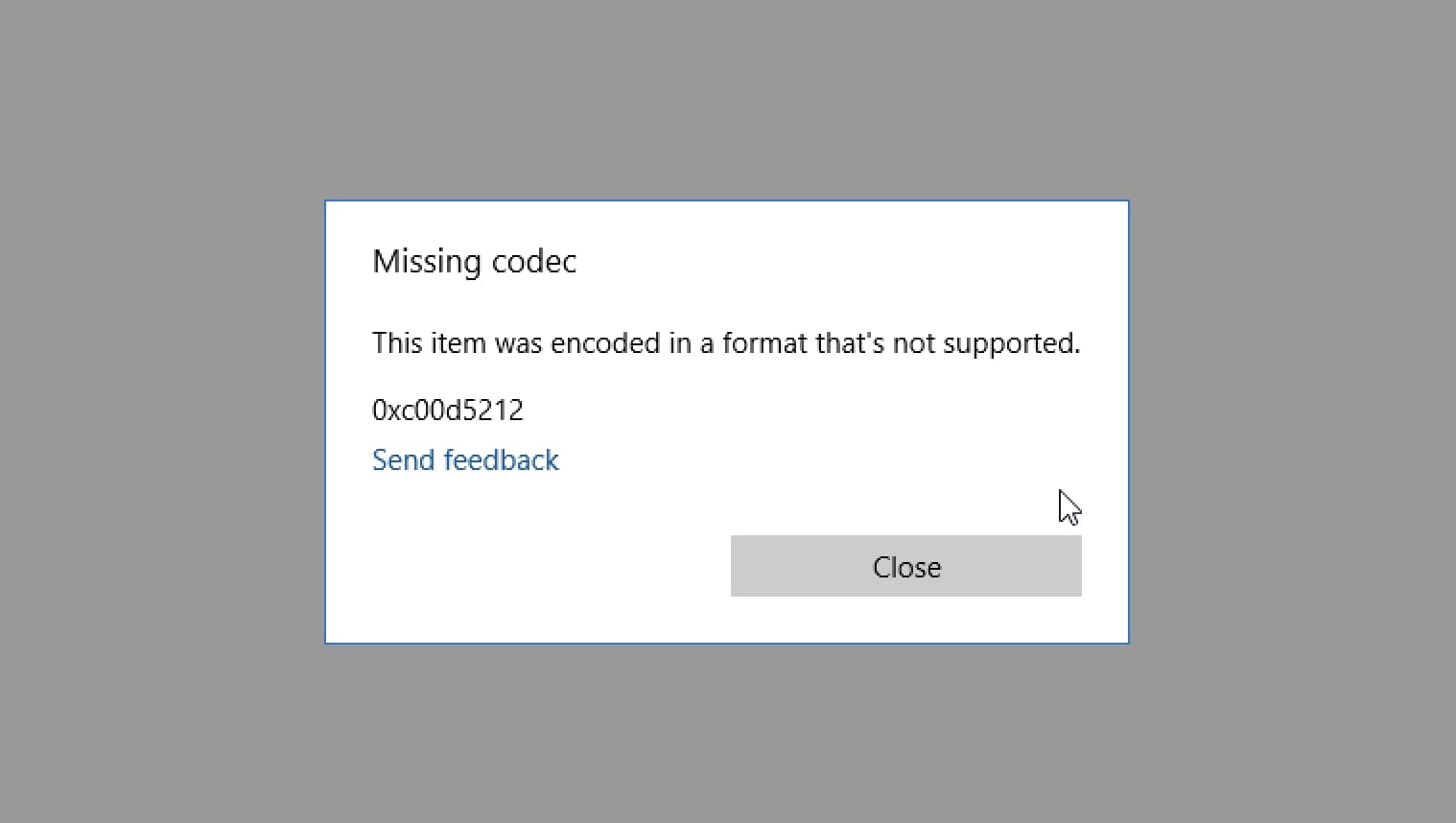
The "a codec is required to play this file" error occurs when your media player lacks the specific software component (coder-decoder) needed to decompress and play a video or audio stream. To resolve it, you should either install the missing codec from a reputable source, use a universal media player like VLC, or convert the file into a more standard format like H.264 or MP4.
Digital media has become the backbone of modern communication, yet the underlying technology remains invisible until it fails. When you encounter a message stating that a codec is required, you are essentially looking at a translation error between your file and your software. As of 2026, despite the convergence of many media standards, the landscape of high-efficiency video coding and proprietary formats still creates compatibility gaps that users must navigate.
Understanding the Relationship Between Codecs and Containers
To solve the "codec required" error, one must first understand that a video file is not a single entity, but a "container" holding various "streams." A common mistake is using the terms "file format" and "codec" interchangeably.
The Container (The Envelope)
The container is the file extension you see, such as .mp4, .mkv, .mov, or .avi. Think of the container as an envelope. It holds the video stream, the audio stream, and metadata like subtitles or chapter markers. However, the envelope doesn't tell the computer how to read the letter inside; it just keeps everything organized.
The Codec (The Language)
The codec is the actual "language" the video or audio is written in. "Codec" stands for COmpressor-DECompressor. Raw video files are massive—a single minute of uncompressed 4K video can exceed 50 GB. To make these files manageable for streaming and storage, they are compressed using complex mathematical algorithms. When you hit play, the codec decompressing the data in real-time. If your system doesn't speak the specific language (codec) the video was written in, it cannot display the images, resulting in the "codec required" error.
Why Containers Can Be Misleading
You might have two files that both end in ".mp4," but one plays perfectly while the other triggers an error. This is because the MP4 container can hold many different codecs. One might be encoded with the older H.264 standard, which is supported by almost every device in 2026, while the other might use the newer VVC (Versatile Video Coding) or a proprietary professional format like ProRes. If your player only understands H.264, it will fail on the latter.
Why the "Codec Is Required" Error Occurs in 2026
Even in 2026, with advanced operating systems like Windows 11 and its successors, several factors contribute to the persistence of codec errors.
1. Licensing and Proprietary Restrictions
Not all codecs are free. High-efficiency standards like HEVC (H.265) require royalty payments. Software developers, including Microsoft, often choose not to include these codecs by default to keep software costs down or to avoid legal complexities. Instead, they offer them as separate, optional downloads. This is a primary reason why a fresh installation of Windows might struggle to play modern smartphone videos (which often use HEVC) until the specific extension is added.
2. Emerging Standards (AV1 and VVC)
As we push toward 8K resolution and more immersive VR content, new codecs are introduced to handle the massive data loads more efficiently. AV1 has become the open-source standard for streaming giants, while VVC (H.266) provides even higher compression for premium content. If your hardware or software player is more than a few years old, it likely lacks the native instructions to decode these 2026-era standards.
3. Professional and Specialized Formats
If you are working with files from professional cameras (Red, Arri, or even high-end Sony Alpha models), the files might use 10-bit or 12-bit "Log" profiles or RAW video codecs. These are designed for color grading and editing, not for casual playback. Standard consumer players often lack the "heavy-duty" codecs required for these professional-grade files.
4. Audio Incompatibility
Sometimes the video codec is supported, but the audio codec is not. This results in a video that plays perfectly but has no sound, or an error message that prevents the file from opening entirely. High-fidelity formats like DTS-X or Dolby Atmos often require specific licenses or hardware decoders that standard media players might not possess.
Immediate Solutions: How to Play the File Now
When faced with this error, you generally have three paths: install the missing component, use a better player, or change the file itself.
Solution 1: Use a Universal Media Player (Recommended)
The most efficient way to bypass codec errors is to use a media player that comes with its own internal library of codecs. Unlike default system players (like Windows Media Player or QuickTime), these third-party players do not rely on the codecs installed in the operating system.
- VLC Media Player: Produced by the VideoLAN project, VLC remains the gold standard in 2026. It is open-source and includes almost every codec imaginable, from ancient formats to the latest AV1 and VVC streams. You can download it at VideoLAN.org.
- IINA (for macOS): While VLC works on Mac, IINA is a modern alternative designed specifically for macOS, offering a cleaner interface while maintaining a vast codec library.
- MPC-HC (Media Player Classic Home Cinema): A lightweight, extremely fast player for Windows users who prefer a more traditional interface but need modern codec support.
Solution 2: Install Official Extensions
If you prefer to keep using your system's native player (like the Windows Media Player or "Movies & TV" app), you must install the necessary extensions. For Windows users, the most common missing link is the HEVC Video Extensions.
- Open the Microsoft Store.
- Search for "HEVC Video Extensions."
- Install the package (note: there is often a small fee, though some device manufacturers provide a "from Device Manufacturer" version for free).
- Restart your media player.
Similarly, there are extensions for "VP9 Video Extensions" and "AV1 Video Extension" available for free on the Microsoft Store that can resolve many 4K streaming and playback issues.
Solution 3: Codec Packs
In the early 2000s, "codec packs" were the standard fix. In 2026, they are less necessary but still useful for power users or those using legacy software. The K-Lite Codec Pack is the most reputable survivor in this category. It bundles dozens of codecs into a single installer.
- Warning: Only download codec packs from their official sources. Many "free codec" websites are fronts for malware and adware.
Alternative Solution: Converting the File
If you cannot or do not want to install new software, you can convert the problematic file into a format your current player understands. This is often necessary when sending files to other people who might not be tech-savvy.
Using Handbrake
Handbrake is a free, open-source video transcoder available for Windows, Mac, and Linux.
- Open Handbrake.
- Drag your "unplayable" file into the window.
- Choose a preset like "Fast 1080p30" or "Web Optimized." These presets use the H.264 (x264) codec, which is the most widely compatible format in the world.
- Click "Start Encode."
- The resulting file will play on almost any device, including smart TVs and older smartphones.
Using FFmpeg (For Advanced Users)
FFmpeg is a command-line tool that is incredibly powerful for batch processing. If you have a folder full of files triggering the codec error, a simple command like ffmpeg -i input.mkv -c:v libx264 -c:a aac output.mp4 will re-encode the file into a standard format without needing a graphical interface. Learn more at FFmpeg.org.
Comparison of Common Codecs in 2026
The following table highlights the most common codecs you will encounter and their typical support status.
| Codec Name | Common Container | Typical Use Case | Compatibility (2026) |
|---|---|---|---|
| H.264 (AVC) | .mp4, .mkv | Web video, older cameras | Universal - Works on almost everything. |
| H.265 (HEVC) | .mp4, .mov | 4K video, iPhone/Android footage | High - Requires extensions on Windows. |
| AV1 | .webm, .mkv | YouTube, Netflix, 8K streaming | Moderate - Requires modern hardware/VLC. |
| VVC (H.266) | .mp4, .vvc | 8K HDR, VR content | Emerging - Requires 2025+ hardware or VLC. |
| VP9 | .webm | Google/YouTube 4K content | High - Built into most web browsers. |
| ProRes | .mov | Professional video editing | Niche - Designed for editors (Premiere/FCP). |
Safety and Security: Avoiding the "Codec Trap"
The "a codec is required" message is one of the oldest social engineering tricks used by malicious actors. Because users are often frustrated when a video won't play, they are more likely to click "Yes" on a pop-up or download a file from an untrusted source.
Identifying Fake Codec Prompts
If you open a file and a website automatically opens in your browser claiming you need a "Special Media Player" or a "DX-Codec Update" to view the content, close the browser immediately.
- Genuine codec errors are reported by your local media player software, not by a website.
- Never download a
.exeor.msifile that claims to be a codec unless it is from a verified developer like Microsoft, VideoLAN, or the K-Lite team. - Modern codecs are almost always delivered via app stores (Microsoft Store/Mac App Store) or bundled within reputable players like VLC.
Verifying File Integrity
Sometimes the error isn't about a missing codec, but a corrupted file. If a file download was interrupted, the header information (which tells the player which codec to use) might be missing or garbled. The player doesn't see a familiar signature, so it assumes the codec is missing. If none of the solutions above work, try re-downloading the file or checking the file size; if it is significantly smaller than expected, the file is likely broken.
Technical Troubleshooting Steps
If you have installed the codecs and the file still won't play, follow these steps to diagnose the root cause:
- Check for Hardware Acceleration Conflicts: Sometimes a codec is installed, but your Graphics Processing Unit (GPU) is struggling to decode it. In VLC, go to
Tools > Preferences > Input / Codecsand try disabling "Hardware-accelerated decoding." - Update Graphics Drivers: Codecs like AV1 and HEVC often rely on hardware decoding built into your Nvidia, AMD, or Intel GPU. If your drivers are outdated (older than 2025), they may not support the latest codec revisions.
- Identify the Exact Codec: Use a tool like MediaInfo. This free utility allows you to right-click any media file and see exactly what codec was used for the video and audio streams. Once you have the specific name (e.g., "V_VVC" or "A_AC3"), you can search for that specific driver.
- Check for DRM (Digital Rights Management): If you downloaded a movie from a subscription service, it may be protected by DRM. These files require a specific player with a valid license key (like the Netflix or Apple TV app). No amount of third-party codecs will allow you to play a DRM-protected file in a standard media player.
Frequently Asked Questions
1. Why does the file play on my phone but not on my computer?
Modern smartphones are often ahead of PCs in terms of native codec support. Manufacturers like Apple and Samsung build hardware decoders for HEVC and AV1 directly into their chips. Windows and Linux PCs, being more modular, often require the user to manually install the software "bridges" (extensions) to utilize the hardware's decoding capabilities.
2. Is there a way to fix this without downloading anything?
If you are on Windows 10 or 11/12, you can try using the built-in "Photos" app or the "Movies & TV" app to open the file. These apps sometimes have limited cloud-based decoding or will offer a direct link to the correct Microsoft Store extension. However, usually, a small download is unavoidable because the codec software is physically missing from your drive.
3. Can a codec error be caused by a virus?
A codec error itself is not a virus; it is a technical limitation. However, hackers often name malware files with double extensions (e.g., movie.mp4.exe) to trick users. When the user tries to play it, the "player" (which is actually the virus) might display a fake codec error to buy time while it infects the system. Always ensure your "File Name Extensions" are visible in your file explorer.
4. Do I need to pay for codecs?
In most cases, no. While HEVC sometimes carries a $0.99 fee in the Microsoft Store due to licensing, the vast majority of codecs (including AV1, VP9, and H.264) are free. Using a player like VLC also bypasses the need to pay for any individual codec licenses, as they are included in the software's library under different licensing agreements.
5. Will installing too many codecs slow down my computer?
In the past, having multiple conflicting codec packs could cause system instability. In 2026, modern operating systems handle driver and codec management much better. Installing a reputable pack like K-Lite or a standalone player like VLC will not noticeably impact your system's performance.
Practical Recommendation
To resolve the "a codec is required to play this file" error most effectively, your first step should be to download and install VLC Media Player. It is the most robust solution that handles the widest variety of codecs without requiring you to modify your operating system's registry or pay for individual extensions. If the file still refuses to play in VLC, use the MediaInfo utility to verify if the file is corrupted or protected by DRM. For long-term convenience on Windows, it is also advisable to download the free AV1 and VP9 Video Extensions from the Microsoft Store to ensure your web browsers and native apps remain compatible with modern streaming standards.