Adding a Google Business listing involves creating or claiming a profile through the Google Business Profile manager to establish your business’s presence on Google Maps and Search. This process requires verifying your ownership, providing accurate contact information, and maintaining current business details to improve local visibility and customer interaction.
Understanding the Role of Google Business Profile
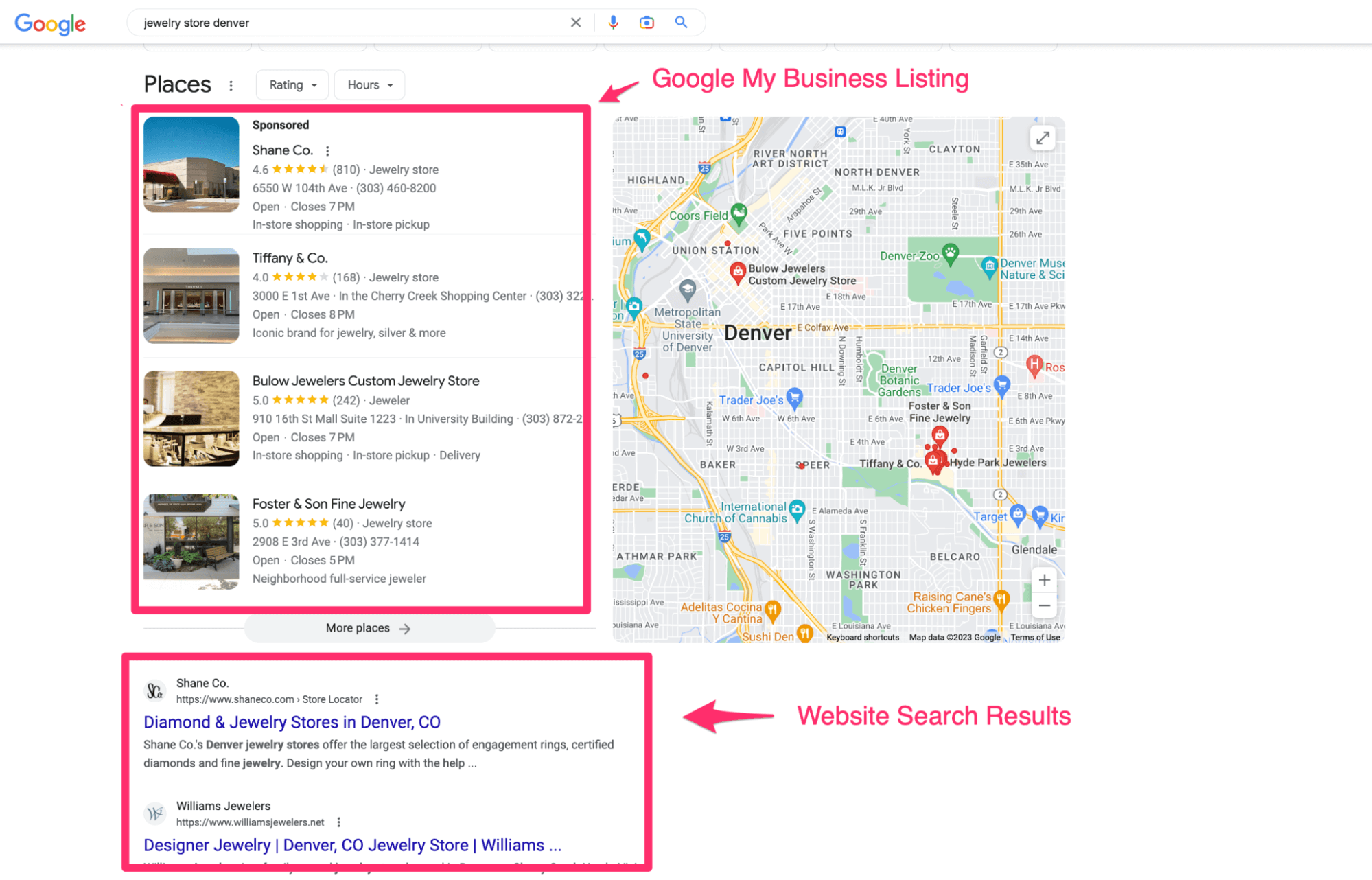
In 2026, a Google Business Profile (formerly known as Google My Business) remains the cornerstone of local digital marketing. It serves as a comprehensive business directory entry that dictates how your organization appears in local search results and on Google Maps. When a potential customer searches for services near them, Google uses this data to populate the "Local Pack"—the block of map-based results at the top of the search page.
Managing this listing effectively allows you to control your public identity. It is not merely a contact card; it is a dynamic communication channel where you can post updates, showcase products, highlight service areas, and engage directly with customer reviews. For a small business, this platform provides the most direct route to being discovered by local leads without requiring the overhead of a traditional website.
Prerequisites for Listing Your Business
Before you begin the registration process, ensure you meet Google’s baseline requirements. To be eligible for a listing, your business must maintain direct contact with customers during your stated hours. This includes businesses with physical locations, such as retail stores or offices, as well as service-area businesses that visit customers at their own locations, such as plumbing contractors or mobile detailing services.
You will need the following information ready:
- Business Name: Your official legal name or the name you operate under consistently.
- Category: A specific classification that describes your primary business activity.
- Physical Location: A valid street address for brick-and-mortar stores, or a defined service area for mobile businesses.
- Contact Information: A local phone number and a functional website URL.
- Verification Method: Proof of ownership, typically handled via a phone call, text message, email, or a video recording of your business operations.
Step-by-Step Guide to Adding Your Listing
The process of adding your business to Google is centralized through the Google Business Profile manager. Follow these steps to ensure your account is set up correctly.
- Search and Claim: Visit the Google Business Profile website and search for your business name. If it already exists—perhaps created by a third party or generated by Google’s automated systems—you must select it and choose "Claim this business." If it does not exist, select "Add your business to Google."
- Enter Business Details: Input your business name and category. Be precise; selecting the correct category is a primary factor in how Google matches your listing to user searches.
- Define Location Type: Specify whether you have a store where customers visit or if you provide mobile services. If you have a physical location, ensure the address is accurate to avoid issues with map pinning.
- Define Service Areas: If you operate as a service-area business, list the cities, postal codes, or regions you serve. This tells Google’s algorithm when to show your listing to potential clients even if they are not at your exact street address.
- Contact Data: Provide a phone number and website. Accuracy is critical here; inconsistent data across the web can negatively impact your local search ranking.
- Verification: Google must confirm you are the authorized representative of the business. The system will prompt you with available options. Video verification is currently the most common requirement, where you demonstrate your operations, signage, or tools of the trade to a reviewer.
Table: Comparison of Listing Types and Features
| Feature | Physical Storefront | Service-Area Business |
|---|---|---|
| Address Display | Shown on Google Maps | Hidden from public |
| Primary Focus | Foot traffic & navigation | Service range & radius |
| Verification | Often requires on-site proof | Requires proof of vehicle/tools |
| Search Priority | Highest in immediate vicinity | Varies by service radius |
Optimizing Your Listing After Registration
Once your listing is verified, the work of active management begins. An inactive or incomplete listing performs poorly in search rankings compared to an optimized one.
Start by populating the "About" section with a comprehensive description of your business. Use keywords naturally—don't "stuff" them—that describe what you do, who you serve, and what makes you unique. Add high-quality photos. Listings with images receive significantly higher engagement, as customers want to see the storefront, the team, or the finished quality of the work you provide.
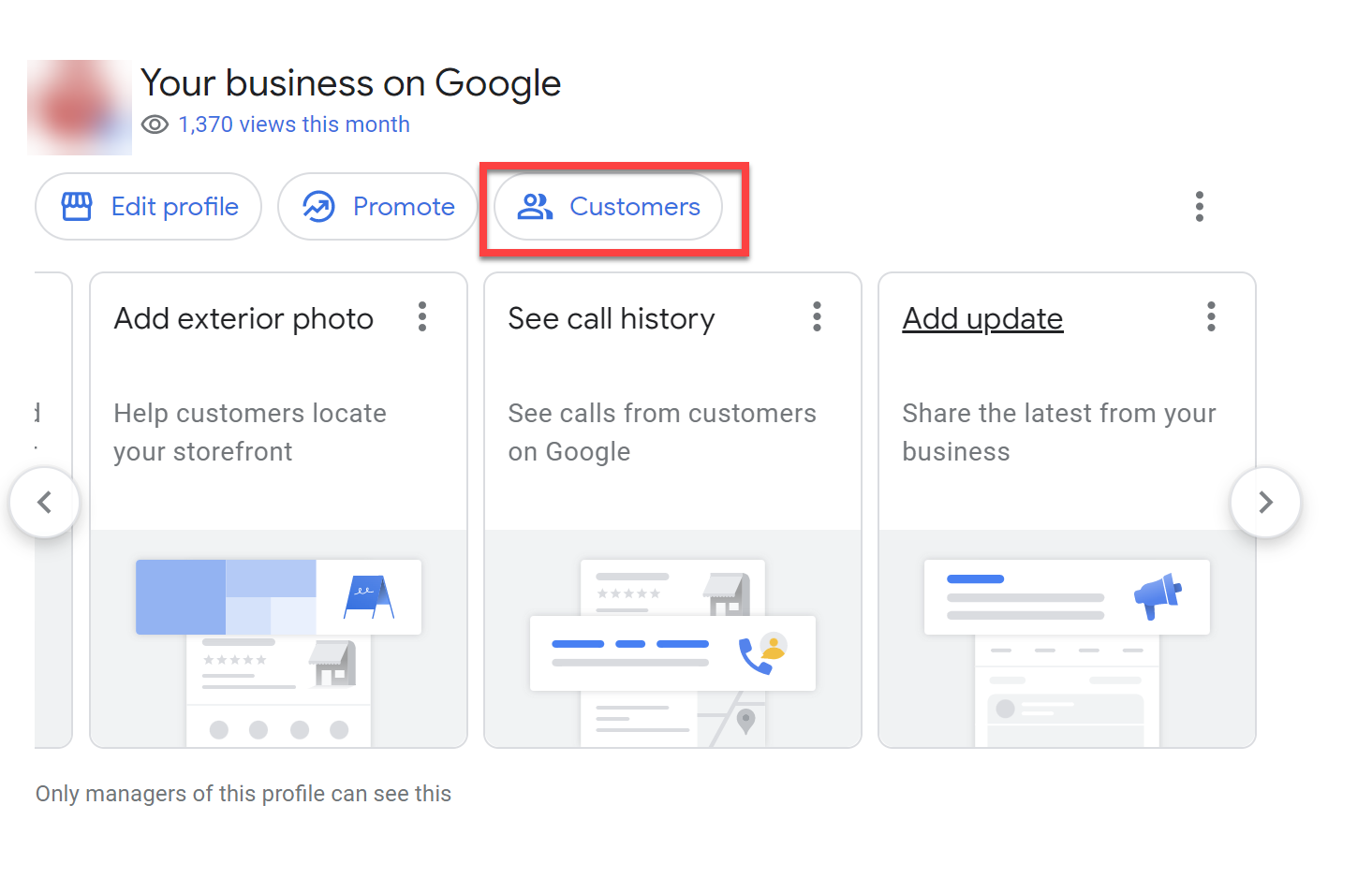
Post regular updates regarding services, new product arrivals, or seasonal changes. Use the "Products" or "Services" feature to create a digital menu or catalog. This helps the user make a decision before they even visit your website. Finally, encourage customer reviews. Responding to both positive and negative reviews shows that you are active and committed to customer satisfaction, which builds trust with potential clients.
Managing Common Challenges and Troubleshooting
You may encounter obstacles during or after the setup process. The most common issue is a verification failure. If the automated verification methods fail, you may need to reach out to Google support to request a manual review. Ensure your business documentation, such as utility bills or business registration certificates, is readily available to support your claim.
Another frequent problem is "duplicate listings." This happens when a business accidentally has multiple profiles for the same location. This dilutes your local authority and confuses customers. Use the "Suggest an edit" tool or contact business support to merge these listings into one primary profile.
If your listing is suspended, it is usually due to a violation of Google’s guidelines, such as using a P.O. box as a business address or including keywords in your business name that are not part of your official branding. Review the guidelines, correct the infraction, and submit a reinstatement request through the official Google Business Profile support portal.
Frequently Asked Questions
Can I create a business listing without a website? Yes. While a website is highly recommended for building trust and providing deeper information, Google allows you to link your profile to a social media page or simply use the listing’s built-in features to communicate directly with customers.
Does it cost money to add a listing? No. Adding and managing a standard Google Business Profile is completely free. Be wary of third-party services that contact you claiming you must pay a fee to keep your listing "active" or to guarantee a higher search ranking; these are almost always scams.
How long does verification take? Verification times vary. Automated verification can happen instantly or within a few days, while video verification may take up to a week for a human reviewer to analyze your submission. Keep an eye on your dashboard status for updates.
What should I do if a competitor marks my listing as closed? You should flag the report as incorrect via your Google Business Profile dashboard. Google provides a tool for business owners to report map errors. If the listing was incorrectly marked as closed, you can update the status back to "Open" and provide evidence if prompted.
Can I add multiple locations? Yes. If you operate multiple physical branches, you can manage them all under one Google account. You will need to verify each location individually to ensure the map data is accurate for every specific address.
Recommended Next Actions
Your immediate next step is to log into your Google Account and check if your business already exists in the system. If it does, claim it immediately to ensure you have control over the information. If you are starting from scratch, gather your tax or utility documentation and your business signage photos before starting the registration process. Once your listing is live, set a recurring monthly task to review your listing, update your photos, and respond to any new customer feedback to maintain your visibility and reputation in your local market.