To update a 2012 MacBook Pro to the latest macOS in 2026, you must first determine if you want the official limit or the latest version available. Officially, this model supports only macOS 10.15.7 Catalina. To install newer versions like macOS 15 Sequoia or later, you must use the OpenCore Legacy Patcher (OCLP) tool.
The Mid-2012 MacBook Pro occupies a legendary status in the Apple community. As of 2026, it remains one of the most resilient pieces of hardware Apple ever produced, particularly the non-Retina "Unibody" model which allowed for user-replaceable RAM and storage. However, time and software evolution have created a significant gap between the hardware's capabilities and Apple’s official software support.
Updating this machine is no longer a simple matter of clicking "Software Update" in System Preferences. It requires a strategic approach involving hardware verification, data safety protocols, and, for those seeking the modern macOS experience, the use of third-party bootloaders. This guide provides a comprehensive roadmap for maximizing the software potential of your 14-year-old laptop while maintaining system stability.
Understanding the Official Software Ceiling: macOS Catalina
For many users, the journey ends officially with macOS 10.15.7, known as Catalina. Released in 2019, Catalina was the final version of macOS to support the Mid-2012 MacBook Pro (both the 13-inch and 15-inch models, as well as the Retina versions from late 2012).
Why Apple Stopped at Catalina
The transition away from the 2012 architecture was driven primarily by graphics requirements and security architectures. macOS 11 Big Sur introduced a significant redesign and required "Metal" graphics support that was more advanced than what the Ivy Bridge Intel HD Graphics 4000 (found in the 2012 MBP) could natively provide under Apple’s strict optimization standards. Furthermore, the introduction of Apple Silicon (M-series chips) accelerated the deprecation of Intel-based hardware.
The Limitations of Staying on Catalina in 2026
In 2026, running macOS Catalina is increasingly difficult. Most modern web browsers, including Safari, Chrome, and Firefox, have ceased security updates for this version. Professional suites like Adobe Creative Cloud and Microsoft 365 no longer install on Catalina. If your goal is "the latest macOS," the official path will likely not meet your needs for security or app compatibility.
Essential Hardware Prerequisites for Modern macOS
Before attempting to bypass Apple's software restrictions, your hardware must be optimized. Running a modern operating system like macOS 14 Sonoma or macOS 15 Sequoia on 2012-era components will result in a sluggish, unusable experience unless specific upgrades are performed.
Transitioning to Solid State Storage (SSD)
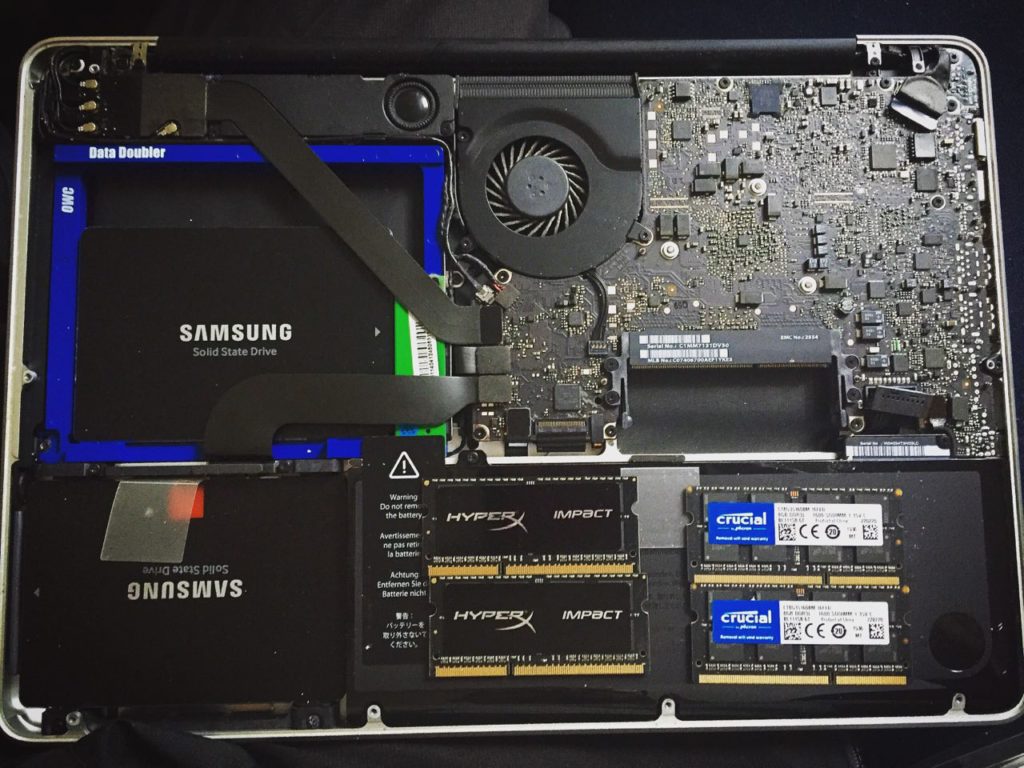
If your 2012 MacBook Pro still contains a traditional mechanical Hard Disk Drive (HDD), you cannot realistically run any macOS newer than Mojave. Modern macOS versions are designed for the high random read/write speeds of Solid State Drives (SSDs). The file system used by Apple (APFS) is heavily optimized for SSDs and performs poorly on platter-based drives. Replacing the internal 2.5-inch SATA drive with a modern SATA SSD is the single most important upgrade you can make.
Maximizing Random Access Memory (RAM)
The non-Retina 2012 MacBook Pro officially supports 8GB of RAM, but it is a well-documented fact that these machines can handle 16GB (two 8GB sticks of DDR3L 1600MHz). In 2026, 16GB is the baseline for a smooth experience when running modern macOS versions alongside contemporary web browsers and applications. The Retina models, unfortunately, have soldered RAM; if you have a 4GB or 8GB Retina model, you are stuck with that capacity, which significantly hampers the performance of newer macOS versions.
Battery and Thermal Maintenance
Newer versions of macOS are more demanding on the CPU. Before updating, ensure your battery is healthy and your cooling system is functional. A 14-year-old laptop likely has significant dust buildup in the fans and may require a fresh application of thermal paste to the processor to prevent thermal throttling under the increased load of a modern OS.
Introducing OpenCore Legacy Patcher (OCLP)
The primary method for installing the latest macOS on "vintage" hardware is through the OpenCore Legacy Patcher. This is a sophisticated community-driven project that injects necessary drivers (kexts) and emulates a newer Mac's firmware, allowing the installer to recognize the 2012 MacBook Pro as a compatible device.
How OCLP Works
OpenCore is a bootloader. It sits between your hardware and the operating system. When you turn on your computer, OpenCore loads first, presenting the hardware to macOS in a way that mimics a supported machine (like a 2018 or 2019 MacBook Pro). It also handles "Root Patching," which reinstalls drivers for older Wi-Fi cards, Bluetooth modules, and graphics chips that Apple has removed from the latest macOS versions.
Safety and Risks
While OCLP is remarkably stable, it is not an official Apple product. Updates to macOS can occasionally "break" the patch, requiring you to update the OCLP app from a secondary device or through a safe mode. Always maintain a full Time Machine backup before performing any system-level modifications.
| Feature | Official (Catalina) | Patched (Sequoia/Latest) |
|---|---|---|
| Max OS Version | 10.15.7 | macOS 15.x (or current 2026 version) |
| Security Updates | Discontinued (2022) | Active / Current |
| App Store Access | Limited (Legacy Versions) | Full / Modern |
| Performance | High (but lacks features) | Moderate (requires SSD/16GB RAM) |
| Stability | Native / High | High (with community support) |
| Modern Features | None | Stage Manager, Widgets, iPhone Mirroring |
Step-by-Step Guide to Installing the Latest macOS
Follow these steps carefully to move your 2012 MacBook Pro from Catalina to a modern version of macOS. This process requires a 16GB or larger USB flash drive.
1. Preparing the Environment
Ensure your MacBook Pro is plugged into power. Download the latest version of the OpenCore Legacy Patcher from the official GitHub repository. Avoid third-party "mirror" sites, as these may contain malware.
2. Downloading the macOS Installer
Open the OCLP application and select "Create macOS Installer." The app will provide a list of available versions. In 2026, you will likely see options for macOS 14, 15, and possibly 16. Select the version you wish to install. OCLP will download the full installer (usually 12GB+) directly from Apple's servers.
3. Creating the Bootable USB
Once the download is complete, OCLP will ask you to select a drive. Insert your USB flash drive (note: this will erase all data on the USB). The app will then format the drive and flash the macOS installer onto it.
4. Building and Installing OpenCore
After the USB is prepared, OCLP will ask to "Build and Install OpenCore." This is a crucial step. You must install the OpenCore settings to the USB drive itself (not your internal SSD yet). This allows the USB to act as a "key" to boot the unsupported installer.
5. Booting the Installer
Restart your MacBook and hold the Option (Alt) key. You will see a list of bootable drives. Select the icon labeled "EFI Boot" with the OpenCore logo. This loads the patcher. After a moment, you will be returned to the boot picker; now, select "Install macOS [Version Name]."
6. Formatting and Installation
If you are performing a clean install (recommended), use Disk Utility to erase your internal SSD (format as APFS). Then, proceed with the macOS installation. The computer will restart several times. Always ensure you boot through the "EFI Boot" icon if it appears.
7. Post-Installation Root Patching
Once macOS is installed and you reach the desktop, the OCLP app should automatically open and detect that you are running on an unsupported machine. It will prompt you to "Install Root Patches." This step is mandatory for your Wi-Fi, graphics acceleration, and keyboard backlight to work correctly. Click "Start Root Patching" and restart your Mac when prompted.
Managing Performance and Compatibility Issues
Even with a successful installation, a 2012 machine running 2026 software will face challenges. Understanding these limitations helps in managing expectations.
Graphics Acceleration
The 2012 MacBook Pro uses non-Metal graphics. While OCLP provides patches to enable graphics acceleration, some visual effects (like transparency in the Dock or certain blurring effects) may not be as smooth as they are on modern hardware. If the system feels "choppy," you can go to System Settings > Accessibility > Display and toggle "Reduce Transparency."
Wi-Fi and Bluetooth Changes
Apple frequently changes the drivers for wireless cards. In 2026, it is possible that the original Broadcom chip in your 2012 MBP is no longer supported by the latest macOS "out of the box." OCLP fixes this through root patching, but occasionally, features like AirDrop or Handoff may become unstable after a minor macOS point-update.
The 2026 Software Landscape
In 2026, most software is optimized for Apple Silicon (ARM architecture). While macOS still includes "Rosetta 2" or its successor to run Intel apps, the overhead of translating code plus the overhead of running a patched OS can tax the 2012 i5 or i7 processor. Stick to lightweight browsers and avoid heavy multitasking to maintain a responsive system.
Troubleshooting Common Update Failures
Updating legacy hardware rarely goes perfectly on the first attempt. Here are the most frequent hurdles and how to clear them.
- The "Prohibitory Symbol" (Circle with a Slash): This usually means the system tried to boot macOS without the OpenCore patcher active. Ensure you are booting from the "EFI Boot" partition on your drive.
- Wi-Fi Not Working After Update: Minor macOS updates often overwrite the root patches. Simply open the OCLP app (which should still be in your Applications folder) and re-apply the Post-Install Root Patches.
- Stuck on Apple Logo during Boot: This is often caused by a corrupted NVRAM. Reset your NVRAM by holding Command + Option + P + R for two chimes, then boot from the EFI partition on your USB drive again to repair the installation.
- Keyboard or Trackpad Unresponsive: This occurs if the legacy HID patches aren't applied. Connect a USB mouse and keyboard to navigate the OCLP menu and install the necessary root patches.
FAQ: Updating Your 2012 MacBook Pro
Can I update directly from Catalina to macOS 15+ using the App Store? No. The App Store will recognize your 2012 MacBook Pro as "unsupported" and will not allow the download. You must use the OpenCore Legacy Patcher to download the installer and create a bootable medium that bypasses this hardware check.
Will I lose my files if I update using OCLP? While you can perform an "in-place" upgrade (installing the new OS over the old one), there is a higher risk of failure on unsupported hardware. It is strongly recommended to back up your data to an external drive or iCloud and perform a clean installation for the best performance.
Is it safe to use my bank accounts on a patched macOS? Yes, generally. OCLP does not modify the security of macOS itself; it primarily adds drivers and changes the way the hardware identifies itself. In fact, running a patched, modern version of macOS is significantly safer than running an outdated version like Catalina, which has unpatched security vulnerabilities.
Does the Retina 2012 MacBook Pro have different requirements? The installation process is the same. However, Retina models often suffer from "staingate" (delamination of the screen coating) and have non-upgradeable RAM. If you have a 4GB RAM Retina model, modern macOS versions will be very slow regardless of the SSD speed.
Will this process make my Mac run hotter? Yes. Modern macOS versions have more background processes (indexing, photo analysis, etc.) that are optimized for newer, more efficient processors. Your 2012 CPU will work harder to perform these tasks, leading to higher fan speeds and temperatures. Cleaning the fans and replacing the thermal paste is highly recommended.
Can I still use Windows via Boot Camp? Yes, OpenCore supports Boot Camp. However, you should manage your Windows partitions carefully. It is often easier to install Windows first on a separate partition and then set up the OpenCore bootloader for macOS.
Final Recommendation: Should You Update?
The decision to update a 2012 MacBook Pro to the latest macOS in 2026 depends on your tolerance for technical maintenance. If you require a "set it and forget it" machine for professional work, this hardware is likely past its prime. However, for students, hobbyists, or those who appreciate the tactile feel and port variety of the 2012 models, using OpenCore Legacy Patcher is an excellent way to extend the life of the machine.
Next Action: Check your RAM and storage. If you have at least 8GB of RAM and an SSD, download the OpenCore Legacy Patcher and a 16GB USB drive to begin the transition to a modern macOS. If you are still on a mechanical hard drive, purchase a SATA SSD before attempting any software updates.