Adding currency formatting in Excel allows you to transform plain numbers into professional financial data, automatically applying symbols like the dollar sign ($), the euro (€), or the pound (£), along with consistent decimal places and thousands separators. By utilizing the built-in Number Format tools, you can ensure your spreadsheets are readable, accurate, and consistent across your entire professional workflow.
Understanding Data Types in Excel
Before applying currency formatting, it is critical to distinguish between a number and its visual representation. When you type "100" into a cell, Excel treats it as a general numeric value. The act of formatting does not change the underlying value stored in the cell; rather, it changes how that value is displayed to the user.
This distinction is vital for calculations. If you were to manually type "$100" into a cell, Excel might interpret that entry as text because of the symbol, preventing you from performing mathematical operations like summation or multiplication. Using Excel’s internal currency formatting tools ensures that your data remains recognized as a "Number," allowing for seamless arithmetic while maintaining a clean, professional financial appearance.
Methods for Applying Currency Formats
There are several ways to apply currency formatting, ranging from quick keyboard shortcuts to detailed custom configurations. Choosing the right method depends on the frequency of your data entry and the complexity of your requirements.
The Home Ribbon Toolbar
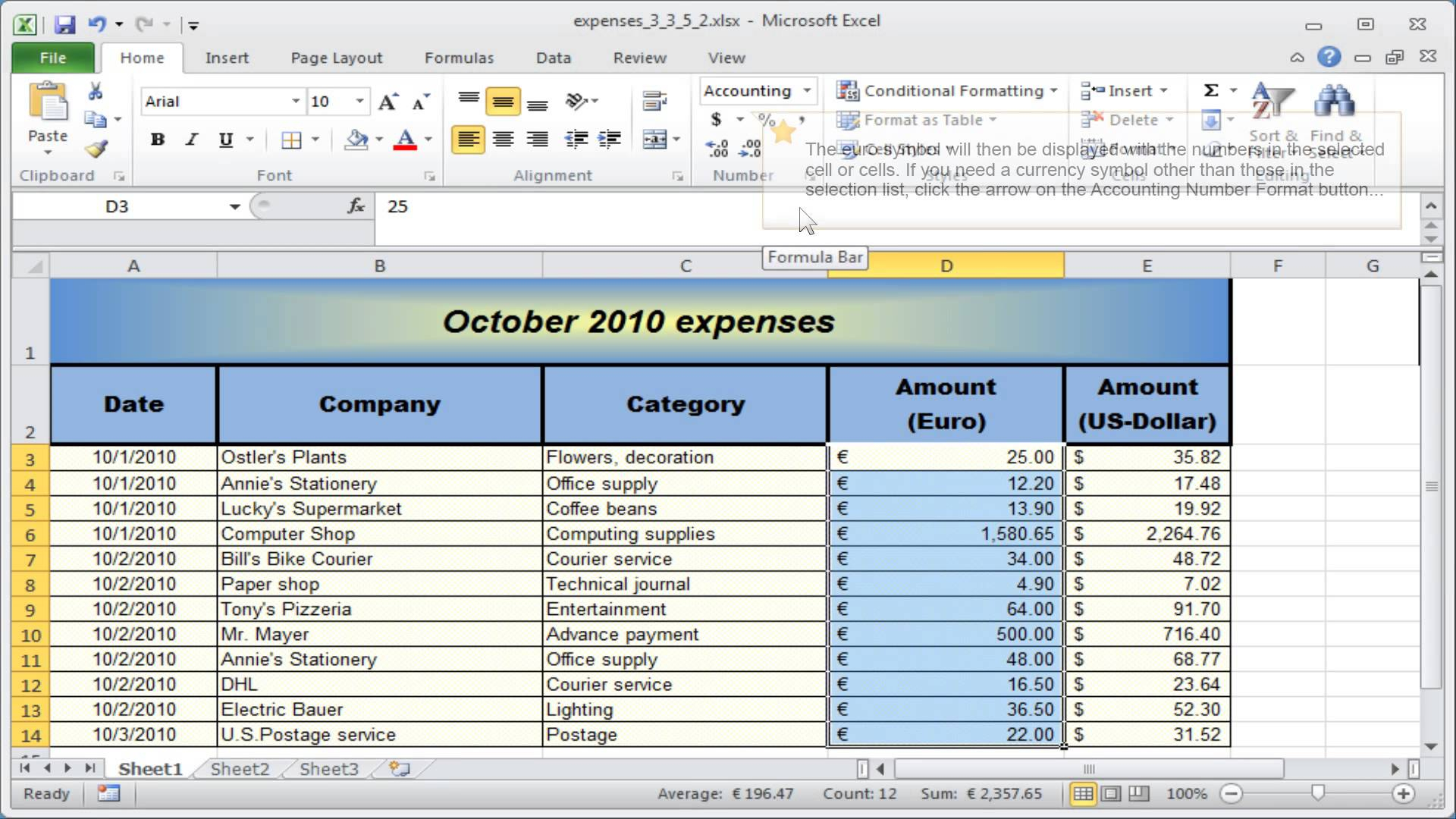
The most common approach for users in Excel 2026 is the Number group located on the Home tab.
- Select the cell or range of cells you wish to format.
- Navigate to the Home tab in the top menu ribbon.
- Look for the Number group, which features a dropdown menu labeled "General."
- Click the dropdown and select Currency.
- Alternatively, click the "Accounting Number Format" button (often represented by a dollar sign icon) directly in the ribbon to apply the default currency format for your system’s region.
The Format Cells Dialog Box
For more granular control, such as changing the symbol or the way negative numbers are displayed, the Format Cells dialog is the preferred tool.
- Highlight your data.
- Right-click the selection and choose Format Cells, or press
Ctrl + 1(Windows) orCommand + 1(Mac). - Under the Number tab, select Currency from the Category list.
- From here, you can specify the number of decimal places, the specific currency symbol (e.g., USD, JPY, GBP), and the format for negative numbers—such as displaying them in red or within parentheses.
Keyboard Shortcuts
For power users who manage large datasets daily, keyboard shortcuts significantly reduce the time spent navigating menus.
- General Currency Format: Press
Ctrl + Shift + $to apply the default currency format to selected cells. - Standard Number Format: If you need to revert to a standard numeric view, press
Ctrl + Shift + !.
Comparing Currency vs. Accounting Formats
While both Currency and Accounting options appear similar, they function differently in terms of layout and design. Understanding these nuances helps in creating cleaner reports.
| Feature | Currency Format | Accounting Format |
|---|---|---|
| Symbol Alignment | Placed directly next to the first digit. | Aligned to the left edge of the cell. |
| Zero Values | Displays as 0.00. | Displays as a dash (-). |
| Negative Numbers | Allows choice (e.g., -10 or (10)). | Always displayed in parentheses. |
| Use Case | General budgeting and informal lists. | Formal financial statements and ledgers. |
The Accounting format is the industry standard for financial statements because it aligns the currency symbols in a single column, making it much easier for the human eye to scan down a list of numbers and compare magnitudes.
Handling Regional Settings
Excel derives its default currency symbol from the Regional Settings of your operating system. If you are working on a machine set to the United States, the default is the dollar sign ($). If your organization operates internationally, you may need to apply symbols for other currencies, such as the Swiss Franc (CHF) or the Indian Rupee (₹).
You can override these defaults within the Format Cells dialog box. Under the Currency category, the "Symbol" dropdown provides a comprehensive list of global currencies. If a specific symbol is not listed, you can create a Custom format, though this is rarely necessary given the extensive library provided in the standard software.
Troubleshooting Common Issues
Even with proper formatting, users occasionally encounter challenges. Addressing these early prevents data integrity issues in complex models.
Data Recognized as Text
If you manually typed currency symbols into cells, Excel will categorize the data as "Text," meaning you cannot use the SUM or AVERAGE functions on these cells. To fix this:
- Use the Find and Replace tool (
Ctrl + H) to search for the manually entered currency symbols and replace them with nothing. - Once the cells contain only numbers, use the standard Number Format tools described above to apply the currency formatting back onto the cells.
Hashtags (####) in Cells
When you see a series of hashtags in a cell instead of your number, this is not an error—it is an indicator that the column width is too narrow to display the formatted number. Simply drag the column header to the right or double-click the boundary between the column letters to "AutoFit" the width to the content.
Decimal Place Errors
Ensure your settings for decimal places are consistent. If you are importing data from external CSV files, Excel may occasionally misinterpret the decimal separator (using a comma instead of a period, or vice versa). Check your global Excel options under File > Options > Advanced > Editing Options to ensure that your system uses the decimal separator consistent with your regional requirements.
Professional Best Practices
For those building dashboards or complex financial models in 2026, adhere to these practices to maintain the highest standard of presentation:
- Consistency: Use the same formatting style (either Currency or Accounting) across an entire table to avoid visual clutter.
- Negative Formatting: In financial statements, using parentheses
(1,000.00)is often preferred over a minus sign-1,000.00for better readability. - Avoid Hardcoding: Never type the currency symbol manually into a cell. Use formatting to apply it. This keeps the data "clean" and ensures that calculations remain accurate.
- Template Usage: If you frequently create files requiring specific currency symbols, save your preferred layout as an Excel Template (.xltx). This ensures that every new sheet you create already has your preferred formatting applied to specific ranges.
Frequently Asked Questions
How do I remove currency formatting from cells?
To remove the currency symbol and return to a plain number format, select the cells, go to the Home tab, click the number format dropdown, and select General or Number. This removes the symbol while retaining the numerical value.
Can I apply different currency symbols in the same column?
Yes. You can apply different currency symbols by selecting individual cells or ranges and using the Format Cells menu to assign a specific currency format to each. However, for audit-ready documentation, it is generally recommended to keep one currency per column and use a separate column for the currency label if multiple currencies are present in one sheet.
Why does my currency symbol appear on the left, but my colleague's is next to the number?
This is the result of using the Accounting format versus the Currency format. If you prefer the symbol to be hugged tightly to the number, select the cells, open Format Cells, choose Currency, and ensure you are not using the Accounting option.
Is there a shortcut for different currencies?
While there is a shortcut for the default currency (Ctrl + Shift + $), there is no default native shortcut for specific international currencies. For frequent use of multiple currencies, consider adding those formats to your Quick Access Toolbar at the top of the Excel window for one-click access.
Will changing the formatting affect my formulas?
No. Excel formatting is purely a visual layer. A cell containing 100.50 formatted as currency will remain 100.50 in any calculation. You can safely change the format of your input cells without needing to update your formulas.
Next Actions
To ensure your Excel files are professional and error-free, start by auditing your existing workbooks. Identify any cells where currency symbols were typed manually and convert them to standard numeric values with applied formats. If you are frequently switching between regional currencies, utilize the "Format Cells" dialog to create a template that suits your specific global reporting needs. For ongoing projects, always prioritize the Accounting format for formal balance sheets to maintain clean, column-aligned data.