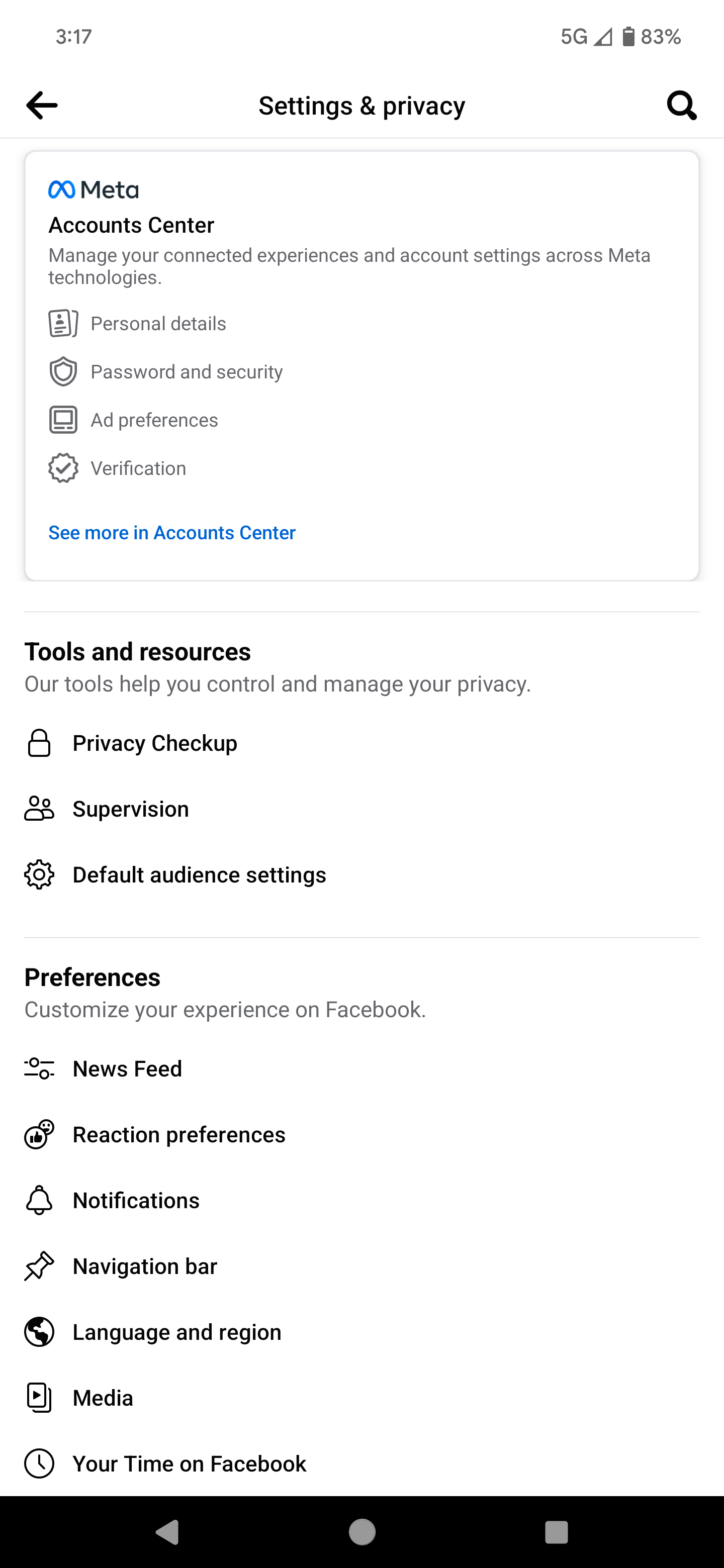
Accessing the desktop version of Facebook on a mobile device is primarily achieved by modifying your mobile browser’s settings to trigger a "Request Desktop Site" command. This forces the browser to identify itself as a desktop environment, bypassing the mobile-optimized interface and providing access to the complete set of features found on a computer.
Understanding the Mobile Versus Desktop Experience
Facebook maintains distinct versions of its platform to accommodate different hardware constraints. The mobile version, often accessed via the Facebook app or the mobile-optimized web URL, prioritizes speed, data efficiency, and touch-based navigation. By stripping away extraneous sidebar content and simplifying complex menus, the mobile interface facilitates a smooth experience on smaller touchscreens.
However, the desktop version contains a more comprehensive suite of tools, particularly for power users, page administrators, and those utilizing advanced settings. Certain features—such as detailed group management tools, specific ad campaign analytics, and legacy profile customization options—may be hidden or entirely absent in the mobile-optimized interface. Accessing the full desktop site on a mobile device allows users to bypass these limitations without needing access to a laptop or workstation.
Prerequisites for Desktop Access
To successfully switch to the desktop view, you must use a web browser that supports "user-agent switching." While nearly all modern mobile browsers offer this functionality, it is essential to ensure your software is up to date as of 2026. Common browsers such as Google Chrome, Apple Safari, Mozilla Firefox, and Microsoft Edge provide this feature natively.
Ensure that you are not being redirected by an installed application. If you have the Facebook app installed on your device, your browser may occasionally attempt to "hand off" the navigation to the app. In some instances, you may need to temporarily disable or uninstall the official Facebook app to prevent this automatic redirection during your session.
Steps to Access the Full Site via Browser Settings
Using Google Chrome (Android and iOS)
- Open the Google Chrome app on your mobile device.
- Navigate to www.facebook.com.
- Tap the three-dot menu icon located in the top-right corner of the screen.
- Scroll down the menu to find the option labeled "Desktop site."
- Toggle the checkbox or tap the button to enable the desktop view. The page will automatically refresh to display the full desktop version.
Using Apple Safari (iOS)
- Launch the Safari browser and navigate to the Facebook login page.
- Tap the "aA" icon located to the left of the URL in the address bar.
- Select "Request Desktop Website" from the pop-up menu.
- Safari will reload the page, providing the full desktop layout. If you navigate to a new page within the site, you may need to repeat this step if the browser defaults back to the mobile version.
Using Mozilla Firefox
- Open Firefox and log in to your account.
- Tap the three-dot menu icon (often at the bottom of the screen on iOS or top-right on Android).
- Look for the "Desktop site" toggle in the menu list.
- Select the toggle to switch the view.
Why the Desktop Version Functions Differently on Mobile
When you request the desktop site, your browser sends a signal to Facebook’s servers identifying your device as a desktop computer rather than a mobile phone. Consequently, the server delivers the heavier, non-responsive code intended for high-resolution monitors.
This results in a few operational realities you must consider:
- Scale and Legibility: The interface will not resize automatically to fit your screen. You will likely need to use pinch-to-zoom gestures to read text or interact with smaller buttons.
- Navigation Complexity: Menus that are hidden behind single taps on mobile will now require precise, pixel-perfect clicking on desktop, which can be frustrating on small touchscreens.
- Data Consumption: Because the desktop site loads more background scripts, images, and non-optimized assets, it will consume significantly more mobile data compared to the lean mobile site or the dedicated mobile application.
Comparison of Interface Modes
| Feature | Mobile Web View | Facebook App | Desktop Web View |
|---|---|---|---|
| User Interface | Optimized for Touch | Optimized for App | Fixed Desktop Layout |
| Performance | High (Data Efficient) | High (Cached Content) | Low (Resource Intensive) |
| Feature Access | Restricted | Restricted | Complete |
| Navigation | Swipe/Tap | Swipe/Tap | Mouse-pointer based |
| Zoom Requirement | No | No | Yes (Pinch to zoom) |
Troubleshooting Common Issues
The Site Keeps Redirecting to Mobile
If you have set the browser to "Desktop site" but the URL keeps reverting to m.facebook.com, it is likely that your browser is caching the mobile redirect. Clear your browser cache and cookies for the Facebook domain, close the browser entirely, and try navigating to www.facebook.com again.
I Cannot Click Anything If the desktop site loads but buttons are unresponsive or too small to touch, ensure you are in "Desktop" mode and not just viewing a zoomed-out version of the mobile site. If you cannot zoom in, your browser may be struggling with the site's scaling settings. Try rotating your phone to landscape mode to provide more horizontal width for the desktop layout.
Login Loops Occasionally, forcing the desktop site can trigger a security alert or an infinite login loop if the mobile-side security protocols do not match the desktop ones. If you are stuck in a loop, log out, clear your session cookies, and attempt the process again. Ensure you have two-factor authentication accessible, as the desktop site may ask for a secondary verification if it perceives a new, unauthorized browser login.
Frequently Asked Questions
1. Is it possible to use the full desktop site inside the official Facebook app? No. The official Facebook app is a closed environment designed specifically for the mobile interface. To access the desktop version, you must use a standalone web browser.
2. Will my account be banned for using the desktop site on mobile? No. Using a browser to view the desktop version of a website is a standard feature of internet browsers and does not violate Facebook's Terms of Service.
3. Does the desktop view consume more battery life? Yes. Rendering the desktop version requires more processing power to handle the more complex CSS and JavaScript files. On older devices, you may notice increased battery drain and potential overheating during prolonged sessions.
4. Why does the font look so small in desktop mode? Desktop sites are built for large monitors with high resolutions. When compressed onto a 6-inch mobile screen, the text appears small. Use the "pinch-to-zoom" gesture on your device to magnify the specific area you need to interact with.
5. Do I need to re-enable desktop mode every time I visit the site? In some browsers, yes. Browsers often prioritize performance and will reset the "Desktop site" setting once the tab is closed. Some browsers allow you to set this as a persistent preference, but on mobile, it is frequently a session-based setting.
Final Recommendation
Accessing the full desktop site on a mobile device is a powerful workaround for tasks that require deep administrative access or legacy features. However, it is not recommended for daily social usage due to the difficulty of navigating a desktop-optimized UI on a small display. Reserve the desktop mode for specific administrative tasks, such as managing business pages or adjusting advanced security settings, and return to the optimized mobile interface for standard communication and browsing to conserve battery and data.