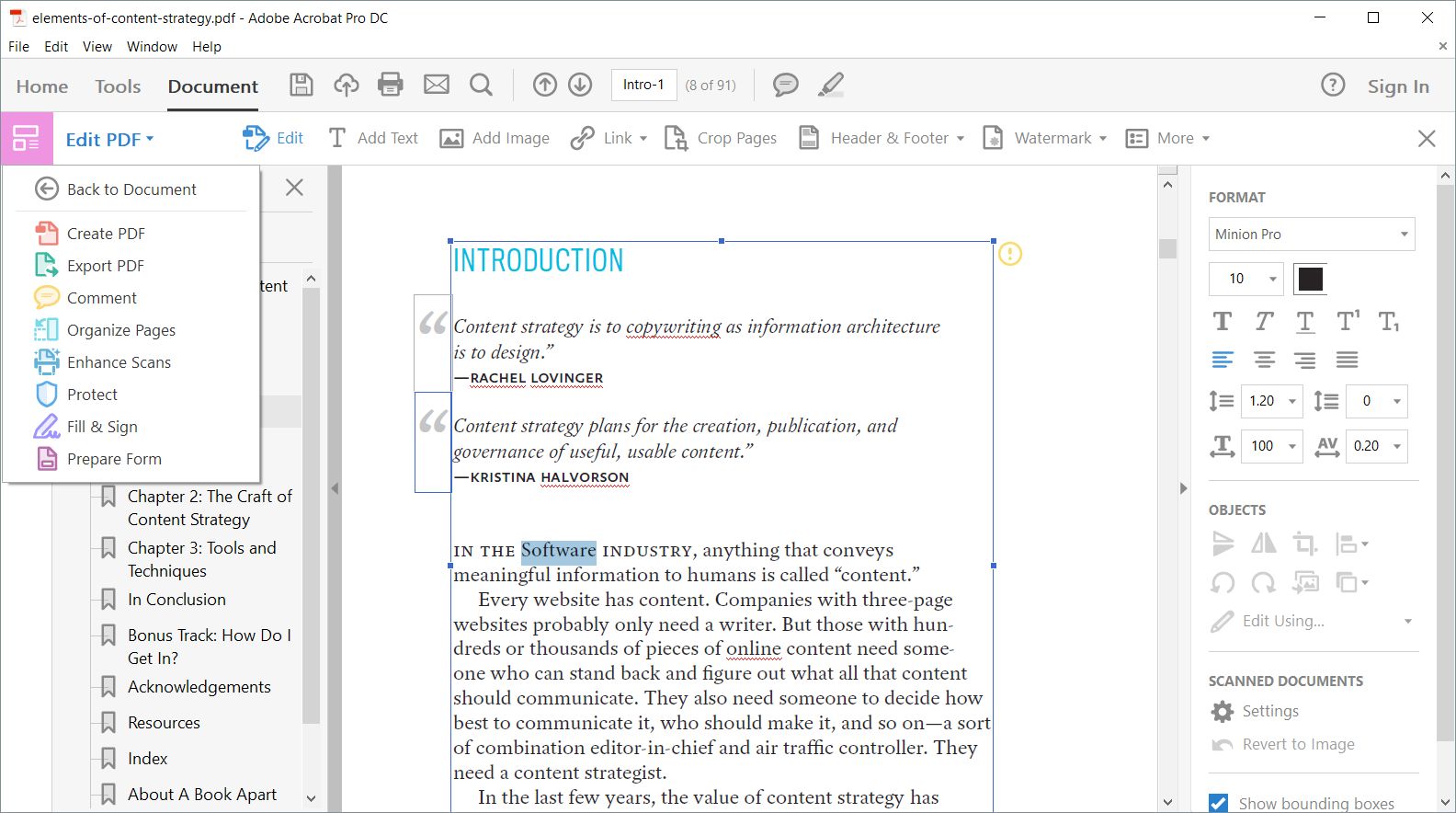
Adobe provides several free avenues for PDF editing, primarily through its Acrobat Online web services and the Adobe Express platform. While the full desktop version of Adobe Acrobat Pro remains a paid subscription, users can perform essential tasks like adding text, inserting comments, signing documents, and reordering pages for free using an Adobe ID.
The landscape of document management has shifted significantly by 2026, with Adobe transitioning many of its high-level editing capabilities from localized desktop software to cloud-integrated web environments. For most users, the search for "Adobe's free PDF editor" leads to a fork in the road: the limited but reliable Acrobat Reader desktop application, the more versatile Acrobat Online web tools, or the design-centric Adobe Express. Understanding which tool fits your specific project—whether it is a simple signature on a contract or a complex layout change—is essential for avoiding unnecessary subscription costs.
The Evolution of Adobe's Free Web-Based Editing
For years, the industry standard was a strict divide between the free "Reader" and the expensive "Pro" version. As of 2026, Adobe has blurred these lines by offering a suite of web-based tools accessible through any modern browser. This "Acrobat Online" ecosystem allows users to upload a PDF and perform several "quick actions" without a monthly fee.
Core Capabilities of Acrobat Online
The online editor is designed for speed and accessibility. When you navigate to the Adobe Acrobat online portal, you are presented with a drag-and-drop interface. The free tier currently allows for:
- Adding Text and Images: You can overlay new text boxes and images onto an existing document. This is ideal for filling out forms that weren't designed to be interactive.
- Sticky Notes and Highlighting: For collaborative work, the free tools allow for robust annotation. These comments are saved within the PDF metadata and are viewable in any standard PDF reader.
- Freehand Drawing: Using the "Draw" tool, users can mark up documents or add handwritten flourishes.
- Filling and Signing: Adobe’s "Fill & Sign" technology is a core free feature, enabling users to create a digital signature and place it on official documents.
Technical Limitations of the Web Version
While powerful, the free online editor does not provide full "structural editing." This means you cannot usually delete or modify the original text typed by the document's creator without upgrading to a Pro subscription. The free tool acts as a transparent layer on top of the original document. If you need to fix a typo in a paragraph that already exists, the free online tool will typically prompt you to start a trial of the Pro version.
Adobe Express: The Hidden Alternative for Creative PDF Editing
A common misconception is that Acrobat is the only Adobe tool for PDF management. Adobe Express, which has become a cornerstone of Adobe’s consumer strategy in 2026, offers a surprisingly sophisticated free PDF editor. Originally designed as a graphic design tool, Express now includes "Quick Actions" for PDFs that often bypass the stricter limits found in the standard Acrobat Online interface.
Adobe Express allows users to convert PDFs to other formats (like Microsoft Word or JPG) and back again. More importantly, its "Edit PDF" function within the Express workspace often allows for more creative control over the layout. For instance, if you are editing a PDF flyer or a resume, Express treats the elements more like design objects, allowing for better manipulation of images and decorative elements than the standard Acrobat Reader.
To use this, you simply upload your PDF to the Adobe Express dashboard. The system utilizes Adobe’s "Sensei" AI (updated for 2026) to identify fonts and layout structures, making it easier to maintain visual consistency while making free edits.
Adobe Acrobat Reader: Not Just a Viewer Anymore
The desktop version of Adobe Acrobat Reader remains the most downloaded PDF software in the world. While its primary purpose is viewing and printing, Adobe has incrementally added "Read and Comment" features that satisfy many "editing" requirements.
Using the Comment Tool for Pseudo-Editing
Many users believe they need a full editor when they actually only need to suggest changes or mark up a draft. In Acrobat Reader, the "Comment" toolbar provides:
- Strikethrough and Replace: You can mark text for deletion and type the suggested replacement. While it doesn't change the underlying text, it provides a professional markup for the document owner.
- Stamp Tool: You can apply "Approved," "Draft," or custom image stamps to the document.
- Measurement Tools: For technical drawings or blueprints, the free version of Reader allows for basic distance and area measurements.
The Integration of Acrobat AI Assistant
In 2026, even the free version of Acrobat Reader often includes access to the AI Assistant (subject to certain usage limits). This tool doesn't "edit" the text in the traditional sense, but it can summarize long documents, answer questions about the content, and generate formatted citations. This adds significant value to the free software without requiring a Pro license.
Comparing Adobe’s Free vs. Paid PDF Solutions
To help you decide which path to take, the following table breaks down the availability of features across the 2026 Adobe ecosystem.
| Feature | Acrobat Reader (Free) | Acrobat Online (Free) | Adobe Express (Free) | Acrobat Pro (Paid) |
|---|---|---|---|---|
| View & Print | Yes | Yes | Yes | Yes |
| Add Comments | Yes | Yes | Yes | Yes |
| Fill & Sign | Yes | Yes | No (Specific Tools) | Yes |
| Edit Existing Text | No | Limited | Yes (Layout based) | Yes |
| Merge/Split PDFs | No | Limited (Daily Caps) | Yes | Yes |
| Convert to Office | No | Limited (Daily Caps) | Yes | Yes |
| Password Protect | No | Yes | No | Yes |
| OCR (Text Recog.) | No | No | No | Yes |
Step-by-Step: How to Edit a PDF for Free via Adobe Online
If you have a document that requires immediate attention and you do not want to install software, follow these steps to use the official Adobe web editor:
- Navigate to the Portal: Visit the official Adobe Acrobat "Edit PDF" web page.
- Upload the File: Click the "Select a file" button or drag your PDF directly into the browser window.
- Sign In: While some basic viewing is available anonymously, you will need to sign in with an Adobe ID (or create one for free) to download your edited file.
- Select Your Tool: Use the toolbar at the top of the interface. Select "Add Text" to type new information or "Draw" to mark up the page.
- Place Annotations: Click on the area of the document where you want the change to appear. You can adjust font size and color for any new text you add.
- Save and Download: Once satisfied, click "Download" in the top right corner. The file will be saved to your local device with all changes flattened into the PDF.
Understanding Usage Caps and "Freemium" Hurdles
It is important to manage expectations regarding the term "free." Adobe operates on a freemium model. In 2026, this usually means that while the tools are free to use, there are volume constraints.
For instance, Acrobat Online may allow you to "Organize Pages" (deleting, rotating, or reordering) for free once or twice per day. If you attempt to process a third file within a 24-hour period, you may encounter a "Daily Limit Reached" message, encouraging a subscription. Similarly, file size limits for free users are typically capped at 100MB per file. If you are working with high-resolution graphics or massive legal dossiers, the free online tools may fail to process the upload.
Security and Privacy in the Free Editor
When using Adobe's free online tools, your files are uploaded to Adobe's cloud servers. For most users, this is secure; Adobe employs enterprise-grade encryption for files in transit and at rest. However, if you are handling extremely sensitive data—such as medical records or classified corporate intellectual property—you should be aware that the document resides on a server during the editing process.
In contrast, using the desktop Acrobat Reader for commenting is an "offline" process, providing a higher degree of privacy for those who do not wish to utilize cloud processing.
Common Mistakes When Seeking a Free Adobe Editor
- Downloading "Cracked" Software: Many third-party sites claim to offer "Adobe Acrobat Pro Free Download." These are almost universally malware or contain security vulnerabilities. Always use the official Adobe.com domain.
- Confusing "Edit" with "Annotate": Users often get frustrated when they cannot change a typo in a PDF using Reader. Remember: Reader is for adding to a file; Pro is for changing the underlying file.
- Ignoring the Adobe Express Option: Many people struggle with the limitations of Acrobat Online without realizing that an Adobe Express account (also free) offers more flexible "creative" editing for PDF documents.
Frequently Asked Questions
Is there a truly free version of Adobe Acrobat?
Yes, Adobe Acrobat Reader is a free desktop application for viewing and annotating. Additionally, Adobe Acrobat Online provides free web-based editing tools for adding text, signatures, and comments, though it limits the ability to modify existing document text.
Can I delete pages from a PDF for free using Adobe?
Yes, you can use the "Organize Pages" tool on the Adobe Acrobat Online website. This allows you to delete, rotate, and reorder pages. Note that there are often daily limits on how many times you can use this specific tool for free before being asked to subscribe.
Why can't I edit text in Adobe Reader?
Adobe Reader is technically a "PDF viewer." To edit existing text, software must be able to "reflow" the document, which requires the advanced engine found in Adobe Acrobat Pro. However, you can use the "Add Text" tool in the free online version to place new text over the original content.
How many files can I edit for free each day?
As of 2026, Adobe's free online limits generally allow for 1 to 2 "high-value" operations (like merging or converting) per day for non-subscribers. Basic annotations, filling, and signing typically remain unlimited as long as you are signed in with a free Adobe ID.
Do I need a credit card to use Adobe's free PDF tools?
No. You only need to create an Adobe ID using an email address. You do not need to provide credit card information unless you are specifically signing up for a "Free Trial" of the Pro version, which automatically converts to a paid subscription after the trial period.
Final Recommendation for Users
If your goal is to quickly fill out a form or add a signature, use Adobe Acrobat Online. It is the fastest, most direct method that requires no installation. If you are looking to create or heavily modify the layout of a document for free, explore Adobe Express, which offers more design flexibility. Only consider the 7-day free trial of Acrobat Pro if you have a massive, one-time project that requires full text-replacement or OCR (Optical Character Recognition) on scanned images.