To activate a Roku remote, you must first determine if you have a Simple (IR) remote or a Voice remote. Simple remotes require a direct line of sight and work instantly once batteries are inserted. Voice remotes require pairing: press and hold the Pairing button (located in the battery compartment or on the back) or the Back and Home buttons for five seconds until the status light flashes, then follow the on-screen prompts.
The Roku ecosystem remains one of the most popular streaming platforms in 2026, offering a range of hardware from the affordable Roku Express to the high-end Roku Ultra and Roku-integrated Smart TVs. Regardless of which device you own, the remote is your primary gateway to content. However, setup can occasionally be non-intuitive, especially when dealing with various hardware generations. This guide provides an exhaustive walkthrough for activating every type of Roku remote, including troubleshooting steps for persistent connectivity issues.
Identifying Your Roku Remote Type
Before attempting to activate or pair your device, it is essential to identify the specific hardware you are using. Roku utilizes two distinct technologies for its remotes: Infrared (IR) and Wi-Fi Direct (Radio Frequency).
1. Roku Simple Remote (IR)
The Simple Remote uses standard infrared light to send commands to the Roku player. In 2026, these are still commonly found with entry-level Roku Express models.
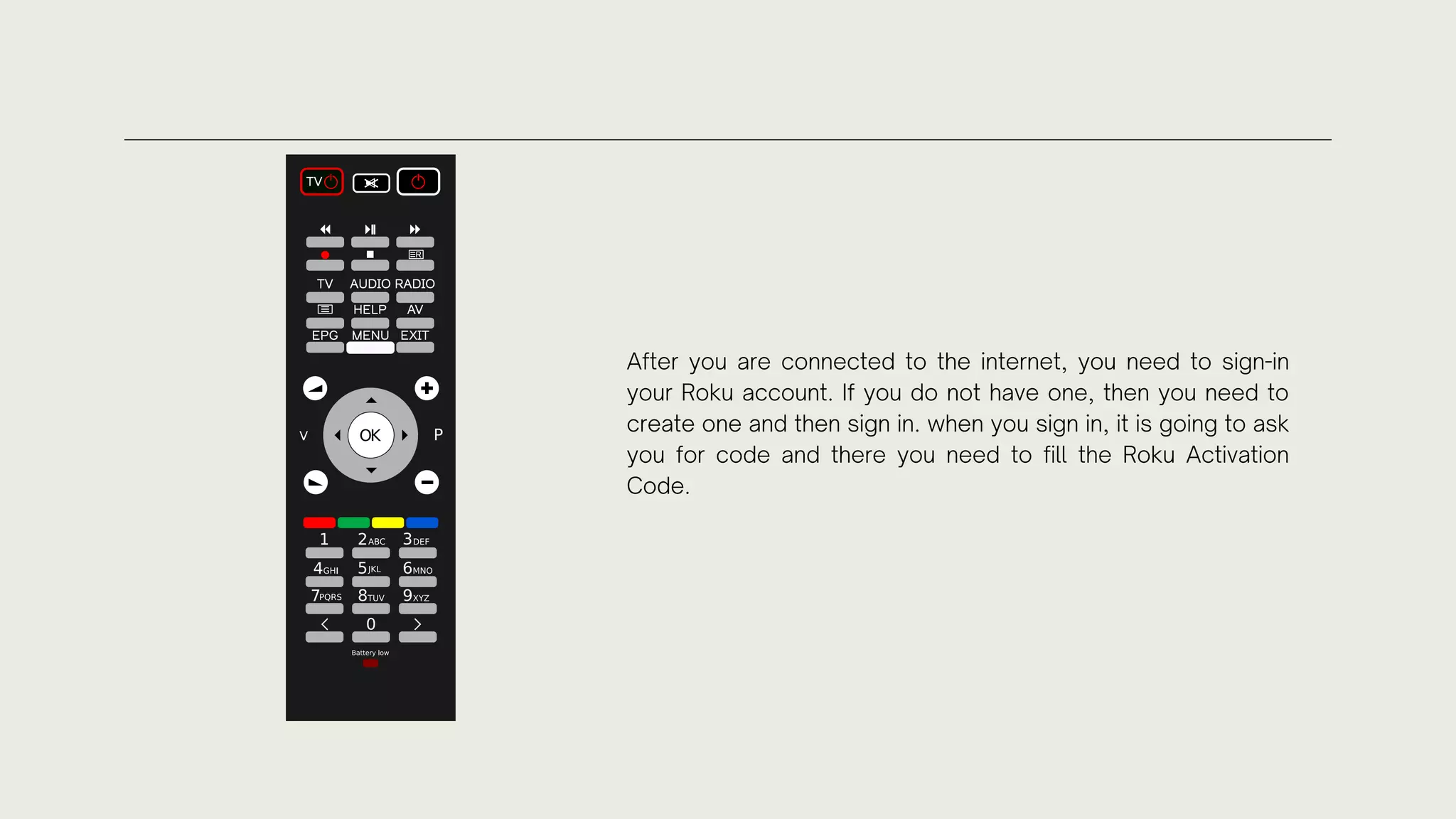
- Identification: These remotes do not have a microphone button (voice search) and usually lack a pairing light.
- Activation Requirement: They do not require a formal "pairing" process. They work "out of the box" as long as the remote is pointed directly at the front of the Roku device.
2. Roku Voice Remote
The standard Voice Remote uses Wi-Fi Direct technology, allowing you to control your TV without pointing the remote at the device.
- Identification: These feature a microphone icon or a dedicated "Search" button.
- Activation Requirement: These must be electronically paired with the Roku player or TV.
3. Roku Voice Remote Pro (Rechargeable)
The Pro version is the flagship remote in 2026, featuring a rechargeable battery, a lost remote finder, and "hands-free" voice commands.
- Identification: It features a headphone jack for private listening and a small sliding switch on the side for the microphone. It also has a USB-C charging port at the bottom.
- Activation Requirement: Similar to the standard Voice Remote, but with specific steps for the internal battery.
Step-by-Step: Activating a New Roku Voice Remote
If you have a Voice Remote or Voice Remote Pro, the pairing process is the "activation" step required to link the hardware to your account and device.
Step 1: Prepare the Device
Ensure your Roku streaming player or Roku TV is powered on and connected to your television’s HDMI port. Ensure your TV is set to the correct HDMI input so you can see the Roku interface.
Step 2: Power the Remote
- For Standard Voice Remotes: Open the battery compartment and insert two fresh AAA batteries. Ensure the polarity (+ and -) matches the markings.
- For Voice Remote Pro: Ensure the remote is charged. If it is new, plug it into a USB-C cable for at least 30 minutes to ensure it has enough power for the initial firmware handshake.
Step 3: Initiate Pairing Mode
The method for entering pairing mode varies by the age of the remote:
- Method A (Pairing Button): Open the battery compartment. Near the bottom, you will see a small, circular button. Press and hold this for 3 to 5 seconds.
- Method B (No Button): If your remote does not have a button in the battery compartment, look for the status light on the front of the remote. Press and hold the Back and Home buttons simultaneously for 5 seconds.
Step 4: Watch for the Status Light
Once the remote enters pairing mode, the status light will begin to flash (usually green or white). This indicates that the remote is broadcasting its signature, looking for a Roku player to acknowledge it.
Step 5: Complete the On-Screen Setup
The Roku player should automatically detect the remote and display a "Pairing remote..." message on your TV screen. In 2026, this process typically takes less than 15 seconds. Once the progress bar reaches 100%, your remote is activated.
Activating a Roku Simple Remote (IR)
As mentioned previously, IR remotes do not "pair." If your remote is not working, the "activation" process is actually a series of hardware checks.
- Remove the Battery Tab: New remotes often have a plastic pull-tab to prevent battery drain during shipping. Ensure this is completely removed.
- Clear the Path: Infrared light cannot travel through walls, cabinets, or even thick cloth. Ensure there is a direct, unobstructed line of sight between the top of the remote and the front of your Roku player.
- Check for Interference: Some high-intensity LED lights or direct sunlight hitting the Roku’s IR receiver can "blind" the sensor.
If the remote still fails to respond, it is likely a hardware failure or dead batteries, rather than a pairing issue.
Comparison of Roku Remote Capabilities (2026 Models)
| Feature | Simple Remote | Voice Remote | Voice Remote Pro |
|---|---|---|---|
| Connection Type | Infrared (IR) | Wi-Fi Direct | Wi-Fi Direct |
| Activation Method | Line of Sight | Pairing Button/Combo | Pairing Button/Combo |
| Voice Search | No | Yes (Push-to-talk) | Yes (Hands-free) |
| Battery Type | AAA Alkaline | AAA Alkaline | Internal Rechargeable |
| Private Listening | No | No (App only) | Yes (Headphone Jack) |
| Lost Remote Finder | No | No | Yes (Audible Alert) |
| Custom Buttons | No | No | Yes (2 Programmable) |
How to Activate a Remote Using the Roku Mobile App
If you have lost your remote or the physical buttons are broken, you can use the Roku Mobile App as a temporary bridge to navigate the settings and activate a new physical remote.
- Download the App: Install the official Roku App from the iOS App Store or Google Play Store.
- Connect to Wi-Fi: Your smartphone must be on the same Wi-Fi network as your Roku device.
- Select the Device: Tap the "Devices" tab in the app and select your Roku player.
- Launch the Digital Remote: Tap the "Remote" icon. You can now use your phone to navigate the Roku UI.
- Navigate to Settings: Use the app to go to Settings > Remotes & Devices > Set up a new device > Remote.
- Follow the Prompts: The Roku player will now actively look for a new remote signal, making it much easier to pair a replacement Voice Remote that isn't auto-detecting.
Troubleshooting Activation Failures
Sometimes, the standard pairing process fails. In 2026, the most common reasons involve wireless interference or software "handshake" errors between the remote’s firmware and the Roku OS.
1. The Power Cycle (The Most Effective Fix)
If the remote refuse to pair, perform a hard reset on the Roku player itself:
- Unplug the power cable from the Roku device.
- Remove the batteries from the remote.
- Wait 30 seconds.
- Plug the Roku device back in and wait for the Home screen to appear.
- Re-insert the batteries and hold the pairing button again.
2. Update the Roku OS
A remote may fail to activate if the Roku player is running an outdated version of Roku OS that does not support the remote's hardware ID. Use the Roku Mobile App or a Simple Remote to navigate to Settings > System > System Update to ensure you are on the latest firmware.
3. Check for HDMI Interference
Some HDMI cables are poorly shielded and emit radio frequency interference that can disrupt the 2.4GHz signal used by Roku Voice remotes. If your Roku is a "Stick" model plugged directly into the TV, try using an HDMI extender cable to move the Roku stick away from the back of the television.
4. Remote Firmware Update
Once a Voice Remote is successfully paired, it may immediately trigger a "Remote update" on the screen. Do not press any buttons during this process. If the update is interrupted, the remote may become "bricked" or unresponsive, requiring you to repeat the pairing process from Step 1.
Advanced Activation: Pairing a Remote to a Different Roku
Roku remotes are not permanently locked to a single device. If you move a remote from a bedroom Roku to a living room Roku, you must "force" a new activation.
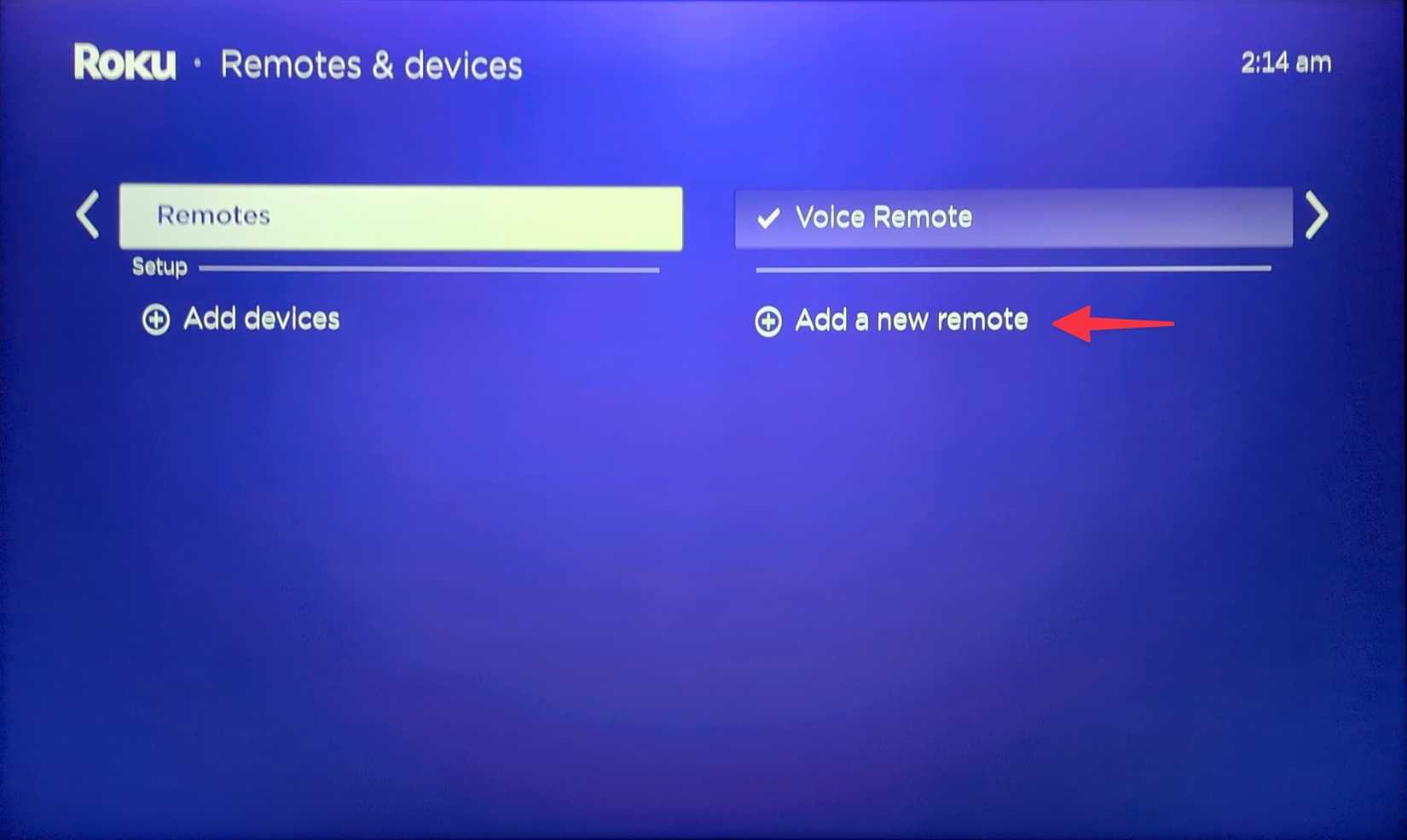
- Navigate to the Bluetooth/Remote settings on the new Roku device using the mobile app or the original remote.
- Choose "Add a New Remote."
- Hold the pairing button on the remote you are moving until the light flashes.
- The remote will "forget" the bedroom Roku and establish a new encrypted handshake with the living room Roku.
Frequently Asked Questions
Can I pair a Roku remote to a TV without a "Pairing" button?
Yes. If your remote lacks a physical pairing button inside the battery compartment, it is likely a newer model that uses a button combination. Hold the Home and Back buttons (the left-arrow button) simultaneously for 5 to 10 seconds. The status light, usually hidden under the plastic on the front of the remote or near the microphone hole, will begin to flash.
Why is my Roku remote light flashing but not pairing?
A flashing light means the remote is in "Discovery Mode." If it won't pair, it usually means the Roku player is not in "Listening Mode." This often happens if the Roku player is busy downloading an update or if the Wi-Fi environment is too crowded. Restart the Roku player and try again, ensuring the remote is within 3 feet of the device during the pairing process.
Can I use one Roku remote to control two different Roku players?
No. While a Simple (IR) remote can control any IR-compatible Roku it is pointed at, a Voice Remote (Wi-Fi Direct) can only be paired to one device at a time. If you pair it to a second device, it will stop working with the first one.
Does the Roku Voice Remote Pro work with older Roku models?
In 2026, the Voice Remote Pro is compatible with almost all Roku players released within the last 8-10 years, including the Roku Streaming Stick+, Roku Ultra, and most Roku TV models. It is not compatible with very legacy "standard definition" Roku boxes from the early 2010s that lack Wi-Fi Direct capabilities.
How do I know if my remote batteries are too low for activation?
Pairing requires a significant burst of power to establish the initial connection. Even if the remote's LED flashes, it may not have enough voltage to complete the handshake. If pairing fails twice, always replace the batteries with brand-new Alkaline (non-rechargeable) batteries before trying again.
Final Recommendation
To ensure the smoothest activation experience, always use the Roku Mobile App as a backup. Having the app configured allows you to see the on-screen battery levels and firmware status of your physical remote, which is invaluable for diagnosing why a remote might have de-activated. If you are using a Voice Remote Pro, remember to keep its firmware updated via the Settings > Remotes & Devices menu to take advantage of the latest power-saving features introduced in 2026. If hardware pairing consistently fails despite a power cycle and new batteries, the remote may have a hardware defect and should be replaced through Roku’s official support channels.