Accessing a locked Social Security account requires verifying your identity through official channels, typically by resetting your password online, contacting the dedicated support desk, or visiting a local field office to clear security blocks and restore portal entry.
Understanding Why Social Security Accounts Become Locked
Online portals managed by government agencies implement rigorous security controls to protect sensitive personal and financial data. When an individual attempts to log in, multiple failed authentication attempts, extended periods of inactivity, or suspicious login behavior from unfamiliar IP addresses or devices will trigger an automated security lockdown. This defensive measure prevents unauthorized actors from harvesting earnings histories, altering direct deposit arrangements, or intercepting monthly benefit distributions.
Beyond repeated incorrect passwords or entering mismatched personal identifiable information, administrative flags can also lock an account. For instance, if an individual changes their legal name, updates their residential address significantly without advance notification, or experiences unusual activity tied to their Social Security number across federal databases, automated identity verification systems may suspend digital access. Understanding the root cause of the lockout helps determine whether a user can resolve the issue immediately online or if manual verification is required.
The Role of Modern Identity Verification Platforms
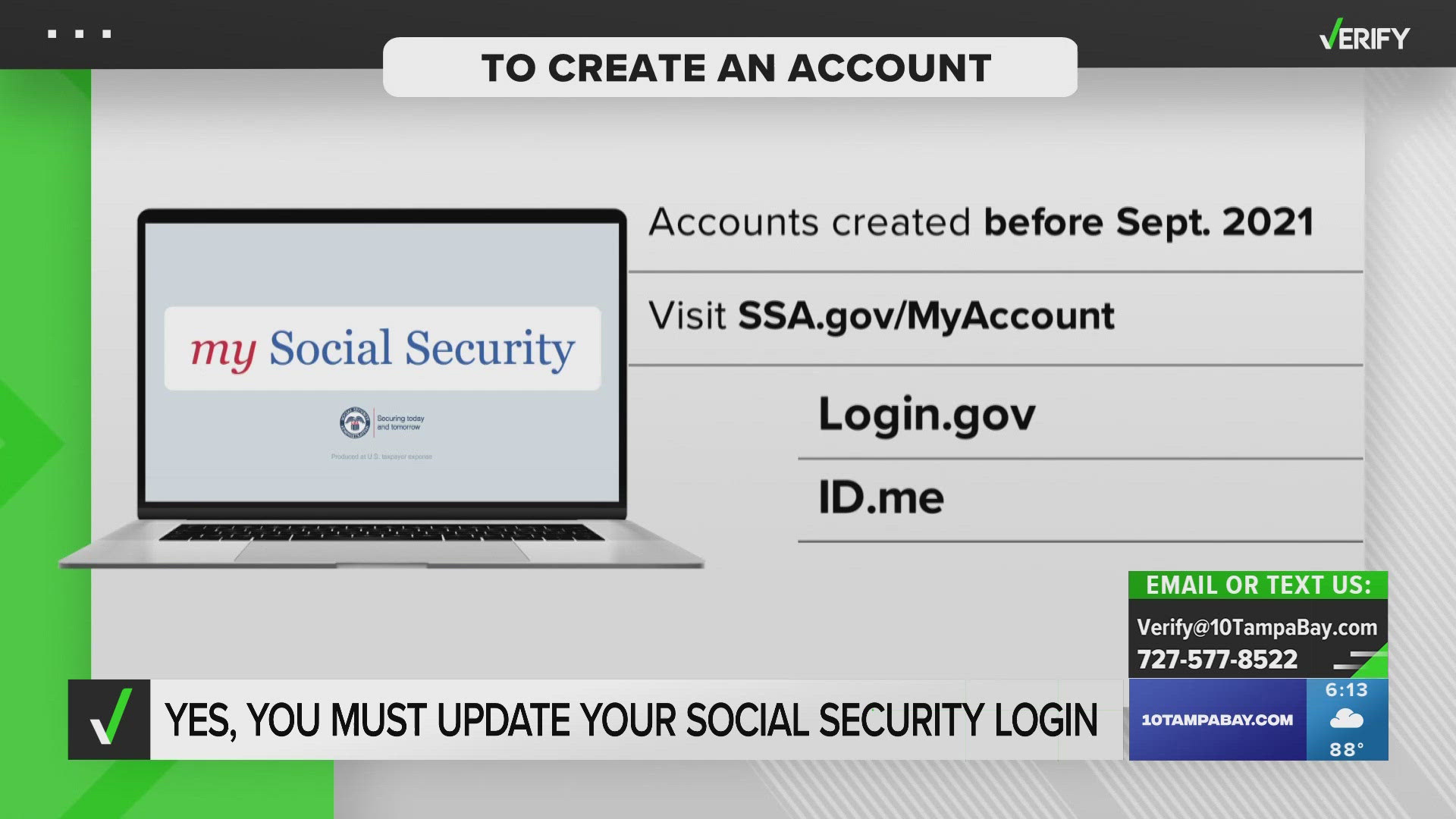
In recent years, federal agencies have integrated advanced third-party credential service providers to streamline secure logins while maintaining strict defense standards. Platforms like Login.gov and ID.me now serve as the secure gateways for accessing personal portals. These systems require users to verify their legal identity using government-issued identification cards, financial account history, or mobile phone numbers tied directly to their legal identity.
When an account governed by these credential services becomes locked, the recovery mechanism often depends on whether the block occurred at the portal level or the underlying identity verification provider level. If ID.me or Login.gov suspends an account due to suspected fraud or multi-factor authentication failures, users must complete a secondary identity confirmation process. This can involve uploading photographs of a driver's license, state identification card, or passport, followed by a biometric facial match via a smartphone or computer webcam.
| Recovery Method | Estimated Timeframe | Required Documentation | Best Suited For |
|---|---|---|---|
| Self-Service Online Reset | Immediate to 15 minutes | Access to registered email, phone, or recovery codes | Standard password lockouts or minor MFA failures |
| Credential Provider Support | 24 to 72 hours | Government-issued photo ID, selfie for biometric match | Locked Login.gov or ID.me accounts due to suspicious activity |
| Telephone Assistance | 1 to 3 business days | Personal history, Social Security number, earnings records | General portal navigation issues and locked profiles |
| In-Person Field Office Visit | Same day (appointment or walk-in) | Two forms of identification (one photo ID) | Severe identity theft blocks or unresolvable digital lockouts |
Step-by-Step Instructions for Self-Service Account Recovery
For most users experiencing a standard password lockout, self-service recovery offers the fastest path back to their dashboard. Before initiating recovery, ensure you have stable internet access, your primary email account open, and the mobile device associated with your multi-factor authentication settings nearby.
- Navigate to the Official Portal: Open a secure web browser and go to the official portal login page, ensuring the URL belongs to the official domain to avoid phishing scams.
- Select the Recovery Option: Click on the "Forgot Password" or "Unlock Account" link located near the primary login fields.
- Input Identifying Information: Enter your registered username, email address, or Social Security number as prompted by the recovery wizard.
- Choose a Verification Channel: Select whether you wish to receive a one-time security passcode via text message, voice call, or backup authentication application.
- Authenticate Your Identity: Type the received verification code into the designated field within the time limit (usually 5 to 10 minutes).
- Create a Strong Password: Establish a new, complex password that meets all regulatory length and character complexity requirements, avoiding previously used passwords.
- Update Multi-Factor Authentication: Re-verify your trusted devices and phone numbers to prevent future interruptions in service.
Troubleshooting Complex Lockouts and Multi-Factor Authentication Failures
When standard self-service recovery fails—such as when a user no longer has access to their registered mobile phone number or receives persistent error codes—troubleshooting requires deeper intervention. Multi-factor authentication (MFA) failures are among the most common hurdles; if a user switches mobile carriers, loses their smartphone, or uninstalls an authenticator application without saving backup codes, the system will effectively bar entry.
In these scenarios, users must disassociate the old verification method from their profile. If your account is tied to a credential provider, look for options labeled "I no longer have access to my phone" or "Reset my multi-factor authentication." You will likely be prompted to repeat the initial identity proofing workflow by submitting fresh document scans. If the system rejects your uploaded documents due to glare, blurriness, or expired validity, ensure you capture images in a well-lit area against a neutral background.
Another frequent obstacle involves browser extensions or privacy settings blocking essential cookies and scripts required for authentication tokens to pass securely. Disabling aggressive ad-blockers, clearing browser caches, or attempting the recovery process via an incognito window or an entirely different web browser can often bypass technical barriers that mimic account lockouts.
Contacting Agency Support and Visiting Field Offices
If digital recovery paths prove unsuccessful, direct human intervention becomes necessary. The Social Security Administration maintains a dedicated technical support help desk to assist users locked out of their digital infrastructure. When calling support, be prepared to answer security questions regarding your work history, past employers, birth date, and parents' names to establish your identity over the phone.
Because telephone queues can experience high call volumes, preparing your information beforehand minimizes wait times and frustration. Alternatively, visiting a local field office remains a foolproof method for resolving stubborn account suspensions, particularly those involving suspected identity theft or fraudulent account creation. When visiting an office in person, bring physical documentation:
- An unexpired government-issued photo identification card (driver's license, passport, or state ID).
- Your physical Social Security card or official documentation displaying your complete SSN.
- Secondary proof of identity, such as a W-2 form, pay stub, health insurance card, or utility bill showing your current residential address.
Field office representatives can manually unlock profiles, clear security flags, and guide you through establishing a fresh, secure login profile from scratch.
Frequently Asked Questions
What should I do if someone else locked my Social Security account?
If you receive notifications indicating your account is locked due to suspicious activity you did not initiate, treat it as a potential identity theft indicator. Immediately contact the agency's fraud department, freeze your credit reports with major bureaus, and work with official support representatives to secure your profile before attempting any further logins.
Can I access my benefits or file claims if my online account is locked?
Yes. An online account lock only restricts digital portal access; it does not stop your monthly benefit payments or prevent you from conducting business by phone or in person. You can still schedule appointments, submit paperwork, or check the status of pending claims by calling the national toll-free number or visiting your local field office.
Why does my account keep locking out even after I reset my password?
Frequent lockouts are often caused by background applications, mobile devices, or saved browser credentials attempting to log in automatically with outdated password data. To resolve this, clear all saved passwords for the portal across all your devices, update your password manager vaults, and ensure no other household member or device shares access to your credentials.
How long does it take to restore access after visiting a local field office?
In most cases, a representative at a local field office can clear the security block or reset your identity credentials during your visit, allowing you to log back into your digital account either immediately or within a few hours once system databases synchronize.
Are there any fees associated with unlocking or recovering a Social Security account?
No. Accessing, unlocking, and managing your official account is completely free. Be extremely cautious of third-party websites, pop-up advertisements, or unsolicited phone calls claiming to charge a fee to unlock your portal, as these are fraudulent scams targeting beneficiaries.