A 24 inch display size represents the traditional sweet spot for desktop computing, offering a balance between physical footprint and workspace efficiency. It serves as an ideal standard for office productivity, entry-level graphic work, and casual gaming, providing sufficient screen real estate for multitasking without overwhelming the user's field of view.
Defining the 24 Inch Display Standard
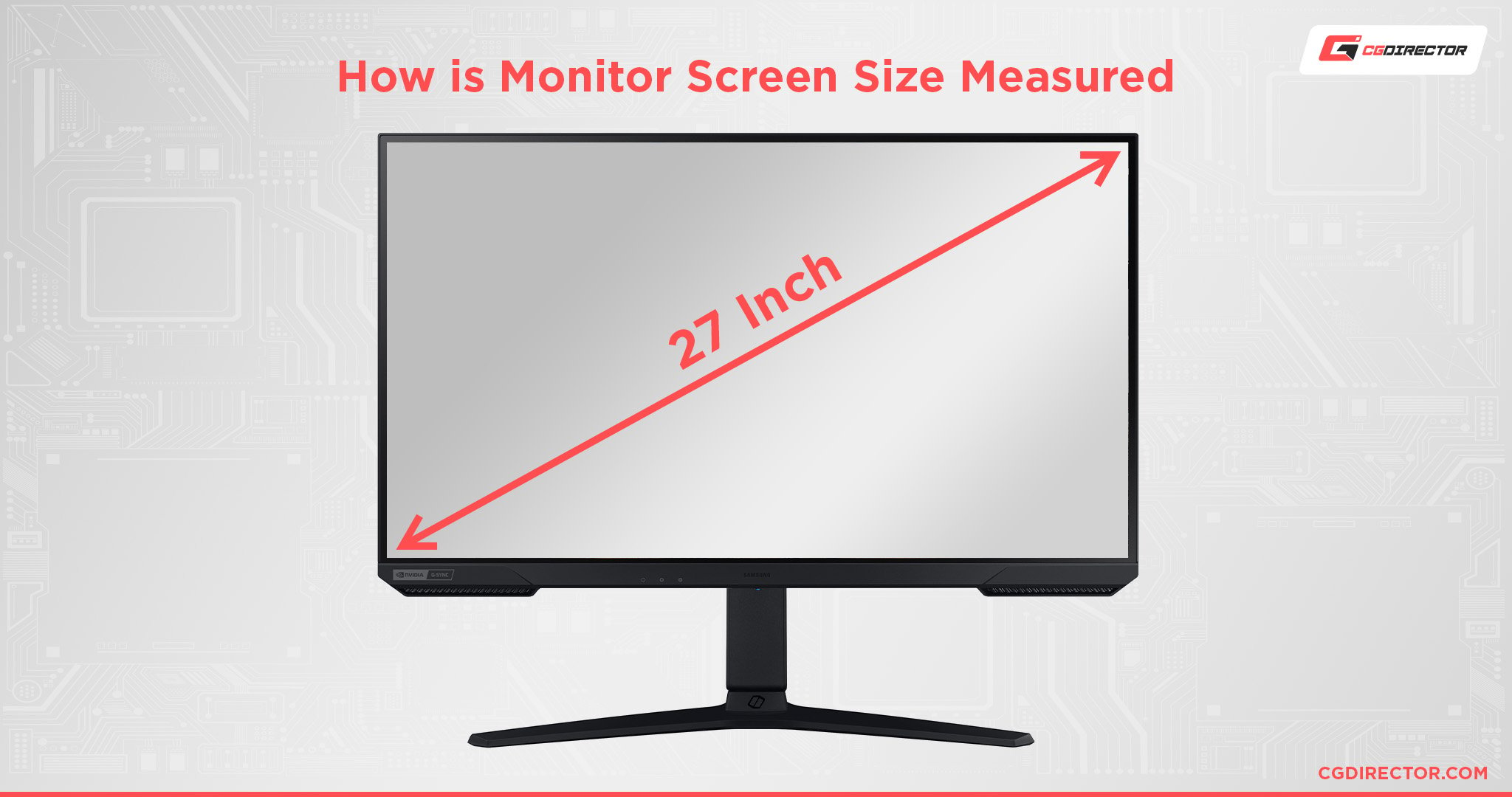
The 24 inch display size is measured diagonally from the top corner of the active screen area to the opposite bottom corner. While marketed as "24 inches," many manufacturers utilize panels that are technically 23.8 inches, though these are categorized industry-wide under the 24-inch class.
For the modern professional in 2026, this size occupies a unique position. It is small enough to fit comfortably on compact desks or in multi-monitor configurations, yet large enough to comfortably accommodate two side-by-side windows. Unlike larger panels that might require significant head movement to track information, a 24-inch monitor allows the user to maintain a focus zone that reduces eye strain over long work sessions.
Technical Specifications and Resolution Considerations
The most critical factor to consider alongside physical size is resolution. For a 24-inch monitor, the industry standard is Full HD (1920 x 1080 pixels). This resolution yields a pixel density—or Pixels Per Inch (PPI)—of approximately 92. This is often considered the "goldilocks" zone for Windows and macOS scaling, as it allows text and UI elements to be rendered at their native size without requiring aggressive software scaling, which can sometimes result in blurry fonts or distorted images.
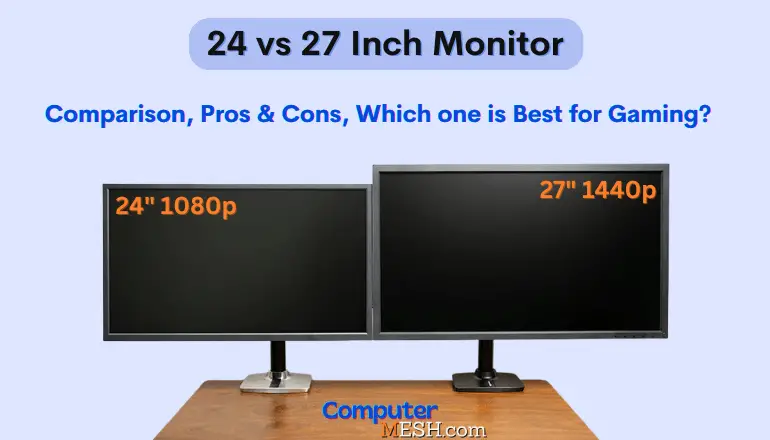
However, users seeking higher clarity for design or high-resolution media may look for 24-inch panels with QHD (2560 x 1440 pixels) resolution. While these models are rarer in 2026 due to the industry’s shift toward larger 27-inch 4K panels, they offer significantly higher pixel density, resulting in sharper text and more detailed imagery.
Use Cases and Target Audiences
The 24 inch form factor is not a "one-size-fits-all" solution, but it excels in specific environments:
- Office and Corporate Environments: Due to its manageable size and standard aspect ratio, the 24-inch monitor is the default choice for workstations, cubicles, and home offices. It is cost-effective and highly compatible with standard VESA desk mounts.
- Multi-Monitor Setups: Power users who require massive screen real estate often prefer two or three 24-inch monitors over one ultrawide display. This provides physical separation for different applications, allowing for better organization of tasks.
- Entry-Level and E-sports Gaming: In the gaming community, 24 inches is frequently preferred for competitive titles. A smaller screen allows the player to keep the entire game world within their central vision, which is a tactical advantage in fast-paced shooters.
- Education: Schools and universities often standardize on 24-inch displays because they are durable, affordable to replace in bulk, and provide sufficient clarity for research and word processing.
Physical Dimensions and Workspace Ergonomics
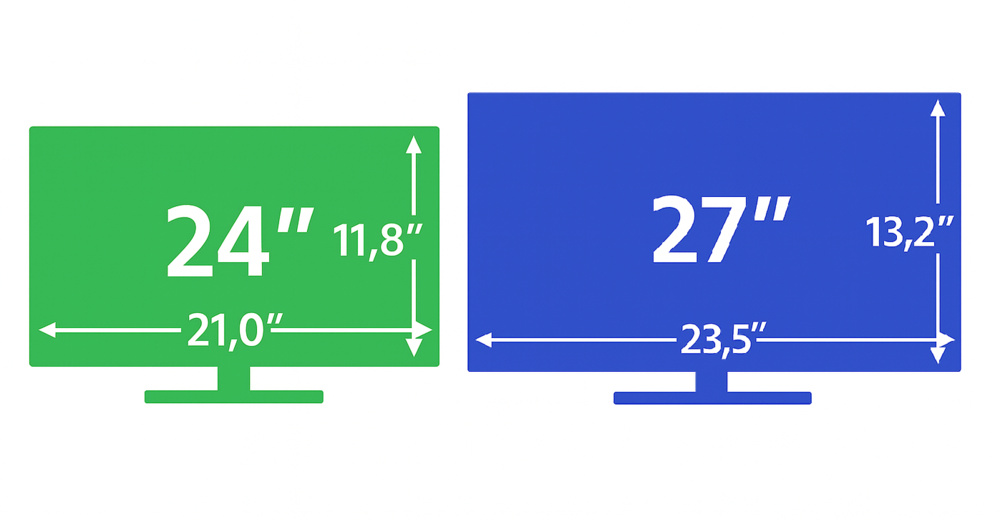
When planning a workspace for a 24-inch monitor, you must account for both the panel and the stand. A typical 24-inch monitor measures approximately 21 inches in width and 12 inches in height, excluding the stand. With a stand, the total height usually increases by 3 to 6 inches, depending on whether the monitor features height-adjustable capability.
Ergonomics are vital. Because 24-inch screens are often used for extended periods, the monitor should be positioned so that the top of the screen is at or slightly below eye level. This prevents neck strain caused by looking upward or downward. If your monitor does not have a height-adjustable stand, consider using a monitor arm, which is a common accessory that clamps to the desk and offers fluid movement, freeing up valuable space on your work surface.
Comparison of Display Characteristics
| Feature | Standard 24" Monitor | Compact Alternative (21.5") | Larger Alternative (27") |
|---|---|---|---|
| Ideal Viewing Distance | 20–28 inches | 18–24 inches | 25–35 inches |
| Resolution Sweet Spot | 1080p | 1080p | 1440p / 4K |
| Productivity Level | Moderate/High | Minimal | High/Multitasking |
| Desk Space Required | Minimal | Very Small | Large |
Panel Technologies Explained
In 2026, the 24-inch monitor market is dominated by three primary panel technologies. Understanding these is essential for matching your display to your needs:
- IPS (In-Plane Switching): The current standard for most users. IPS panels provide the best color accuracy and the widest viewing angles. If you work in graphic design, photo editing, or simply want a crisp image, IPS is the recommended choice.
- VA (Vertical Alignment): These panels offer superior contrast ratios, meaning deeper blacks and brighter highlights. They are excellent for watching movies or working in dimly lit rooms, though they may suffer from slight ghosting in fast-paced games.
- TN (Twisted Nematic): While losing popularity, TN panels are still used in budget gaming monitors due to their rapid response times. They are best reserved for competitive gamers on a strict budget who prioritize speed over color reproduction.
Essential Setup and Maintenance Tips
To maximize the lifespan and utility of a 24-inch display, follow these best practices:
- Calibration: Out of the box, most monitors are set to high-brightness "demo" modes. Adjust the brightness to match the ambient light of your room to reduce eye fatigue. For professional work, use a hardware calibrator to ensure color accuracy.
- Cable Management: Use DisplayPort or HDMI 2.1 cables to ensure you are getting the full refresh rate and resolution your monitor supports. High-quality, shielded cables are essential for avoiding flickering in high-frequency setups.
- Routine Cleaning: Never use household glass cleaners or alcohol on a monitor screen. Use a microfiber cloth and, if necessary, a solution specifically designed for LCD screens to avoid stripping anti-glare coatings.
- Firmware Updates: Occasionally, manufacturers release firmware updates to address color profiles or input lag. Check the manufacturer's support page for your model serial number periodically.
Addressing Common Ambiguities
Potential buyers often confuse "24-inch class" with exact dimensions. As noted, most "24-inch" monitors are actually 23.8 inches. This distinction is mostly marketing, but it can affect the sizing of monitor light bars or screen privacy filters. Always measure the actual bezel-to-bezel dimensions of your unit before purchasing third-party accessories.
Furthermore, ensure your computer’s graphics output supports the resolution you select. While 1080p is universal, if you are planning to use multiple 24-inch monitors, verify that your laptop or desktop has enough ports and the necessary bandwidth to drive them at the desired refresh rate.
Frequently Asked Questions
Is a 24 inch display size enough for video editing? While 27-inch or ultrawide monitors are often preferred for the extra space to view timelines, a 24-inch display is fully capable of handling professional editing. Using a 24-inch monitor for your main preview window while using a secondary display for tools and bins is a highly efficient configuration.
What is the best refresh rate for a 24-inch monitor? For general office work, 60Hz or 75Hz is sufficient. If you are gaming, look for 144Hz or higher. A higher refresh rate makes cursor movement and window dragging feel significantly smoother, which contributes to a more fluid computing experience.
Why does my 24-inch monitor look blurry? Blurriness is almost always caused by running the monitor at a resolution lower than its native setting. Right-click your desktop and navigate to display settings to ensure the "Display Resolution" matches the monitor's recommended setting, usually 1920 x 1080.
Can I mount a 24-inch monitor on a wall? Yes, most 24-inch monitors are VESA-compatible. Look for the four screw holes on the back of the panel. You will need a VESA mount that matches the 75mm x 75mm or 100mm x 100mm standard found on almost all monitors in this size category.
How far should I sit from a 24-inch monitor? A distance of about 20 to 28 inches (approximately an arm's length) is ideal. This distance allows your eyes to take in the full screen without excessive peripheral movement, maintaining comfort throughout the day.
Final Recommendation
The 24 inch display size remains a reliable, versatile, and space-efficient solution for the majority of users in 2026. Before purchasing, verify your desk dimensions and prioritize an IPS panel for the best visual experience. If you perform heavy multitasking, consider a dual-monitor setup rather than moving to a larger single display, as it provides better window management and physical flexibility for your workflow.