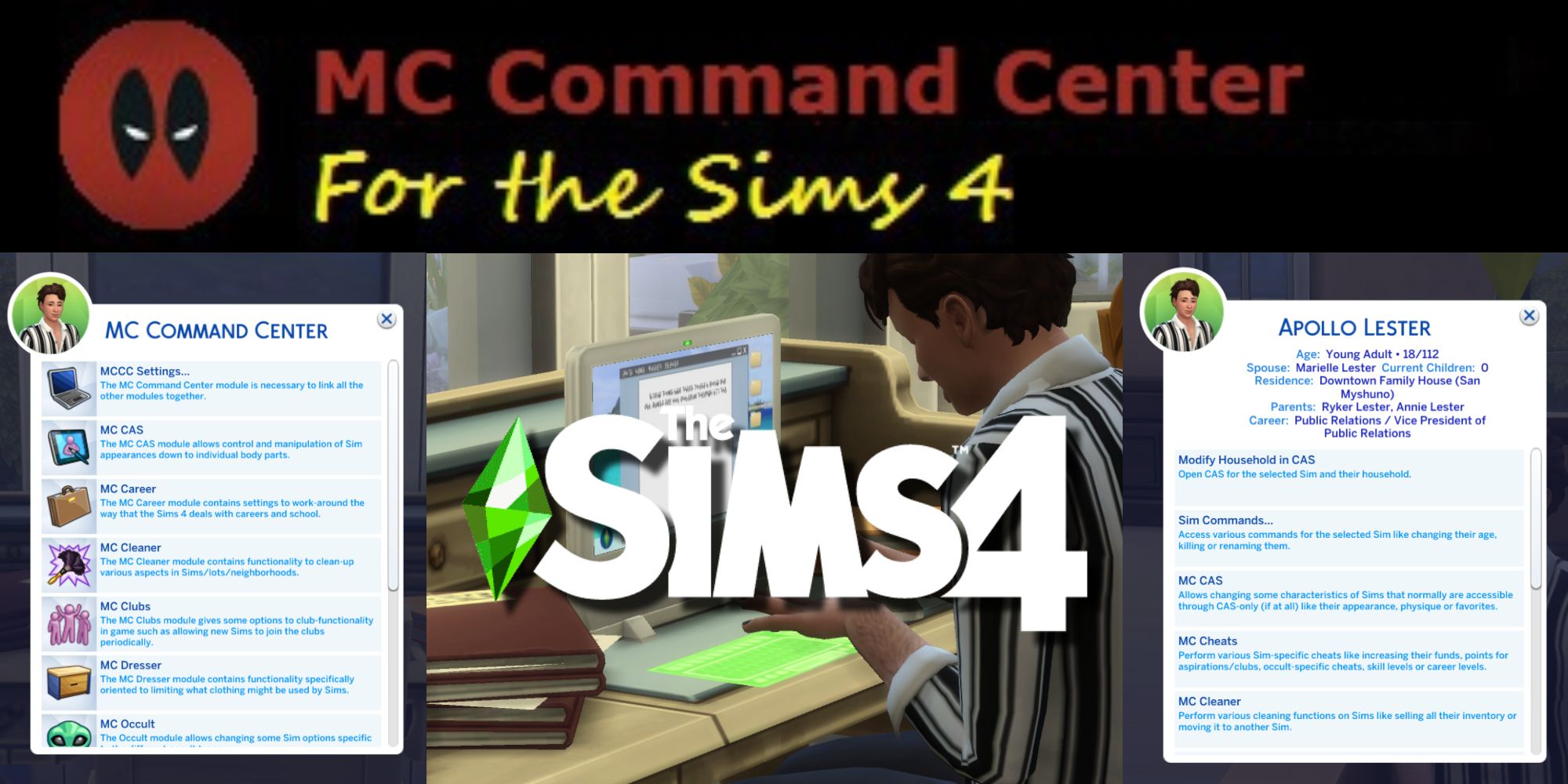
The Sims 4 MC Command Center (MCCC) mod transforms gameplay by introducing advanced story progression, population controls, and deep configuration settings directly into the game interface. This streamlined guide takes you from downloading the correct files to mastering core features in ten quick minutes, ensuring a stable and enhanced simulation experience.
Understanding MC Command Center and Its Scope
MC Command Center, created by Deaderpool, is widely considered an essential mod for The Sims 4. Unlike basic custom content items like clothing or furniture, MCCC is a script mod that fundamentally alters how the game engine handles non-playable character (NPC) behavior, demographic management, marriage, pregnancy, and career progression. Without it, the default game features minimal autonomous life progression for unplayed households, often resulting in stagnant neighborhoods where townies age without marrying, having children, or changing jobs.
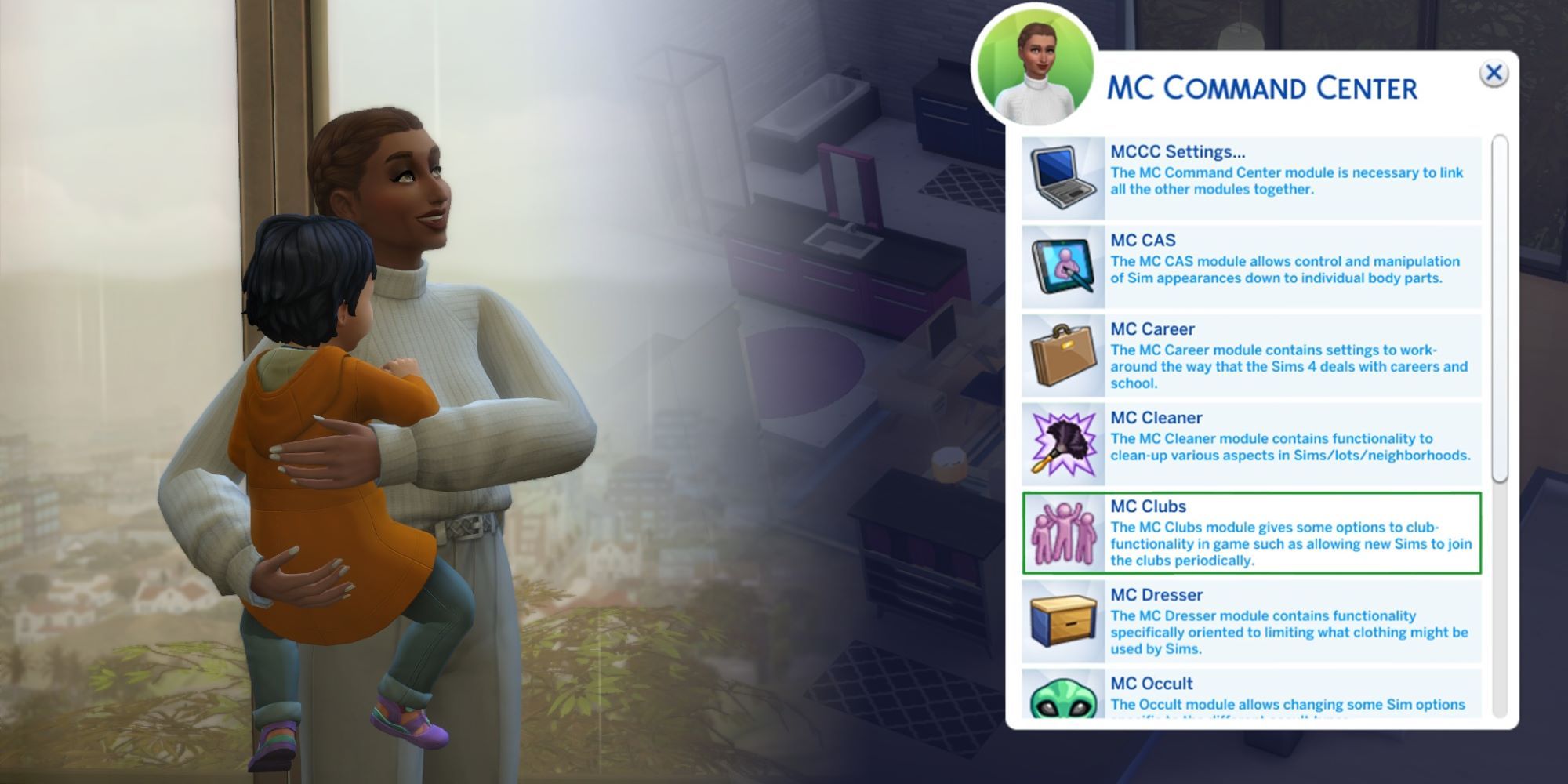
The mod operates primarily through in-game menus accessed via computer objects, in-game mailboxes, or directly by clicking on individual Sims. It consists of multiple modules—such as MC Population, MC Pregnancy, MC Tuner, and MC WooHoo—each designed to govern a specific aspect of simulation mechanics. By consolidating these controls into a single, modular package, MCCC allows players to tailor everything from the frequency of alien abductions and youth aging speeds to wardrobe restrictions and blacklist rules for clothing assets.
Before diving into installation, it is important to recognize that script mods require careful maintenance. Every time Electronic Arts releases a major patch or expansion pack for The Sims 4, script mods like MCCC typically require an update to maintain compatibility with the new game code. Ignoring these updates can cause game crashes, UI glitches, or broken save files, making periodic maintenance an essential part of the MCCC experience.
System Prerequisites and Download Preparation
Before installing the mod, you must verify that your game settings and directory structure are properly configured. Script mods are disabled by default in The Sims 4 to protect users, meaning you must enable them manually before the game will recognize MCCC files.
To prepare your game environment, launch The Sims 4, navigate to the Game Options menu, select Other, and check the boxes for Enable Custom Content and Mods and Script Mods Allowed. Click Apply Changes and restart the game. If this step is skipped, the game will ignore the mod files entirely, regardless of where they are placed in your directories.
Next, you need to download the correct version of the mod. Visit the official Deaderpool website to acquire the latest stable release. You will typically find two main downloads: the core MCCC module and the MC WooHoo module. While MC WooHoo is optional, it expands relationship and romantic interaction mechanics and is recommended for players seeking deeper social control.
Ensure you download the version corresponding to the current game release cycle. Once downloaded, the files will arrive in a compressed ZIP or RAR format, which requires an extraction utility like 7-Zip or WinRAR to open.
Step-by-Step Installation Process
Installing MC Command Center takes less than two minutes if you follow the correct directory path. Improper file placement is the single most common reason the mod fails to appear in-game.
- Locate Your Mods Folder: Open your file explorer and navigate to your user data directory. On Windows, this is typically located at
Documents\Electronic Arts\The Sims 4\Mods. On macOS, navigate toDocuments/Electronic Arts/The Sims 4/Mods. - Extract the Files: Extract the contents of the downloaded ZIP file. You will see several
.packagefiles and.ts4scriptfiles. - Organize Directory Depth: Place these extracted files directly inside the
Modsfolder, or create a single subfolder namedMCCCto keep them organized. Note that script mods (.ts4script) can only function if they are placed either directly in theModsfolder or exactly one subfolder deep. Deeper nesting will cause the game to ignore the script files. - Remove Old Files: If you are updating an existing installation of MCCC, completely delete the old MCCC folder or files from your
Modsdirectory before copying in the new version. Never overwrite old files directly, as lingering obsolete scripts can corrupt game data.
| File Type | Extension | Placement Rule | Purpose |
|---|---|---|---|
| Package Files | .package |
Up to 5 folders deep | Text, tuning data, and localization strings. |
| Script Files | .ts4script |
Maximum 1 folder deep | Core mod logic and executable code functions. |
Accessing and Navigating MCCC In-Game
Once installed, launch The Sims 4 and load into a live game household. To verify that the installation was successful, check for a notification banner in the top-right corner of the screen upon loading, which confirms that MCCC has initialized successfully.
MCCC does not use a traditional external menu or configuration window; instead, all configuration occurs through physical objects within the game world or via the user interface:
- Computer Access: Click on any computer in your Sim's home and select the MC Command Center option. This opens the master control panel governing global game settings.
- Mailbox Access: Clicking on the household mailbox provides quick access to population and cleaning utilities.
- Sim Click Access: Clicking directly on your active Sim, other Sims, or children opens context-sensitive menus to adjust individual relationships, careers, clothing, and flags.
Navigating the computer menu reveals various module categories. For instance, selecting MC Population allows you to adjust maximum household sizes, move-in percentages, and neighborhood story progression rules. Selecting MC Career lets you dictate how unplayed Sims find jobs, whether teenagers can drop out, and retirement ages.
Core Settings and Essential Configurations
With hundreds of available configurations, new users should focus on a few foundational settings to immediately improve their gameplay experience. These core adjustments prevent common simulation annoyances and establish immediate control over neighborhood demographics.
First, address Culling and Population Control. By default, the game deletes unplayed ghosts and historical Sims (culling) when population caps are reached. Through MC Population, you can increase maximum population thresholds or protect specific Sims from being pruned, preserving your game world's history.
Second, configure Aged Progression and Pregnancy. The MC Pregnancy module allows you to control whether unplayed Sims can marry and conceive children autonomously. You can set specific parameters, such as allowing same-sex pregnancies, adjusting pregnancy durations, or specifying age groups eligible for autonomous marriage.
Third, utilize Sim Flags for fine-tuned narrative control. By clicking on a specific Sim and navigating to MC Command Center > MCCC Settings > Sim Flags, you can exempt a Sim from aging, protect them from being selected for autonomous neighborhood moves, or prevent them from getting pregnant while you are playing rotationally.
Advanced Features and Utility Commands
Beyond automated neighborhood progression, MCCC functions as a powerful debugging and storytelling tool. Players can bypass tedious gameplay loops by utilizing advanced utility features built into the interface.
The Dresser module manages clothing restrictions, hair styles, and wardrobe generation for generated townies. If a generated townie spawns with randomized, mismatched clothing items, you can use MCCC Dresser options to clear specific clothing categories, apply blacklists to unwanted accessories, or force NPCs to spawn in standardized attire.
For storytelling and troubleshooting, the MC Cheats component allows you to execute powerful commands without typing into the console box. You can instantly modify relationship levels between any two Sims, adjust financial funds, change career levels, or teleport Sims across neighborhoods with a few clicks. Furthermore, MCCC logs errors automatically; if a game glitch occurs or a piece of custom content throws an exception, MCCC generates a last-exception text file in your documents folder, helping you diagnose problematic modifications.
Troubleshooting Common MCCC Issues
Even with careful installation, users occasionally encounter operational hurdles. Understanding how to diagnose these issues saves time and prevents save file corruption.
If the MCCC menu does not appear when clicking computers or Sims, verify the following steps:
- Ensure script mods are re-enabled in the game options menu after every major game patch, as Electronic Arts updates frequently reset this setting to default.
- Check your folder depth. If your MCCC files are placed inside
Mods > Modded > MCCC, the script files will fail to load. Move them toMods > MCCC. - Confirm that you downloaded the correct version matching your current game patch level. Using an outdated version of MCCC after a major EA expansion release will cause the mod to disable itself automatically.
If errors persist, clear your game cache by deleting the localthumbcache.package file located in the main The Sims 4 folder before restarting the game. This file stores cached UI data and often retains corrupted references from outdated mods.
Frequently Asked Questions
Why isn't MC Command Center showing up in my game?
The most common cause is that script mods are disabled in your game options menu. Navigate to Options > Other, ensure both Custom Content and Script Mods are enabled, and restart the game. Also verify that the .ts4script files are not buried deeper than one subfolder inside your Mods directory.
Do I need to update MCCC after every game update?
Yes. Major game patches from Electronic Arts alter core game scripts. Using an outdated version of MCCC can cause severe UI bugs, game crashes, or simulation freezing. Always check the official Deaderpool website for updated releases following patch days.
Can MCCC corrupt my save files?
While MCCC is exceptionally stable, improper installation, failing to remove old files during an update, or using mismatched mod versions can cause data errors. Always back up your Save folder before installing major mod updates as a precaution.
How do I stop unplayed Sims from moving around or having babies?
You can control or disable autonomous neighborhood progression through the MC Population and MC Pregnancy modules via a computer menu. Adjust settings such as Allow Autonomous Marriage and Allow Autonomous Pregnancy to false if you prefer complete manual control over townie households.
Is MC Command Center compatible with console versions of The Sims 4?
No. Script mods and custom content require direct access to the computer's file directory to execute custom code. Consequently, MCCC is available exclusively for PC and Mac versions of the game.
Conclusion and Next Actions
Mastering MC Command Center fundamentally changes how you experience The Sims 4, replacing static neighborhoods with a dynamic, living simulation world. To continue your modding journey, take ten minutes to explore the documentation on Deaderpool's website, experiment with individual module settings in a test save file, and always keep your files updated following official game patches.