An Apple serial number check is the primary method for verifying the authenticity, warranty status, and technical specifications of an Apple device. By inputting the unique alphanumeric identifier into official Apple portals, users can confirm the exact model, production date, service coverage, and hardware configurations without needing physical access to the device settings.
Understanding the Apple Serial Number
Every Apple product—ranging from iPhones and MacBooks to Apple Watches and AirPods—is assigned a unique serial number at the point of manufacture. This string of characters serves as a digital fingerprint, encoding specific information about the hardware. While the format has evolved over time, most modern Apple serial numbers (introduced roughly after 2021) are randomized alphanumeric strings, whereas older devices utilized a structured format that explicitly encoded the manufacturing location, year, and week of production.
Performing a serial number check is the most reliable way to establish a "source of truth" regarding your hardware. It removes the guesswork often associated with buying refurbished or second-hand electronics, ensuring that the device you hold matches the model specifications claimed by the seller or the original packaging.
Where to Locate Your Serial Number
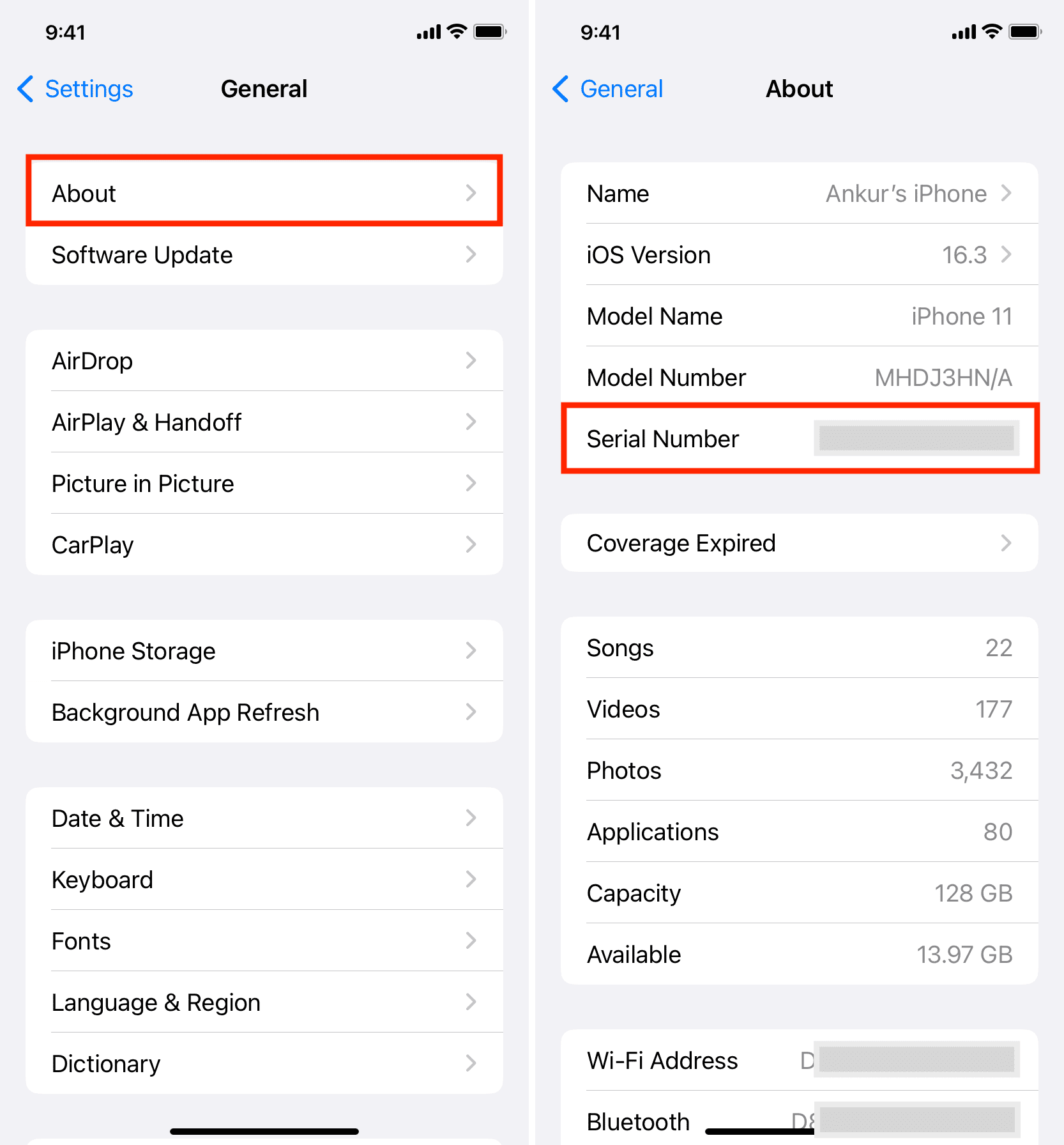
Before conducting a check, you must retrieve the serial number. The method depends on the accessibility of the device.
- Software Settings: For devices that power on, this is the most accurate method.
- iPhone/iPad: Navigate to Settings > General > About.
- Mac: Click the Apple Menu () > About This Mac.
- Apple Watch: Open Settings > General > About on the watch, or use the Watch app on your paired iPhone.
- Physical Markings: If the device is damaged or inaccessible, check the hardware itself.
- iPhone: Look at the SIM tray or the original retail packaging.
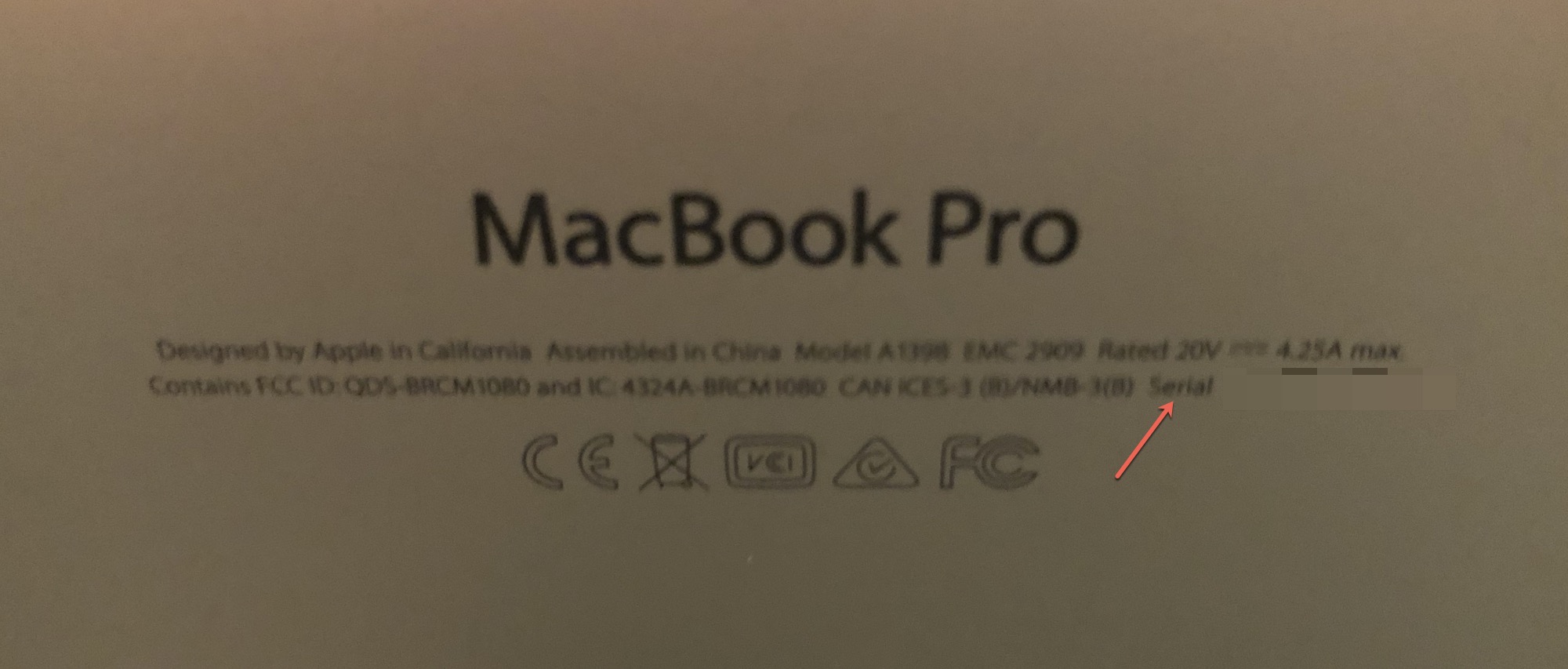
- Mac: The serial number is typically etched on the bottom casing.
- AirPods: Check the underside of the lid of the charging case or the device settings on the connected iPhone.
- Account Portal: If you have an Apple ID, you can sign in to appleid.apple.com and view a list of all devices associated with your account, which will display the serial number for each.
Using the Official Apple "Check Coverage" Tool
The primary utility for verifying an Apple device is the official "Check Coverage" website provided by Apple. This tool provides a snapshot of the device's current state.
To use it:
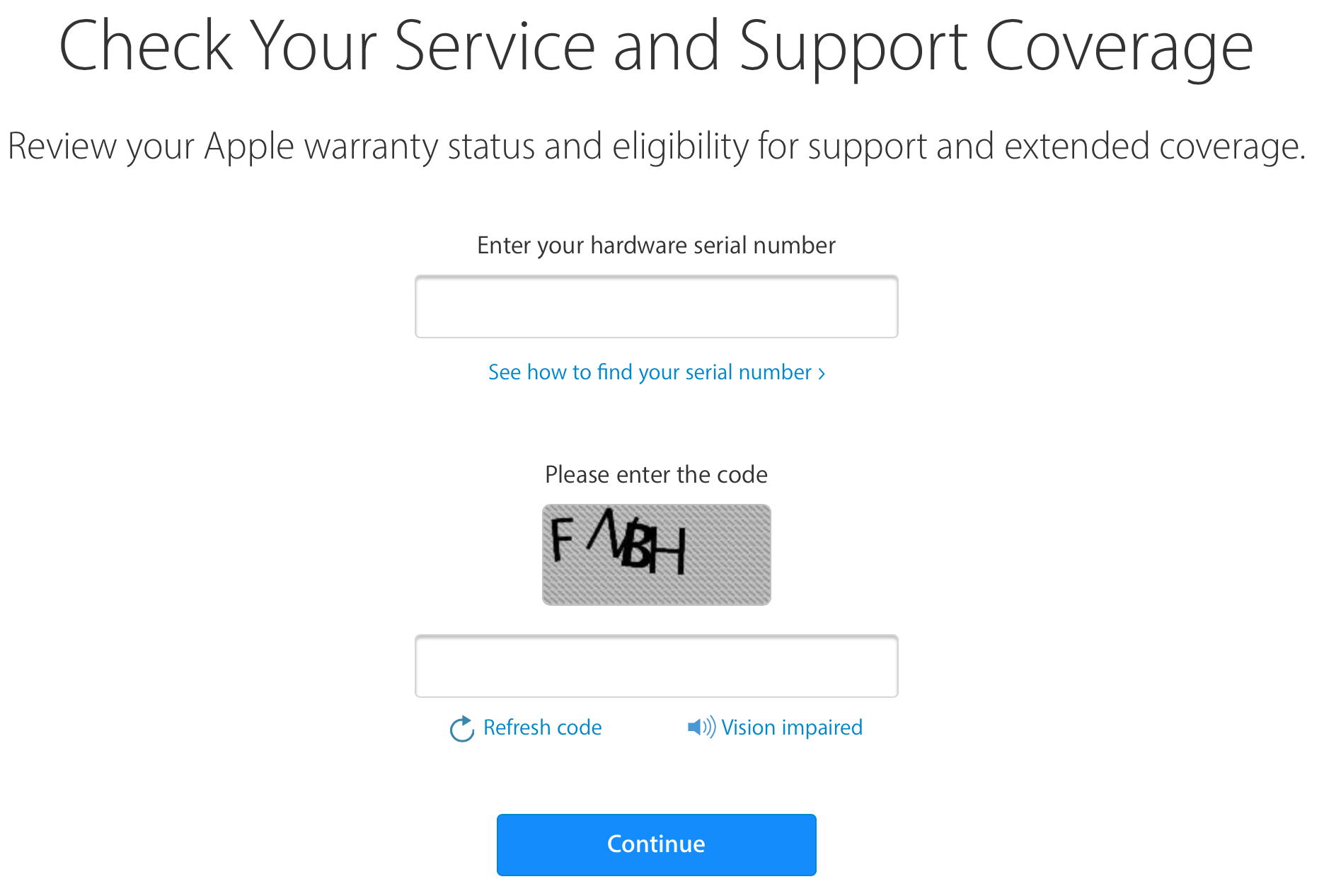
- Navigate to the official Apple support page for checking service coverage.
- Enter your serial number exactly as it appears.
- Complete the CAPTCHA verification to prevent automated bot queries.
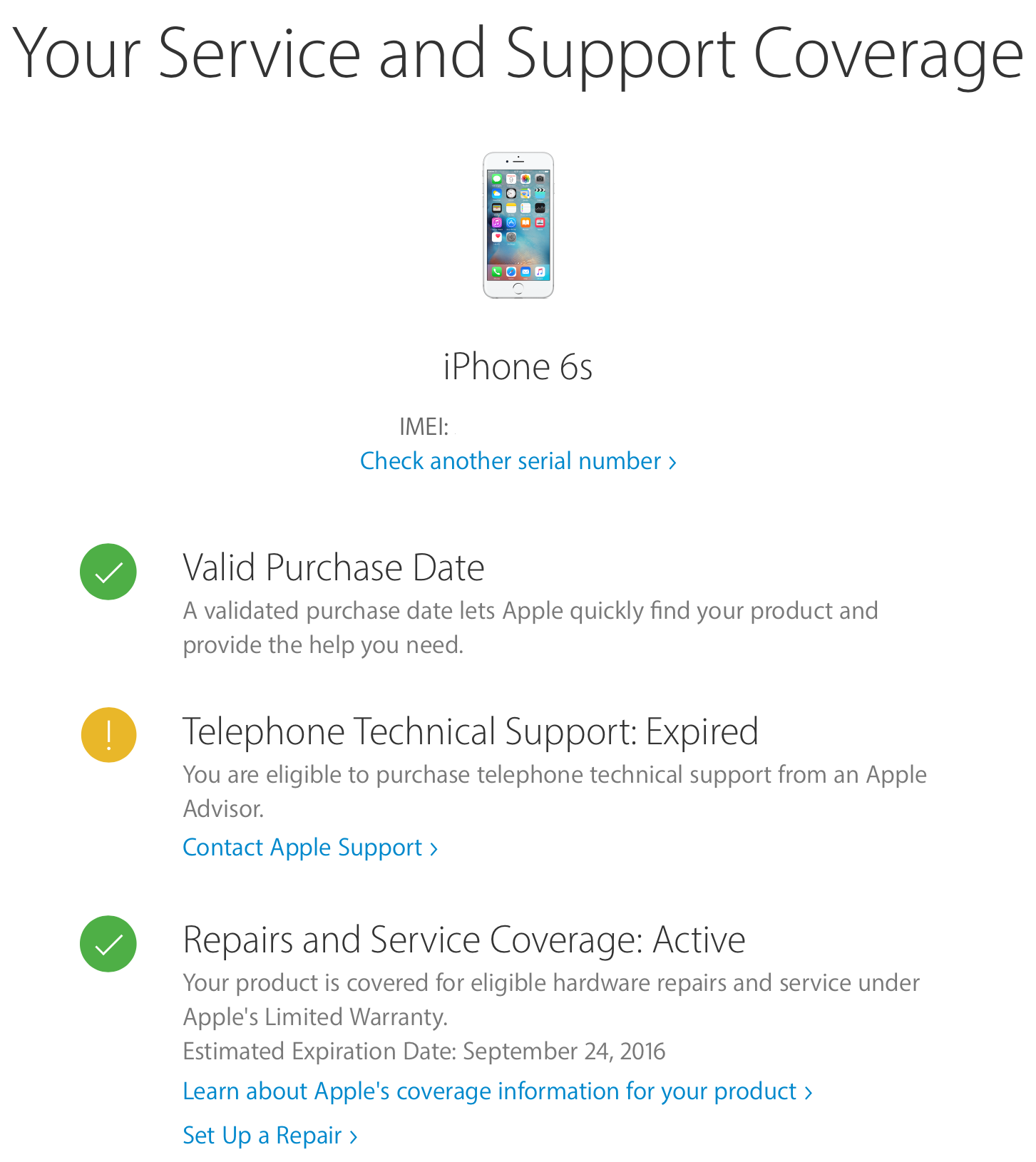
- Review the results provided, which typically include the model name, purchase date validation, and the status of your limited warranty or AppleCare+ plan.
This check is essential for confirming that a device has not been reported as lost or stolen and that it remains eligible for authorized service. If a device has been registered, the tool will inform you whether the telephone technical support and hardware repair coverage are active, expired, or pending activation.
Interpreting Specifications from Serial Data
While the "Check Coverage" tool provides warranty information, users often seek technical specifications—such as processor type, RAM, storage capacity, and screen size. Because Apple’s newer randomized serial numbers no longer contain "human-readable" data, you must pair your serial number with third-party lookup services or official documentation to derive detailed specs.
Most professional technicians and enthusiasts use databases that correlate serial numbers with specific model identifiers (e.g., MacBookPro18,1). Once you have the model identifier, you can compare it against Apple’s official technical specifications archive to confirm the exact build-to-order options or standard configurations.
| Data Type | Purpose | How to Access |
|---|---|---|
| Warranty Status | Verify repair eligibility | Apple Check Coverage Portal |
| Model ID | Identify internal hardware | System Report (macOS) or lookup sites |
| IMEI/MEID | Carrier network status | Settings > General > About |
| Production Year | Determine aging/depreciation | Third-party decoder tools |
Distinguishing Between Serial Number, IMEI, and Model Number
It is a common point of confusion to conflate the serial number with other identifiers. Understanding these distinctions is critical for technical troubleshooting.
- Serial Number: A unique identifier for a specific unit of hardware. Used for warranty, service, and inventory tracking.
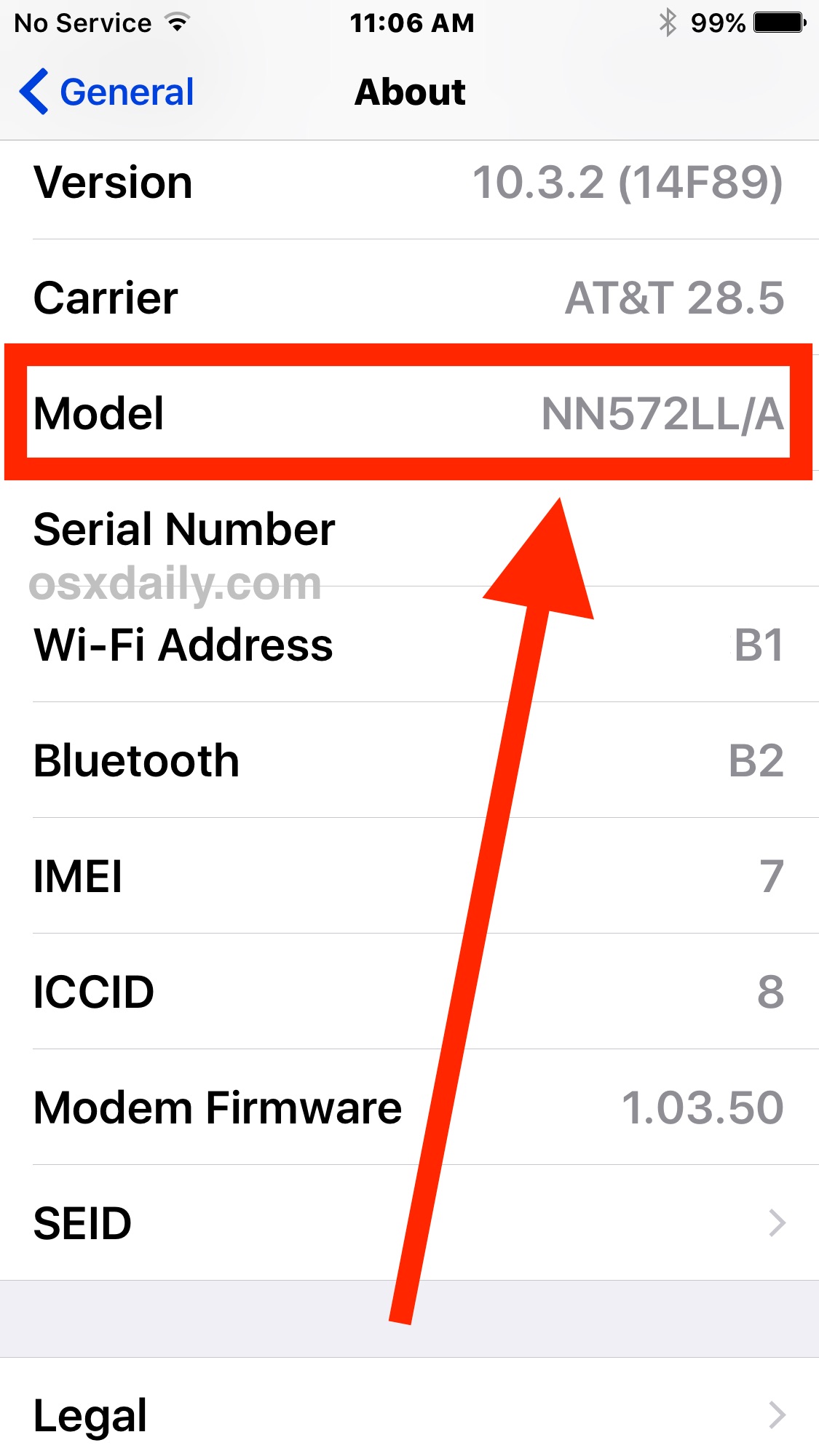
- IMEI (International Mobile Equipment Identity): Exclusive to devices with cellular connectivity (iPhones, cellular-enabled iPads/Watches). It is used by carriers to track the device on cellular networks and can be used to block the device if it is reported stolen.
- Model Number: A broad identifier (e.g., A2649) that refers to a specific design variant. Thousands of units may share the same model number. This is useful for identifying compatible accessories, such as cases or chargers.
Prerequisites for Troubleshooting
If your serial number check returns an error, do not immediately assume the device is counterfeit. Follow these diagnostic steps:
- Verify Characters: Ensure you are not confusing similar-looking characters. Apple serial numbers omit certain characters to avoid ambiguity, such as the letter 'O' and the number '0'. Ensure you are entering the characters exactly as shown.
- Connectivity: Ensure you have a stable internet connection. The lookup tool requires a handshake with Apple’s servers.
- Region Lock: Occasionally, devices manufactured for specific regional markets may exhibit different behaviors or documentation, though the serial number check should remain universal.
Identifying Counterfeit Hardware
One of the most valuable aspects of an Apple serial number check is the ability to screen for counterfeit products. Sophisticated clones often use a "stolen" serial number from a genuine device to deceive buyers. If the serial number check indicates the device is valid, but the device’s physical performance, screen quality, or operating system features (such as the absence of native iCloud integration) do not match the expected Apple standards, the device is likely a clone using a legitimate serial number.
Always look for signs such as inconsistent font usage, non-standard charging ports, or software menus that do not mirror the expected iOS or macOS interface.
Frequently Asked Questions
1. Does a serial number check confirm if a device is stolen? The official Apple tool primarily confirms service coverage and validity. While it may show if a device is "locked" via Activation Lock, it does not provide a public database of stolen property reports. Use the Activation Lock status page separately to verify ownership lock status.
2. Can I get specific internal specs like RAM and CPU from the serial number alone? Not directly through Apple's site. You must use your serial number to find the "Model Identifier," then cross-reference that identifier with official technical specification sheets found on Apple's "Support" page or independent documentation archives.
3. What if my serial number is not recognized by the website? First, check for typos. If the number is correct and the site still fails, the device may be a pre-production unit, an incorrectly logged refurbished unit, or, in rare cases, a counterfeit device. Contact Apple Support directly if you suspect the unit is genuine.
4. Why does the production date not match the date I bought the device? The date on the serial number usually refers to the week of manufacture, not the date of sale. It is common for a device to sit in inventory for several months or even a year before being sold to a consumer.
5. Is the serial number sensitive information? Generally, you should avoid sharing your serial number publicly or with untrusted third parties. While it is not a direct security key, malicious actors can use a valid serial number to report the device as lost or stolen, potentially causing complications for your warranty or account status.
Practical Next Steps
If you are performing this check to evaluate a purchase, ensure you compare the serial number in the settings menu against the serial number printed on the physical chassis and the original retail box. These three must match. If you are verifying a device you already own, store a record of your serial number and proof of purchase in a secure location. This information is required if you ever need to file an insurance claim, report the device stolen to law enforcement, or seek service through an authorized Apple repair provider.
If you encounter persistent discrepancies, visit an Apple Store or an Apple Authorized Service Provider. Professional technicians have access to proprietary diagnostic tools that go beyond the capabilities of the public serial number check, allowing them to verify the internal hardware components and original build configuration with certainty.