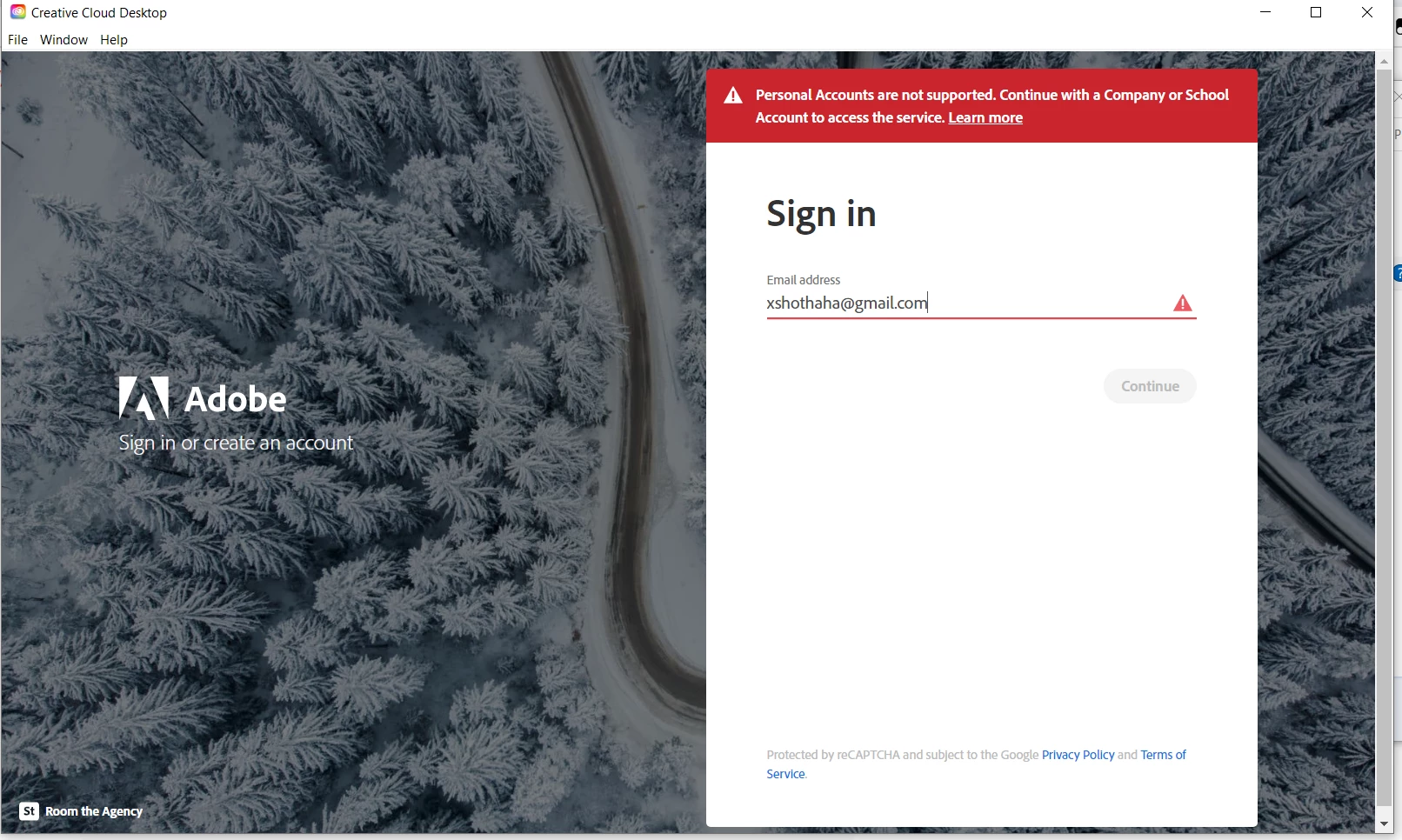
To use Adobe Acrobat Reader securely without cloud features, you must disable Document Cloud synchronization, turn off "Show online storage" in Preferences, and apply "FeatureLockDown" registry keys. For organizations, the Adobe Customization Wizard facilitates the deployment of a "sanitized" version that restricts all internet-facing services, tracking, and generative AI tools.
In the landscape of 2026, software has moved almost entirely toward a "Software as a Service" (SaaS) model, where cloud integration is often the default state rather than an optional feature. For Adobe Acrobat Reader, this shift means that the software is constantly attempting to sync documents, provide AI-driven insights via the cloud, and offer shared reviewing capabilities. While these features enhance collaboration, they introduce significant risks for users handling sensitive, classified, or legally privileged information. Securing Adobe Reader in an offline or "cloud-less" capacity is no longer just about clicking a single checkbox; it requires a multi-layered approach involving UI adjustments, registry modifications, and network-level blocks.
The Risks of Default Cloud Integration in 2026
As of 2026, Adobe’s integration of generative AI (Acrobat AI Assistant) and ubiquitous cloud storage has made "out-of-the-box" security less certain for privacy-conscious users. When a PDF is opened in a standard configuration, several background processes may initiate. These include checking for updates, syncing the "Recent Files" list to the Adobe Document Cloud, and potentially indexing document metadata for improved searchability across devices.
For legal professionals, medical practitioners, and government contractors, this automatic synchronization can lead to unintentional data sovereignty violations. If a document containing Protected Health Information (PHI) or Controlled Unclassified Information (CUI) is uploaded to a cloud server—even temporarily—it may breach compliance mandates such as HIPAA or GDPR. Furthermore, cloud-connected applications are susceptible to "man-in-the-middle" attacks and credential harvesting if the user's Adobe ID is compromised. By stripping Adobe Reader of its cloud dependencies, you revert the application to a "Local-Only" state, significantly shrinking its attack surface.
Method 1: UI-Based Privacy Adjustments for Individual Users
For the average user who does not have administrative access to a corporate network, the first line of defense is the Preferences menu. While Adobe frequently updates the interface, the core settings for cloud management remain accessible within the application’s internal architecture.
Disabling Online Storage and Sync
The primary goal is to prevent the application from viewing or interacting with Adobe Document Cloud, Dropbox, OneDrive, or Google Drive. To begin, navigate to Edit > Preferences (or Ctrl + K). Under the General category, uncheck "Show online storage when saving files" and "Show online storage when opening files." This prevents the "Save As" dialog from defaulting to a cloud location, reducing the risk of an accidental upload.
Next, navigate to the Adobe Online Services (sometimes labeled as "Account") section. Ensure that "Sync settings across devices" is disabled. In 2026, Adobe’s AI Assistant is often active by default; you should navigate to the AI Assistant or Generative AI preferences tab and toggle off any settings related to "Document Analysis" or "Cloud-based Insights." This ensures that your document content is not being transmitted to Adobe’s servers for processing.
Managing Tracking and Usage Data
Adobe Reader includes "Product Improvement" features that send usage data back to the company. While Adobe claims this data is anonymized, it still constitutes a persistent outbound connection. In the Privacy section of Preferences, opt out of all "Desktop app usage" sharing. Additionally, in the Trust Manager section, ensure that "Allow opening of non-PDF file attachments with external applications" is disabled, as this is a common vector for malware when cloud-linked files are involved.
Method 2: The Adobe Customization Wizard for Enterprise Deployment
For IT administrators, securing Adobe Reader at scale requires the Adobe Acrobat Customization Wizard. This tool allows the creation of a Windows Installer (MSI) transform file (MST) that pre-configures the application before it is even installed on a workstation.
Locking Down Features
The Customization Wizard provides a "FeatureLockDown" section which is the "gold standard" for security. Through this interface, an admin can:
- Disable Document Cloud: Completely remove the "Sign In" button and all Document Cloud entry points.
- Prevent Acrobat Sign: Disable the ability for users to send documents for signature via Adobe’s servers.
- Disable Web Connectors: Block integration with third-party providers like Box and SharePoint.
- Mute All Services: A single toggle that prevents the application from making any connection to Adobe’s service-side endpoints.
By deploying a "muted" version of Reader, the organization ensures that even if a user tries to change their settings, the cloud features remain greyed out or entirely invisible. This is essential for maintaining a "Zero Trust" environment where local data remains strictly local.
Method 3: Registry and Plist Modifications (Advanced)
If you are a power user or managing a small fleet without deployment tools, you can achieve the same "FeatureLockDown" results by manually editing the Windows Registry or macOS Plist files. These modifications override the user interface and are more persistent than standard preference changes.
Essential Windows Registry Keys
To implement these, navigate to HKEY_LOCAL_MACHINE\SOFTWARE\Policies\Adobe\Acrobat Reader\DC\FeatureLockDown. If the keys do not exist, you must create them.
- Disable Cloud Storage: Create a DWORD value named
bEnableCloudStorageand set it to0. This effectively kills the Document Cloud integration. - Disable Generative AI Assistant: Create a DWORD value named
bEnableGentech(or similar, depending on the specific 2026 patch version) and set it to0. This prevents the application from sending data to Adobe's Firefly or AI servers. - Disable Upsell and In-App Messaging: Use
bShowMsgAtLaunchset to0to prevent the app from fetching promotional content from Adobe’s servers, which often happens over an unencrypted or less-secure channel.
macOS Configuration
On macOS, these settings are managed via the com.adobe.Reader.plist file located in the Library/Preferences folder. Administrators typically use a Mobile Device Management (MDM) solution to push a configuration profile that sets these boolean values to false.
Security Features Beyond the Cloud: Sandboxing and Protected Mode
Simply disabling the cloud does not make Adobe Reader fully secure. The application itself has historically been a target for exploits. Even in a "no-cloud" environment, you must ensure that Adobe’s built-in security mechanisms are fully operational.
Enhanced Security (Sandboxing)
Adobe Reader utilizes a "sandbox" called Protected Mode. This ensures that the PDF viewer runs in a highly restricted environment. If a malicious PDF tries to write to the system disk or access the registry, the sandbox blocks the action. In 2026, it is vital to keep "Run in AppContainer" active, as this provides an additional layer of isolation at the Windows kernel level.
Enhanced Security (Restricted File Access)
Under the Enhanced Security tab in Preferences, you should enable "Enable Enhanced Security." This feature allows you to create a "Whitelist" of trusted folders. Once enabled, Adobe Reader will block any PDF from trying to access a URL or a file path that isn't on that list. For a secure, no-cloud workflow, you should leave the "Cross-domain" and "Websites" lists completely empty.
Comparison of Cloud Features vs. Secure Alternatives
The following table outlines common Adobe Reader features that rely on the cloud and the secure, local methods to replace or disable them.
| Cloud Feature | Security Risk | Secure Local Alternative |
|---|---|---|
| Document Cloud Sync | Unintentional data leak; server-side vulnerability. | Disable bEnableCloudStorage; save to local encrypted drives. |
| Acrobat AI Assistant | Content transmission to AI training models. | Manual review or local-hosted LLM analysis tools. |
| Adobe Sign | Metadata leakage; reliance on external auth. | Local digital signatures (PKI) with smart cards/tokens. |
| Shared Review | Public-facing URL for sensitive documents. | Internal network share (SMB) for document commenting. |
| In-App Updates | Background pings to remote servers. | Controlled updates via WSUS or SCCM. |
Network-Level Blocking: The Final Layer
For users who require absolute certainty that Adobe Reader is not communicating with the outside world, network-level blocks are the final step. By using a local firewall (like Windows Defender Firewall) or a network-level gateway (like a Pi-hole or corporate firewall), you can "black-hole" Adobe's service domains.
Relevant domains to block include:
*.adobe.io*.adobelogin.com*.licenses.adobe.com(Note: This may affect subscription-based Acrobat Pro, but free Reader can usually function without it).acrobat.adobe.com
Blocking these at the DNS level ensures that even if a new "feature" is added in a minor patch, it will be unable to reach its home server.
Troubleshooting Common "Cloud-Free" Issues
When you aggressively secure Adobe Reader, you may encounter minor functional hurdles. The most common is the "Sign In" prompt appearing repeatedly. This usually occurs when the bToggleadobeCloud registry key is set to 0, but the application still tries to check for a profile. To fix this, ensure you are using the "Enterprise" version of the Adobe Reader installer rather than the "Consumer" web-installer, as the Enterprise version is designed to function more reliably in an offline state.
Another issue is the disappearance of the "Recent" files list. If you have disabled cloud storage, the "Recent" list may only show files opened on the current machine. This is the intended behavior for a secure setup, though users moving between workstations may find it inconvenient. The trade-off is necessary for data isolation.
Frequently Asked Questions
Can I still use Adobe Reader's AI Assistant if I disable the cloud?
No. The AI Assistant in Adobe Acrobat Reader is a cloud-based service as of 2026. It requires the document to be processed by Adobe’s servers to generate summaries or answer questions. If you require document analysis without cloud use, you must use a third-party, locally-hosted AI tool that can read PDFs via a secure local API.
Does disabling the cloud prevent Adobe Reader from updating?
Standard UI-based cloud disabling does not necessarily stop the "Adobe ARM" (Acrobat Refresh Manager) service from checking for security patches. To stop updates, you must disable the service in services.msc or through the Customization Wizard. However, for security reasons, it is generally recommended to allow security updates while keeping the data-syncing features disabled.
Is there a "Lite" version of Adobe Reader that has no cloud features?
Adobe does not offer a separate "Lite" version. However, by using the Adobe Customization Wizard to strip out all web services, you effectively create your own "Lite" version. Alternatively, for users who want zero cloud potential, open-source viewers like Sumatra PDF or MuPDF are excellent alternatives that have no cloud code in their repositories.
Will my digital signatures still work without the cloud?
Yes. Digital signatures based on certificates (PKI) work entirely locally. You can use a USB token or a certificate stored on your machine to sign PDFs. Only "Adobe Sign" (the e-signature service that emails links to recipients) requires a cloud connection. Standard "Fill & Sign" can also work locally, though it may prompt you to sync your signature to the cloud—a prompt you should decline.
Does "Protected Mode" protect me if I don't use the cloud?
Absolutely. Protected Mode (sandboxing) is actually more critical in an offline/secure workflow. It prevents a malicious PDF file—perhaps one received via an encrypted email or a local thumb drive—from executing code that could compromise your entire local workstation.
Practical Recommendation for 2026
If you are handling highly sensitive data, the most effective way to secure Adobe Reader is to download the Acrobat Reader Enterprise MSI, use the Customization Wizard to "Mute All Services," and apply the FeatureLockDown registry keys via Group Policy. This approach removes the burden of security from the individual user and ensures that the application remains a local-only tool. For individual users, switching to a minimalist PDF viewer like Sumatra PDF for daily reading, and only using a "locked down" Adobe Reader for complex forms or certificate-based signing, provides the best balance of security and functionality.