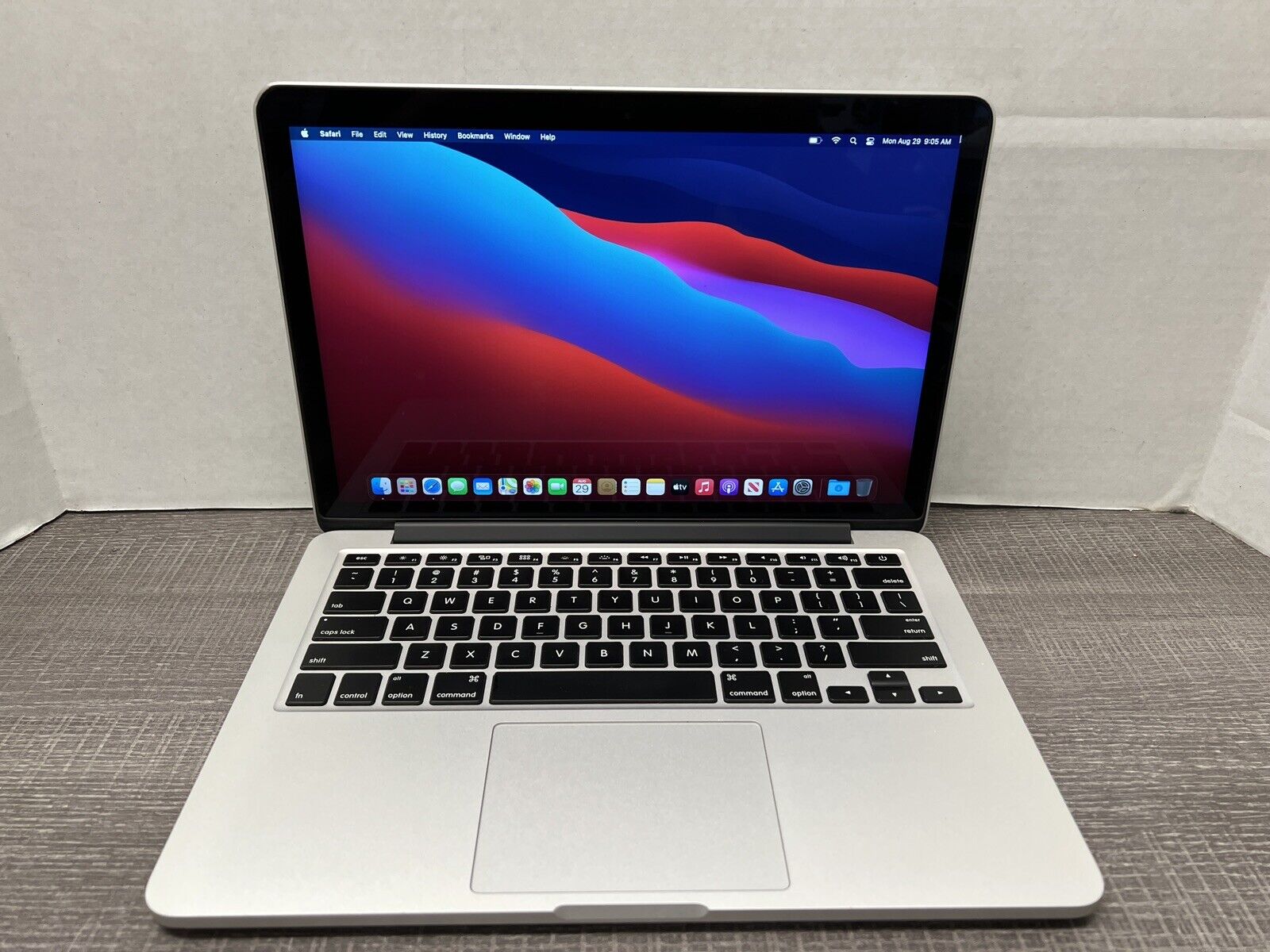
The 2015 MacBook lineup—encompassing the 12-inch Retina MacBook, the MacBook Air models, and the MacBook Pro series—features distinctly varied physical port configurations that reflect a transitional era in portable computing. Understanding these legacy and modern interfaces is essential for connecting external displays, legacy peripherals, and modern power delivery accessories to your hardware.
Choosing the right cables, adapters, and peripherals for a 2015 Apple notebook requires understanding that Apple divided its 2015 portable lineup into two distinct design philosophies. On one side stood the ultra-thin 12-inch MacBook, which pioneered the single-port future by embracing USB-C. On the other side stood the traditional MacBook Air and MacBook Pro models, which retained a robust array of legacy inputs including USB-A, Thunderbolt 2, SDXC card slots, and MagSafe charging. Reviewing these interface specifications helps users maximize the functional lifespan of their machines, avoid incompatible hardware purchases, and establish efficient desktop or mobile workflows.
The Evolutionary Context of 2015 Apple Portables
The year 2015 marked a watershed moment in the engineering of Apple laptops. For years, the industry standard for portable computing relied on a diverse assortment of specialized ports, ranging from dedicated video outputs like Mini DisplayPort or HDMI to universal serial bus ports of varying shapes and speeds. The 2015 product refresh showcased a company caught between two distinct technological eras.
During this period, the MacBook Air and the MacBook Pro retained the port layouts that had served professionals and students reliably for half a decade. These machines offered direct, dongle-free connections to flash drives, external mice, wired networks, and professional cameras. Conversely, the introduction of the first-generation 12-inch Retina MacBook previewed the future. By stripping away every port except a single USB Type-C connector and a 3.5mm headphone jack, Apple forced users and accessory manufacturers to pivot toward hub-based expansion and wireless peripherals.
Recognizing these differences prevents costly purchasing mistakes. Buying an external solid-state drive or a display adapter for a 2015 machine depends entirely on whether your specific laptop is an Air, a Pro, or the ultra-thin Retina model.
Detailed Port Layouts by MacBook Model
To understand what you can plug into your computer, you must first identify your exact machine variant. The 2015 lineup is split into three primary models, each featuring a unique arrangement of physical inputs and outputs.
The 12-Inch Retina MacBook (Early 2015)
The 12-inch MacBook was designed around minimalism and extreme portability. It features only two physical openings on its entire chassis:
- USB-C Port (USB 3.1 Gen 1): This single, reversible port handles data transfer, video output (via DisplayPort over USB-C), and power input for charging the laptop battery.
- 3.5mm Headphone Jack: Located on the opposite side of the chassis, this analog audio port supports standard headphones, line-out audio, and inline microphones.
Because the USB-C port must handle power delivery and external device connection simultaneously, owners of this specific model rely heavily on multiport adapters or USB-C hubs to connect traditional thumb drives, HDMI monitors, and power supplies at the same time.
The 13-Inch and 15-Inch MacBook Pro (Early to Mid 2015)
The 2015 MacBook Pro models represent the peak of Apple’s legacy connectivity era. They were built for demanding professionals who required direct, high-bandwidth connections without intermediary dongles. The 13-inch and 15-inch Retina MacBook Pro models feature:
- MagSafe 2 Power Port: A magnetic DC power connector designed to detach safely if someone trips over the power cord, protecting the laptop from falling off a desk.
- Two Thunderbolt 2 Ports: Capable of bidirectional data transfer speeds up to 20 Gbps, these Mini DisplayPort-shaped ports support high-resolution external monitors (including Apple Thunderbolt Displays) and high-speed storage arrays.
- Two USB 3.0 Ports (Type-A): Standard rectangular ports supporting data transfer rates up to 5 Gbps, fully backward compatible with USB 2.0 and USB 1.1 peripherals.
- HDMI Port: A dedicated, full-size HDMI output enabling direct connection to televisions, projectors, and external desktop monitors without requiring an adapter.
- SDXC Card Slot: A built-in card reader allowing photographers and videographers to transfer media directly from camera memory cards.
- 3.5mm Headphone Jack: Supports high-impedance headphones and digital optical audio output.
The 13-Inch and 11-Inch MacBook Air (Early 2015)
The 2015 MacBook Air models bridged the gap between ultra-portability and functional legacy connectivity. While they lacked the dedicated HDMI port and high-density Retina displays of the Pro line, they offered a versatile array of inputs:
- MagSafe 2 Power Port: Provides secure, magnetic power connection.
- Two USB 3.0 Ports (Type-A): Positioned one on each side of the chassis for convenient accessory attachment.
- Thunderbolt 2 Port: A single Mini DisplayPort-compatible port for external video output and high-speed data peripherals.
- SDXC Card Slot (13-Inch Model Only): The smaller 11-inch model omitted this slot due to space constraints, while the 13-inch model retained it for storage expansion and photo transfer.
- 3.5mm Headphone Jack: Standard analog audio port.
Comparative Specifications of 2015 MacBook Ports
| Model Series | Charging Port | Video Outputs | Data Ports | Removable Storage | Audio |
|---|---|---|---|---|---|
| 12-inch MacBook | USB-C | USB-C (DisplayPort) | 1x USB-C | None | 3.5mm Jack |
| 13-inch MacBook Air | MagSafe 2 | Thunderbolt 2 | 2x USB 3.0, 1x Thunderbolt 2 | SDXC Card Slot | 3.5mm Jack |
| 11-inch MacBook Air | MagSafe 2 | Thunderbolt 2 | 2x USB 3.0, 1x Thunderbolt 2 | None | 3.5mm Jack |
| 13/15-inch MacBook Pro | MagSafe 2 | HDMI, Thunderbolt 2 | 2x USB 3.0, 2x Thunderbolt 2 | SDXC Card Slot | 3.5mm Jack |
Understanding Legacy and Modern Interface Protocols
Working with a 2015 MacBook requires a clear understanding of the protocols powering these physical ports. Technology has evolved significantly since 2015, particularly regarding video transmission speeds and universal connectivity standards.
Thunderbolt 2 versus USB-C
Thunderbolt 2 uses the Mini DisplayPort physical connector. It is often confused with standard Mini DisplayPort video cables, but Thunderbolt 2 is an active data and video protocol capable of daisy-chaining up to six devices, including high-performance RAID storage enclosures and external graphics processors (though eGPUs require software workarounds on native 2015 macOS).
Conversely, the USB-C port on the 2015 12-inch MacBook operates on the USB 3.1 Gen 1 specification (capped at 5 Gbps data transfer speeds). It does not support Thunderbolt protocols. Therefore, high-speed Thunderbolt 2 storage drives cannot be plugged directly into a 12-inch MacBook without expensive, active protocol-conversion adapters—which are often unreliable or commercially unavailable.
Video Output Limitations and Display Resolution
Connecting external monitors to a 2015 MacBook depends entirely on the graphics hardware inside the machine:
- 12-inch MacBook: Supports a single external display up to 3840x2160 pixels at 30Hz, or 4096x2160 pixels at 24Hz over USB-C.
- 13-inch MacBook Air: Supports up to a 2560x1600 resolution display on its Thunderbolt 2 port.
- 13-inch MacBook Pro: Supports up to two external displays with resolutions up to 3840x2160 at 30Hz, or one display at 4096x2160 at 24Hz via HDMI, alongside dual Thunderbolt displays.
- 15-inch MacBook Pro: High-end configurations featuring dedicated AMD Radeon graphics can drive dual external displays at 5120x2880 resolution or up to two 4K displays simultaneously.
When using HDMI on the 2015 MacBook Pro, users should verify whether their cables and monitors support HDMI 1.4 specifications, as HDMI 2.0 full 4K at 60Hz output was not natively supported by the Intel and AMD graphics controllers of that generation.
Common Connectivity Challenges and Troubleshooting
Users frequently encounter specific hurdles when integrating a 2015 MacBook into modern peripheral setups. Recognizing these issues helps prevent wasted investment in incompatible hardware.
Power Delivery Constraints on the 12-Inch MacBook
The single USB-C port on the early 2015 MacBook presents a charging bottleneck. When using a cheap pass-through multiport hub, users often experience intermittent power drops, slow charging speeds, or USB device disconnection. To ensure stable operation, use certified "Power Delivery" (PD) hubs that explicitly state they can supply adequate wattage to the laptop while simultaneously powering peripheral devices like external hard drives.
Peripheral Power Draws on USB 3.0 Ports
The standard USB-A ports on MacBook Air and MacBook Pro models output a limited amount of electrical current (typically 500mA to 900mA). Connecting high-draw bus-powered mechanical hard drives or multiple power-hungry accessories simultaneously can trigger a macOS warning stating that a USB device has been disabled due to excessive power draw. To resolve this, connect high-drain peripherals through an externally powered USB hub.
Driver and OS Support for Legacy Peripherals
While macOS provides robust out-of-the-box support for standard class-compliant USB mice, keyboards, and flash storage, older audio interfaces, specialized printers, and network adapters designed for 2015-era software may lack modern driver support if you have updated the machine's operating system. Always verify manufacturer driver availability before attempting to run legacy hardware on unsupported software environments.
Frequently Asked Questions
Can I charge a 2015 MacBook Pro using its Thunderbolt 2 ports?
No. The Thunderbolt 2 ports on 2015 MacBook Pro and MacBook Air models transmit data and video signals only. They do not accept power input. Power must be supplied exclusively through the dedicated MagSafe 2 charging port using an appropriate MagSafe 2 power adapter.
Can I connect a modern USB-C monitor to a 2015 MacBook Pro?
Yes, but you will need a specialized bidirectional cable or adapter. Because 2015 MacBook Pro models feature Mini DisplayPort-shaped Thunderbolt 2 ports rather than USB-C, you require a Mini DisplayPort-to-DisplayPort cable or an active Thunderbolt-to-USB-C converter capable of handling video pass-through. Standard USB-C charging cables will not transmit video data from a Pro model.
Why won't my 2015 MacBook output 4K video at 60Hz?
The hardware graphics chips and HDMI/DisplayPort controllers built into 2015 MacBook models conform to older interface specifications (such as HDMI 1.4 and DisplayPort 1.2). Consequently, these machines are hardware-limited to a maximum refresh rate of 30Hz when outputting full 4K resolutions over HDMI, which can result in visible mouse cursor lag and choppy motion.
How do I connect an Ethernet cable to a 2015 MacBook?
None of the 2015 MacBook models include a built-in RJ45 Ethernet port. To establish a wired network connection, you must use an appropriate external adapter: a USB-A to Ethernet adapter for MacBook Air and Pro models, or a USB-C to Ethernet adapter for the 12-inch Retina MacBook.
Are Thunderbolt 1 and Thunderbolt 2 cables interchangeable?
Yes. Thunderbolt 1 and Thunderbolt 2 use the exact same physical Mini DisplayPort connector shape and pinout. A Thunderbolt 2 cable will fit and function perfectly in a Thunderbolt 1 port, operating at the maximum speed supported by the older device in the chain.
Summary and Practical Next Actions
Evaluating the port configuration of your 2015 MacBook ensures you select the correct accessories for your workflow. If you own a 12-inch Retina MacBook, invest in a high-quality, powered USB-C hub to overcome single-port limitations. If you rely on a 13-inch or 15-inch MacBook Pro, take advantage of your built-in HDMI, SDXC, and USB-A ports to connect legacy hardware directly without unnecessary adapters. Inspect your specific device specifications before purchasing external displays or storage drives to verify interface compatibility and resolution limits.