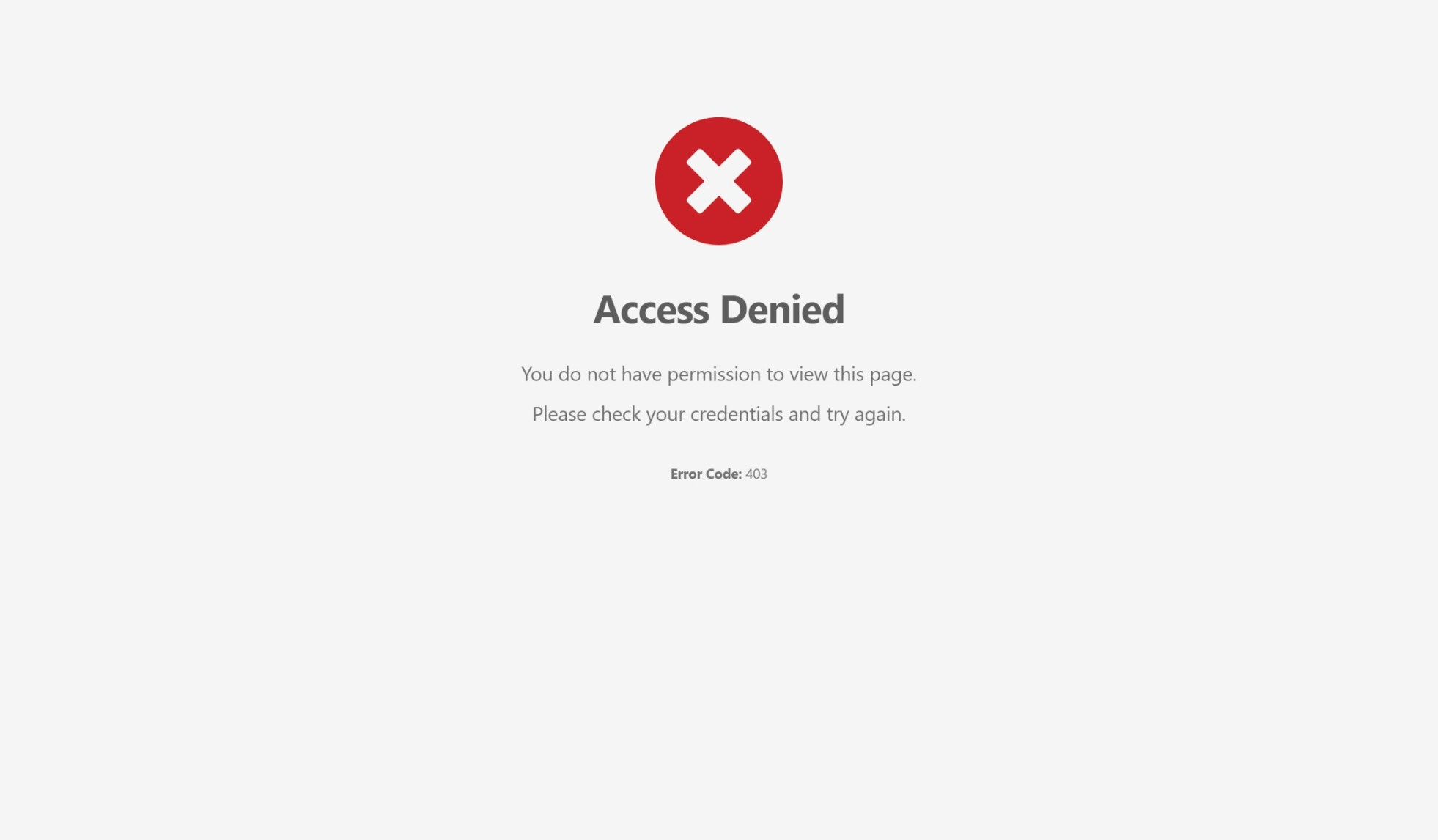
Encountering an "access to this resource on the server is denied" message typically indicates an HTTP 403 Forbidden error, meaning the web server understands the request but refuses to authorize it due to permission restrictions, misconfigured file structures, or security rule blocks. Resolving this issue requires systematically verifying file permissions, authentication credentials, .htaccess configurations, and web application firewall rules.
Understanding the "Access Denied" Error
When a browser or client application connects to a web server, it sends a request for a specific resource, such as a webpage, image, script, or directory. The server processes this request, evaluates security parameters, and returns a status code. While a 404 error means the resource does not exist, a 403 Forbidden error confirms that the resource exists, but the server is actively withholding access.
This error can manifest in various ways depending on the web server software (Apache, Nginx, Microsoft IIS) and the specific application framework (WordPress, Node.js, custom PHP applications). Common variations include:
403 Forbidden - Access is deniedYou don't have permission to access [resource] on this serverAccess to this resource on the server is deniedError 403 - Forbidden
Understanding the underlying mechanics of server permissions and routing is essential for diagnosing why access is blocked. Web servers operate under specific user accounts (such as www-data, apache, or nginx), and these accounts must possess explicit read and execute privileges for requested files and folders. When a mismatch occurs between the requesting entity's credentials and the server's security policy, access is restricted immediately.
Common Causes of Server Access Restrictions
Server access denials rarely happen without a cause. They are usually triggered by deliberate security configurations or accidental misconfigurations during deployment, updates, or maintenance.
1. Incorrect File and Directory Permissions
Every file and directory on a web server has specific permission levels determining who can read, write, or execute them. On Linux-based servers, these are typically represented by three-digit or four-digit octal values (e.g., 755 for directories and 644 for files). If a file's permissions are set too restrictively (such as 000 or 400), the web server process cannot read the file, resulting in an access denial.
2. Missing or Misconfigured Default Index Files
When a user attempts to visit a directory rather than a specific file (e.g., https://example.com/images/), the web server looks for a default index file, such as index.html, index.php, or default.aspx. If no such file exists in that directory and directory listing (indexing) is disabled for security reasons, the server rejects the request and throws a 403 error.
3. Misconfigured .htaccess or Web Server Configuration Files
Web servers rely on configuration files to control routing, security rules, and access control lists. In Apache, an improperly written .htaccess file containing syntax errors, incorrect Require all denied directives, or conflicting RewriteRule statements can inadvertently lock out legitimate visitors. Similarly, Nginx configuration blocks (nginx.conf) with strict deny all; directives will block incoming connections.
4. IP Address Blocking and Security Firewalls
Web Application Firewalls (WAFs), plugins (like Wordfence for WordPress), or server-level firewalls (such as iptables or fail2ban) often block specific IP addresses or entire geographic regions based on perceived malicious activity, brute-force attack patterns, or rate-limiting triggers. If a legitimate user's IP is flagged, the firewall intercepts the request before it reaches the core application, returning an access denied message.
Step-by-Step Troubleshooting Framework
Resolving an access denied error requires a systematic, top-down approach to isolate whether the issue stems from file permissions, server configurations, or security firewalls.
Step 1: Inspect Browser Cache and Authentication Credentials
Before making server-side changes, rule out client-side issues:
- Clear Browser Cache and Cookies: Outdated session cookies or cached authorization tokens can cause loops that trigger permission errors.
- Verify Login Credentials: If the resource requires authentication, ensure that login credentials are valid and that the user account possesses the correct role-based access control (RBAC) permissions.
- Test in Incognito Mode: Opening the URL in a private browsing window eliminates interference from browser extensions or corrupted local storage.
Step 2: Check File and Directory Permissions via SSH or FTP
If you have administrative access to the server via SSH or an FTP/SFTP client, verify that the file permissions comply with web server standards:
- Directories should typically be set to
755(owner can read/write/execute; group and public can read/execute). - Files should typically be set to
644(owner can read/write; group and public can read only). - Ensure the file ownership matches the web server user account using commands like
chown -R www-data:www-data /var/www/html.
Step 3: Analyze Web Server Error Logs
Server logs provide the exact reason why access was denied. Locate the error logs based on your server environment:
- Apache Error Log: Usually located at
/var/log/apache2/error.log. - Nginx Error Log: Usually located at
/var/log/nginx/error.log. - IIS Error Log: Usually located at
C:\inetpub\logs\LogFiles.
Look for entries containing client denied by server configuration, Directory index of [...] is forbidden, or permission denied warnings. These log lines point directly to the misconfigured file path or rule.
Step 4: Examine .htaccess or Nginx Configuration Files
If using Apache, temporarily rename the .htaccess file (e.g., to .htaccess_old) to determine if a bad rule is causing the issue. If the site loads successfully, inspect the rules line by line.
For Nginx servers, check the server block configurations for restrictive deny statements or incorrect root and alias path directives. Always test Nginx configurations using nginx -t before reloading the service.
Comparison of Server Environments and Access Controls
Different server environments handle access management through distinct mechanisms. Understanding these differences helps streamline debugging.
| Server Environment | Primary Configuration File | Default File Permissions | Common Cause of Access Denial |
|---|---|---|---|
| Apache HTTP Server | .htaccess / httpd.conf |
644 (Files) / 755 (Dirs) |
Corrupted .htaccess rules or Require syntax errors. |
| Nginx | nginx.conf |
644 (Files) / 755 (Dirs) |
Strict deny all; directives or missing index files. |
| Microsoft IIS | web.config |
NTFS ACLs (Access Control Lists) | Missing NTFS read permissions for the IIS_IUSRS group. |
| Node.js / Express | JavaScript routing files | Application-dependent | Missing custom middleware authentication tokens or CORS blocks. |
Frequently Asked Questions
What does "access to this resource on the server is denied" mean?
It means the web server has received and understood your request, but it is refusing to fulfill it. This is typically due to missing permissions, security rules, authentication requirements, or configuration errors that prevent the server from exposing the requested file or directory.
Can a WordPress plugin cause a 403 forbidden error?
Yes. Security plugins, caching plugins, and firewall extensions frequently modify the .htaccess file or enforce strict access rules. If a plugin misinterprets a legitimate request as a security threat, it will block access and display a 403 error page.
How do I fix permission issues on a Linux web server?
You can fix permission issues by connecting via SSH and running recursive chmod and chown commands. For example, executing find /path/to/site -type d -exec chmod 755 {} \; sets correct directory permissions, while find /path/to/site -type f -exec chmod 644 {} \; secures all files.
Is an access denied error the same as a 404 Not Found error?
No. A 404 error indicates that the server cannot locate the requested file or URL anywhere on the system. A 403 error confirms that the resource definitely exists, but the server refuses to let the user view or interact with it.
How can I check if my IP address has been blocked by a firewall?
If you can access the website from a different network (such as a mobile hotspot or a VPN) but cannot access it from your primary connection, your IP address has likely been blocked by a server firewall or security plugin due to repeated failed login attempts or rate-limiting triggers.
Next Actions and Recommendations
If you continue to experience server access denials after verifying file permissions and configuration files, contact your web hosting provider or system administrator. Provide them with the exact timestamp of the error, your client IP address, and relevant excerpts from the server error logs to expedite diagnosis and resolution.